TSR2000-Series-Teaching-Pendant-User-Guide-V1.pdf - 第51页
51 13. T ROUBLESHOOTI NG LCD is display ing “Please R eset” 1 – the emer gency switch h as been engaged. • Check emerg ency switch a nd if engaged release to wo rking condition. 2 – the communicat ion cable is no t conne…
49
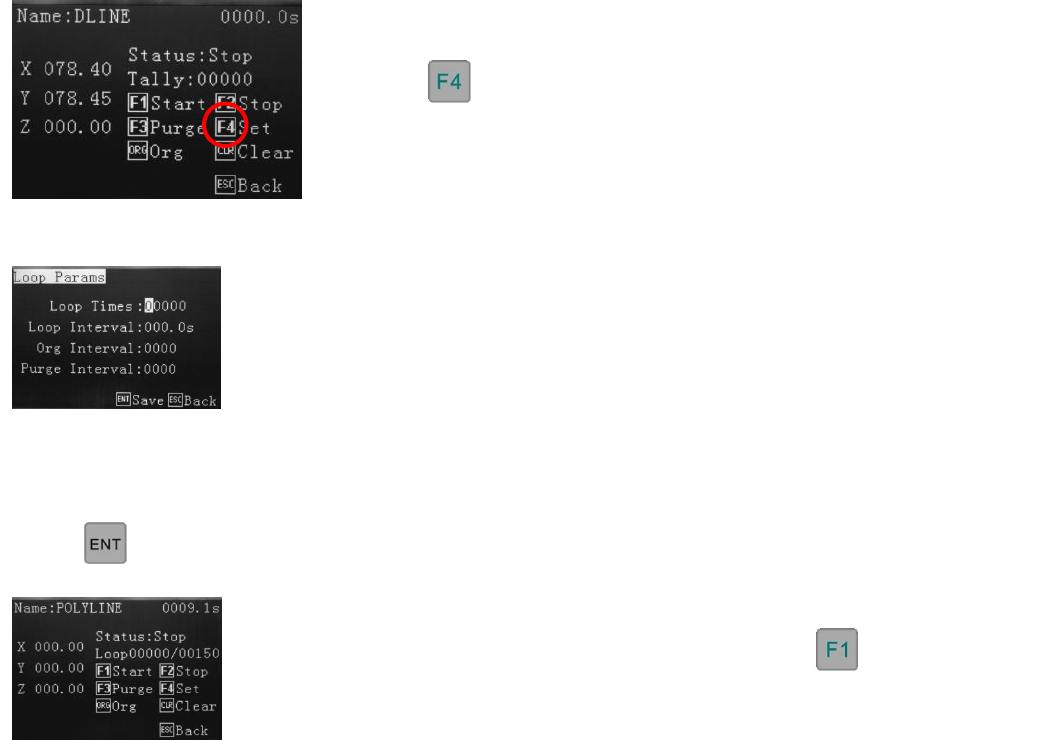
11.1 How to Set a Program to Run in a Loop
From the Program Processing Menu, which is displayed after the program has been saved,downloaded or
selected, from the the Operation Menu, the following screen will be displayed.
Set how many times the program is to loop. Set the time delay, which is the wait time
between each repeated cycle.
Set the Origin Interval - the number of times the program will return to Origin.
Set the Purge Interval – the number of times the program performs a Purge function.
sefsef
The display now shows the loop counter, ready to start. Press to start the looped
program.
Note: The Loop, Origin and Purge functions cannot be saved as part of the program and must be set each time the
robot is turned off or another program is selected.
Press
Press
50
12. FILE TRANSFER
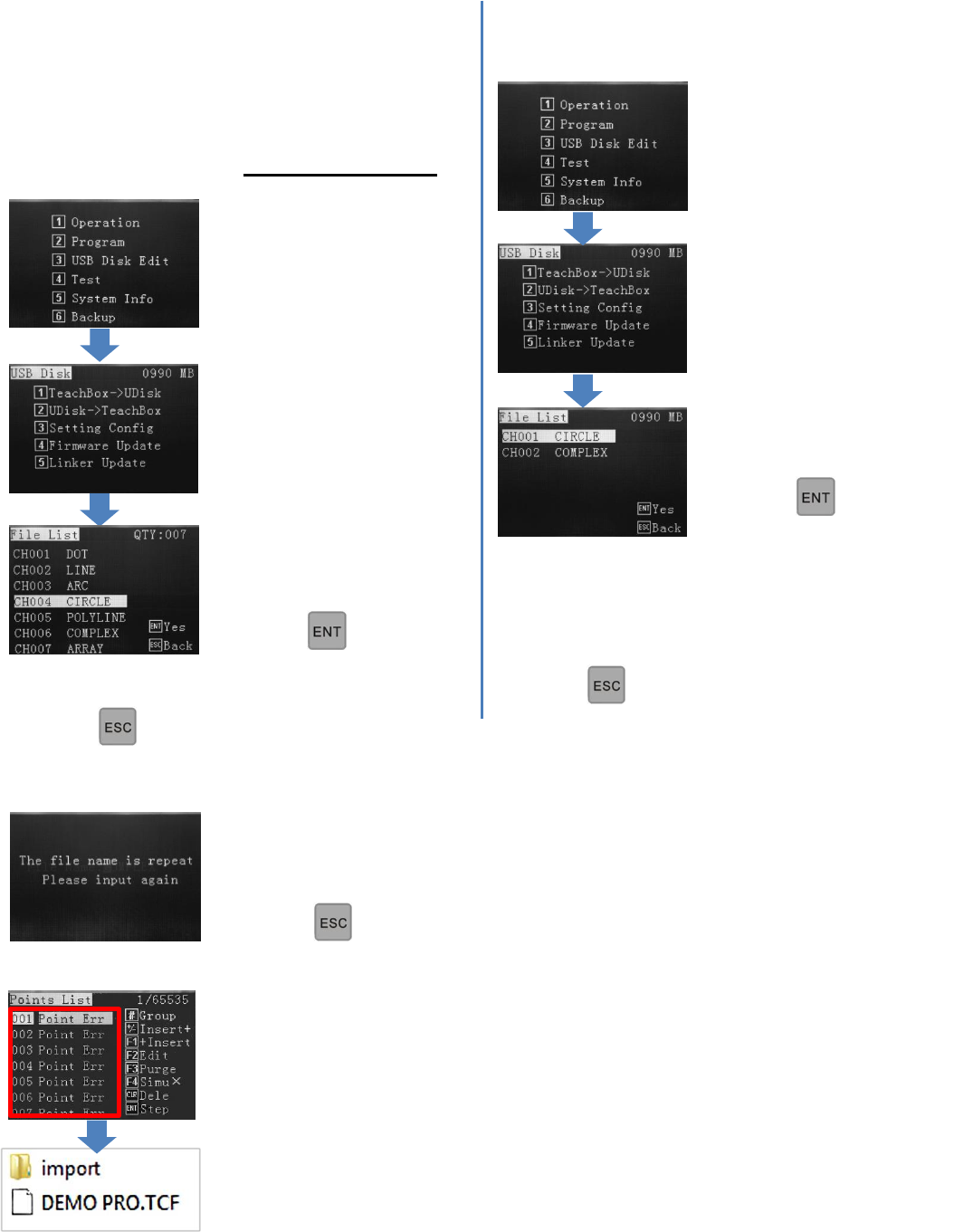
12.1 How to Transfer Program to USB Stick 12.2 How to Transfer Program from USB Stick
D
Insert USB stick into teach
pendant. Press 3 to go to USB
menu.
This feature is particularly useful if more than 1 robot
exists at a facility and are both running the same
program. By copying the program, from 1 robot to
another, will save the operator time by not having to
duplicate the programming. Use 2GB or lower USB.
Press 3
Press 2
Select the program, stored on
the USB stick.
Press
Continue transferring files, as above, if required.
Press twice to go back to main menu.
An error message will be displayed if the program selected has the same name as on the
robot it is transferred to. Rename the program being transferred, using the alphanumeric
keypad.
Press twice to return to the main menu.
For a variety of reasons, a conflict could occur, showing errors on the receiving teach
pendant. In these cases the USB stick is required to have an empty “import” folder created,
for successful importation. Transfer the program to the USB stick, then add the import folder
from a standard computer. The receiving teach pendant will now be able to read the program.
Continue transferring files, as above, if required.
Press twice to return to main menu.
Press 1.
Select program to transfer
from Teach Box to USB
Stick.
Press

51
13. TROUBLESHOOTING
LCD is displaying “Please Reset”
1 – the emergency switch has been engaged.
• Check emergency switch and if engaged release to working condition.
2 – the communication cable is not connected fully.
• Check communication cable is correctly fitted and tightened.
3 – the “Stop” button on the teaching pendent has been pressed.
• Press “ORG” to reset the robot’s positioning.
4 – the teaching pendent has developed a fault.
• Contact Techcon Systems.
Displaying unusual message after power up
1 – The hardware version is not correct.
• Check the version of teaching pendant and PCB.
2 – The teaching pendant cables may have become loose or damaged.
• If the teaching pendant cannot communicate normally, or the display is a little dark, disconnect the power supply
and then disconnect and reconnect the teaching pendant.
DO NOT DISCONNECT THE TEACHING PENDANT WHILST THE POWER IS ON.
For Sales and Support:
Techcon Systems Corporate Headquarters,
10800 Valley View Street, Cypress, California, 90630, USA.
Tel: 1-714-230-2398, Fax: 1-714-828-2001
E-mail: oemorders@okinternational.com
Techcon Systems European Corporate Office,
Eagle Close, Chandler’s Ford Industrial Estate,
Eastleigh, Hampshire, SO53 4NF, UK.
Tel: +44 2380 489 100, Fax: +44 2380 489 109
E-mail: europe-orders@okinternational.com
Or visit www.techcon.com