TSR2000-Series-Teaching-Pendant-User-Guide-V1.pdf - 第40页
40 9.22 Operating up to 4 Dispensing V alves Move the valve 2 to the dispensing l ocation and save the point position. Both Points need to be edited. Press Input the dispens ing time (Feed On D elay) for dot 1 along with…
39
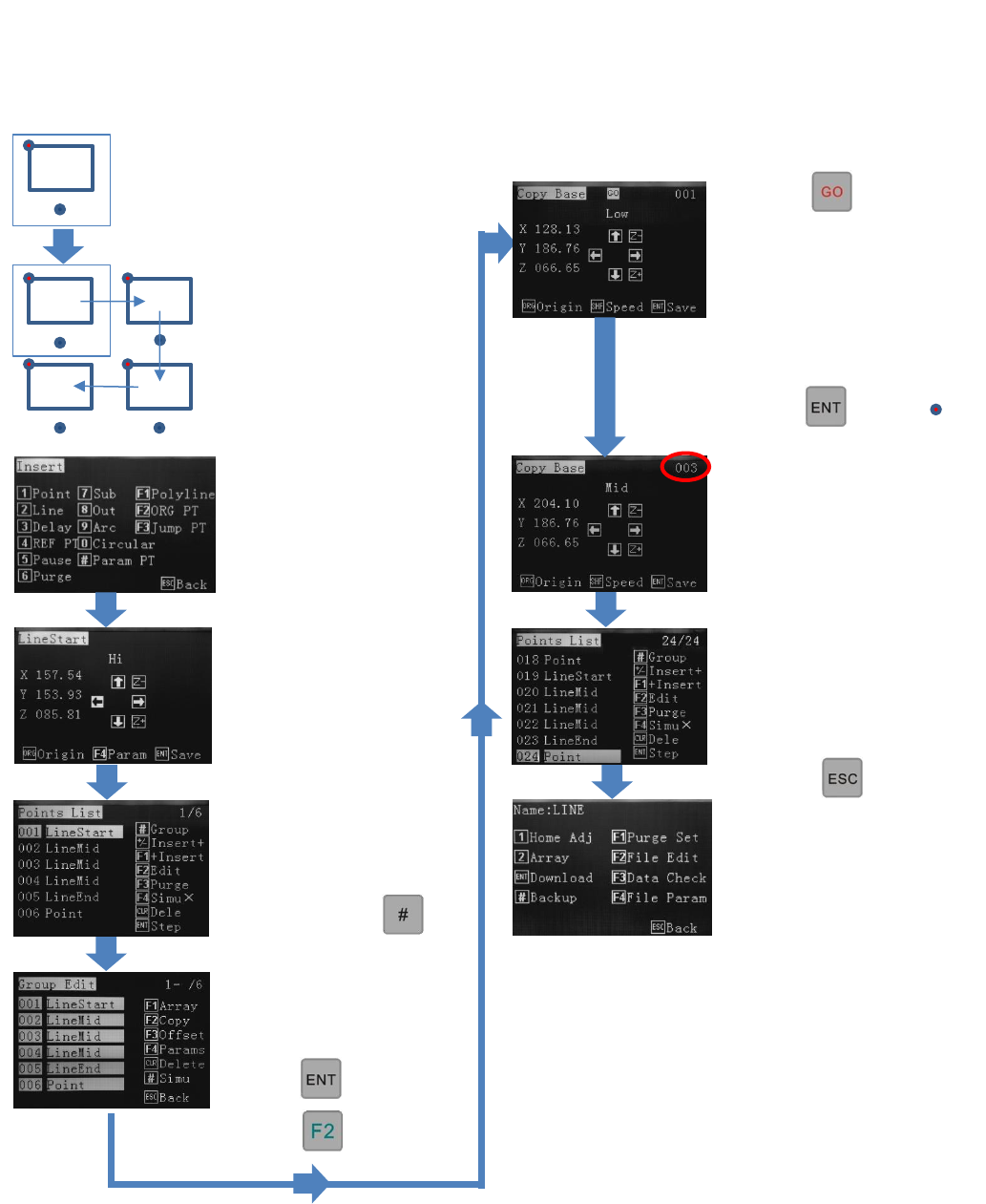
9.21 Copying and Pasting a Pattern
This is the full pattern to
be created from the
pattern element showing
start position and travel
direction. The red dot
signifies the start location
of each element.
This is the pattern
element to be created and
should be written into the
Points List.
START
From the Insert screen,
create the very first
element.
POLYLINE + POINT
Continuing creating the
pattern element.
All of Element 1’s co-
ordinates are listed in the
Points List.
Press (Group)
Use up/down arrow keys
to select all co-ordinates
of the first element.
Press to confirm
Press to copy.
Press
Dispense tip will move to
Element 1’s (already
created) start location, so
does not need to be saved.
Jog to each Element’s start
location.
Press when
reached
This image shows that the
first 3 elements have been
created. Continue until all
elements are completed.
The Points list shows 24 co-
ordinates – 4 Elements.
When all Elements are
completed…
Press twice.
Continue editing or
download program.
Copying and pasting a pattern saves the user a lot of time as only the first pattern element requires programming.
Once the first element is created it can be copy and pasted as many times as required. Each individual co-ordinate
will be listed in the programs Point List enabling further editing, if needed. Although the pattern can be jogged to
the next pattern, it is better practice to input the true measurement using the numeric keys.
40
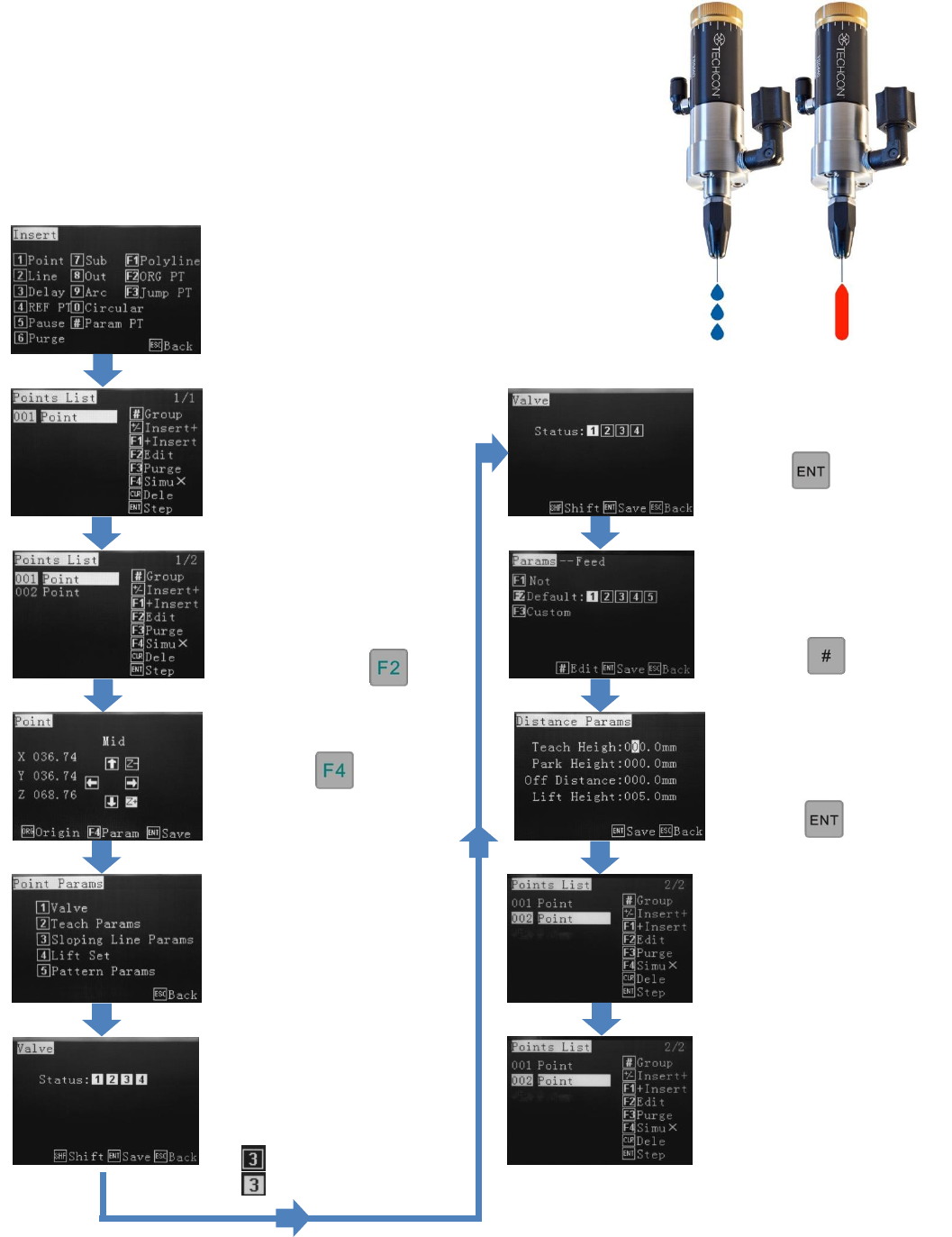
9.22 Operating up to 4 Dispensing Valves
Move the valve 2 to the
dispensing location and
save the point position.
Both Points need to be
edited. Press
Input the dispensing time
(Feed On Delay) for dot 1
along with Retract Speed
and Height.
Press until the
Points List is shown.
Select a Feed slot for dot 1.
For this example slot 1 will
be used.
Press
Repeat process for Dot 2 by
using Valve 2 and Feed slot
2 and setting a different
Dispensing Time (Feed On
Delay).
After switching off unused
outputs:
Press
Press 2 – Teach Params.
Reference Section 9.2 and
9.10
From the insert screen
select option 1.
The TSR2000 Series robot has the capability to operate up to 4 dispensing
valves independently, by using an advanced I/O cable, available from
Techcon Systems. Each valve requires a separate controller to perform this
function. Triggerering of each I/O signal is set in the editing screen. This
example will demonstrate 2 valves dispensing different fluids, through 2
TS500R controllers, creating dots.
Move the valve 1 to the
dispensing location and
save the point position.
Press
Press 1 – Valve
Repeat process for Dot 2 by
using Feed slot 2 and setting
a different Dispensing Time
(Feed On Delay).
All outputs will become
active and the user will
need to switch off unused
outputs.
Output Off
Output On
41
9.23 Definition of Additional Programming Features
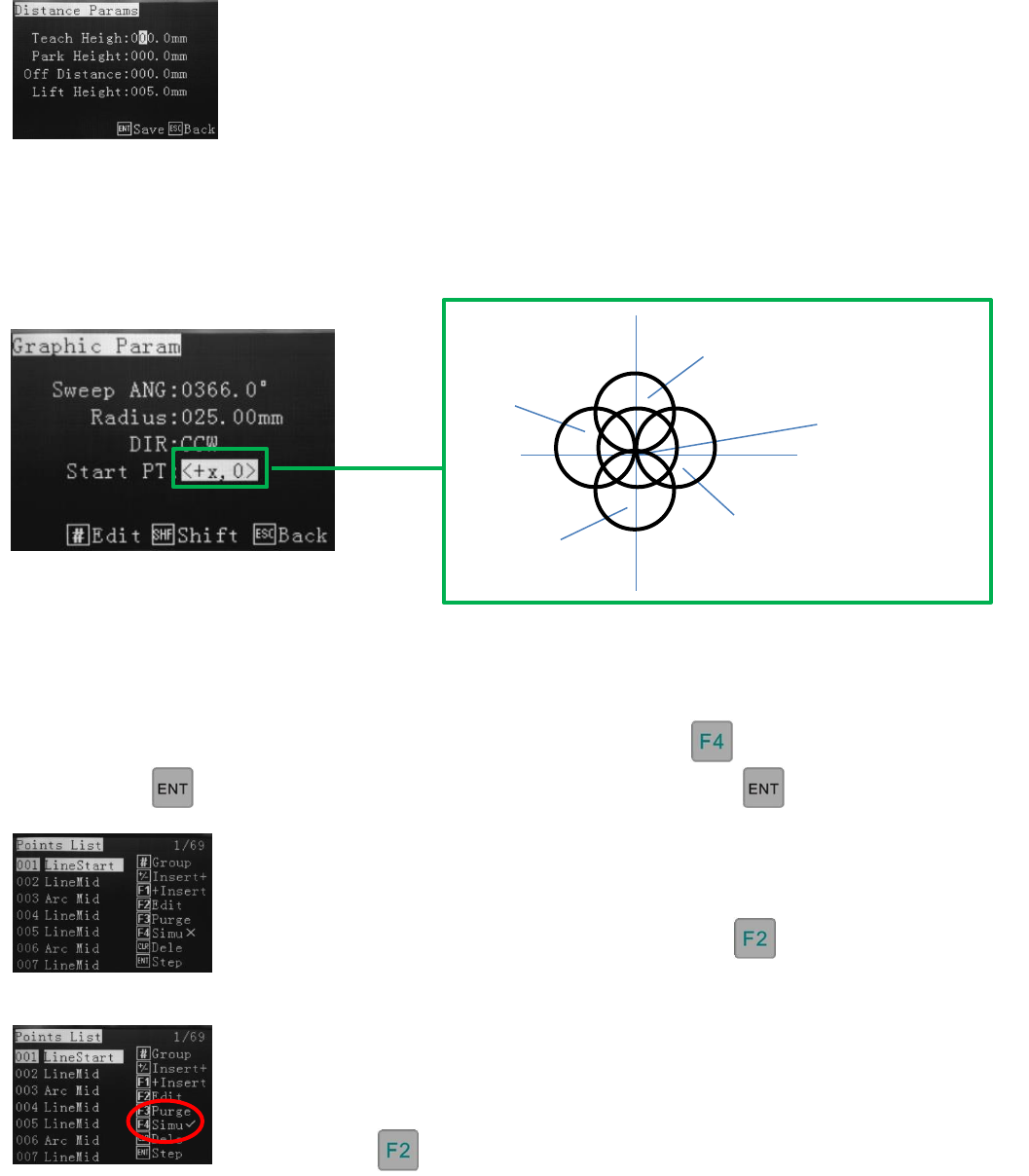
Dot Point – Feed on Delay
In the distance parameter screen, the Feed on Delay should only be used to set the dispensing time for a dot.
Circular – Start Point Definition
Program Step-Through
A simulated run can be performed within the points list, anytime throughout the program. Use the up/down
jog keys to select where in the program the run is to be started. All co-ordinates will move at their
programed speeds. To switch between Simu X and Simu √ press
By pressing the robot will move to the next location and waiti until is press again.
In the Graphic Parameter screen, whilst inputting circle dimensions, the Start Points are as follows, in relation the
centre of the circle.
Simu √ Mode (wet run)
This mode will move to locations, whilst dispensing, so the operator can verify the
position, speed and dispense quality of the co-ordinates. Editing can be performed by
pressing on a selected line.
0, 0 Inner Circle
+X, 0
0, -Y
-X, 0
0, +Y
Simu X Mode (dry run)
This mode will move to locations so the operator can verify the position and speed of the
co-ordinates. Editing can be performed by pressing on a selected line.