TSR2000-Series-Teaching-Pendant-User-Guide-V1.pdf - 第34页
34 9.19.4 Cr eating Array Pa ttern Inside the Po ints List – Single Poin t Element Referenc e Section 9.2 From the I nsert screen, select option 1. Change the move sp eed with the key . Press at the dot location Press ST…
33
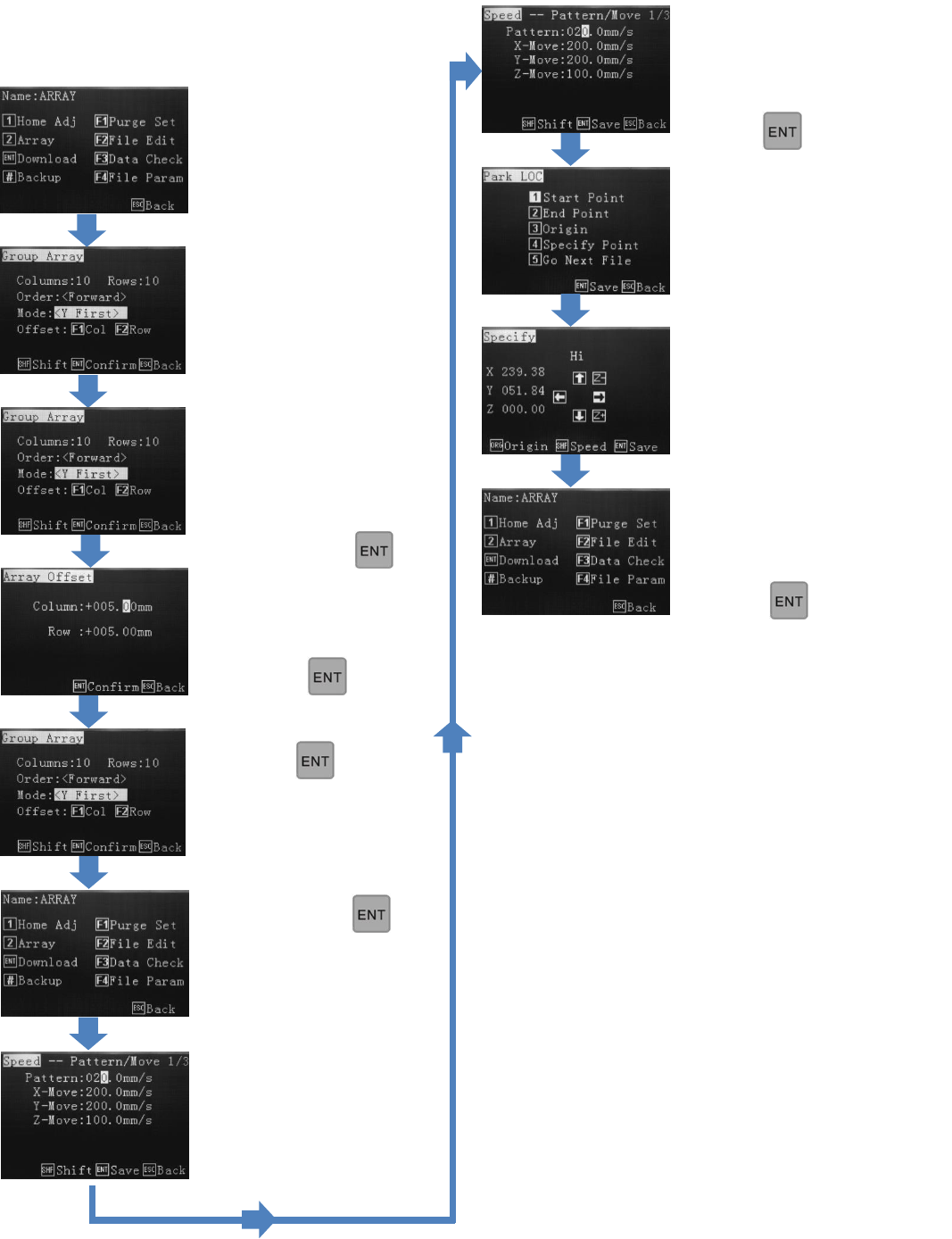
9.19.3 Creating Array Pattern Outside of the Program
Either, press to
Download and run array
program or select other
options.
If X first or Y first was
selected, input offset
distances.
Press
Select where the valve
should go to after
dispensing. If 4 follow
below.
Make other changes
or
press to Download
Press 4
Use the alphanumeric keys
to change the retract speed,
retract height and feed
on/feed off delay.
Press
Create the array element
(dot or pattern) in the
Points List. On the
Download screen Press 2
(Array)
Input number of rows and
columns.
Order cannot be changed.
Select Mode: X First
first, Y First or Teach.
Press F1 and F2 to set
row and column
distances. For “Teach”
follow instructions in
9.19.2 – press
Press to go
back to the download
screen.
Press 4
34
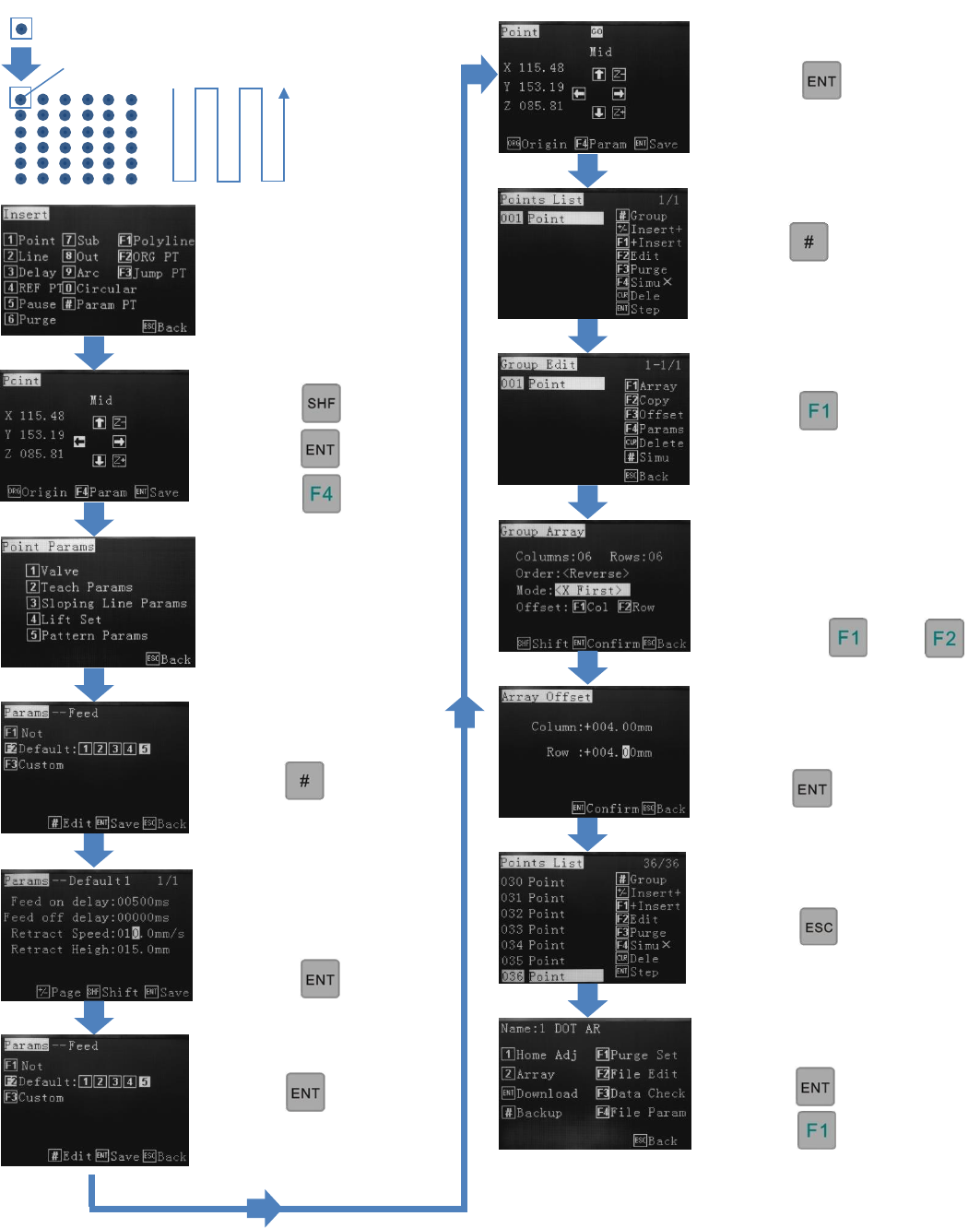
9.19.4 Creating Array Pattern Inside the Points List – Single Point Element
Reference Section 9.2
From the Insert screen,
select option 1.
Change the move speed
with the key.
Press at the dot
location
Press
START
Set Feed on delay
(dispensing time)
Set retract height and
speed.
Press
6 x 6 array to be
created from a
single dot
element,
showing start
position and
“Y” travel
direction.
Press 2 – Teach Params
Ensure F2 is highlighted.
Press
Continue editing or…
Press twice.
Press twice.
Press
Press
Continue editing or…
Press to download.
Press to start.
Press
Input number of rows and
columns. Order cannot be
changed. Set “Mode” –
dispensing direction.
Press either or
Input row and column
distances.
Press twice.
35
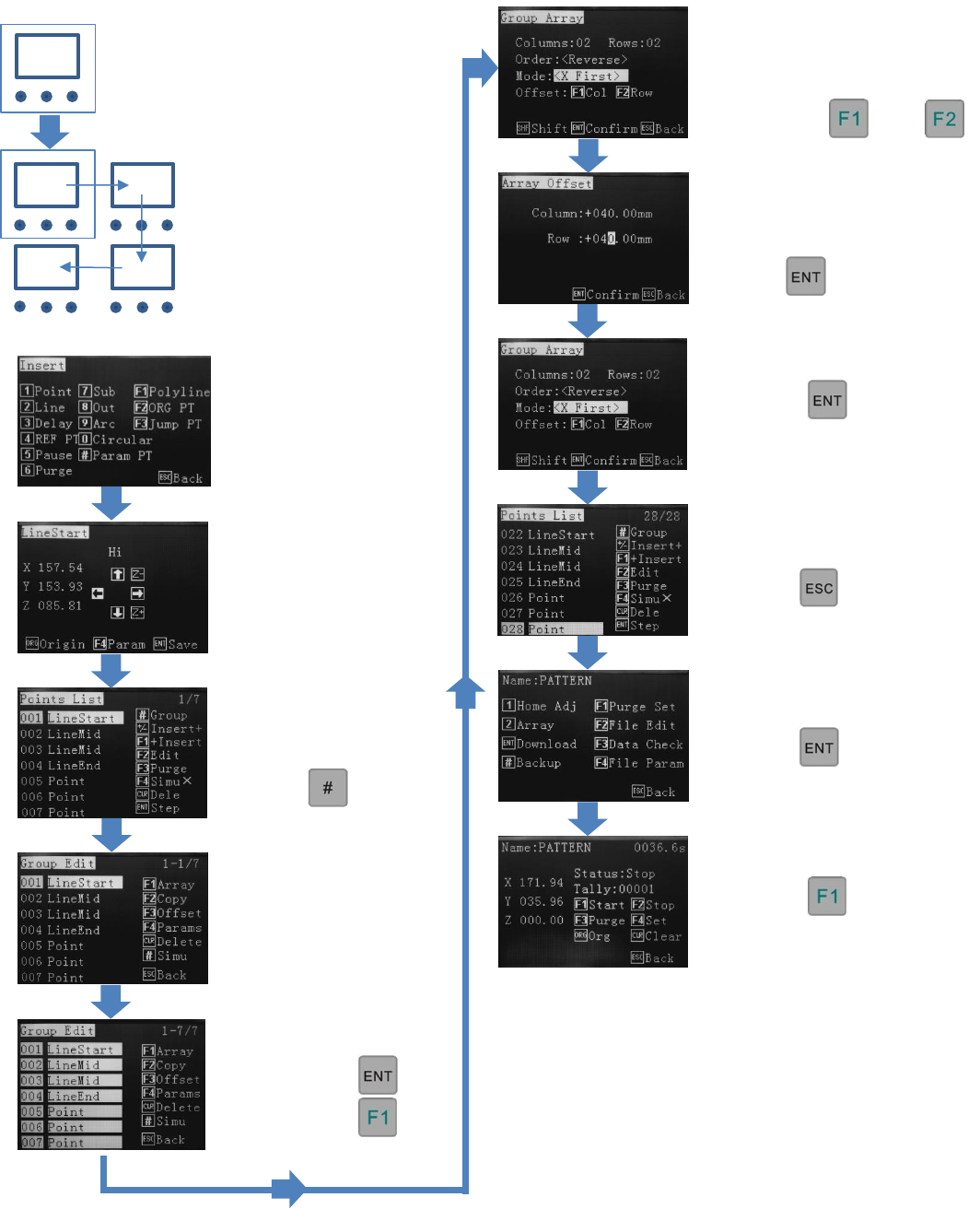
9.19.5 Creating Array Pattern Inside the Points List – Pattern Element
This is the 2 x 2 array
to be created from the
pattern element
showing start position
and “X” travel
direction.
This is the pattern
element to be created.
START
Reference Section 9.2
From the Insert screen,
select option 1.
Create the pattern
element.
All co-ordinates are listed
in the Points List.
Press
Use up/down arrow keys
to select all co-ordinates.
When all co-ordinates are
selected press
Press
Input number of rows and
columns. Order cannot be
changed. Set “Mode” –
dispensing direction.
Press either or
Input row and column
distances.
Press twice.
Press
Continue editing or…
Press twice.
Press to start.
Continue editing or…
Press to download.