TSR2000-Series-Teaching-Pendant-User-Guide-V1.pdf - 第3页
3 10 .3 Distance Parameters……………………………… …………………………..…………. ….……… 10 .4 Park Location……………………………………… ……………… .……….………………….……. 10 .5 #Set as Default……………………………………………… …….….………….…….…… ……….. 10 .6 Insert Screen……………………………………………

2
1. Introduction……………………………………………………………….……………….………..….….
2. Functions of the Keypad…………………………………………….………..…………………………...
3. Classification of a Point ………………………………………………….…………..…………………..
4. Rapid Instruction of Dispensing Process………………………………………………..….……….…….
5. Examples of Typical Dispensing Patterns…………………………………….………….……..………..
6. Firmware Screens Explained……………………………………………………………………………..
7. Teach Pendant Main Screen…………..…………………………………………………………………..
8. Operation – Running a Saved Program…………………………………………………………………..
8.1 Calibrating the Dispense Tip……………………………………….……………………………….
8.2 Creating the Calibration Location During Programming…………….…………………………….
8.3 Verifying the Calibration Location During Live Use…………….…………………………………
8.4 Shortcut – Communicates with External PLC when used as a “ Cell” in an in-line Robot…………
8.5 Used Times – Monitoring and Setting Usage Visual Alarms……………………………………….
9. Programming……………………………………………………………………………………………….
9.1 Programming by Jog Keys or Inputting Co-ordinates…..…….………………..…………………..
9.2 Creating a new Program…...………………………………………………….………………..…..
9.3 How to Delete a Program……………………………………………….…….……………..………
9.4 How to Delete a Point in a Program……………………………….………………………..………
9.5 How to Delete Multiple Points in a Program………………………….……………………………
9.6 Insert +/+Insert Definiiton……………………………………………………………………………..
9.7 How to Edit a Program…………………………………………………………………………….
9.8 How to Copy a Program…………………………………………………………..…….…………….
9.9 Setting Program Defaults………………………………………………………………………………
9.10 How to Create a Single Point (Dot)…………………………………………………..…….……….
9.11 How to Create a Single Line (Bead).…………………………….………….….……………..……
9.12 How to Create an Elevated Line (Bead)………………………………….………………………….
9.13 How to Create an Arc……………………………………….…………………………………………
9.14 How to Create a Circle (3-Point Method)……………………………………….………….………
9.15 How to Create a Circle (Inputting Dimensions)…………………………………..……….………..
9.16 How to Create a Polyline (Multiple Joined Lines)……………………….………………….………
9.17 How to Create an Interuppted Polyline whilst Moving………………………………………………
9.18 How to Create Parallel Lines Connected By Arcs………………………………………..………..
9.19 How to Create an Array Pattern………………………………………………….………..……….
9.19.1 Array Pattern Directional Setting………………………………………………………………..
9.19.2 Array Pattern Starting Position (can only be set in “Mode: Teach”)………………………..
9.19.3 Creating Array Pattern Outside of the Program………………………………………………….
9.19.4 Creating Array Pattern Inside the Points List – Single Point Element…………………………..
9.19.5 Creating Array Pattern Inside the Points List – Pattern Element……………………………….
9.19.6 Creating Array Pattern Inside the Points List – 2 Point or 2 Pattern Element Method………….
9.20 How to Move Around or Over a Tall Object…………………………………….……………………
9.21 Copying and Pasting a Pattern……………………………………………………………………….
9.22 Operating up to 4 Dispensing Valves………………………………………….……..……….……….
9.23 Definition of Additional Programming Features…………………………………………..…………
9.24 Line Dispensing Adjustments……………..…………………………………………………………..
9.24.1 Valve Feed On Delay – Lines……………………………………………………………………
9.24.2 Valve Feed On Delay – Dots…………………………………………………….……………..
9.24.3 Line On/Off Distance……………………………………………………………..……………
10. Program Processing Menu………………………………..……………………….……………….………
10.1 Speed Parameters………………………………………………………………………….…..…….
10.2 Teach Parameters…………………………………………………..……………………..…..………
CONTENTS
3
4
5
5
6
7
8
9
10
11
12
13
14
15-44
15
16-17
18
18
18
18
19
19
20
21
22
23
24
25
26
27
28
29
30
31
32
33
34
35
36
37-38
39
40
41
42-44
42
43
44
45-47
45
46

3
10.3 Distance Parameters…………………………………………………………..………….….………
10.4 Park Location……………………………………………………….……….………………….…….
10.5 #Set as Default…………………………………………………….….………….…….……………..
10.6 Insert Screen……………………………………………………………………………..…………...
11. Set Menu……………………………………………………………………….….…………..………….
11.1 How to Set a Program to Run in a Loop………………………………………………..….………….
12. File Transfer…………………………………………………………………………………..…….……..
12.1 How to Transfer Program to USB Stick………………………………………………….……………
12.2 How to Transfer Program from USB Stick………………………………………………...………..
13. Troubleshooting…………………………………………………………….……..………..........……………
1. INTRODUCTION
Congratulations on the purchase of a Techcon Systems Automated Dispensing Robot. If you have not done so, see the
installation guide provided with your system for installation instructions.
Now that your dispensing system is ready to use, take a few moments to get to know the parts of your dispensing system and
software. This manual is designed to help you use the robot as quickly as possible.
We, here at Techcon Systems, hope you find this product beneficial. If you have any questions, please contact us at the details
listed below:
For Sales and Support:
Techcon Systems Corporate Headquarters,
10800 Valley View Street, Cypress, California, 90630, USA.
Tel: 1-714-230-2398, Fax: 1-714-828-2001
E-mail: oemorders@okinternational.com
Techcon Systems European Corporate Office,
Eagle Close, Chandler’s Ford Industrial Estate,
Eastleigh, Hampshire, SO53 4NF, UK.
Tel: +44 2380 489 100, Fax: +44 2380 489 109
E-mail: europe-orders@okinternational.com
Or visit www.techcon.com
This manual is designed to provide information about Techcon Systems robot software. Every effort has been made to make
this manual as complete and accurate as possible. There is no implied or expressed warranty as to the purpose, suitability or
fitness of the information. The information is provided on an as-is basis. Techcon Systems reserves the right to improve and
revise its products. This manual specifies and describes the product as it existed at the time of publication. As with any new
programming software, a basic understanding of the vocabulary is necessary.
46
46
47
47
48-49
49
50
50
50
51
4
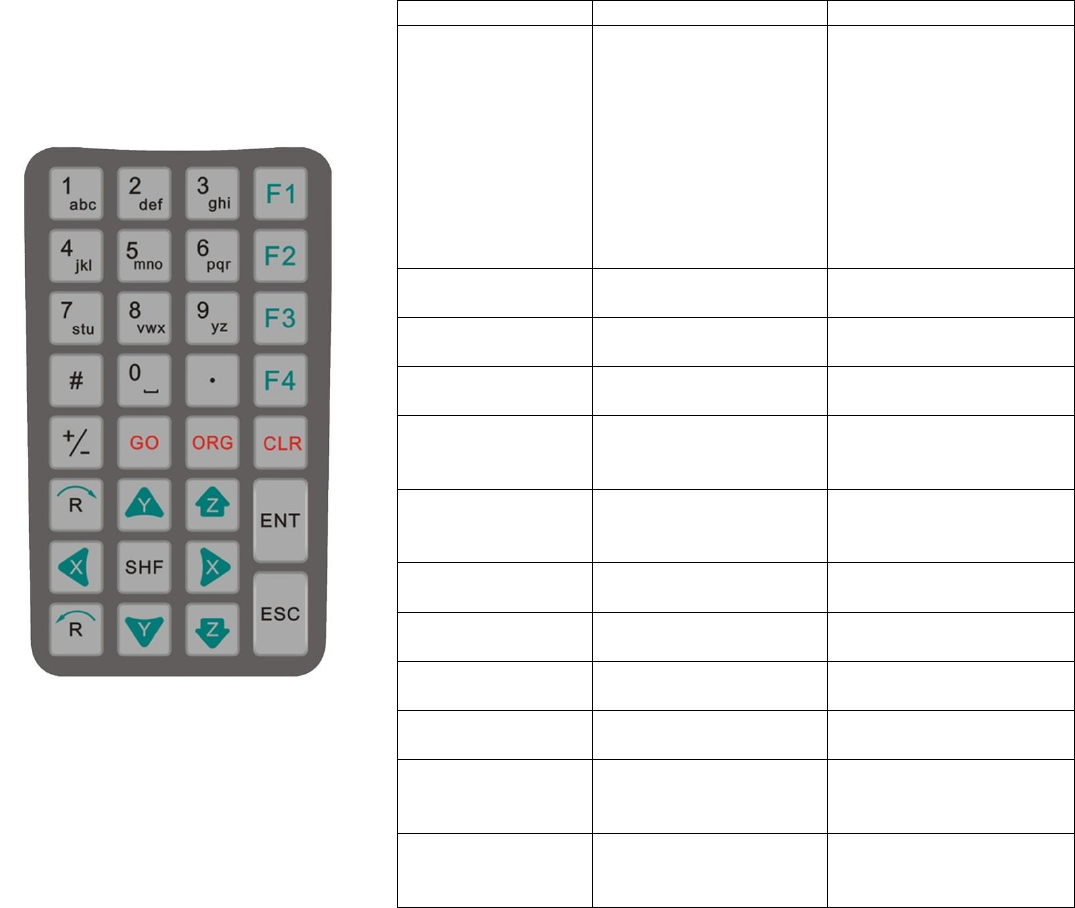
2. FUNCTIONS OF THE KEYPAD
Button
Name
Description
F1, F2, F3, F4
Function
Buttons
F1 – create new file, insert
drawing, start/pause a
process.
F2 – Edit file or stop a
process or group offset.
F3 – Data check and file
copy.
F4 – Array, parameter
setting and change file
name.
X, Y, Z, R
Navigation
Buttons
Control jog movements of
X, Y, Z and R axis
0 – 9, A – Z
Alphanumeric
Buttons
To create file names and
set parameters.
.
Decimal Point
Button
To input decimal point.
SHF
Switch
Button
Change jog speed (low,
med, high), or change
parameters
+/-
Front Insert
Button
To insert a new point or
figure at the front of a
selected point.
#
Group
Button
Used in group edit and
parameter settings.
GO
Go
Button
When displayed, press to
move valve to position.
ORG
Reset
Button
Return to zero position (0,
0, 0, 0)
CLR
Delete
Button
Delete a file or part of a
file.
ESC
Escape
Button
Cancel an operation
and/or exit from current
interface.
ENT
Enter
Button
Download or process the
current file, or save an
edited file, etc.