TSR2000-Series-Teaching-Pendant-User-Guide-V1.pdf - 第22页
22 9.1 1 How to Create a Single Li ne (Bead) Referenc e Section 9.2 and 9.24 . From the Ins ert screen, select option 2. Change the move speed with the key . When line start loca tion is reached press Press 5. Use alphan…
21
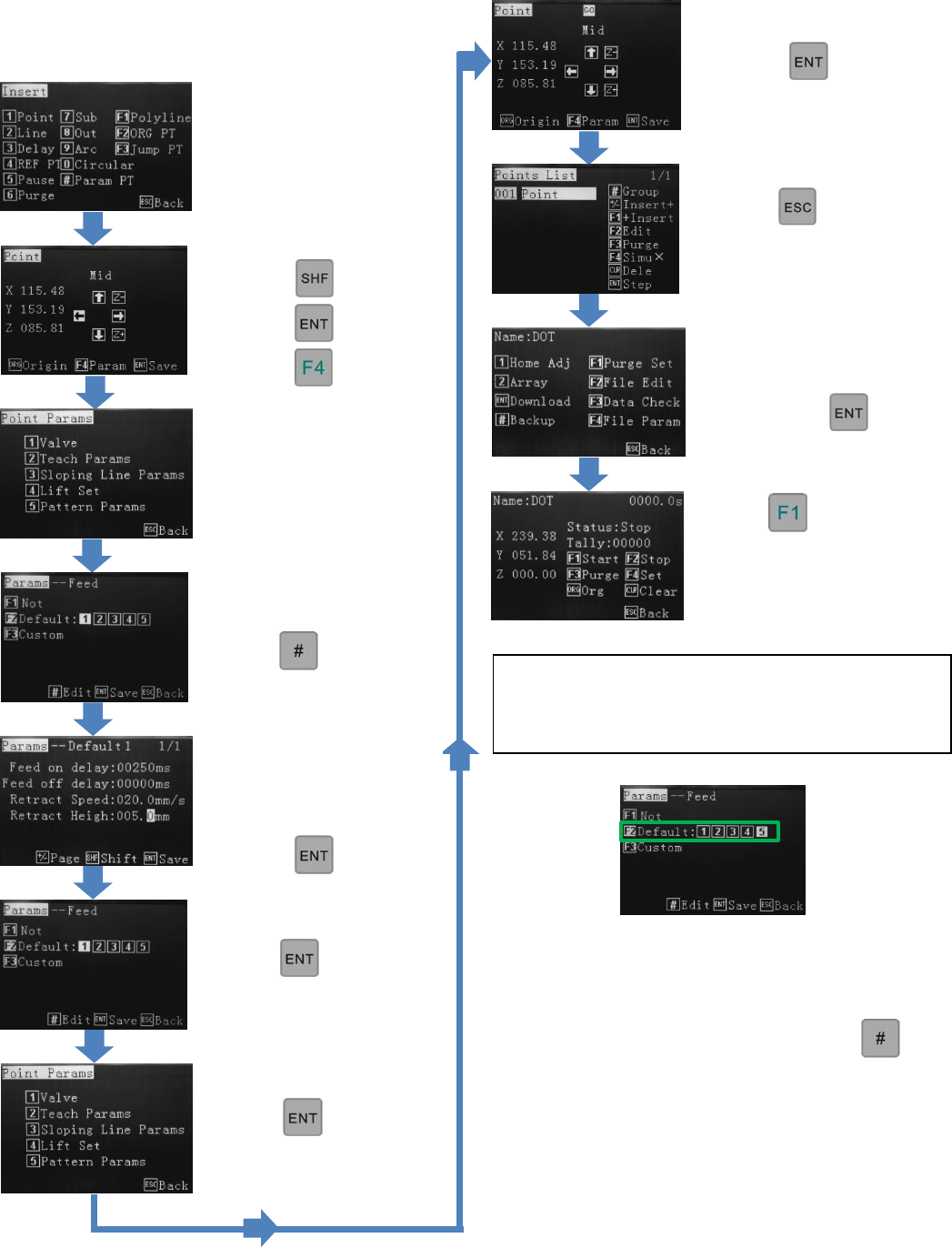
9.10 How to Create a Single Point (Dot)
Continue to edit or…
to save, press
Press
This starts the dispensing
cycle.
The above procedure will apply the same dispensing
time (Feed On Delay) to all dots within the program.
To create a different sized dot in the same program…
Reference Section 9.2
From the Insert screen,
select option 1.
Change the move speed
with the key.
Press at the dot
location
Press
Press 2 – Teach Params
Ensure F2 is highlighted.
Press
Set Feed on delay
(dispensing time)
Set retract height and
speed.
Press
Press
Press
Press twice
Press
At the Feed screen, select any of the available feed
slots (1 - 5).
The feed time can be changed by pressing
22
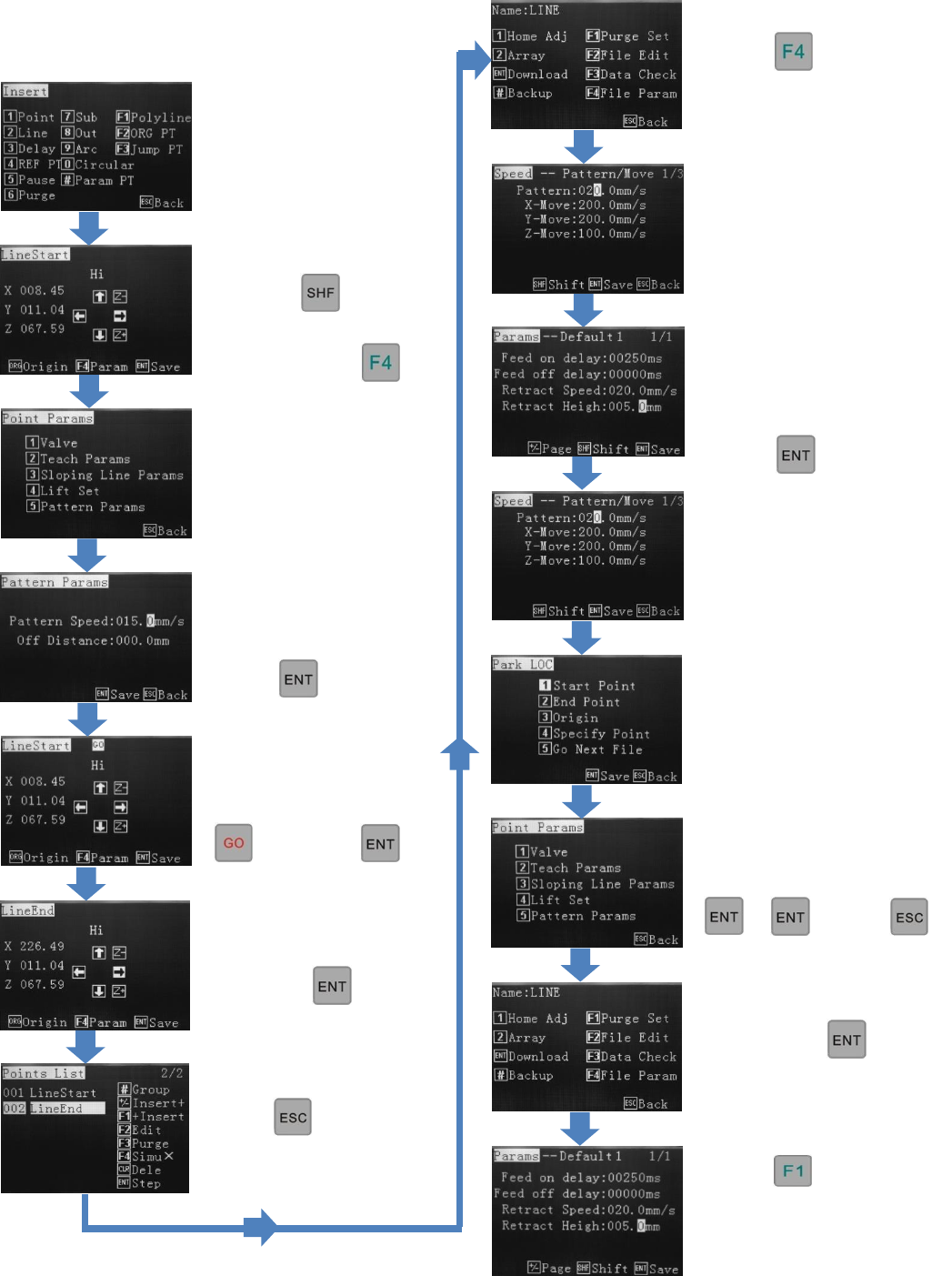
9.11 How to Create a Single Line (Bead)
Reference Section 9.2 and
9.24. From the Insert screen,
select option 2.
Change the move speed
with the key.
When line start location
is reached press
Press 5.
Use alphanumeric keys to
change the dispense speed
(pattern speed).
Press twice.
If “GO” is flashing, at
the top of the screen press
then press
Use alphanumeric keys to
move the line end location
and press
Press twice
(Optional) Use the
alphanumeric keys to select a
park location.
then
Select where the valve
should go to after dispensing.
Press
Press 2
Press 4
Press
This starts the dispensing
cycle.
To save, press
Use the alphanumeric keys
to change the retract speed,
retract height and feed
on/feed off delay.
Press
23
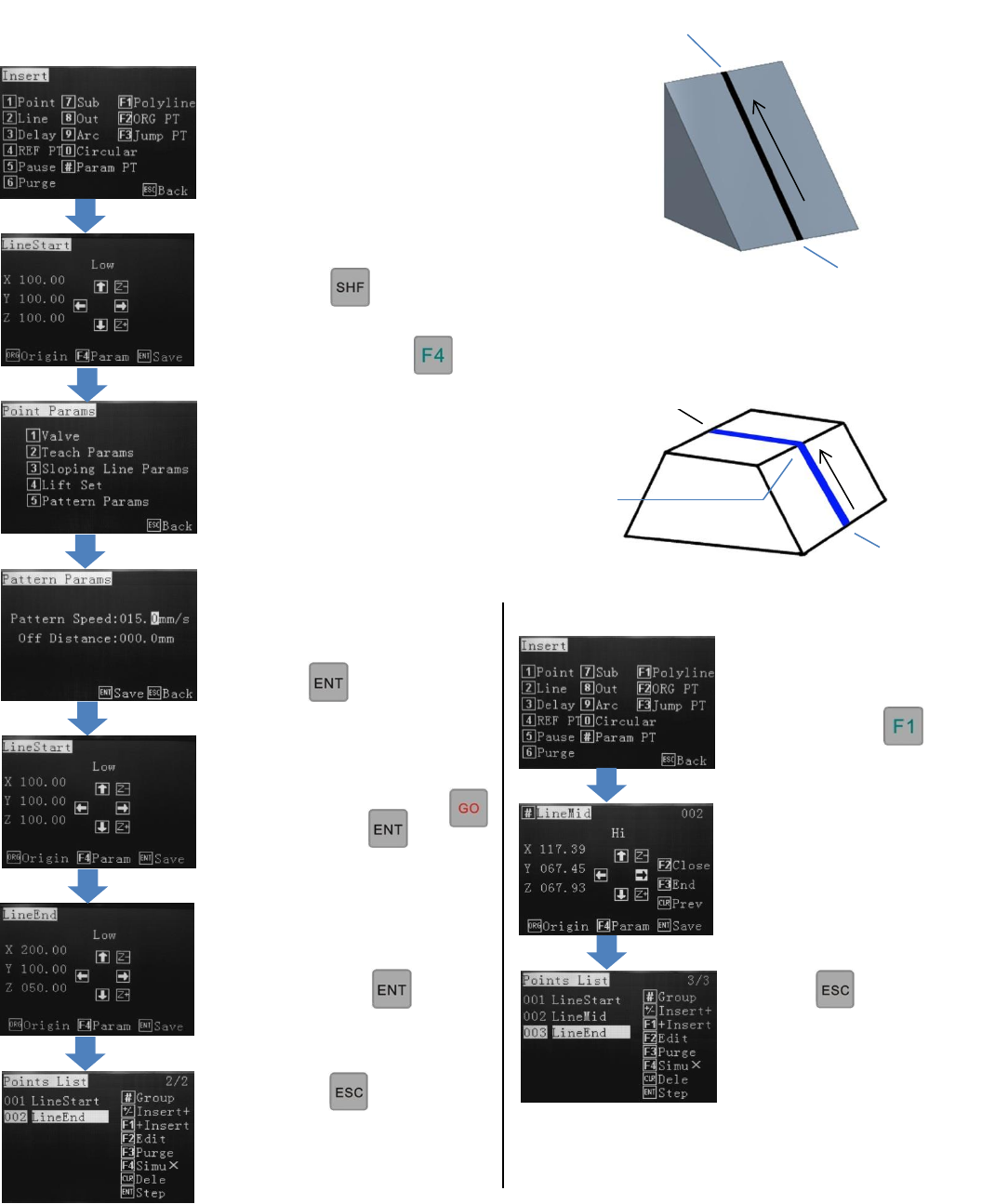
9.12 How to Create an Elevated Line (Bead)
How to Create a Multiple Point Elevated Line
Press twice
The program can now be
downloaded or edited
further.
Change the move speed
with the key
When line start location is
reached press
Use alphanumeric keys to
change the dispense speed
(pattern speed).
Press twice.
Use alphanumeric keys to
move the line end location
and press
Press twice
The program can now be
downloaded or edited
further.
If “GO” is flashing, at the
top of the screen press
then press
Press 5.
Line Start
Line End
Follow the instructions in
Section 9.16 for creating
a Polyline.
Reference Section 9.2 and
9.24 From the Insert screen,
select option 2.
Reference Section 9.2
and 9.24
From the Insert screen,
select option
Line Mid
Line End
Line Start