TSR2000-Series-Teaching-Pendant-User-Guide-V1.pdf - 第48页
48 1 1. SET MEN U This display is shown on ce a prog ram has been down load. In the Set Menu th e following can be achieved: • Run the program by p ressing • Stop the program by p ressing • Perform a Pur ge function b y …
47
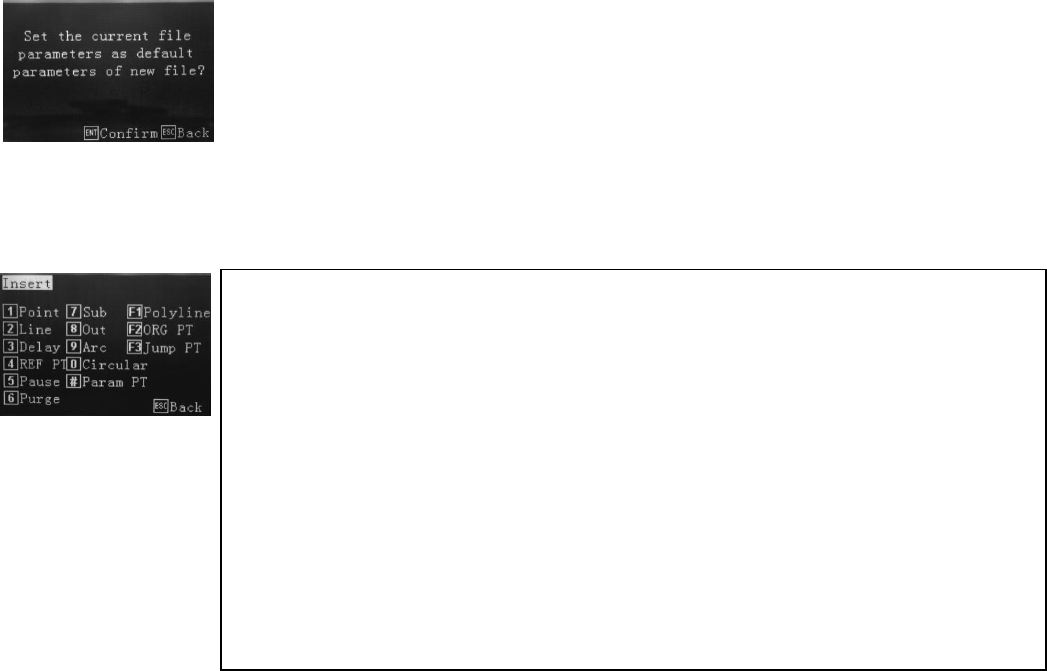
10.5 # Set as Default:
By applying this option all speeds, delay times, lift heights dot dispensing time, etc, will be
applied to all new programs being created.
10.6 Insert Screen:
1 – a dispensing dot.
2 – a line consisting of a start and end position.
3 – the time delay from 1 location to the immediate next.
4 – Calibration Point, used when a calibration pin is fixed to the base of device fixture.
5 – robot pauses and waits for input signal or manual (F1) start to run the next step.
6 – Setting a location for the valve to wait. Adding time will allow purge with fluid.
7 – insert another program, from the memory, at that specific location.
8 – turn on output signals (UV light, another dispense valve, camera, etc)
9 – an arc using 3 point programming.
0 – a circle using 3 point programming or by inputting circle dimensions.
# – setting motion speeds from one dispense location to another.
F1 – a series of lines connected with no dispensing interruption.
F2 – moves to origin position before moving to next dispensing location.
F3 – to run the front dispensing again.
48
11. SET MENU
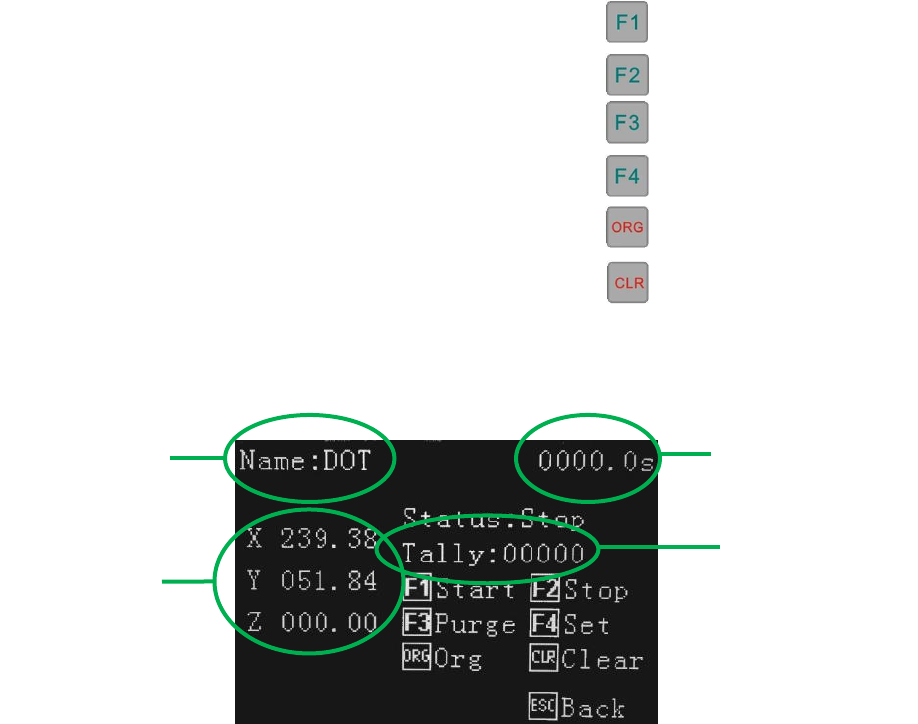
This display is shown once a program has been download. In the Set Menu the following can be achieved:
• Run the program by pressing
• Stop the program by pressing
• Perform a Purge function by pressing (separate function)
• Set up a Looping sequence by pressing
• Go to Origin location by pressing
• Reset the program counter (Tally) by pressing
Axis location
Program Name
Program
Completion Time
Counter
49
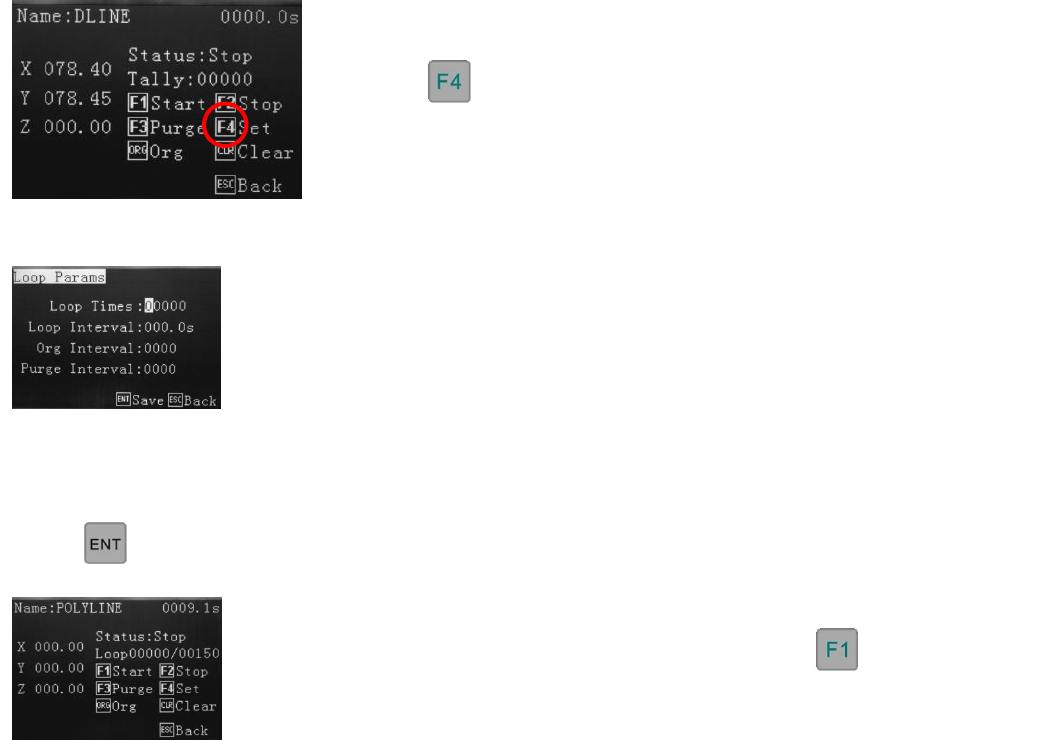
11.1 How to Set a Program to Run in a Loop
From the Program Processing Menu, which is displayed after the program has been saved,downloaded or
selected, from the the Operation Menu, the following screen will be displayed.
Set how many times the program is to loop. Set the time delay, which is the wait time
between each repeated cycle.
Set the Origin Interval - the number of times the program will return to Origin.
Set the Purge Interval – the number of times the program performs a Purge function.
sefsef
The display now shows the loop counter, ready to start. Press to start the looped
program.
Note: The Loop, Origin and Purge functions cannot be saved as part of the program and must be set each time the
robot is turned off or another program is selected.
Press
Press