TSR2000-Series-Teaching-Pendant-User-Guide-V1.pdf - 第37页
37 9.20 How to Move Ar ound or Over a T all Object Option 1 – Move Ar ound Program “Points” a round device. Option 2 – Move O ver Using “Lift” height to clear device he ight. Option 1 – Move Around Device Dot 1 T imed Di…
36
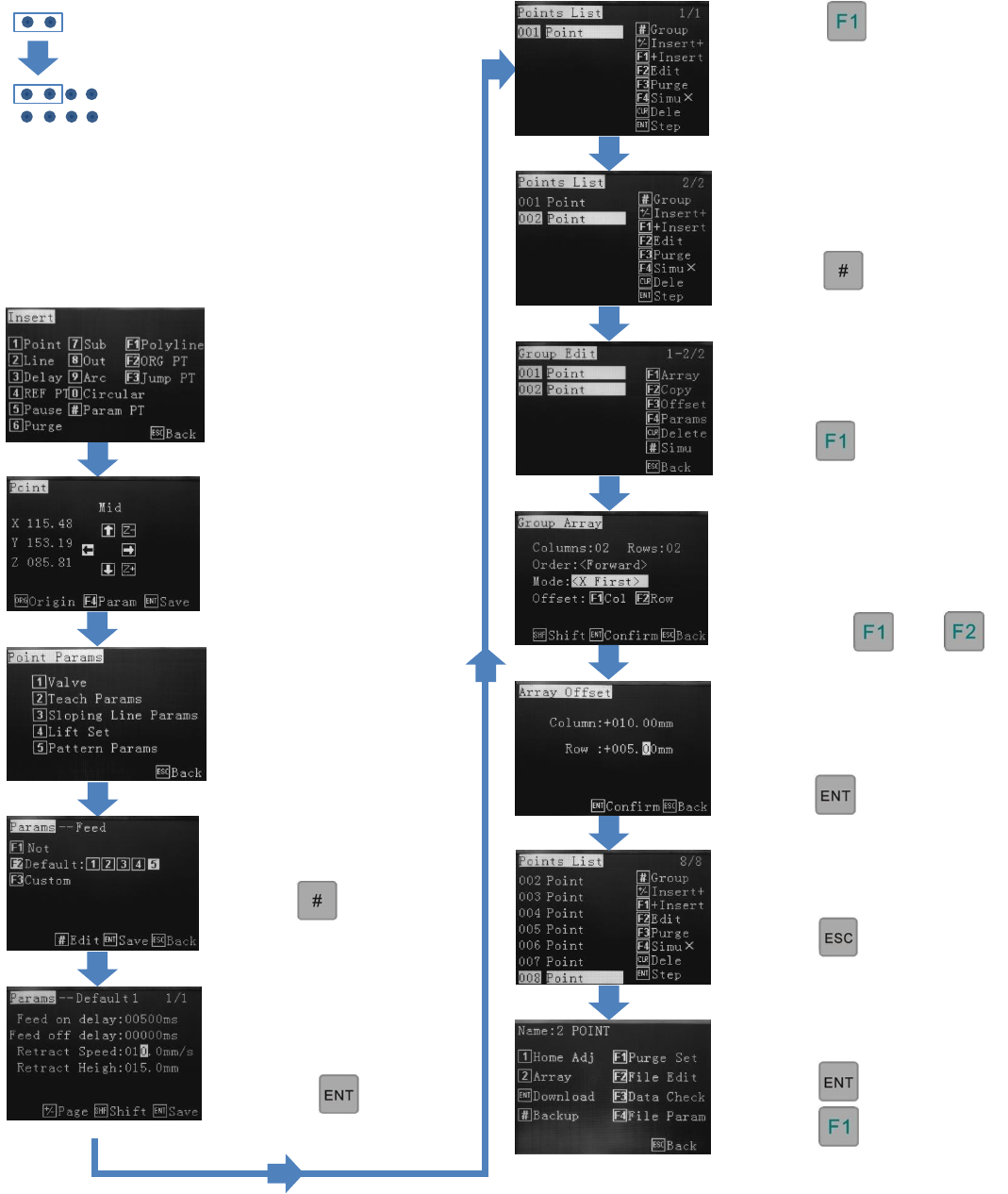
9.19.6 Creating Array Pattern Inside the Points List – 2 Point or 2 Pattern Element Method
Advantage: Full Mode/Order directional
movement as per section 9.19.1 – not suitable for
an array with an odd number of elements,
example 5 x 5 (25 positions), 7 x 7 (49 positions).
The Points List is made up of
2 dots. When applying row
and column values the 2 dots
will be arraying 2 dots by a 2
x 2 array the result will be a
total of 8 dots.
Reference Section 9.2
From the Insert screen,
select option 1.
Insert the first dot co-
ordinates
Press 2 – Teach Params
Ensure F2 is highlighted.
Press
Set Feed on delay
(dispensing time)
Set retract height and
speed.
Press
Press
Insert the second dot co-
ordinates (as in the
illustration.
All co-ordinates are listed
in the Points List.
Press
Use up/down arrow keys to
select all co-ordinates.
Press
Input row and column
distances, based on the
pattern elelment.
Press twice.
Input number of rows and
columns. Order cannot be
changed. Set “Mode” –
dispensing direction.
Press either or
Continue editing or…
Press twice.
Continue editing or…
Press to download.
Press to start.
37
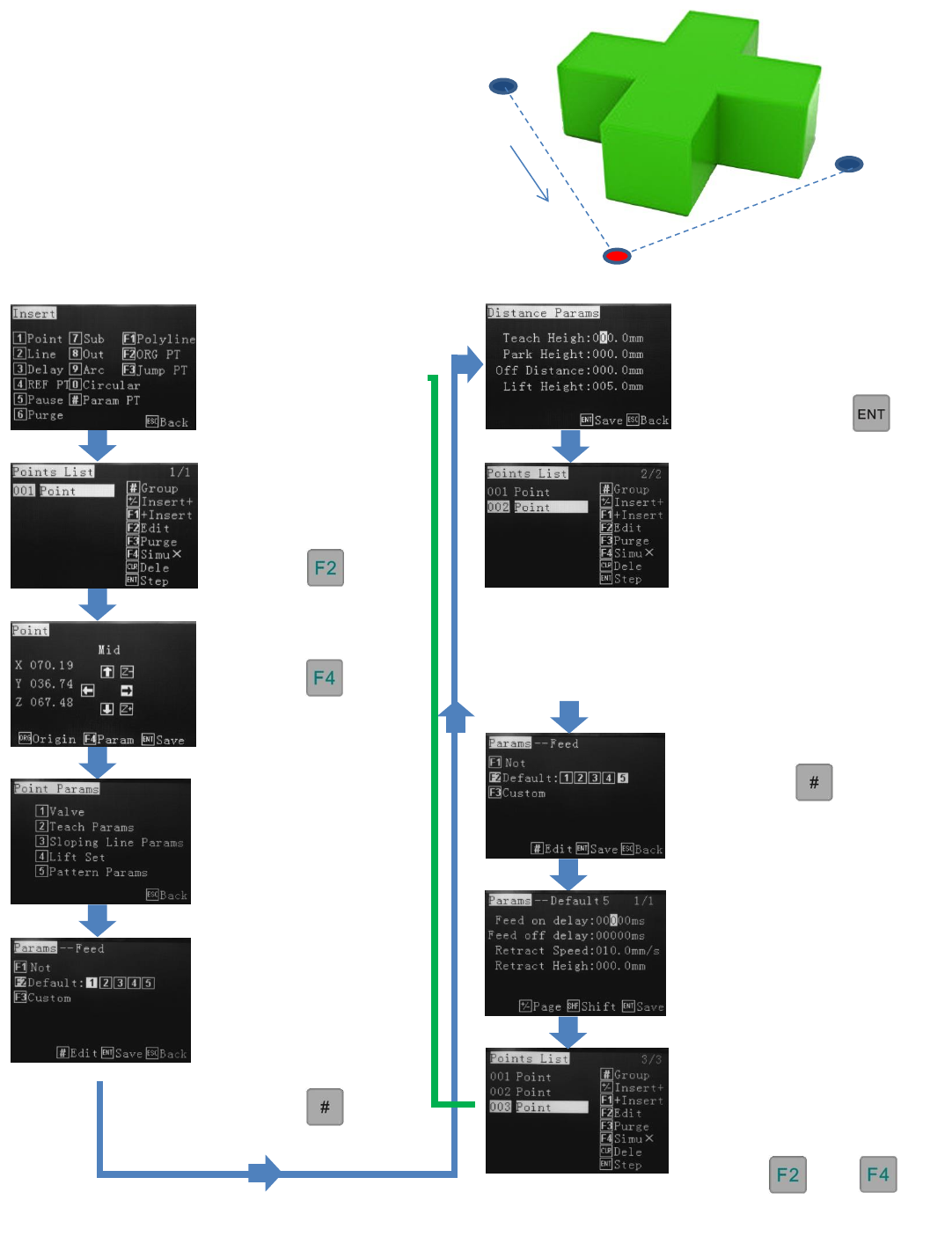
9.20 How to Move Around or Over a Tall Object
Option 1 – Move Around
Program “Points” around device.
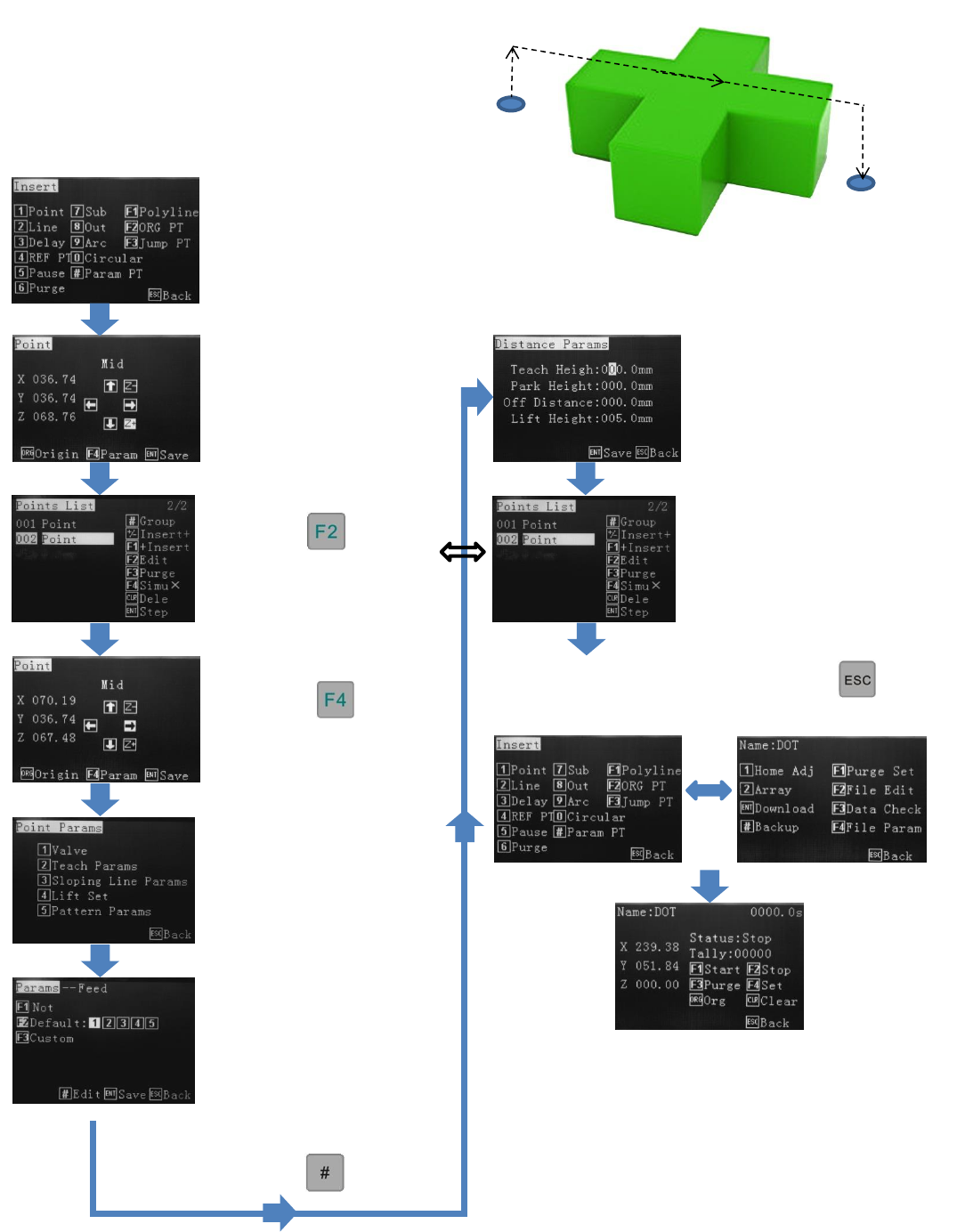
Option 2 – Move Over
Using “Lift” height to clear device height.
Option 1 – Move Around Device
Dot 1
Timed Dispense
Dot 2
No Time
Dot 3
Timed Dispense
Reference Section 9.2
From the insert screen
select option 1. Points
will be used to create a
movement, as well as
dispensing co-ordinates.
Up to 5 dispense times
can be programmed and
recalled. In this example
Dot 1 and 3 will use slot
1. The movement Point
will use the spare slot 5.
Press
Press
Press
Press 2 – Teach Params
Repeat sequence for 003 Point
(Dot 3). Use the same Feed
slot as used for Dot 1 or
antoher slot if dispense time is
different.
Press then
Input 0.0 time and 0.0 Retract
Height - prevents valve from
stopping at the Dot 2 thus
creating the Move command.
Cycle through to Points List
by pressing ENTER.
Insert move dot (Dot 2).
Whilst in co-ordinate screen
press “F4”. Option 2 (Teach
Params) allows the use of a
spare Feed slot.
Insert Dot 1 (dispense),
as per 9.10.
Press
Input Feed on delay
(dispense time), Retract
Speed and Height for Dot 1.
Cycle through to the Points
List by pressing
Press
Note: dispense height of Dot 2 must be offset against the
Dot 1 and 2 React Height so that Dot 2 passes through,
without stopping and lowering at co-ordinate.
Contine to edit or download if complete
38
Set dispense time, for Dot 1
and/or, Retract Speed and
Retract Height. Ensure
Retract Height is high
enough to clear device.
Option 2 – Move Over Device
Dot 1
Timed Dispense
Dot 2
Timed Dispense
Reference Section 9.2
From the insert screen
select option 1.
Create both points as per
Section 9.10
Press to edit dot.
Press
Press 2 – Teach Params
Up to 5 dispense times
can be programmed and
recalled. Dot 1 & 2 will
use slot 1, in this
example, meaning both
dots will have the same
dispense time.
Press
Repeat sequence for 002
Point (Dot 2). Feed slot 2
can be selected if the
parameters are different, or
continue to use Feed slot 1.
Either continue to insert patterns or press twice
to modify or download the program.