00198000-02_VD_709.1_DE_EN.pdf - 第16页
Station Software 709.1 / Version Descript ion Ausgabe 05/2016 E dition 16 4.3 Maintenance GUI – Enhancements Compatible mode: Compl ete The Maintenance GUI has been enhanced by t he new functions, views and di alogs as d…
Station Software 709.1 / Version Description Ausgabe 05/2016 Edition
15
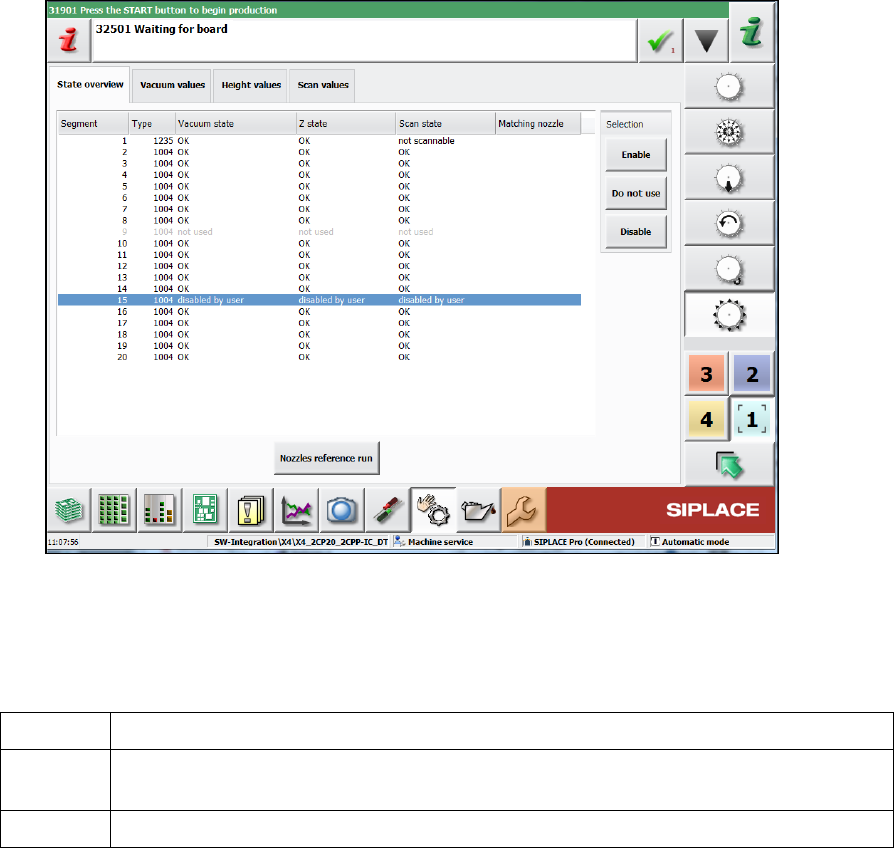
● Not using/enabling segments
Figure 4-8: Not using/enabling segments
Lamps
The green light of the lamp towers has the following meaning in 2-in-1-mode:
off Job stopped on this conveyor lane.
blinking Job is ready for production (conveyor lane unblocked) or a manual function is active
for the conveyor lane/gantries associated with this job.
on Job on this conveyor lane is actively producing.
Error handling in 2-in-1-mode
Detailed errors only lead to a stop of the affected conveyor lane. The conveyor lane will be stopped
in the following cases:
– Fiducial error or fiducial requires teaching
– Component requires teaching
– Placement position requires teaching
– Check whether a component was placed or not
Several of the detailed errors can accumulate in the error bar without interrupting the current
workflow: The operator can finish the current workflow (e.g. user initiated teaching) on one
conveyor lane, while a detailed error is pending for the other conveyor lane. Alternatively, the
operator could cancel the current workflow, navigate to the detailed error, solve it, restart the
conveyor lane and start the user-requested workflow again.
Station Software 709.1 / Version Description Ausgabe 05/2016 Edition
16
4.3 Maintenance GUI – Enhancements
Compatible mode: Complete
The Maintenance GUI has been enhanced by the new functions, views and dialogs as described
in the following sections
The user and activity levels can be set individually. The default settings are:
Preventive Maintenance:
Operator
Predictive Maintenance:
Advanced Production
Verification:
Machine service
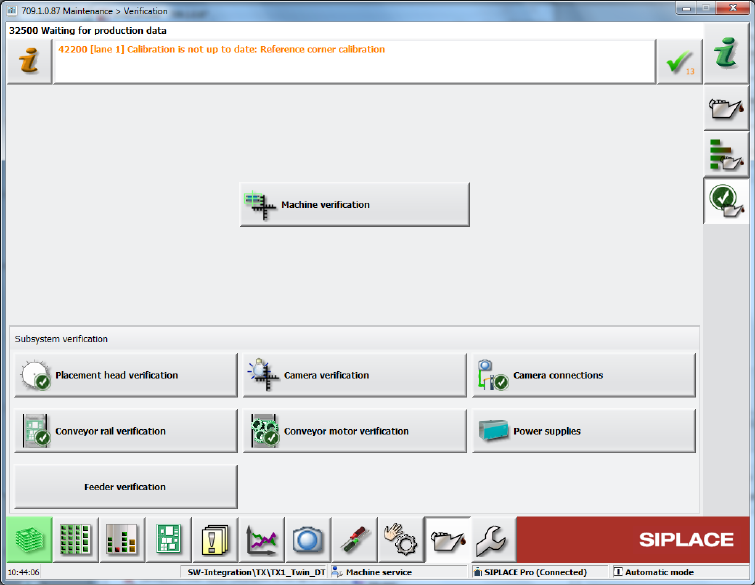
4.3.1 Verification View
The maintenance verifications have been bundled into the new Verification view from which they
can be started.
Figure 4-9: Verification view
4.3.2 Machine Verification – New Term
Compatible mode: Complete
Machine verification has been introduced as a new term. The machine verification is performed
with the ACT (Accuracy Check Tool).
The entry point for the machine verification has been moved from the Service tool to the
Verification view and can be accessed at the Machine service activity level. The button is also
visible for lower activity levels.
Station Software 709.1 / Version Description Ausgabe 05/2016 Edition
17
4.3.3 Machine Verification – Keeping Programs Stored on the Station
Downloaded programs for machine verification and placement force can be stored permanently on
the station. Thus, only one download is necessary and the programs can be recalled for further
measurements. If the configuration changes (= new ACT programm name), the programs can be
removed manually from the station and the current ones downloaded from SIPLACE Pro. If the
same program is downloaded again, it will be overwritten at the station.
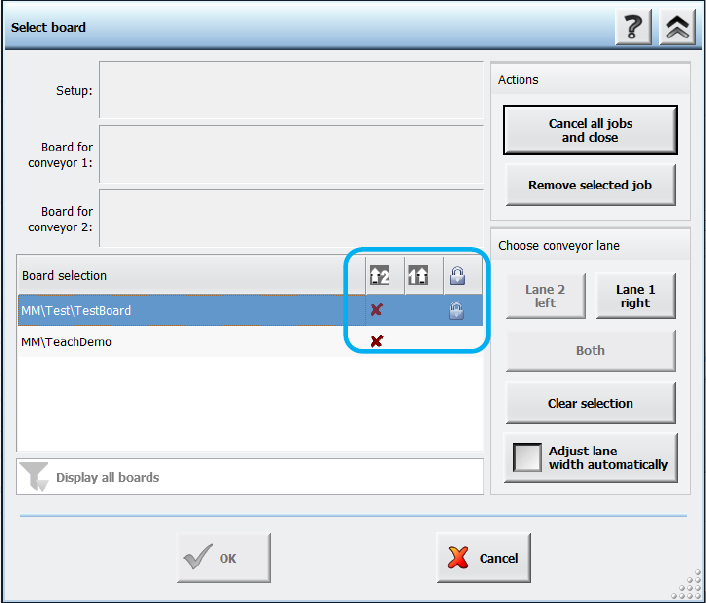
The respective board has to be accordingly marked in SIPLACE Pro. For such boards a lock icon is
then displayed in a separate column in the Select Board dialog on the station software GUI. There
is also a button with which the board can be deleted from the station.
Figure 4-10: Permanent program type
Additionally, a filter can be set to display all items or only non-permanent or permanent items.
4.3.4 Placement Head Verification
Additionally to the C&P20 A, C&P20 M, C&P20 P and CPP placement heads, the Twin Head can
now also be verified within the Placement head verification.
4.3.5 Camera Verification – New Term
Camera verification has been introduced as a new term. The camera verification is performed
with the FCCS (Field Camera Calibration System) tool.
The entry point for the camera verification has been moved from the Service tool to the
Verification view and can be accessed at the Machine service activity level. The button is also
visible for lower activity levels.