00193699-01.pdf - 第50页
3 Interfaz gráfica de usuario SIPLAC E Instrucciones de software SR.504.xx 3.4 Organigrama de la Visualización básica Edición 01/03 ES 50 3.4 Organigrama de la V isualización básica 3 3 Pull-down menus 3 Error informatio…

SIPLACE Instrucciones de software SR.504.xx 3 Interfaz gráfica de usuario
Edición 01/03 ES 3.3 Visualizaciones y menús de la interfaz de usuario
49
3.3.2.5 Menú "Language"
Mediante el menú "Language" pueden ajustarse las versiones de idioma integradas en el soft-
ware SR para la interfaz de usuario.
La interfaz de usuario puede conmutarse a otro idioma desde todas las visualizaciones.
Pueden seleccionarse los idiomas "Alemán" e "Inglés". 3
Æ Haga clic en el registro de menú para el idioma deseado.
Los textos de la interfaz de usuario se presentan en el idioma ajustado..
Æ Se dispone de un CD de idiomas para ampliar los idiomas de países adicionales.
3.3.2.6 Menú "Ayuda"
Este menú contiene todas las funciones de menú para acceder al sistema de ayuda y a informa-
ción general sobre la computadora de la estación o sobre el software. 3
ContenidoCtrl+F1 3
Se accede a la ayuda online. 3
Ayuda Alt+F1 3
Se visualiza la ayuda sobre la visualización actual. 3
Utilizar la ayuda 3
Se visualiza el modo de proceder para el manejo del sistema de ayuda. 3
Info... 3
Se visualiza información sobre la versión de software instalada actualmente (versión SR), sobre
el service pack y sobre el CD de idiomas y los datos generales de la computadora de la estación.3
NOTA
Puede acceder a la ayuda online en todas las visualizaciones de la interfaz de usuario con el
icono de conmutación (abajo a la derecha).
Con él se accede a la ayuda para la visualización actual.
El cap. 6 contiene una descripción detallada de las funciones del menú Ayuda. 3
Æ Haga clic en la función de menú deseada del menú "Ayuda" o pulse la combinación de teclas
correspondiente.
3
3 Interfaz gráfica de usuario SIPLACE Instrucciones de software SR.504.xx
3.4 Organigrama de la Visualización básica Edición 01/03 ES
50
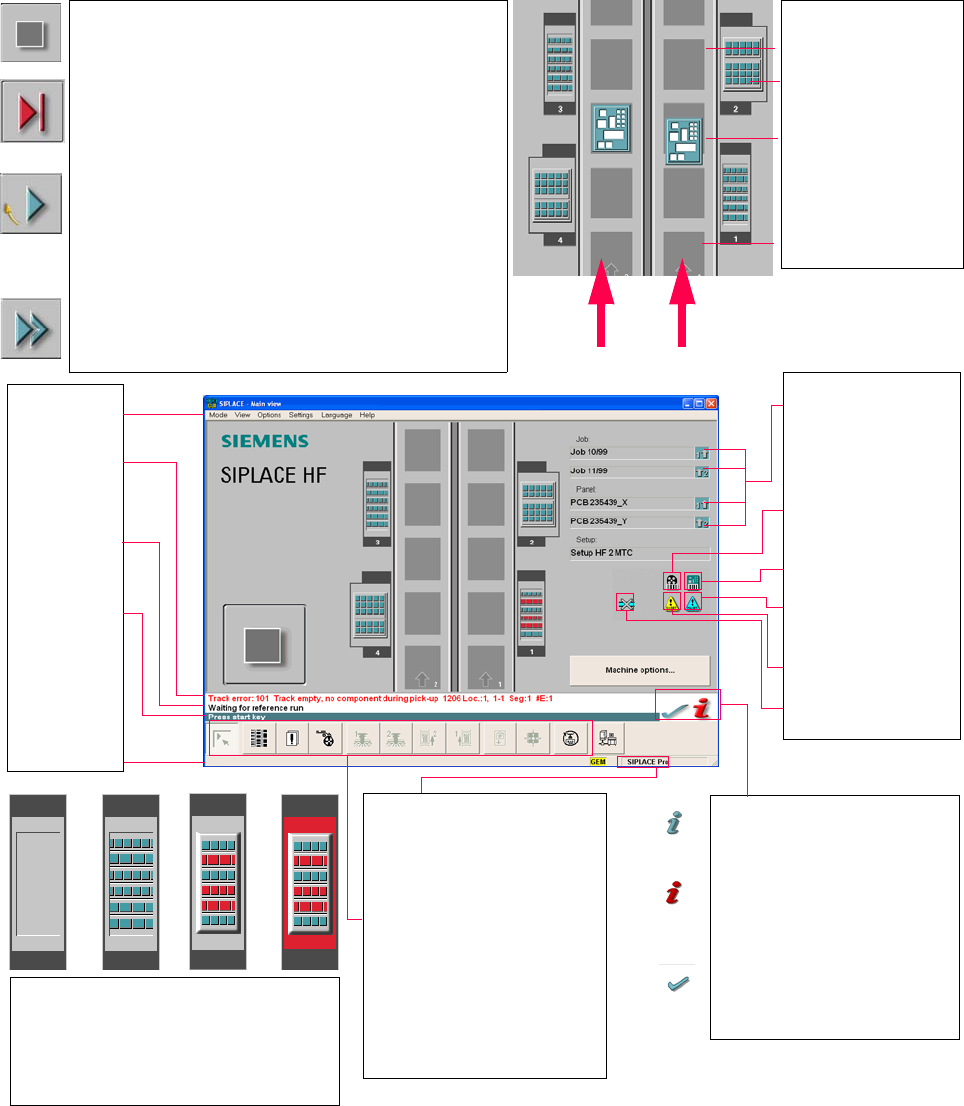
3.4 Organigrama de la Visualización básica
3
3
Pull-down menus
3
Error information
bar
3
Status indication
and process status
3
Notification about a
specific action to
carry out
3
Information bar
3
Control modes:
Stand alone
SIPLACE Pro
3
Submenu icons with info box:
Main view
Setup
Error
Feeders
Gantry 1, 2
PCB conveyor 2, 1
Teach fiducial
Test component
SITEST
GEM
3
Output conveyor
The output conveyor is empty.
MTC on location 2
Central conveyor
The PCB is supplied.
Input conveyor
The input conveyor is empty.
3
Context-sensitive help system
This also provides a short description of all
displayed operating elements.
3
Help system for errors
Starts a help system displaying possible
causes of the current error along with correc-
tive actions.
3
Error deletion
After the error has been successfully cor-
rected, the currently active error is deleted.
Conveyor 2
Conveyor 1
3
Identifies the job or panel of the
right conveyor lane, or of the
single conveyor, and of the left
conveyor lane (dual conveyors
only).
3
Barcode-supported component
refilling
3
PCB barcode is activated.
3
Machine options have been
changed
3
Software options configured
3
Compressed air switch-off
mechanism configured
1 234
1 No setup available on the corresponding location
2 Setup available
3 Setup available - at least one empty track error
4 Machine standstill due to track error
3
This display appears during the start-up process of the machine. Only when the
reference run has been completed successfully will the display appear in the form
of a button.
3
Status
The machine is running, or is in its 'ready' state.
Pressing the button:
The machine stops.
3
Status
The machine is placing components; 'stop' is activated. The assembly of the
PCBs located in processing conveyors 1 and 2 or in the central conveyor will be
terminated and the PCBs will be transported to the intermediate or output
conveyor. Subsequently, the machine will stop.
Pressing the button:
The machine continues to run without interruption.
3
Status
Machine is in the stopped state.
Pressing the button:
The machine resumes the placement operation.
SIPLACE Instrucciones de software SR.504.xx 4 Encender y apagar la línea SIPLACE
Edición 01/03 ES 4.1 Encender línea SIPLACE
51
4 Encender y apagar la línea SIPLACE
En este capítulo se ofrece ayuda para encender y apagar la línea SIPLACE. 4
4.1 Encender línea SIPLACE
4.1.1 Iniciar el sistema de programación SIPLACE Pro
Æ Arranque SIPLACE Pro mediante el menú de inicio de Windows NT
Inicio --> Programas --> Registro Siemens SIPLACE
o bien
Æ Arranque SIPLACE Pro mediante el icono del escritorio.
El sistema se conecta ahora con SIPLACE ProServer y abre la interfaz de usuario de
SIPLACE Pro.
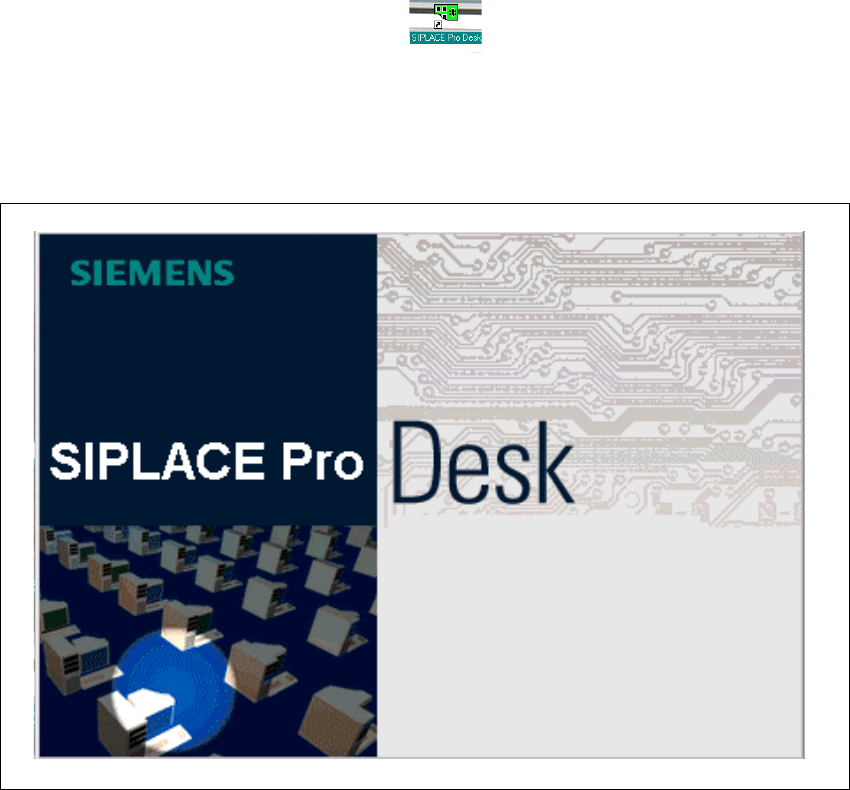
Mientras el sistema establece la conexión con SIPLACE ProServer, verá la siguiente indica-
ción en pantalla.
4
Fig. 4.1 - 1 Inicio de SIPLACE Pro