00195613-01 IM Uptime LT_EN_DE.pdf - 第50页
Installation of WINDOWS XP Operating System Required Configuration Parameter s Installation Procedure 50 SIPLACE Uptime LT Installationsanleitung / Installation Manual 2.2 Required Configuration Parameters Have the follo…
Installation of WINDOWS XP Operating System
License Conditions General
SIPLACE Uptime LT Installationsanleitung / Installation Manual
49
2 Installation of WINDOWS XP Operating System
The key steps for installing the MICROSOFT WINDOWS XP operating system on a single computer are
explained below. SIEMENS UPTIME LT can be executed with this operating system.
For further details, please refer to the MICROSOFT WINDOWS XP installation guide, provided with the
software.
2.1 General
2.1.1 License Conditions
This CD-ROM contains a preconfigured software with which a preset operating system is installed on
your computer in the SIPLACE family (see above warning).
Siemens AG is solely responsible for the design of this software.
Siemens AG is solely responsible for managing this product .
2.1.2 Procedure
The instruction guide provided describes and explains the use of the automated Windows XP setup for
SIPLACE UPTIME LT computers as single workplace installation or in a workgroup.
The installation procedure only supports the English (American) language version of Windows XP
Professional and is supplied on a bootable CD-ROM, so that the setup process is automatically initiated
after the system start.
If you fundamentally change the hardware configuration (e.g. by exchanging the main board type), you
will need to perform a reinstallation of the automated Windows XP setup.
The user is guided through the procedure in English.The corresponding notifications which will appear
on your screen are displayed and commented below.
WARNING:
This operating system is only designed for use on SIPLACE computers (at SIPLACE machines
and SIPLACE Pro programming systems), within a workgroup in the SIPLACE network.
NOTE:
For installation in a domain, please use the current "Installation Manual for Windows XP (manual
setup)", Art No.: 00193872-0x documentation.
WARNING:
All the data stored on the primary hard drive of a system will be deleted by the procedure
described here. We therefore highly recommend performing a data backup, if you should still
require this data, before you run the setup procedure.

Installation of WINDOWS XP Operating System
Required Configuration Parameters Installation Procedure
50 SIPLACE Uptime LT Installationsanleitung / Installation Manual
2.2 Required Configuration Parameters
Have the following data ready for the setup procedure:
Changes to items 3-4 are only required if UPTIME LT is to be installed in a network.
2.3 Installation
2.3.1 Installation Procedure
To start the automatic setup procedure, place the BOOT CD-ROM (Boot CDROM for Windows XP
Professional) in your CD-ROM drive.
X Remove all external drives, such as USB sticks or USB hard drives.
X Reboot the computer.
X If the system does not accept the CD-ROM as a boot medium, changes the order of boot devices in
the BIOS.
1 User name
2 Company name
3 IP address of UPTIME LT computer (default: 172.22.100.100)
4 IP address of standard gateway (optional, should remain empty if no remote support is available. Default:
empty).
5 Subnet mask of local IP network
NOTE:
In the general section of the installation, you will need to answer some questions with "Yes" or
"No" and in the second section you can switch between individual input screens with "Next" or
"Back". The "Cancel" button terminates the whole installation procedure.
NOTE:
If using a computer of type Scenic C610: If your keyboard is connected to the computer via a
USB port, you will need to enable the option "USB" in the system BIOS.
X To do this, press the F2 button during the boot process.
X Navigate to the “Advanced” menu.
X To enable the "USB Legacy Support" option, select this and press the space bar.
X Now save your settings and exit the BIOS.
Installation of WINDOWS XP Operating System
Preparations for the Automatic Windows XP Installation Installation
SIPLACE Uptime LT Installationsanleitung / Installation Manual
51
2.3.2 Preparations for the Automatic Windows XP Installation
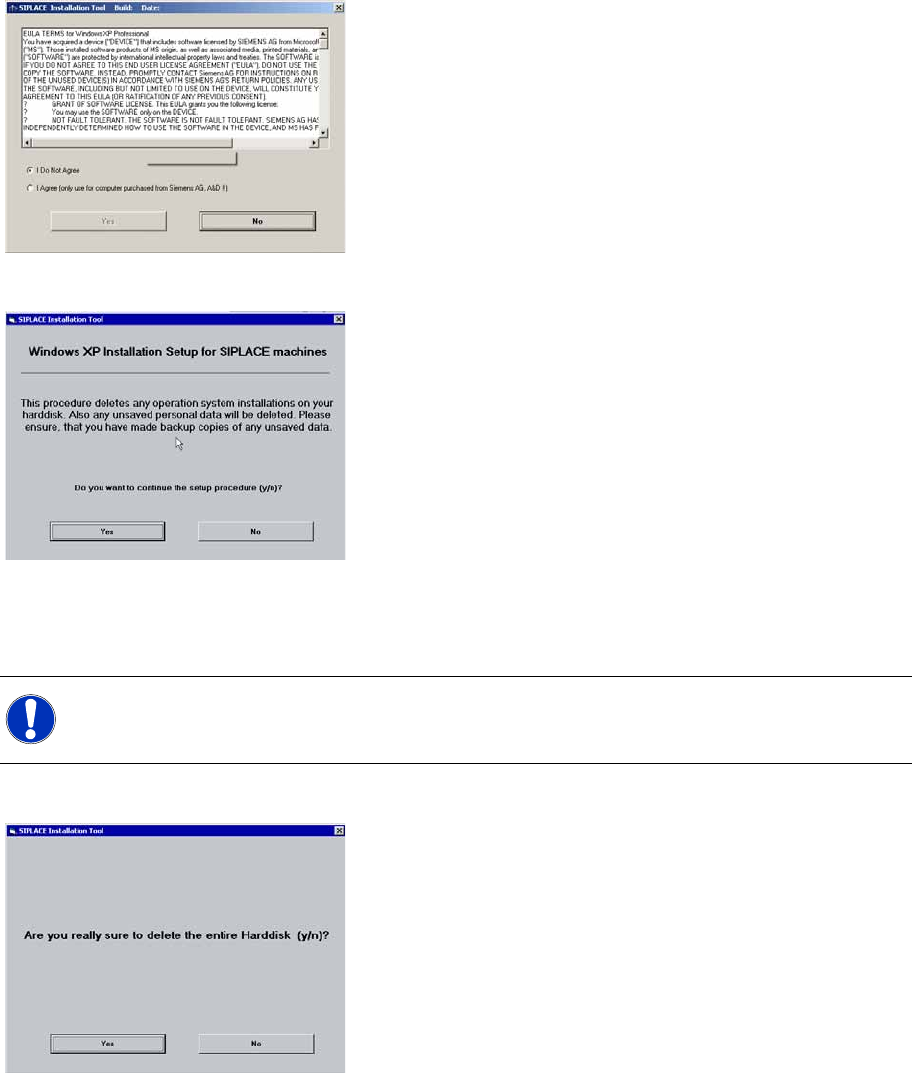
In this dialog, you confirm the license agreement with Siemens AG, which stipulates that this XP version
may only be installed on computers which have been procured from AD EA 1.
In the following dialog you can terminate the setup:
2.3.3 System Partitioning
During the installation process, the system hard drive will be partitioned.
X Confirm the partitioning:
NOTE:
The data of all previous partitions on the hard drive will be irrevocably deleted.