00195613-01 IM Uptime LT_EN_DE.pdf - 第58页
Installation of a Network Network Hardware 58 SIPLACE Uptime LT Installationsanleitung / Installation Manual 3.2 Network Hardware The comput ers can only com municate with o ne another if they are actually ph ysically co…
Installation of a Network
General
SIPLACE Uptime LT Installationsanleitung / Installation Manual
57
3 Installation of a Network
3.1 General
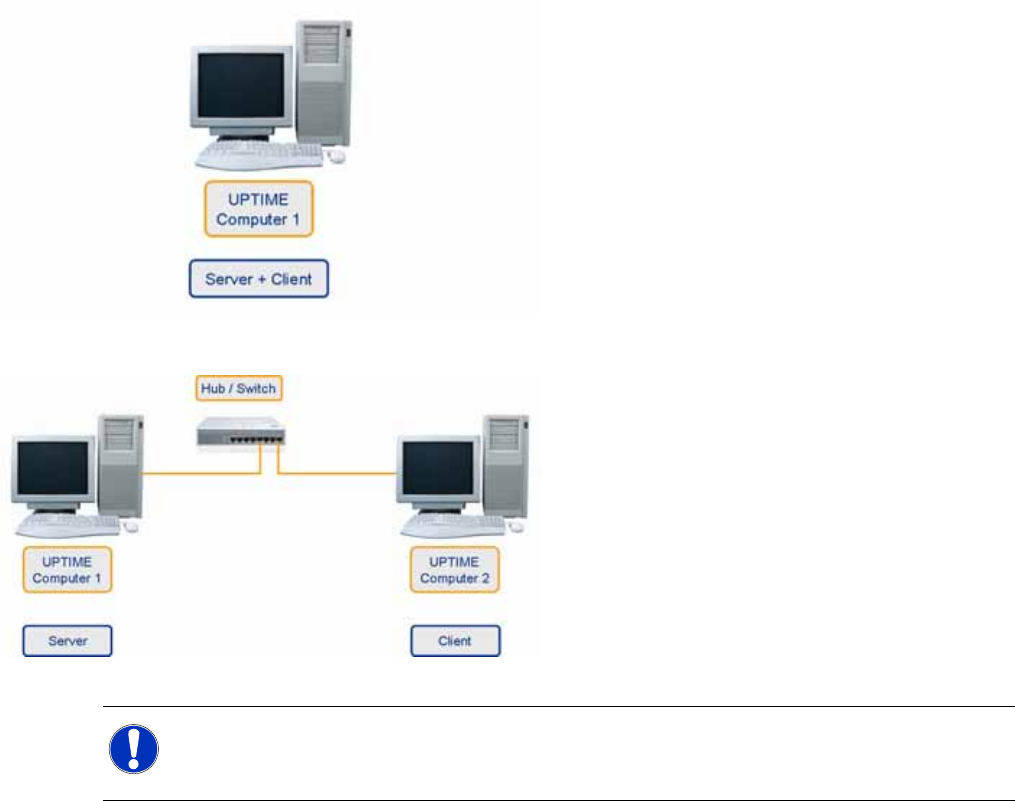
The Uptime LT software can either be installed as a single workplace or multiple workplace system.
Where possible, accept the presettings without making changes to them.
In the single workplace option, the server and
client are installed on one computer.
In a multiple workplace system, the server is
installed on one computer and a client is then
installed on one or more computers.
NOTE:
If a client server installation is performed, begin with the server. The connection to the server
can be tested with the installation of the client.
Installation of a Network
Network Hardware
58 SIPLACE Uptime LT Installationsanleitung / Installation Manual
3.2 Network Hardware
The computers can only communicate with one another if they are actually physically connected to one
another. The following hardware is required:
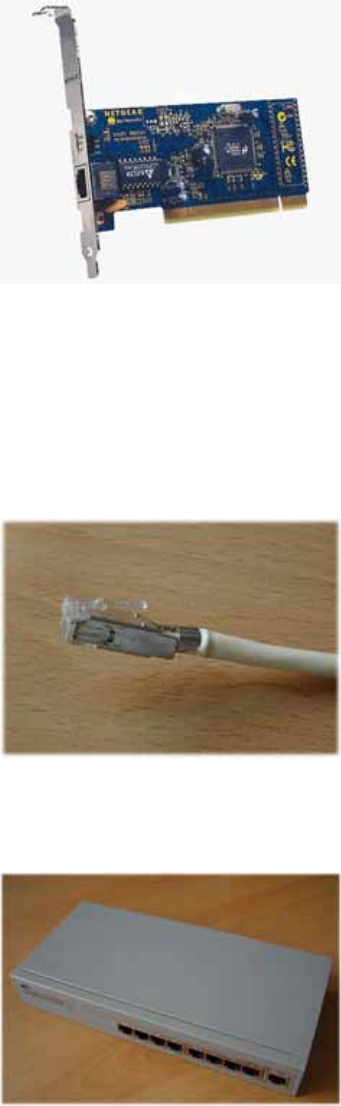
One network card per computer
The usual choice is PCI 10BaseT / 100BaseT Fast Ethernet Adapter (Ethernet cards for the PCI bus,
which can automatically switch over between transfer rates of 10 MBit/s and 100 MBit/s)
LAN onboard
New computers often have a LAN chip on the motherboard. They do not need a new network card
in this case. However, you may need to activate the chip in the BIOS. For details, consult your PC
manual.
One network cable per computer
You need a CAT5 UTP or STP cable (unshielded or shielded twisted pair cable of category 5 with
RJ45 connectors at both ends).
A signal distributor
The optimum option is a dual speed hub or a dual speed switch (coupler which connects the
computer and controls the data traffic and can switch 10 MBit/s and 100 MBit/s).
The signal distributor is the central connection component in your network. The network card of each
computer is connected with the signal distributor via the twisted pair cable.This creates a star formation,
which is why one also speaks of a star topology.
Installation of a Network
Configuring TCP/IP
SIPLACE Uptime LT Installationsanleitung / Installation Manual
59
The signal distributor not only connects the devices but also feeds the data packages through the
network. There is a differentiation between the hub and the switch. If the hub receives a data package,
it distributes this to all computers. Each computer must then check whether it is the correct recipient. A
hub simply sends the data packages to all ports. A switch is more intelligent. With the help of the MAC
address (the network card hardware address allocated by the manufacturer), it is able to recognize which
computers are connected and at which ports. This information is then recorded in a table. When a data
package arrives, the switch finds out the recipient and only sends that data package to the computer for
which it is intended. A switch therefore sends data packages to the correct recipient. This means that it
causes significantly less data traffic than a hub. The more computers you want to connect in the system,
the more effective a switch becomes. Make sure that your signal distributor has a connection for each
computer and consider in advance whether your network is likely to grow in size or not.
3.3 Configuring TCP/IP
After you have successfully set up your network card, you need to make sure that your computers can
communicate with one another:
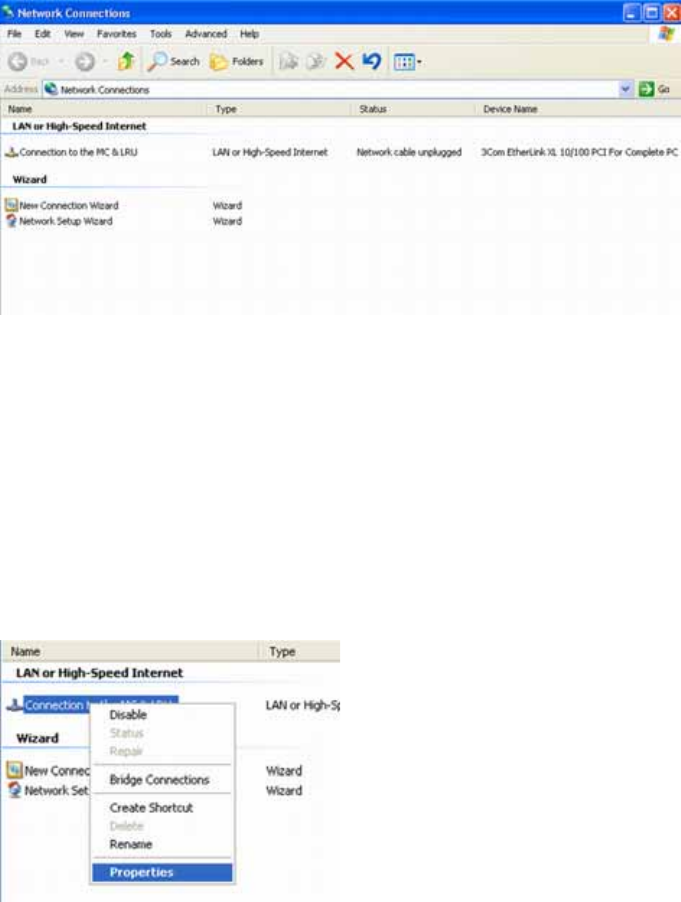
X Click on START, CONTROL PANEL, NETWORK AND INTERNET CONNECTION and then select
NETWORK CONNECTIONS. Windows has set up a LAN connection for your network here.
Alternatively, you can also use the normal control panel view.
X Click on START, CONTROL PANEL and then select the CLASSIC START menu, if required.
Double-click on NETWORK CONNECTIONS.
If you want to set up more connections (e.g. to the internet), it is helpful to give each of these a clear
name. This helps you to differentiate between them later on.
X Right-click with the mouse on the connection required. Select RENAME and type in another name.
Press ENTER.
You can now check your LAN connection.
X Right-click with the mouse on your connection and select PROPERTIES. You will see the network
components which are installed.