00195613-01 IM Uptime LT_EN_DE.pdf - 第68页
Installing the Uptime LT Application Starting the Installation 68 SIPLACE Uptime LT Installationsanleitung / Installation Manual 4-4: Microsoft .NET Framework installation w izard X Click on the Next button. 4-5: License…
Installing the Uptime LT Application
Starting the Installation
SIPLACE Uptime LT Installationsanleitung / Installation Manual
67
4 Installing the Uptime LT Application
4.1 Starting the Installation
To begin the installation procedure, place the Uptime LT installation CD in the CD drive of your
computer. Windows will then automatically run the start dialog. If the installation does not begin
automatically, start the setup.exe file in the main folder on the CD.
You will see a start window, welcoming you to the software installation. You now have the chance to
choose between English or German for the installation process. Your choice does not affect the
language in which the Uptime LT application is shown after the installation.
First of all, the installation software checks whether you have the Microsoft .NET Framework (version
2.0) software installed. This software is a prerequisite for the UPTIME LT application software. The start
dialog can be displayed in two different ways, depending on whether Microsoft .NET is already installed
on your computer or not.
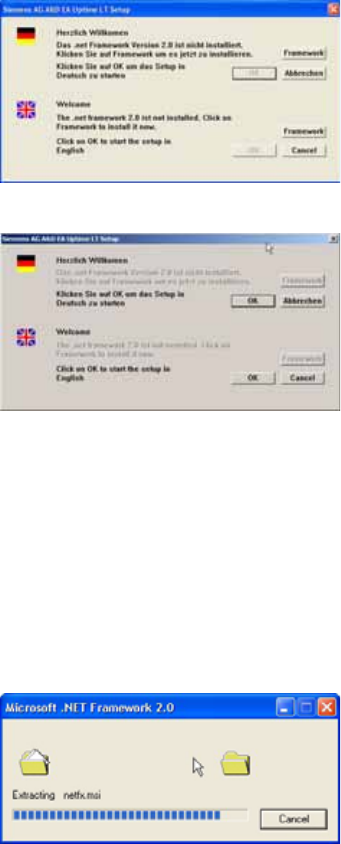
4-1: Start screen installation (before installation of Microsoft .NET )
4-2: Start screen installation (after installation of Microsoft .NET )
If the software is not yet installed, the OK button will be inactive and you can either install Microsoft .NET
Framework or terminate the installation process.
If the software is already installed, the OK button will be active and you can continue with the installation
of Uptime LT.
Automatic installation of Microsoft .NET Framework
By clicking on the Framework button, the Frameworks software will be installed almost automatically.
Simply follow the instructions shown by the installation program.
4-3: Preparing installation of Microsoft .NET Framework
Installing the Uptime LT Application
Starting the Installation
68 SIPLACE Uptime LT Installationsanleitung / Installation Manual
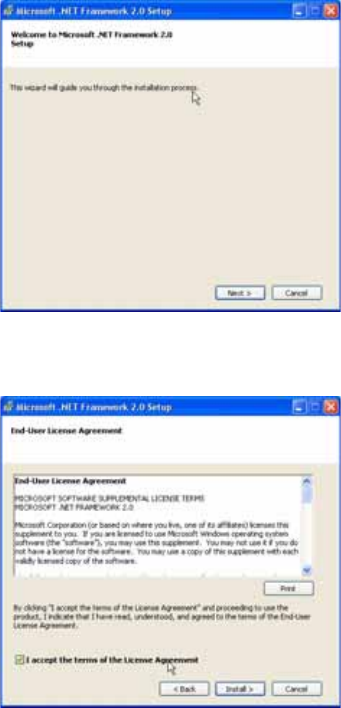
4-4: Microsoft .NET Framework installation wizard
X Click on the Next button.
4-5: License query/display (FW)
X Read the license conditions through carefully.
X Tick the checkbox I accept the terms of the License Agreement.
The Install button will be activated.
X Click on the Install button.
Installing the Uptime LT Application
Starting the Installation
SIPLACE Uptime LT Installationsanleitung / Installation Manual
69
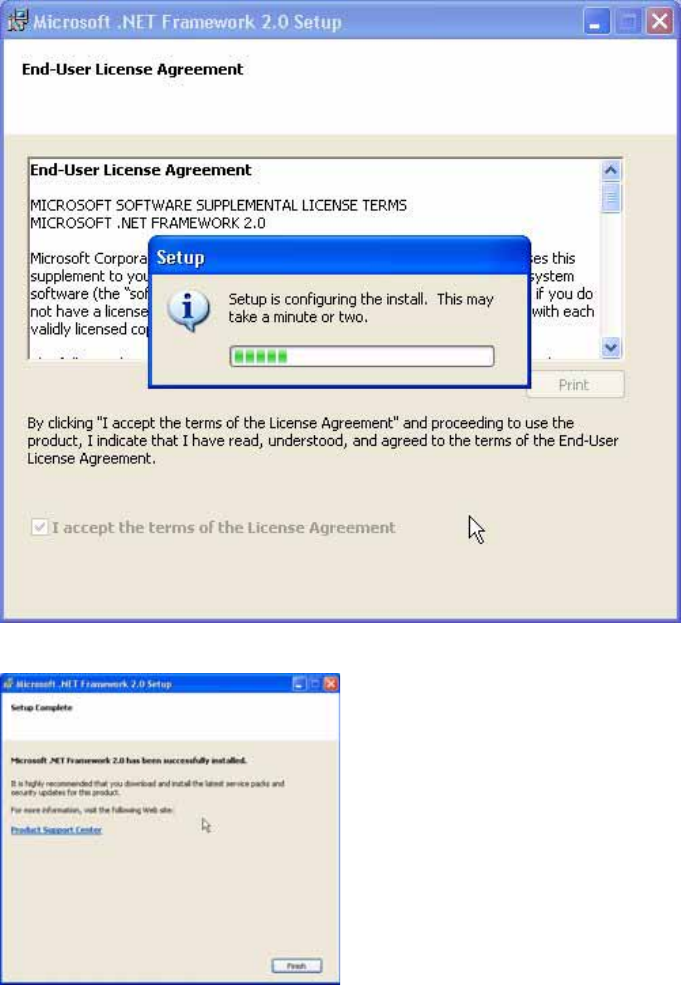
4-6: Microsoft .NET Framework installation with progress bar
4-7: Microsoft .NET Framework installation completion message
X Click on the Finish button.
The installation of the Microsoft .NET Framework software is now finished.