00195613-01 IM Uptime LT_EN_DE.pdf - 第76页
Installing the Uptime LT Application Installing Uptime LT Setting the INI File 76 SIPLACE Uptime LT Installationsanleitung / Installation Manual 4-18: Path settings This is where you define the path settings. The only im…
Installing the Uptime LT Application
Setting the INI File Installing Uptime LT
SIPLACE Uptime LT Installationsanleitung / Installation Manual
75
4.2.4 Setting the INI File
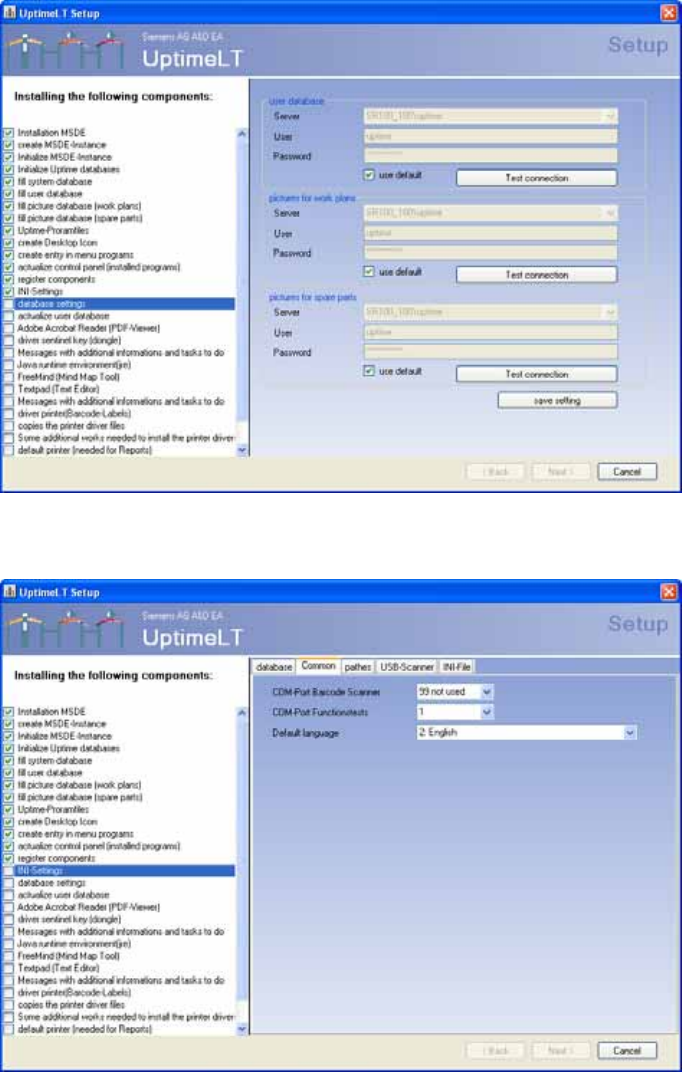
4-16: Database settings
This is where you define the database settings.
4-17: General settings
This is where you define general settings.
Installing the Uptime LT Application
Installing Uptime LT Setting the INI File
76 SIPLACE Uptime LT Installationsanleitung / Installation Manual
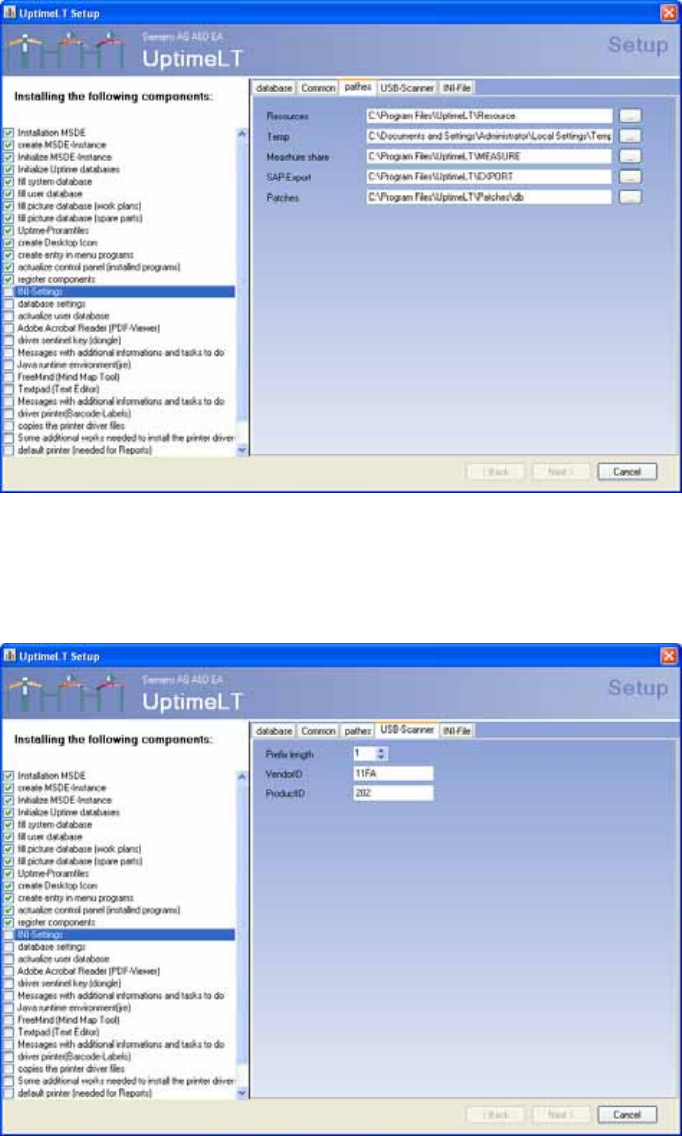
4-18: Path settings
This is where you define the path settings.
The only important entry for the user is SAP-Export. This is where Uptime LT saves an export file with
the job data. This file can then be processed further in a data processing software (e.g. SAP).
4-19: Barcode scanner settings
This is where you define the settings for a USB barcode scanner. The presettings are suitable for a
scanner of type Dyn 550, which is supplied by SIEMENS as an option for the Feeder Care Station.
If you want to use your own scanner, change the settings accordingly. Consult your scanner manual for
details.
Installing the Uptime LT Application
Setting the INI File Installing Uptime LT
SIPLACE Uptime LT Installationsanleitung / Installation Manual
77
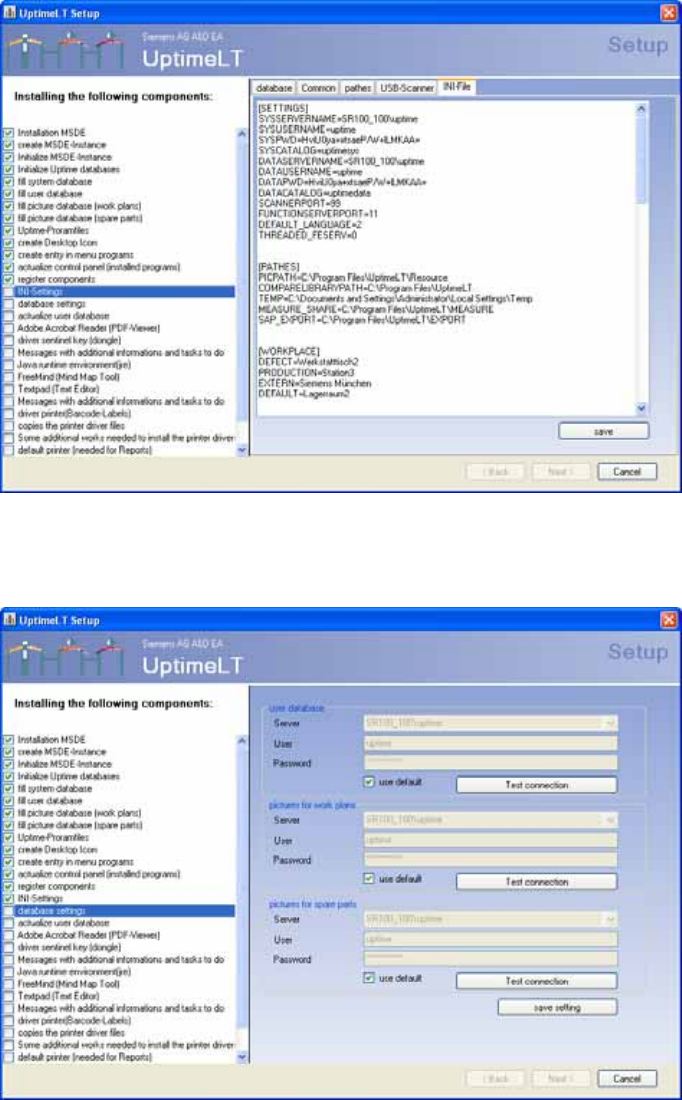
4-20: Displaying the INI file
This view shows the INI file as it was generated. You can edit the data here. Click on Save to write the
file and perform the next step.
4-21: Database settings
This is where you define the database settings.
X Click on the Save Settings button.