00195613-01 IM Uptime LT_EN_DE.pdf - 第71页
Installing the Uptime LT Application Selecting Program Packages Installing Uptime LT SIPLACE Uptime LT Installationsanleitung / Installation Manual 71 4.2.2 Selecting Program Packages After the license query scre en, you…
Installing the Uptime LT Application
Installing Uptime LT Accepting the License
70 SIPLACE Uptime LT Installationsanleitung / Installation Manual
4.2 Installing Uptime LT
After checking for the installation of Microsoft .NET Framework or installing this software, the installation
of UPTIME.LT can be started.
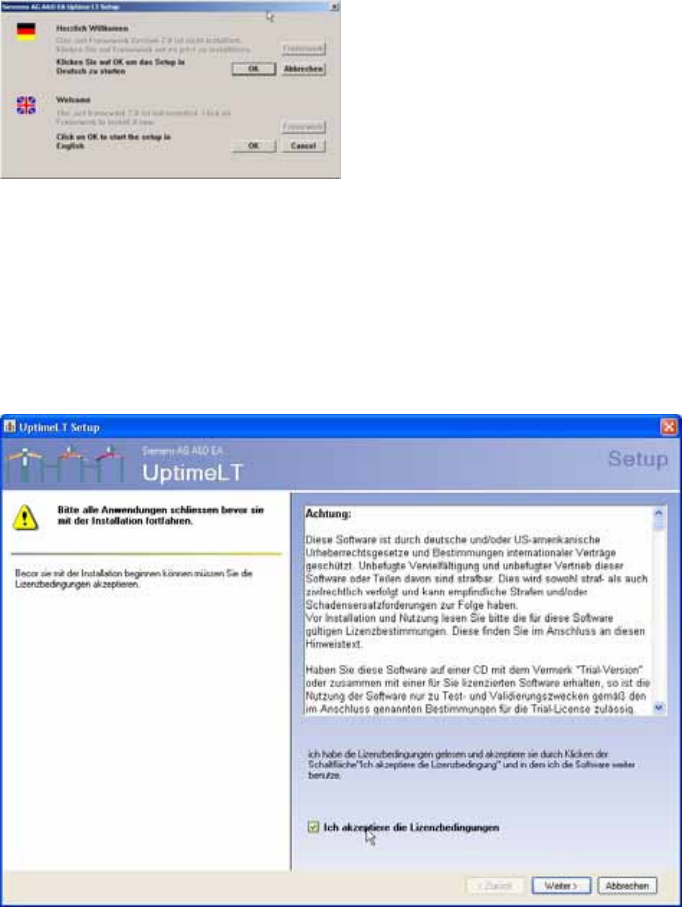
4-8: Start screen for installation
X Click on the OK button.
4.2.1 Accepting the License
The installation wizard for Uptime LT begins with the license conditions query.
Before the actual installation can begin, you must accept the license conditions. The Next button will only
be activated once the license conditions have been accepted.
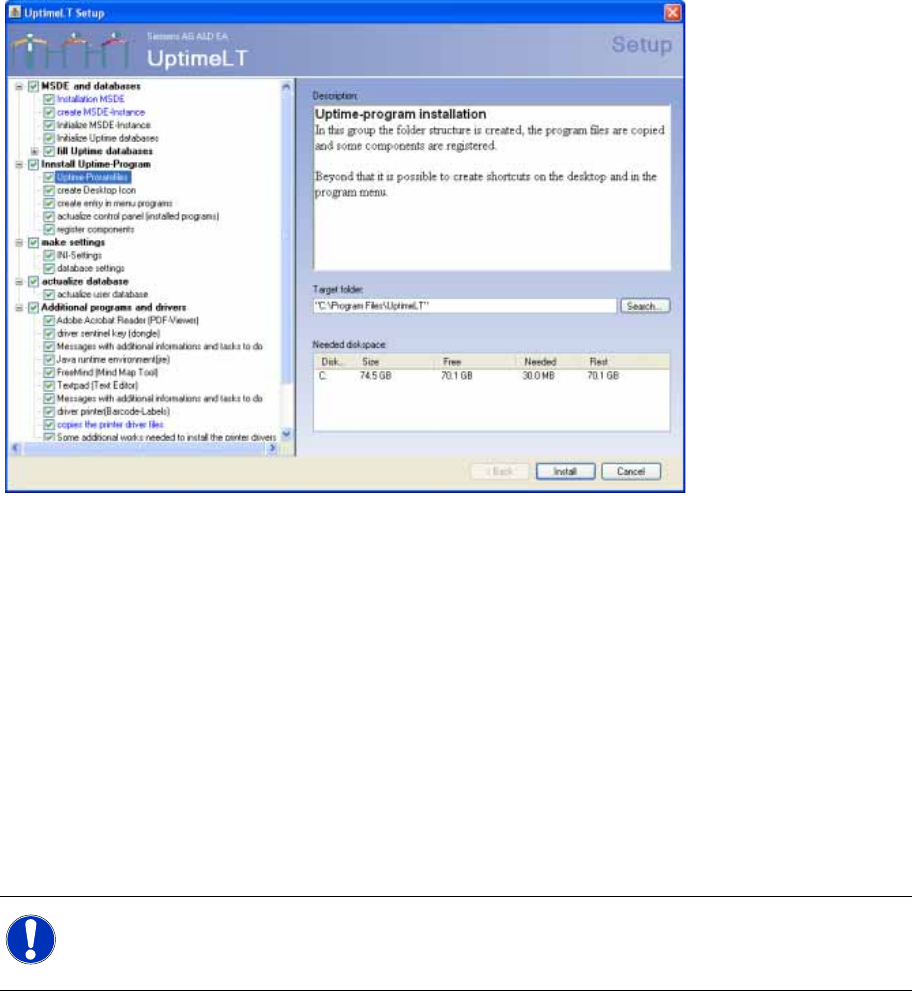
4-9: Uptime LT license screen
X Read the license conditions through carefully.
X Tick the checkbox I accept the terms of the License Agreement. The Next button is now active.
X Click on the Next button.
Installing the Uptime LT Application
Selecting Program Packages Installing Uptime LT
SIPLACE Uptime LT Installationsanleitung / Installation Manual
71
4.2.2 Selecting Program Packages
After the license query screen, you will see the window for selection of the program packages to be
installed and for selection of the installation path.
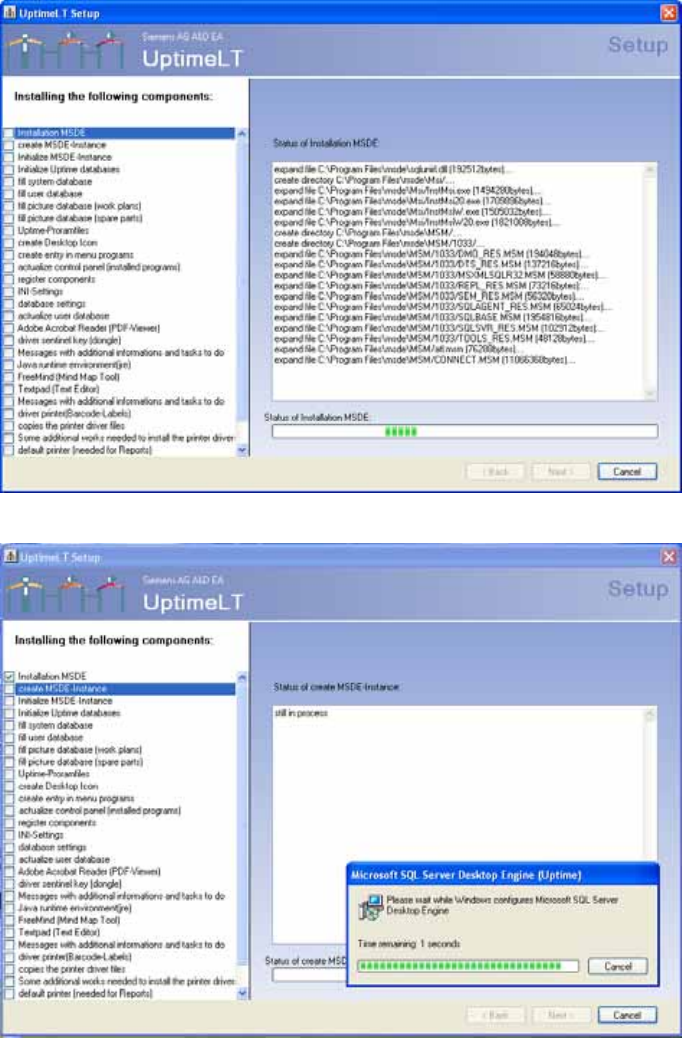
4-10: Program selection in the Uptime LT installation
Entries which are marked blue in the program package list indicate that an installation folder can/must
be selected here.
The checkbox in front of the program package allows you to exclude that item from the installation.
However, certain program packages are essential and can not be excluded.
If a program package group is excluded from the installation, this also excludes all subentries in this
group. The ticks in the corresponding subgroups will be automatically removed.
Each program package has a description of what will be installed i.e. the program package contents. The
list on the left side shows the package which is currently being installed.A green tick will be displayed
next to the program packages which have been successfully installed.
Before starting the installation, we recommend that you look through all the program packages and
adjust the paths as required.
X Adjust the program package paths to your requirements.
X Click on the Install button. The installation process will begin for those features which are ticked in
the selection list.
NOTE:
The program package paths for MSDE and databases/ MSDE entity generation is set to drive
D: .All other program packages are set to paths on drive C: .
Installing the Uptime LT Application
Installing Uptime LT Installing Program Packages
72 SIPLACE Uptime LT Installationsanleitung / Installation Manual
4.2.3 Installing Program Packages
4-11: Installing program packages
4-12: Generating an MSDE entity