00195613-01 IM Uptime LT_EN_DE.pdf - 第51页
Installation of WINDOWS XP Operating System Preparations for the Automa tic Windows XP Installation Installation SIPLACE Uptime LT Installationsanleitung / Installation Manual 51 2.3.2 Prep arations for the Auto matic Wi…

Installation of WINDOWS XP Operating System
Required Configuration Parameters Installation Procedure
50 SIPLACE Uptime LT Installationsanleitung / Installation Manual
2.2 Required Configuration Parameters
Have the following data ready for the setup procedure:
Changes to items 3-4 are only required if UPTIME LT is to be installed in a network.
2.3 Installation
2.3.1 Installation Procedure
To start the automatic setup procedure, place the BOOT CD-ROM (Boot CDROM for Windows XP
Professional) in your CD-ROM drive.
X Remove all external drives, such as USB sticks or USB hard drives.
X Reboot the computer.
X If the system does not accept the CD-ROM as a boot medium, changes the order of boot devices in
the BIOS.
1 User name
2 Company name
3 IP address of UPTIME LT computer (default: 172.22.100.100)
4 IP address of standard gateway (optional, should remain empty if no remote support is available. Default:
empty).
5 Subnet mask of local IP network
NOTE:
In the general section of the installation, you will need to answer some questions with "Yes" or
"No" and in the second section you can switch between individual input screens with "Next" or
"Back". The "Cancel" button terminates the whole installation procedure.
NOTE:
If using a computer of type Scenic C610: If your keyboard is connected to the computer via a
USB port, you will need to enable the option "USB" in the system BIOS.
X To do this, press the F2 button during the boot process.
X Navigate to the “Advanced” menu.
X To enable the "USB Legacy Support" option, select this and press the space bar.
X Now save your settings and exit the BIOS.
Installation of WINDOWS XP Operating System
Preparations for the Automatic Windows XP Installation Installation
SIPLACE Uptime LT Installationsanleitung / Installation Manual
51
2.3.2 Preparations for the Automatic Windows XP Installation
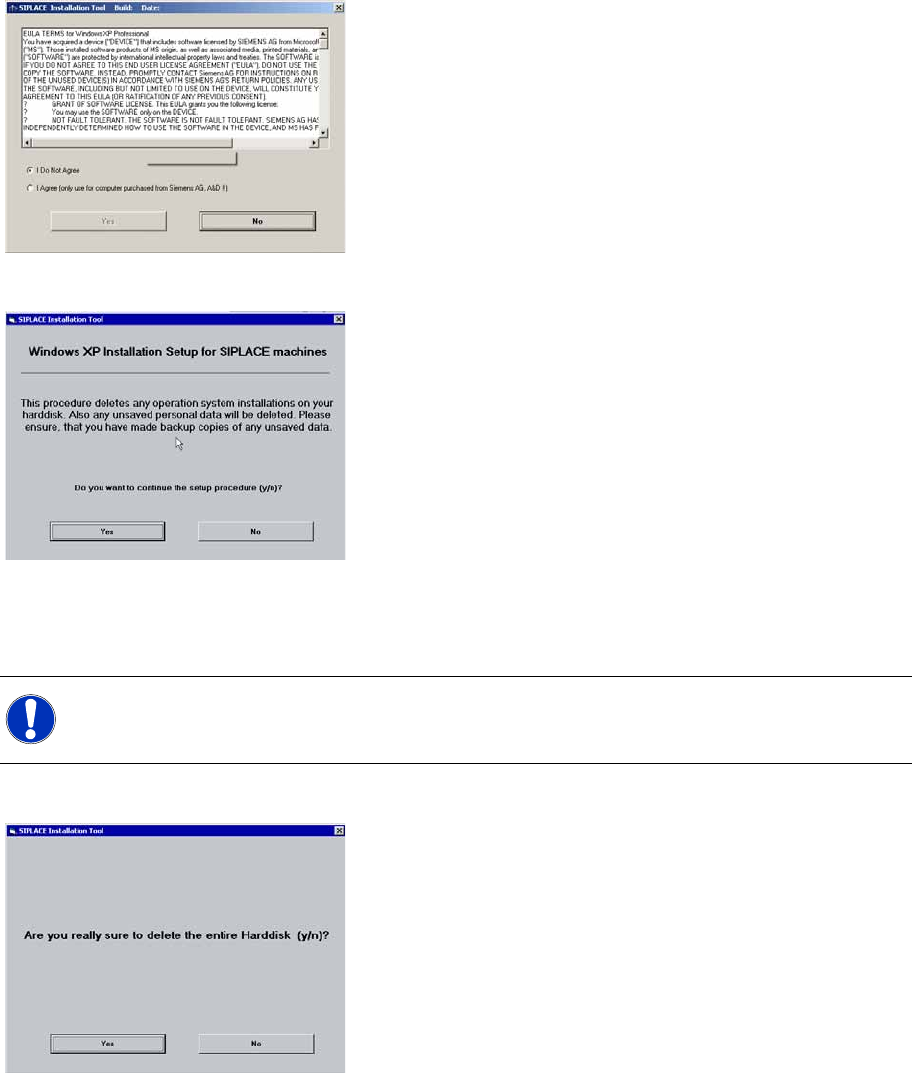
In this dialog, you confirm the license agreement with Siemens AG, which stipulates that this XP version
may only be installed on computers which have been procured from AD EA 1.
In the following dialog you can terminate the setup:
2.3.3 System Partitioning
During the installation process, the system hard drive will be partitioned.
X Confirm the partitioning:
NOTE:
The data of all previous partitions on the hard drive will be irrevocably deleted.
Installation of WINDOWS XP Operating System
Installation Determining the SIPLACE Installation Types
52 SIPLACE Uptime LT Installationsanleitung / Installation Manual
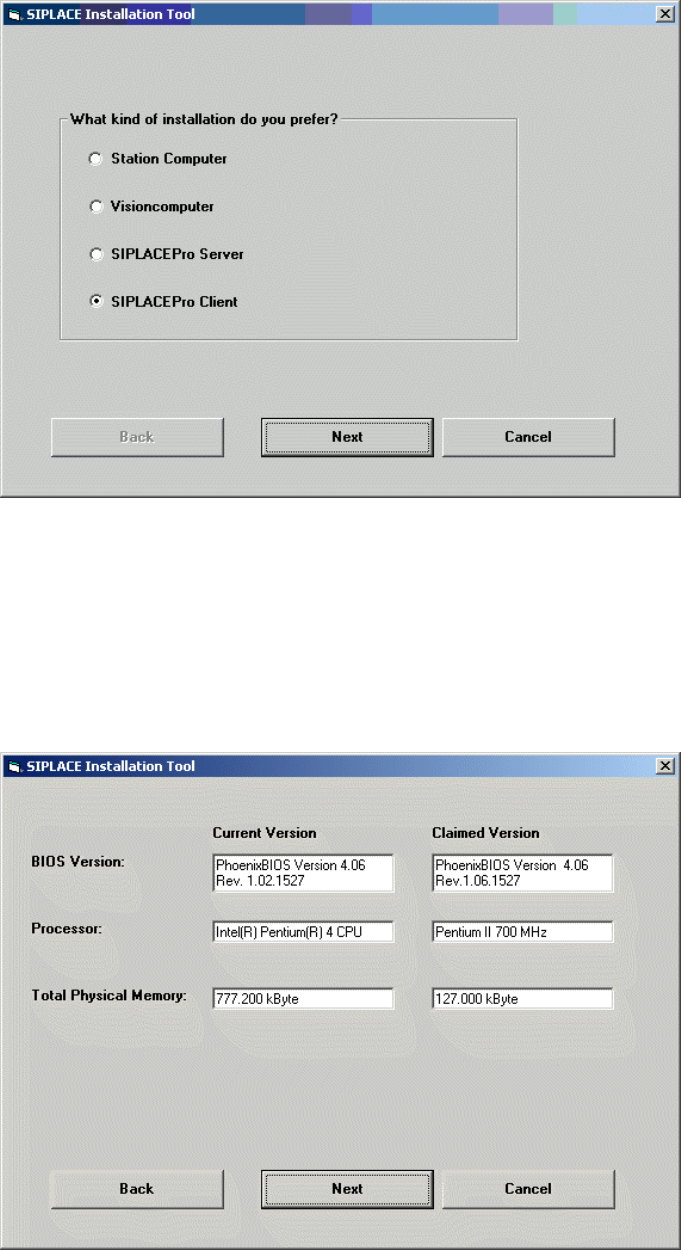
2.3.4 Determining the SIPLACE Installation Types
With the help of this input, the system is able to decide for which SIPLACE product the Windows XP
Professional installation is to be performed.
X Select SIPLACE Pro Client.
X Click on the Next button.
2.3.5 Checking the Hardware Requirements.
A hardware check is performed with different threshold values. If these thresholds are not adhered to,
an error message will be issued. However, the installation procedure will not be stopped.
Please observe the minimum hardware system requirements in chapter" General Information About the
Software Installation".
X Click on the Next button.