00195613-01 IM Uptime LT_EN_DE.pdf - 第84页
Setting up the Peripheral Devices Installing the Zebra® TLP 3844-Z Printer 84 SIPLACE Uptime LT Installationsanleitung / Installation Manual X Go to Paper/Output , select Top Adjustment and set the value 40 . X Go to Doc…
Setting up the Peripheral Devices
Installing the Zebra® TLP 3844-Z Printer
SIPLACE Uptime LT Installationsanleitung / Installation Manual
83
5.3 Installing the Zebra® TLP 3844-Z Printer
When you install the Uptime LT software, the barcode printer is automatically installed with it. After its
successful installation, the printer is already entered in Uptime LT and can be used immediately. (for
printers as USB printers)
The Zebra® TLP 3844-Z printer is needed to printer feeder labels so that these can be uniquely
identified.
Installation and configuration
X Connect one end of the USB cable to the printer.
X Connect the other end of the USB cable to the PC.
X Switch the power switch of the printer to OFF.
X Connect one end of the power cable to the printer.
X Connect the other end of the power cable to an earthed shockproof socket.
If you switch on the printer, this will be automatically by the operating system of your PC.
After the automatic installation of the printer has been completed, you need to define several settings in
the printer driver. Set the printer driver now.
X Click on the Start – Settings – Printers and Faxes menu.
You will now see the printer window.
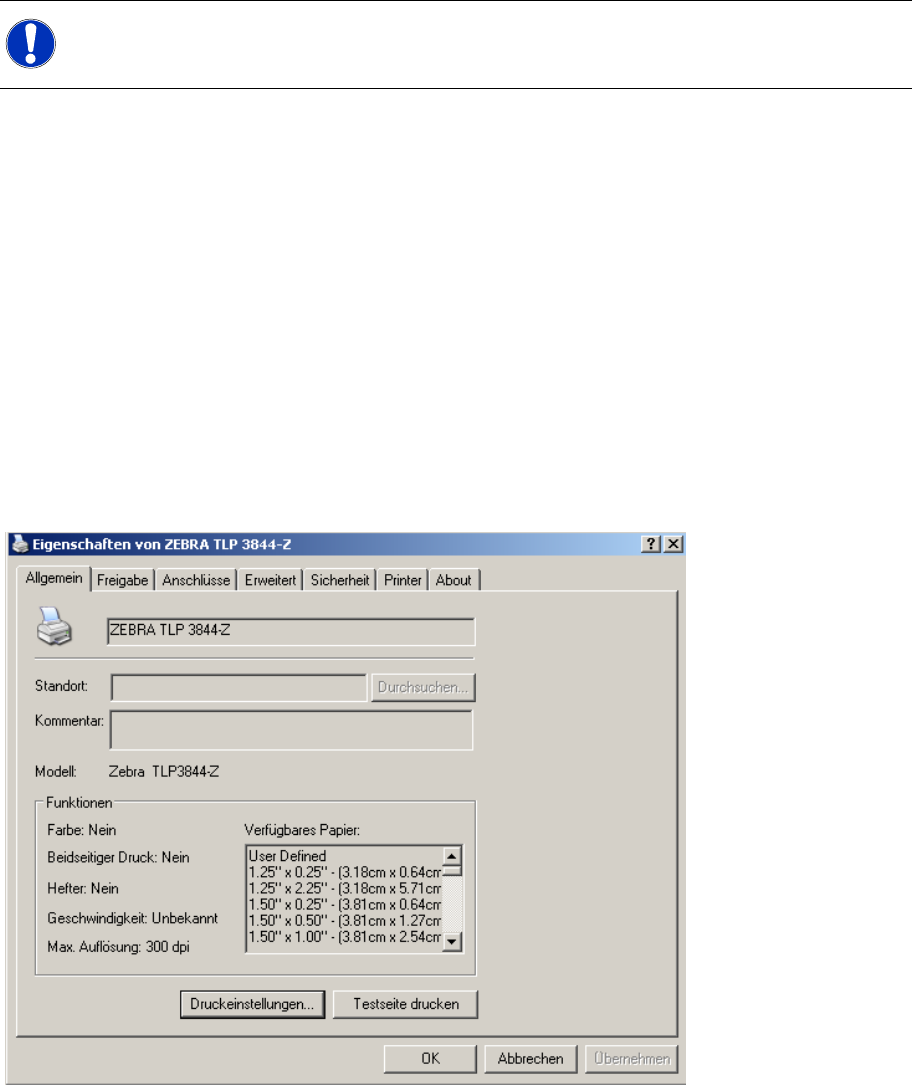
X Mark the ZEBRA TLP 3844-Z printer and select the menu item File, Properties.
You will then see the dialog box for the printer properties.
X Click on the Printer Preferences button.
You will then see the dialog box for the printer properties.
NOTE:
Observe the safety notes in the operating manual supplied with the printer.
Setting up the Peripheral Devices
Installing the Zebra® TLP 3844-Z Printer
84 SIPLACE Uptime LT Installationsanleitung / Installation Manual
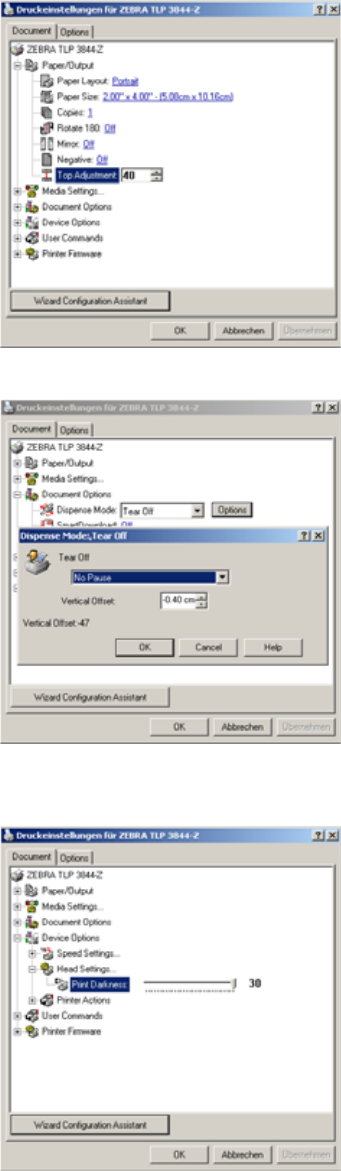
X Go to Paper/Output, select Top Adjustment and set the value 40.
X Go to Document Options, select the option Dispense Mode and set the value Tear Off.
X Click on the Options button and set the Virtual Offset to – 0.40 cm.
X Go to Device Options, select Head Settings … and set the Print Darkness to 30.
X Click on the OK button to save the settings.
The dialog box for the printer properties will now close.
Setting up the Peripheral Devices
Installing the Zebra® TLP 3844-Z Printer
SIPLACE Uptime LT Installationsanleitung / Installation Manual
85
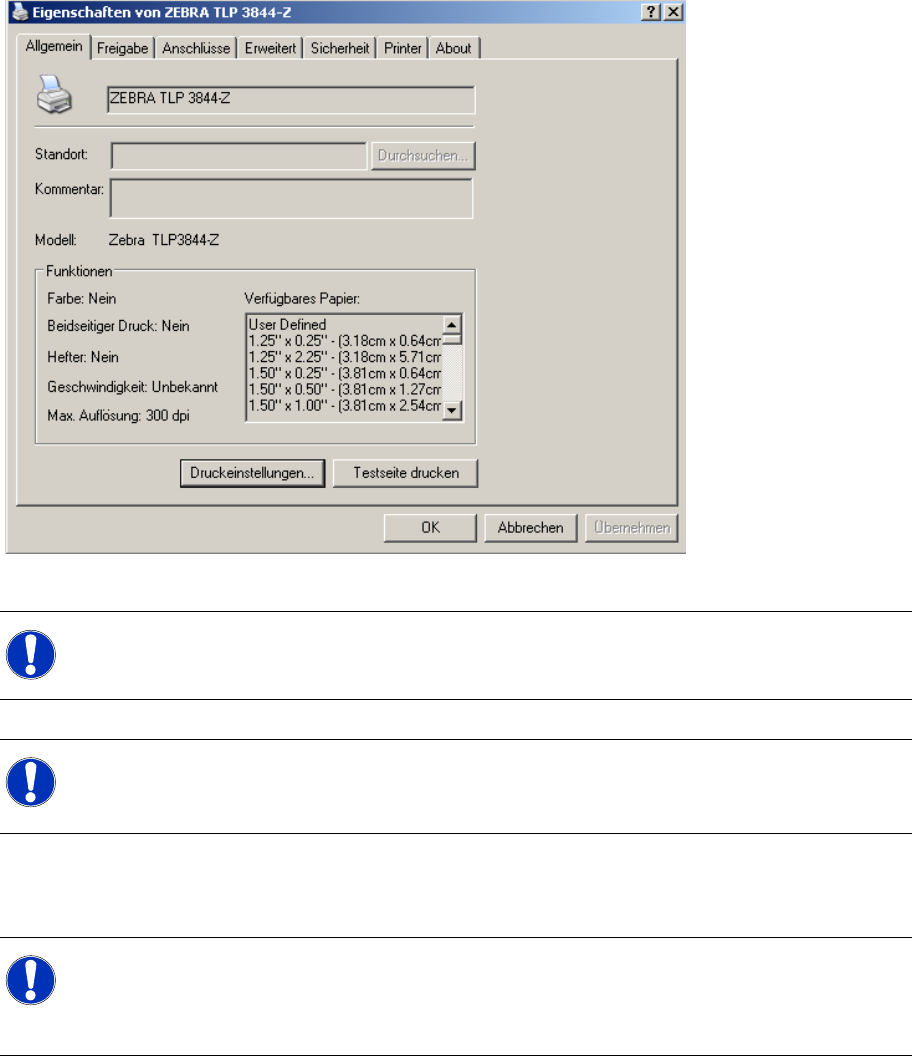
X Click on the Print Test Page button in the printer properties dialog box.
Operation
To check the printer settings, you can print out the configuration file.
NOTE:
First click on the Print Test Page button, the settings will also be saved in the printer.
NOTE:
Once you have installed the printer, you still need to enter it in Uptime LT. To do this in
Uptime LT, switch over to the File – Printer … menu and select the Edit Printer edit field.
NOTE:
If you want to use a different printer, make sure that this is 100% ZPL language compatible and
that it can print with a resolution of 300 dpi. A different resolution would alter the size of the
printout.