00195613-01 IM Uptime LT_EN_DE.pdf - 第85页
Setting up the Peripheral Devices Installing the Zebra® TLP 3844- Z Printer SIPLACE Uptime LT Installationsanleitung / Installation Manual 85 X Click on the Print Test Page button in the pr inter properties dialog box. O…
Setting up the Peripheral Devices
Installing the Zebra® TLP 3844-Z Printer
84 SIPLACE Uptime LT Installationsanleitung / Installation Manual
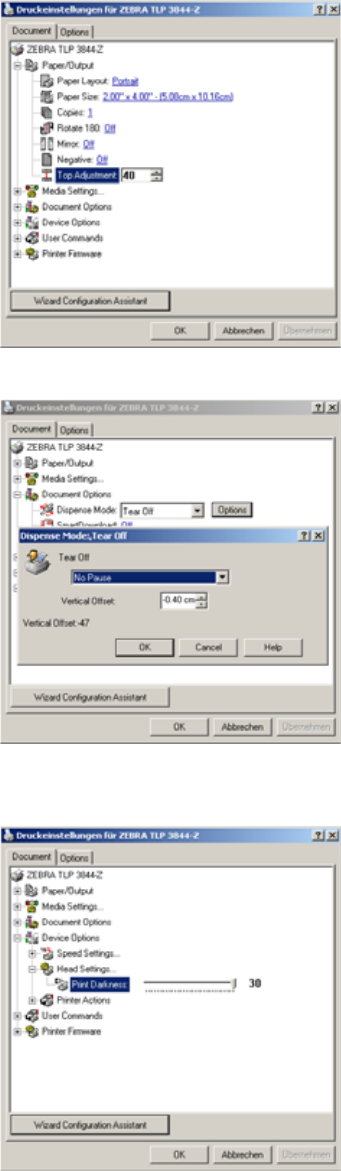
X Go to Paper/Output, select Top Adjustment and set the value 40.
X Go to Document Options, select the option Dispense Mode and set the value Tear Off.
X Click on the Options button and set the Virtual Offset to – 0.40 cm.
X Go to Device Options, select Head Settings … and set the Print Darkness to 30.
X Click on the OK button to save the settings.
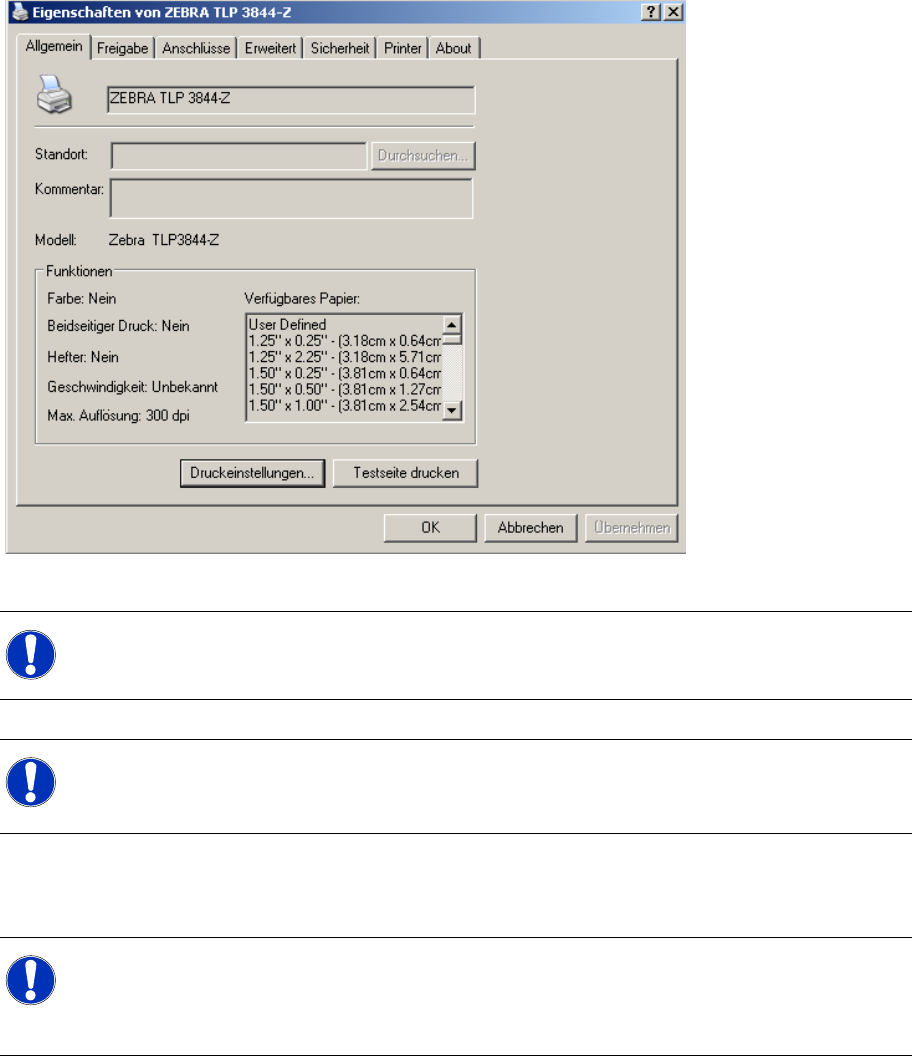
The dialog box for the printer properties will now close.
Setting up the Peripheral Devices
Installing the Zebra® TLP 3844-Z Printer
SIPLACE Uptime LT Installationsanleitung / Installation Manual
85
X Click on the Print Test Page button in the printer properties dialog box.
Operation
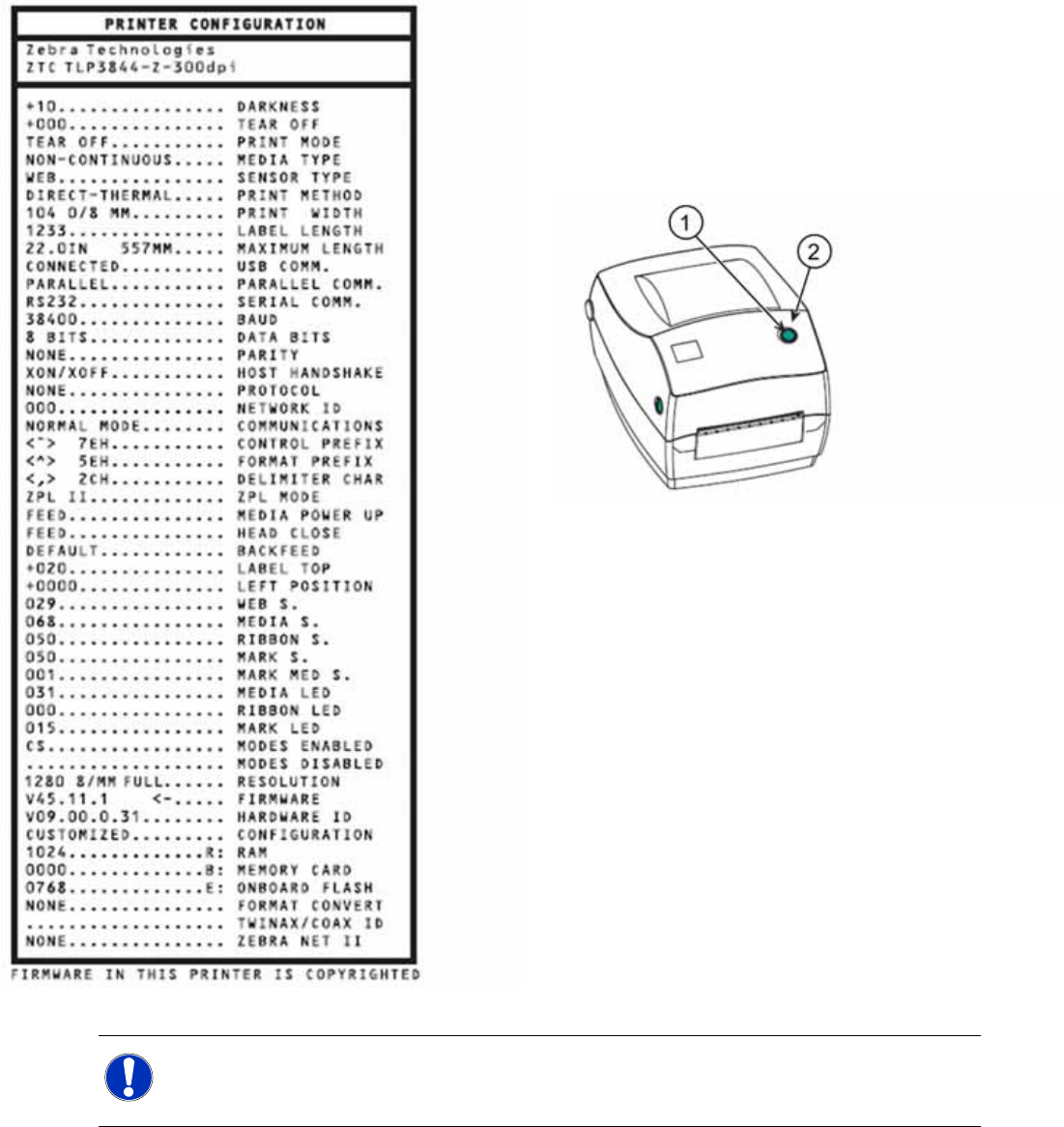
To check the printer settings, you can print out the configuration file.
NOTE:
First click on the Print Test Page button, the settings will also be saved in the printer.
NOTE:
Once you have installed the printer, you still need to enter it in Uptime LT. To do this in
Uptime LT, switch over to the File – Printer … menu and select the Edit Printer edit field.
NOTE:
If you want to use a different printer, make sure that this is 100% ZPL language compatible and
that it can print with a resolution of 300 dpi. A different resolution would alter the size of the
printout.
Setting up the Peripheral Devices
Installing the Zebra® TLP 3844-Z Printer
86 SIPLACE Uptime LT Installationsanleitung / Installation Manual
X Make sure that the media are correctly loaded
into the printer and that the top cover of the
printer is closed.
X Switch the printer on.
X Once the status display shines permanently
green, press and hold down the feed button
until the status display flashes once.
1. Feed button
2. Status lamp
X Release the feed button.
The printer will now print the configuration file on
the media loaded.If the status lamp remains yellow
or red or if the printout does not appear, consult
the "Troubleshooting" section of the user manual
provided with the printer.
NOTE:
For a detailed description of how to operate the printer and how to install the printer as a network
printer, consult the user manual provided with the printer.