00195613-01 IM Uptime LT_EN_DE.pdf - 第60页
Installation of a Network Confi gurin g TCP/I P 60 SIPLACE Uptime LT Installationsanleitung / Installation Manual Al the key elements are already installed: The Microsoft networks client (which enables yo u to establis…
Installation of a Network
Configuring TCP/IP
SIPLACE Uptime LT Installationsanleitung / Installation Manual
59
The signal distributor not only connects the devices but also feeds the data packages through the
network. There is a differentiation between the hub and the switch. If the hub receives a data package,
it distributes this to all computers. Each computer must then check whether it is the correct recipient. A
hub simply sends the data packages to all ports. A switch is more intelligent. With the help of the MAC
address (the network card hardware address allocated by the manufacturer), it is able to recognize which
computers are connected and at which ports. This information is then recorded in a table. When a data
package arrives, the switch finds out the recipient and only sends that data package to the computer for
which it is intended. A switch therefore sends data packages to the correct recipient. This means that it
causes significantly less data traffic than a hub. The more computers you want to connect in the system,
the more effective a switch becomes. Make sure that your signal distributor has a connection for each
computer and consider in advance whether your network is likely to grow in size or not.
3.3 Configuring TCP/IP
After you have successfully set up your network card, you need to make sure that your computers can
communicate with one another:
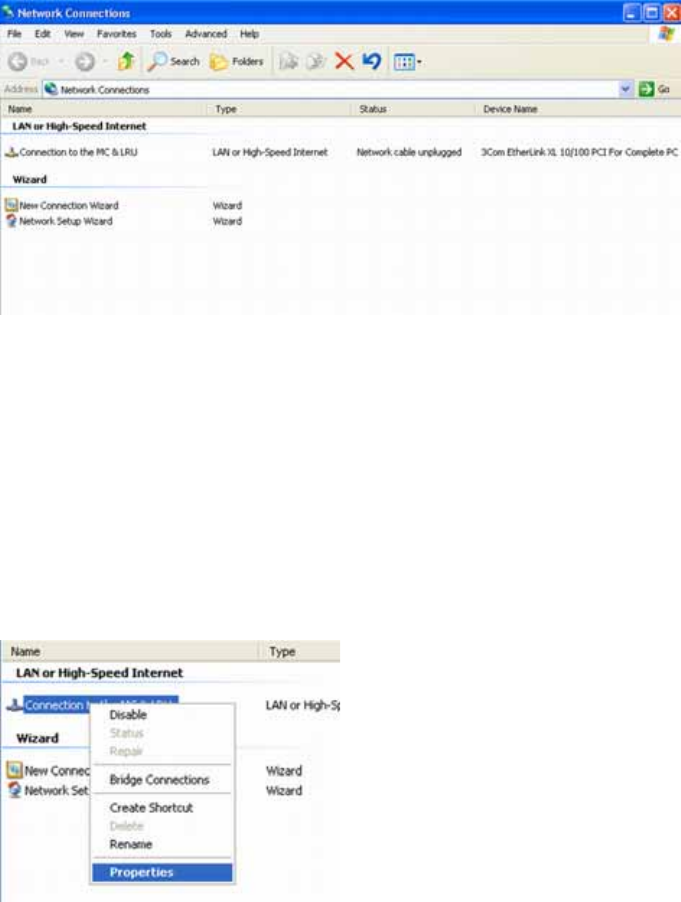
X Click on START, CONTROL PANEL, NETWORK AND INTERNET CONNECTION and then select
NETWORK CONNECTIONS. Windows has set up a LAN connection for your network here.
Alternatively, you can also use the normal control panel view.
X Click on START, CONTROL PANEL and then select the CLASSIC START menu, if required.
Double-click on NETWORK CONNECTIONS.
If you want to set up more connections (e.g. to the internet), it is helpful to give each of these a clear
name. This helps you to differentiate between them later on.
X Right-click with the mouse on the connection required. Select RENAME and type in another name.
Press ENTER.
You can now check your LAN connection.
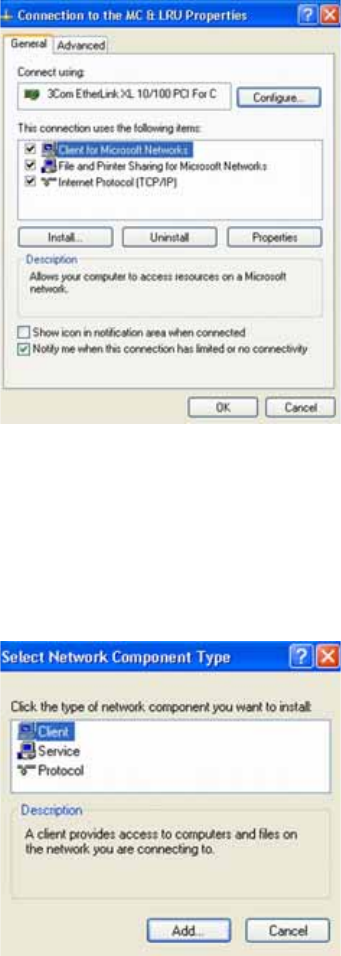
X Right-click with the mouse on your connection and select PROPERTIES. You will see the network
components which are installed.
Installation of a Network
Configuring TCP/IP
60 SIPLACE Uptime LT Installationsanleitung / Installation Manual
Al the key elements are already installed:
The Microsoft networks client (which enables you to establish connections to other Windows
computers)
The file and printer share functions (which enable the provision of network resources)
The QoS package scheduler (which optimizes the network traffic)
And the TCP/IP protocol.
Subsequent installation of network components
If you accidentally lose one of the components, due to unintentional deinstallation etc., this can then be
set up again later on.
Client for Microsoft networks
X Click on INSTALL - CLIENT - ADD - CLIENT FOR MICROSOFT NETWORKS.
X Click on OK and then on CLOSE.
File and printer release
X Click on INSTALL - SERVICE - ADD - FILE AND PRINTER SHARING FOR MICROSOFT
NETWORKS.
X Click on OK and then on CLOSE.
QoS package scheduler
X Click on INSTALL - SERVICE - ADD - QOS PACKAGE SCHEDULER.
X Click on OK and then on CLOSE.
The TCP/IP protocol can not be deinstalled.
Installation of a Network
Configuring TCP/IP
SIPLACE Uptime LT Installationsanleitung / Installation Manual
61
TCP/IP
For your computer to exchange data, you need to speak a common language. This is what network
protocols are for.They define the rules for communication. The most common and frequently used is the
TCP/IP protocol. This only involves making a few simple settings.
IP address and subnet mask
The most important entry is the IP address.This gives each computer a unique address with which it can
be addressed in the network. This address consists of four numbers between 0 and 255, which are each
separated by a dot. The computers are therefore numbered consecutively.
The subnet mask then defines the network to which each computer belongs. This is especially important
in larger networks, which are frequently subdivided into multiples subnets.In your relatively small
network, all computers will belong to the same network.
Internet
The internet is a large TCP/IP network, which is also based on IP addresses. In this case, the addresses
once again need to be unique. This means that two or more computers may not have the same IP
addresses. When you enter the internet, you need to ensure that your network is not using an address
which is already present on the internet. For this purpose, there are certain address ranges which your
network can use without problems, e.g. • 192.168.0.X
For computer X set a number between 1 and 254. Select 255.255.255.0. as subnet mask.
Now define the IP address and subnet mask:
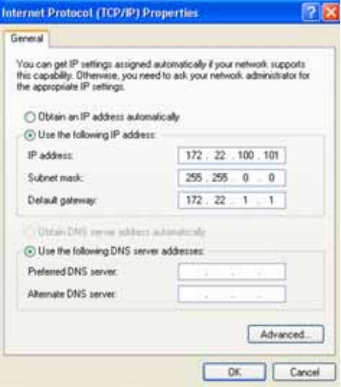
X Right-click with the mouse on your LAN connection again and select PROPERTIES.
X Mark the entry INTERNET PROTOCOL (TCP/IP) and select PROPERTIES.
X Click on USE THE FOLLOWING IP ADDRESS and enter your combination of numbers. Begin with
192.168.0.1 and then proceed to 192.168.0.2 for the second computer, 192.168.0.3 for the third one
and so on. The subnet mask remains the same for all computers. Accept the suggested
255.255.255.0.
X Click on OK and then on CLOSE.