00195613-01 IM Uptime LT_EN_DE.pdf - 第65页
Installation of a Network Sharing Printers SIPLACE Uptime LT Installationsanleitung / Installation Manual 65 3.6 Sharing Printers When sharing a printer, the procedu re is basically the same as for sharing folders: X Cli…
Installation of a Network
Sharing Folders
64 SIPLACE Uptime LT Installationsanleitung / Installation Manual
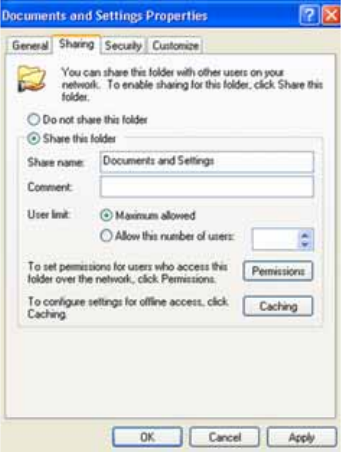
X You then need to define whether data may be changed during access via the network or not.
X Click on OK.
X The shared folder will now be shown with a hand:
X Click on START - DESKTOP - NETWORK CONNECTIONS to access the released folder. You have
the following two options:
Directly, on the top level
When you open the network environment, you will see the released resources for all computers in your
network, listed next to one another. To find the required folder, select SHARE NAME TO COMPUTER
NAME and in this case DATA TO BMW.
If you specified a computer description when you assigned the computer name, you will need to search
for SHARE NAME TO COMPUTER DESCRIPTION (COMPUTER NAME), for example for DATA TO
PETERS PC (FERRARI).
Hierarchically, on the computer level
If you work your way through to a certain computer in the network, you will only see the shared resources
for the computer you have currently reached. Click on SHOW WORKGROUP COMPUTER. Double-click
on the computer name, in the form of COMPUTER NAME or COMPUTER DESCRIPTION (COMPUTER
NAME), and search for the required share name, in this case DATA in the folder BMW.
If you have decided to permit the option NETWORK USERS MAY CHANGE FILES, you will then be able
to read, copy, move, change and delete files in this folder from any computer in your network. You can
also add new files and have access to subfolders and subfiles.
Proceed in the same manner to share entire drives e.g.
Hard drive or partitions
CD ROM drives
Zip drives
A share setting can be canceled by selecting SHARING AND SECURITY from the menu. Disable the
checkbox SHARE THIS PRINTER. The resource concerned will then be hidden under the computer
name. However, the folder link remains in the network environment. Although this link is still present, it
can not be accessed unless you share it again.
Installation of a Network
Sharing Printers
SIPLACE Uptime LT Installationsanleitung / Installation Manual
65
3.6 Sharing Printers
When sharing a printer, the procedure is basically the same as for sharing folders:
X Click on START - CONTROL PANEL, and then select PRINTER AND OTHER HARDWARE,
followed by SHOW INSTALLED PRINTERS AND FAXES.
X If you have chosen the classic control panel view, simply double-click on PRINTERS AND FAXES
instead.
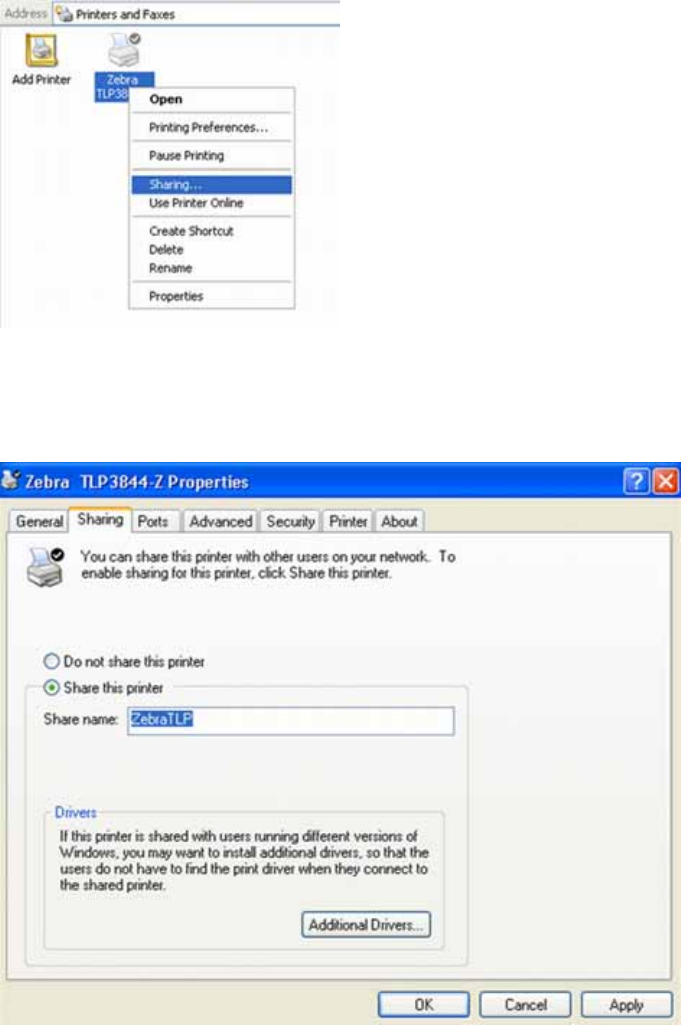
X Right-click with the mouse on the required printer and select SHARING.
X If you have already shared a folder, printer sharing will have also been activated. The next two
windows will not appear in this case. If this is the first sharing activation, you will first need to enable
the remote access. Click on Graphic, ENABLE PRINTER SHARING and then on OK.
X You can now share the printer. Click on SHARE THIS PRINTER and enter a share name.
X Click on OK.
The printer has now been enabled for sharing.
Windows will now automatically install a so-called network printer on the other computers.
If this is not the case or if you have accidentally removed the printer, you can repeat the installation
manually:
Installation of a Network
Sharing Printers
66 SIPLACE Uptime LT Installationsanleitung / Installation Manual
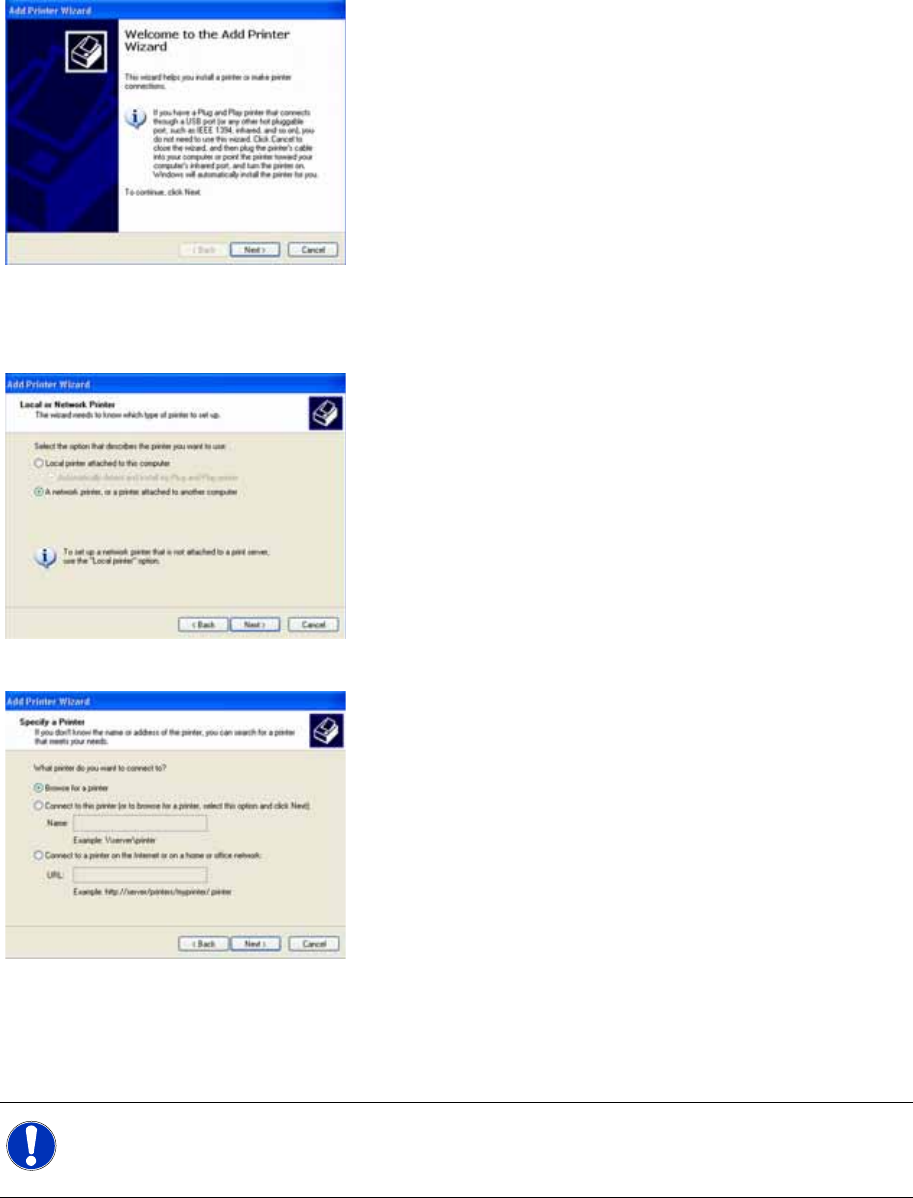
X Select START - CONTROL PANEL – PRINTERS AND FAXES and then ADD PRINTER.
X The printer installation wizard will appear. Click on NEXT.
X Click on A NETWORK PRINTER OR A PRINTER ATTACHED TO ANOTHER COMPUTER and
then on NEXT.
X Click on BROWSE FOR A PRINTER to find the shared printer in your network. Click on NEXT.
X First search for the workgroup, then for the computer and finally for the share name. Click on NEXT.
X Ignore the warning and click on YES.
X Click on FINISH. Windows will set up your printer and copy the printer driver throughout the network.
Your printer will now be shown.
NOTE:
You can use the network printer in the same manner as a local printer, provided the computer
concerned has been switched on.