00195613-01 IM Uptime LT_EN_DE.pdf - 第80页
Installing the Uptime LT Application Deinstalling Uptime LT Installing Additional Program Packages 80 SIPLACE Uptime LT Installationsanleitung / Installation Manual
Installing the Uptime LT Application
Installing Additional Program Packages Deinstalling Uptime LT
SIPLACE Uptime LT Installationsanleitung / Installation Manual
79
4.3 Deinstalling Uptime LT
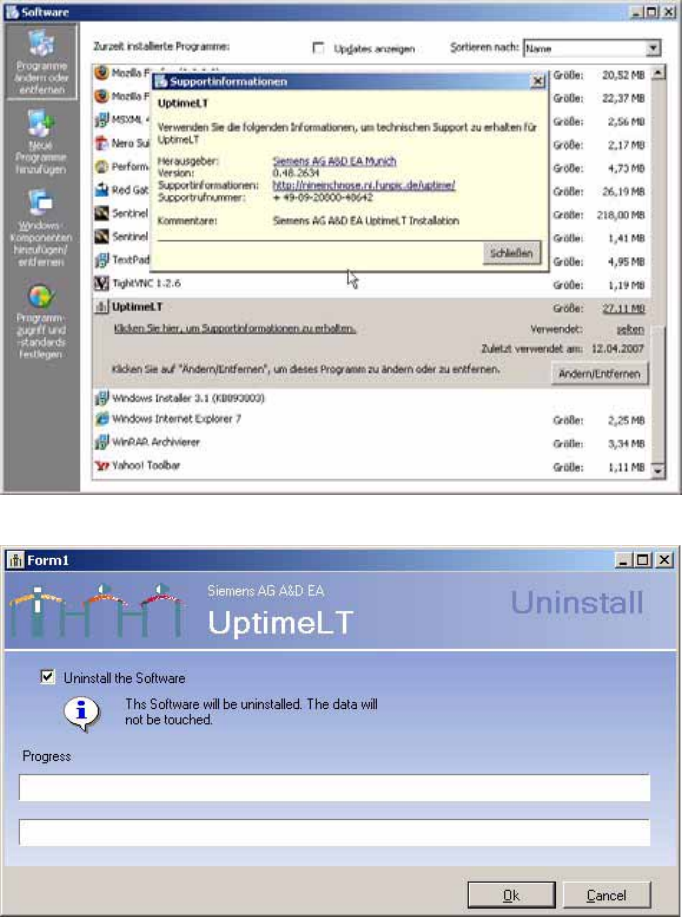
Windows XP makes an entry for Uptime LT in the software section of the control panel.
4-23: Control Panel
→
Software
4-24: Deinstalling Uptime LT
Clicking on the OK button starts the deinstallation of Uptime LT. Any additional packages installed plus
the database will not be removed from the system!
Installing the Uptime LT Application
Deinstalling Uptime LT Installing Additional Program Packages
80 SIPLACE Uptime LT Installationsanleitung / Installation Manual
Setting up the Peripheral Devices
Setting up the Testing and Setting Device
SIPLACE Uptime LT Installationsanleitung / Installation Manual
81
5 Setting up the Peripheral Devices
5.1 Setting up the Testing and Setting Device
For information about setting up and operating the testing and setting device, consult the respective
operating manual.
5.2 Installing the Scanner
In some functions, you can use the scanner alternatively to the user interface, for the recording and
management of your Uptime LT products.
The products are assigned barcodes, with which they can be uniquely identified. You can use the
scanner to scan in the barcodes and then automatically transfer this data to Uptime LT.
Please note:
Use of the scanner is optional. You can also record the product ID data without the scanner, by using
the keyboard.
Connecting the scanner
X Connect one end of the USB cable to the scanner.
X Connect the other end of the USB cable to the PC.
You do not need to turn off your computer before connecting it to the USB cable.
After reading in the barcode, the scanner is ready for operation.
Scanner configuration
You need to configure the scanner before you can use it for Uptime LT. To do this, scan in the two
predefined barcodes provided for this purpose.
If the scanner recognizes the barcode, it will issue a signal in its basic setting.
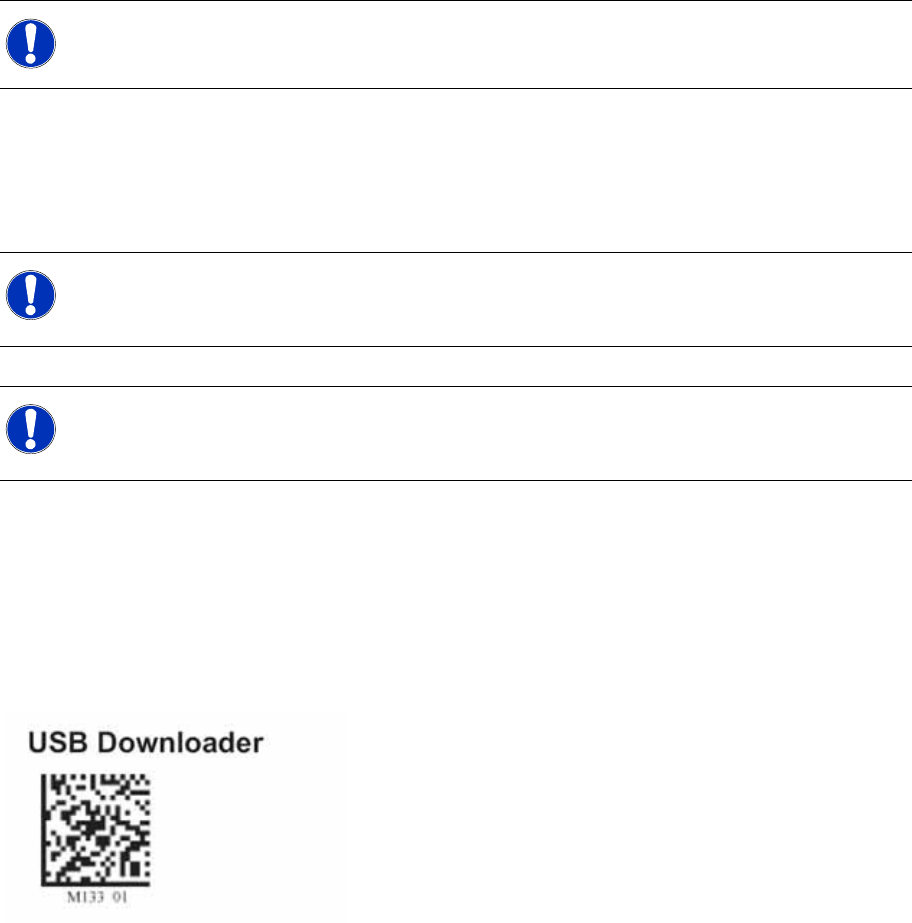
X First, scan in the following barcode to initialize the scanner.
NOTE:
Observe the safety notes in the operating manual supplied with the scanner.
NOTE:
If you do not have enough USB ports available on your computer, use a USB distributor with
suitable power supply.
NOTE:
The installation of the scanner is executed according to the "plug&play" principle.
You do not need to install any drivers.