00195613-01 IM Uptime LT_EN_DE.pdf - 第56页
Installation of WINDOWS XP Operating System Installation Standard Settings and Subsequent Administration Work for Station Compu ter 56 SIPLACE Uptime LT Installationsanleitung / Installation Manual 2.3.9.2 Passwords Admi…
Installation of WINDOWS XP Operating System
Display of Selected Entries Installation
SIPLACE Uptime LT Installationsanleitung / Installation Manual
55
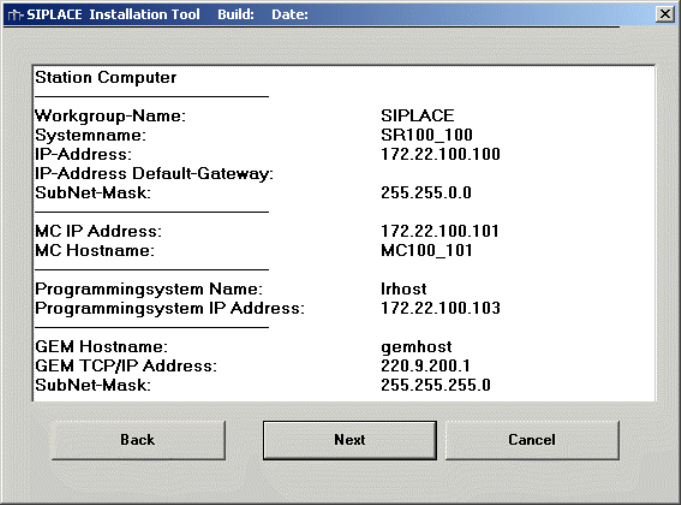
2.3.8 Display of Selected Entries
This is a complete display (for control purposes) of all selected network parameters. These values can
be changed where required.
X Check the information.
X Click on the Next button.
2.3.9 Standard Settings and Subsequent Administration Work for Station Computer
2.3.9.1 Standard Settings
Screen resolution: 1024 x 786, 16777216 colors, 60 Hz refresh rate
Time zone: GMT (London, Edinburgh, Lisbon)
Keyboard layout: German (Germany)
Network protocols: TCP/IP
In addition to the standard user accounts for Windows XP Professional, the following users and user
groups are also set up:
User: operator, Siemens technician, setup up officer
User groups: _Operator, _Setup officer, _Siemens technician (contain the respective users in each
case).
Note: If the monitor at the installed computer is not a flat screen model, set the refresh rate higher. The
preset 60Hz is designed for TFT monitors.
Note: If the TFT monitor used is that supplied with the Feeder Care Station, set the screen resolution to
1280 x 1024.
Installation of WINDOWS XP Operating System
Installation Standard Settings and Subsequent Administration Work for Station Computer
56 SIPLACE Uptime LT Installationsanleitung / Installation Manual
2.3.9.2 Passwords
Administrator
During the fully automatic installation procedure, the system sets the local administrator password as
MS128. You are recommended to assign a new local password for the actual system administrator!
Administrator Groups
The local administrator group also includes the user "Siemens technician". This user may not be
removed from the group, otherwise the service technician from Siemens will not be able to perform
maintenance and service work. The corresponding password is only know to the SIPLACE Service team
and may not be changed!
Other Settings
Since the SIPLACE UPTIME LT software requires defined users and passwords, the security system of
the operating system is set so that the passwords can not expire!
2.3.9.3 Interrupting the Automatic Boot
In order to install new software or perform maintenance work to the operating system, you need to
interrupt the automatic login.
X To do this, hold down the Shift key during the booting, (as soon as the Windows logo appears) or
during the logging out (before the OK confirmation is activated for logging out).
X After this, the administrator logs in as usual and performs the relevant work.
X In order to activate the automatic login, you need to enter the user name "Operator" in the login mask
and operator as password.
Installation of a Network
General
SIPLACE Uptime LT Installationsanleitung / Installation Manual
57
3 Installation of a Network
3.1 General
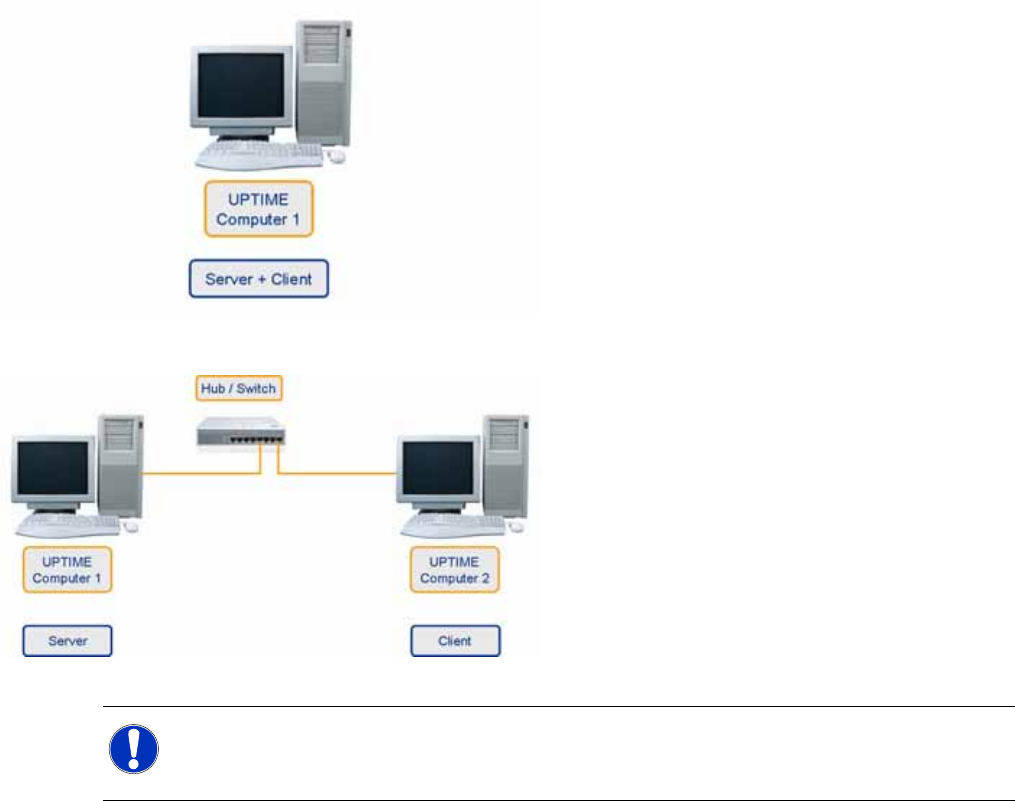
The Uptime LT software can either be installed as a single workplace or multiple workplace system.
Where possible, accept the presettings without making changes to them.
In the single workplace option, the server and
client are installed on one computer.
In a multiple workplace system, the server is
installed on one computer and a client is then
installed on one or more computers.
NOTE:
If a client server installation is performed, begin with the server. The connection to the server
can be tested with the installation of the client.