00195613-01 IM Uptime LT_EN_DE.pdf - 第62页
Installation of a Network Defining the Computer Name/Workgroup 62 SIPLACE Uptime LT Installationsanleitung / Installation Manual 3.4 Defining the Computer Name/W orkgroup Irrespective of the pr otocol used , each compute…
Installation of a Network
Configuring TCP/IP
SIPLACE Uptime LT Installationsanleitung / Installation Manual
61
TCP/IP
For your computer to exchange data, you need to speak a common language. This is what network
protocols are for.They define the rules for communication. The most common and frequently used is the
TCP/IP protocol. This only involves making a few simple settings.
IP address and subnet mask
The most important entry is the IP address.This gives each computer a unique address with which it can
be addressed in the network. This address consists of four numbers between 0 and 255, which are each
separated by a dot. The computers are therefore numbered consecutively.
The subnet mask then defines the network to which each computer belongs. This is especially important
in larger networks, which are frequently subdivided into multiples subnets.In your relatively small
network, all computers will belong to the same network.
Internet
The internet is a large TCP/IP network, which is also based on IP addresses. In this case, the addresses
once again need to be unique. This means that two or more computers may not have the same IP
addresses. When you enter the internet, you need to ensure that your network is not using an address
which is already present on the internet. For this purpose, there are certain address ranges which your
network can use without problems, e.g. • 192.168.0.X
For computer X set a number between 1 and 254. Select 255.255.255.0. as subnet mask.
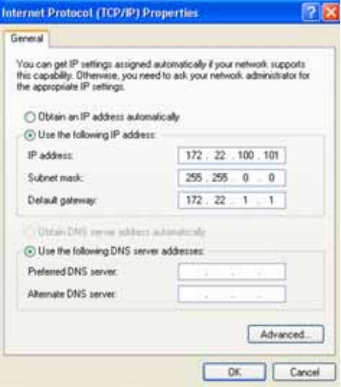
Now define the IP address and subnet mask:
X Right-click with the mouse on your LAN connection again and select PROPERTIES.
X Mark the entry INTERNET PROTOCOL (TCP/IP) and select PROPERTIES.
X Click on USE THE FOLLOWING IP ADDRESS and enter your combination of numbers. Begin with
192.168.0.1 and then proceed to 192.168.0.2 for the second computer, 192.168.0.3 for the third one
and so on. The subnet mask remains the same for all computers. Accept the suggested
255.255.255.0.
X Click on OK and then on CLOSE.
Installation of a Network
Defining the Computer Name/Workgroup
62 SIPLACE Uptime LT Installationsanleitung / Installation Manual
3.4 Defining the Computer Name/Workgroup
Irrespective of the protocol used, each computer also needs a name and the assignment to a workgroup.
As in the case of the IP address, the computer name also needs to be unique and may only occur once
in your workgroup.
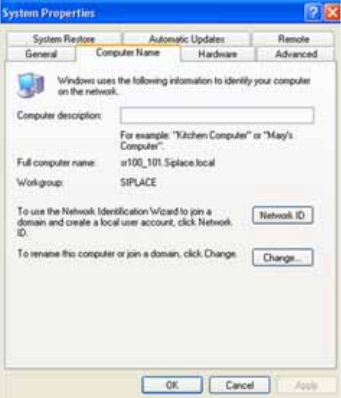
X Click on START - CONTROL PANEL, PERFORMANCE AND SERVICE and then select SHOW
BASIC INFORMATION ABOUT THE COMPUTER.
If you have chosen the classic control panel view, click on SYSTEM instead.
X Select the COMPUTER NAME tab and enter a description of your computer, if needed. If you then
click on CHANGE, you can define the computer name and workgroup.
X Assign each computer a different and clear name.
X Assign each computer to the same workgroup.
X Click on OK.
X If everything is correct, the computer will be added to the workgroup. Click on OK.
X You now need to reboot your computer. This enables the changes made. Click on OK and then again
on OK to reboot.
Installation of a Network
Sharing Folders
SIPLACE Uptime LT Installationsanleitung / Installation Manual
63
3.5 Sharing Folders
The folder share function enables you to define the resources which are to be available to the network.
Everything which has been approved for sharing on the network is available for common use.
Folder
Drives
Printer
Resources which have not been approved for sharing remain private!
The joint use of devices and files has many benefits:
Files can be easily copied from computer to computer, can be moved or processed together.
Only those devices which are available once, such as the printer or ZIP drive, can be accessed from
all workplaces.
Making resources available means to accept and apply server functions. In a peer-to-peer network, this
is then possible for each computer in the workgroup. In order for a computer to act as a server, the file
and printer sharing function needs to be configured. This has been taken care of at the installation of the
network card. You can therefore share those folder(s) which you want to use together.
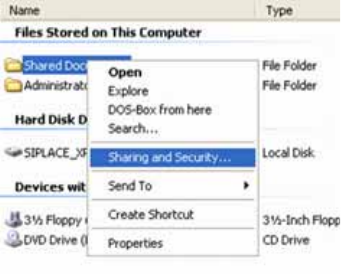
X Search for the folder at your workplace.
X Right-click with the mouse on the required folder.
X In the context menu, you will find the option SHARING AND SECURITY, which you can use to define
further settings.
X The next two windows will only appear when you set up your first share. Windows will inform you that
shared data form a certain security risk. The remote access is therefore initially disabled. Click on
Graphic, ENABLE FILE SHARING and then on OK.
X You can now share your data. Select SHARE THIS FOLDER and specify a share name. Use this
name to access your data later on. The share name and the name of the folder do not need to be
identical.