00195613-01 IM Uptime LT_EN_DE.pdf - 第66页
Installation of a Network Sharing Printers 66 SIPLACE Uptime LT Installationsanleitung / Installation Manual X Select START - CONTROL PANEL – PRIN TERS AND FAXES and then ADD PRINTER. X The printer installation wizar d w…
Installation of a Network
Sharing Printers
SIPLACE Uptime LT Installationsanleitung / Installation Manual
65
3.6 Sharing Printers
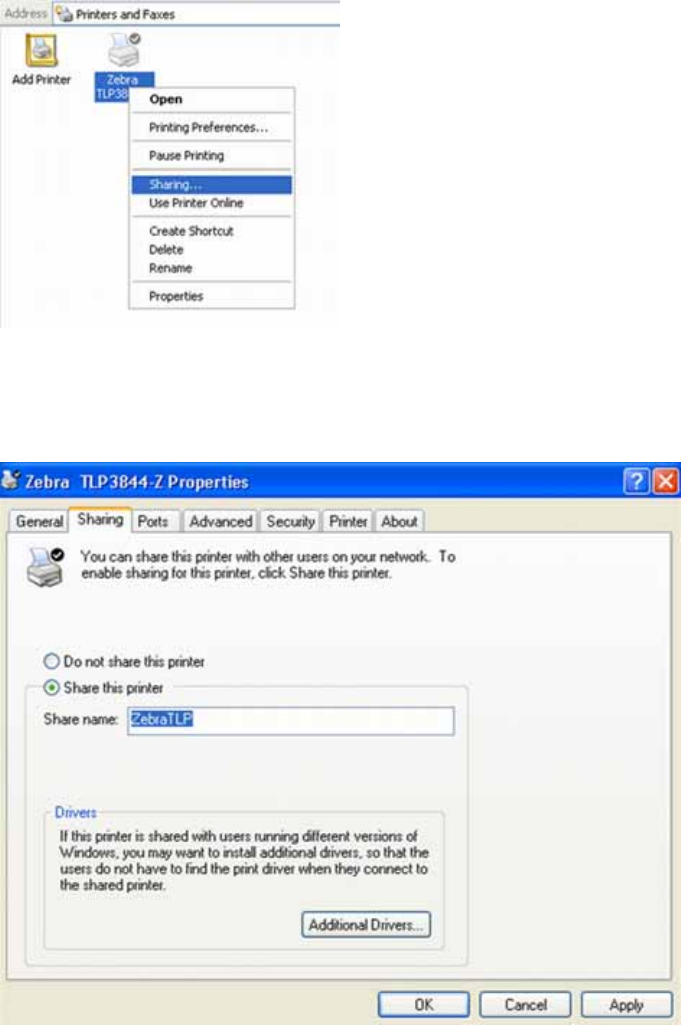
When sharing a printer, the procedure is basically the same as for sharing folders:
X Click on START - CONTROL PANEL, and then select PRINTER AND OTHER HARDWARE,
followed by SHOW INSTALLED PRINTERS AND FAXES.
X If you have chosen the classic control panel view, simply double-click on PRINTERS AND FAXES
instead.
X Right-click with the mouse on the required printer and select SHARING.
X If you have already shared a folder, printer sharing will have also been activated. The next two
windows will not appear in this case. If this is the first sharing activation, you will first need to enable
the remote access. Click on Graphic, ENABLE PRINTER SHARING and then on OK.
X You can now share the printer. Click on SHARE THIS PRINTER and enter a share name.
X Click on OK.
The printer has now been enabled for sharing.
Windows will now automatically install a so-called network printer on the other computers.
If this is not the case or if you have accidentally removed the printer, you can repeat the installation
manually:
Installation of a Network
Sharing Printers
66 SIPLACE Uptime LT Installationsanleitung / Installation Manual
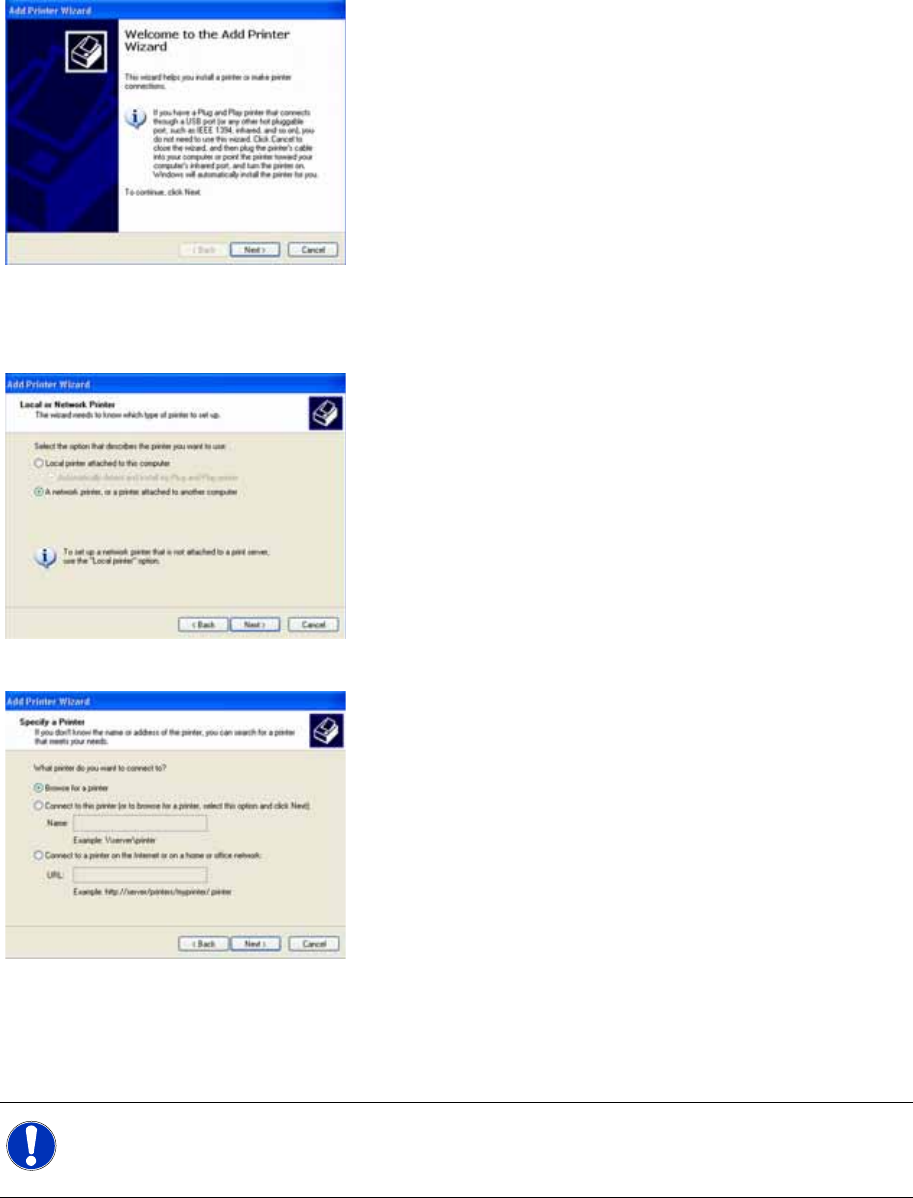
X Select START - CONTROL PANEL – PRINTERS AND FAXES and then ADD PRINTER.
X The printer installation wizard will appear. Click on NEXT.
X Click on A NETWORK PRINTER OR A PRINTER ATTACHED TO ANOTHER COMPUTER and
then on NEXT.
X Click on BROWSE FOR A PRINTER to find the shared printer in your network. Click on NEXT.
X First search for the workgroup, then for the computer and finally for the share name. Click on NEXT.
X Ignore the warning and click on YES.
X Click on FINISH. Windows will set up your printer and copy the printer driver throughout the network.
Your printer will now be shown.
NOTE:
You can use the network printer in the same manner as a local printer, provided the computer
concerned has been switched on.
Installing the Uptime LT Application
Starting the Installation
SIPLACE Uptime LT Installationsanleitung / Installation Manual
67
4 Installing the Uptime LT Application
4.1 Starting the Installation
To begin the installation procedure, place the Uptime LT installation CD in the CD drive of your
computer. Windows will then automatically run the start dialog. If the installation does not begin
automatically, start the setup.exe file in the main folder on the CD.
You will see a start window, welcoming you to the software installation. You now have the chance to
choose between English or German for the installation process. Your choice does not affect the
language in which the Uptime LT application is shown after the installation.
First of all, the installation software checks whether you have the Microsoft .NET Framework (version
2.0) software installed. This software is a prerequisite for the UPTIME LT application software. The start
dialog can be displayed in two different ways, depending on whether Microsoft .NET is already installed
on your computer or not.
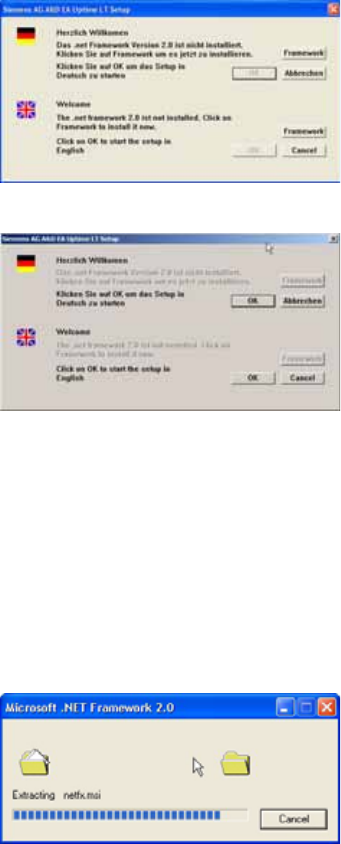
4-1: Start screen installation (before installation of Microsoft .NET )
4-2: Start screen installation (after installation of Microsoft .NET )
If the software is not yet installed, the OK button will be inactive and you can either install Microsoft .NET
Framework or terminate the installation process.
If the software is already installed, the OK button will be active and you can continue with the installation
of Uptime LT.
Automatic installation of Microsoft .NET Framework
By clicking on the Framework button, the Frameworks software will be installed almost automatically.
Simply follow the instructions shown by the installation program.
4-3: Preparing installation of Microsoft .NET Framework