00195613-01 IM Uptime LT_EN_DE.pdf - 第69页
Installing the Uptime LT Application Starting the Installation SIPLACE Uptime LT Installationsanleitung / Installation Manual 69 4-6: Microsoft .NET Framework installation with progress b ar 4-7: Microsoft .NET Framework…
Installing the Uptime LT Application
Starting the Installation
68 SIPLACE Uptime LT Installationsanleitung / Installation Manual
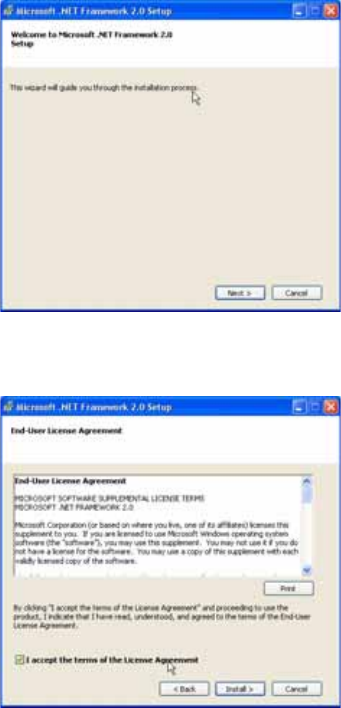
4-4: Microsoft .NET Framework installation wizard
X Click on the Next button.
4-5: License query/display (FW)
X Read the license conditions through carefully.
X Tick the checkbox I accept the terms of the License Agreement.
The Install button will be activated.
X Click on the Install button.
Installing the Uptime LT Application
Starting the Installation
SIPLACE Uptime LT Installationsanleitung / Installation Manual
69
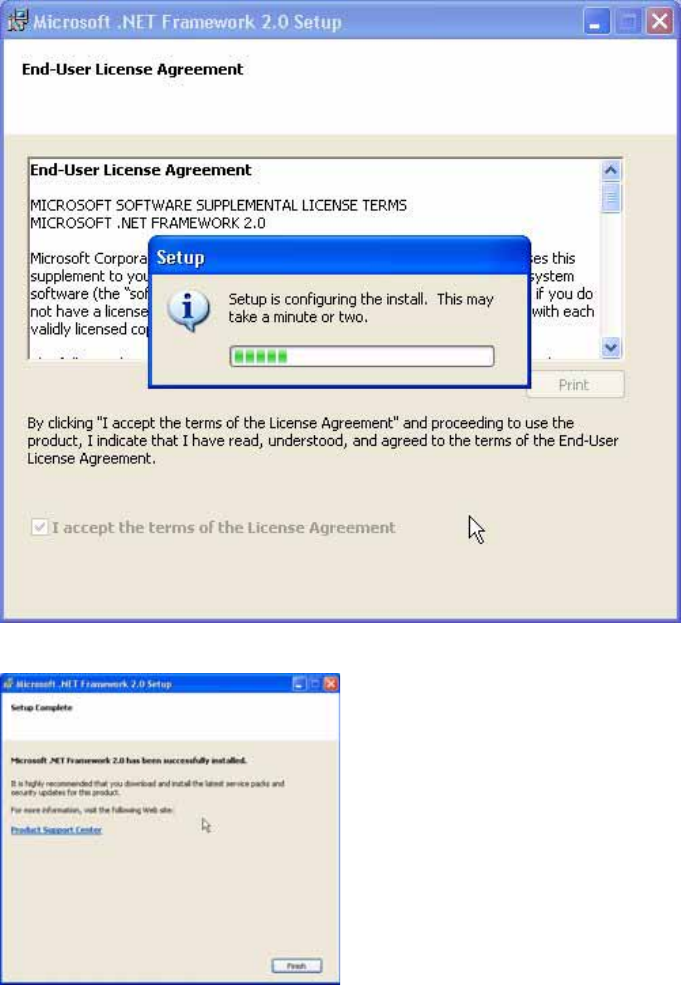
4-6: Microsoft .NET Framework installation with progress bar
4-7: Microsoft .NET Framework installation completion message
X Click on the Finish button.
The installation of the Microsoft .NET Framework software is now finished.
Installing the Uptime LT Application
Installing Uptime LT Accepting the License
70 SIPLACE Uptime LT Installationsanleitung / Installation Manual
4.2 Installing Uptime LT
After checking for the installation of Microsoft .NET Framework or installing this software, the installation
of UPTIME.LT can be started.
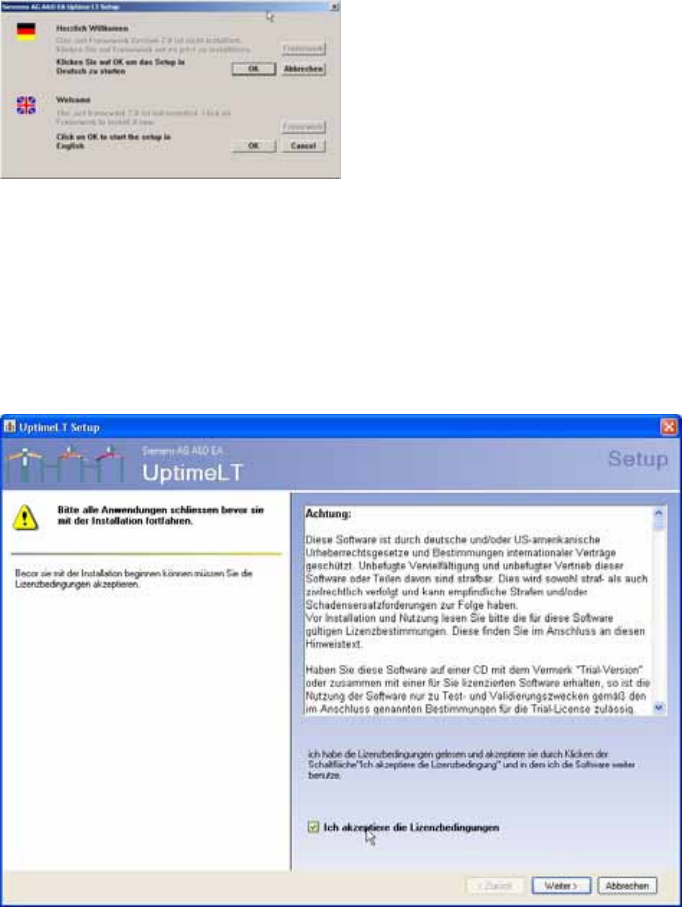
4-8: Start screen for installation
X Click on the OK button.
4.2.1 Accepting the License
The installation wizard for Uptime LT begins with the license conditions query.
Before the actual installation can begin, you must accept the license conditions. The Next button will only
be activated once the license conditions have been accepted.
4-9: Uptime LT license screen
X Read the license conditions through carefully.
X Tick the checkbox I accept the terms of the License Agreement. The Next button is now active.
X Click on the Next button.