00195613-01 IM Uptime LT_EN_DE.pdf - 第52页
Installation of WINDOWS XP Operating System Installation Determining the SIPLACE Installation Types 52 SIPLACE Uptime LT Installationsanleitung / Installation Manual 2.3.4 Determining the SIPLACE Inst allation T ypes Wit…
Installation of WINDOWS XP Operating System
Preparations for the Automatic Windows XP Installation Installation
SIPLACE Uptime LT Installationsanleitung / Installation Manual
51
2.3.2 Preparations for the Automatic Windows XP Installation
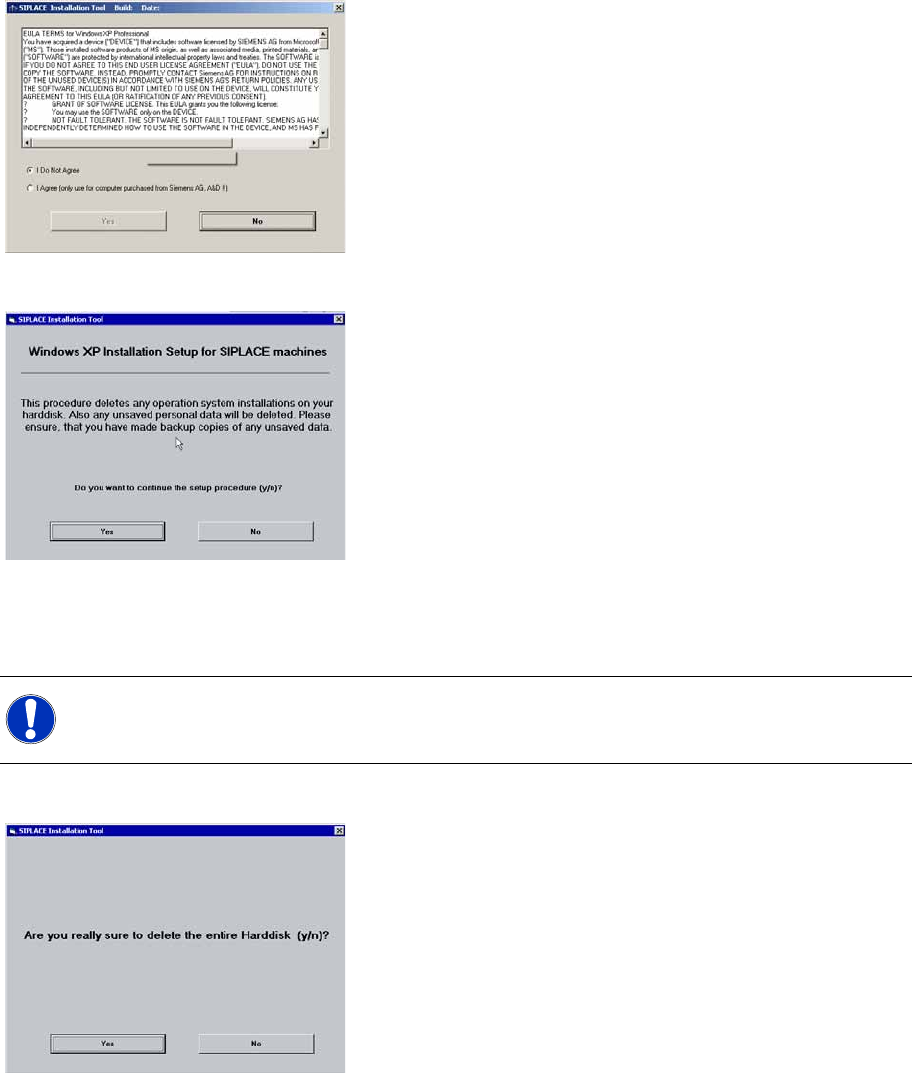
In this dialog, you confirm the license agreement with Siemens AG, which stipulates that this XP version
may only be installed on computers which have been procured from AD EA 1.
In the following dialog you can terminate the setup:
2.3.3 System Partitioning
During the installation process, the system hard drive will be partitioned.
X Confirm the partitioning:
NOTE:
The data of all previous partitions on the hard drive will be irrevocably deleted.
Installation of WINDOWS XP Operating System
Installation Determining the SIPLACE Installation Types
52 SIPLACE Uptime LT Installationsanleitung / Installation Manual
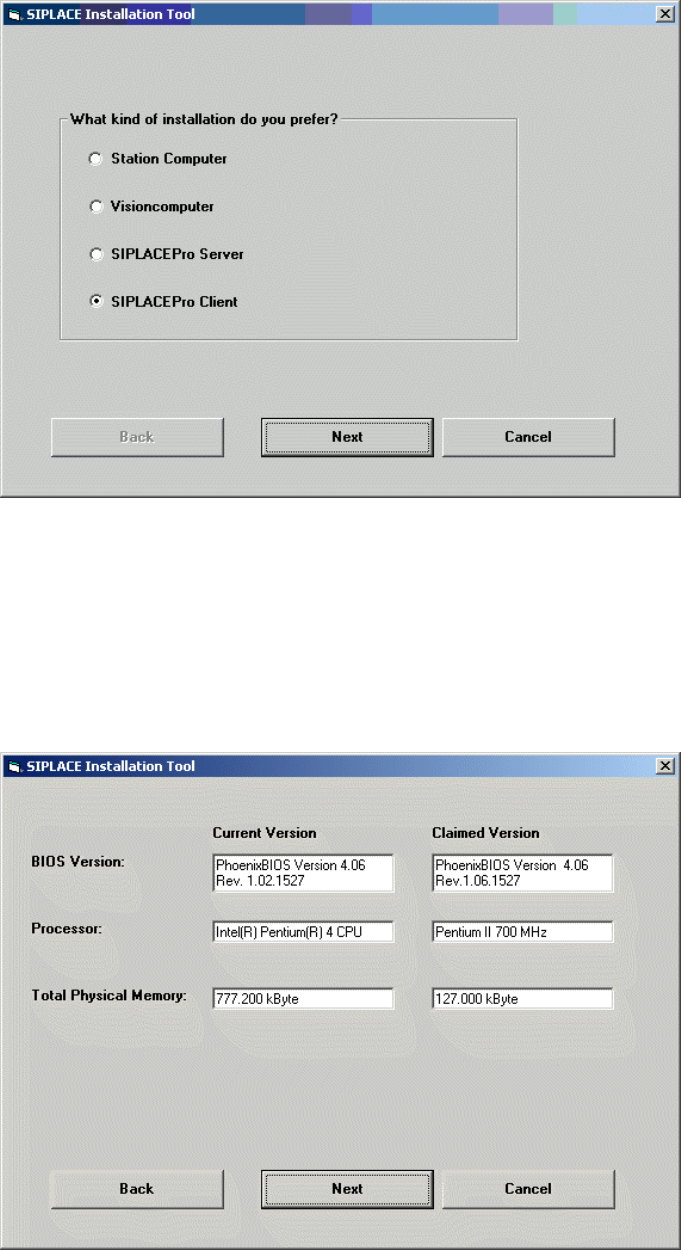
2.3.4 Determining the SIPLACE Installation Types
With the help of this input, the system is able to decide for which SIPLACE product the Windows XP
Professional installation is to be performed.
X Select SIPLACE Pro Client.
X Click on the Next button.
2.3.5 Checking the Hardware Requirements.
A hardware check is performed with different threshold values. If these thresholds are not adhered to,
an error message will be issued. However, the installation procedure will not be stopped.
Please observe the minimum hardware system requirements in chapter" General Information About the
Software Installation".
X Click on the Next button.
Installation of WINDOWS XP Operating System
Windows XP Professional License Installation
SIPLACE Uptime LT Installationsanleitung / Installation Manual
53
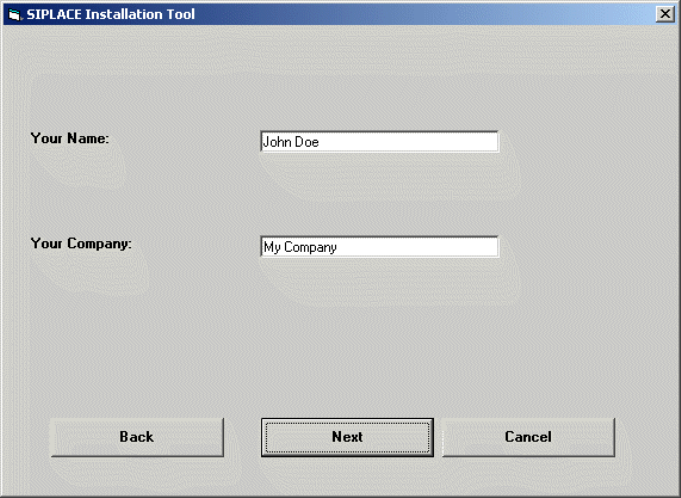
2.3.6 Windows XP Professional License
In the following setup steps, all the parameters required for the installation and configuration of Windows
XP Professional will be queried and saved, as this is a special version of Windows XP, designed for
Siemens AG.
X Enter your user name (not the administrator name).
X Enter your company name.
X Click on the Next button.