00196284_Install_WinXP_unattended_DVD.pdf - 第11页
Windows XP Unattended Setup DVD V4 .2 11/2015 Edition 11 4.1.3 Esprimo E 900 The Espr imo E 900 has ports as shown in the fol lowing picture. Legend: 1: Power c onnectors (PC + Dis play) 2: USB 2.0 ports 3: PS/2 c onnect…
Windows XP Unattended Setup DVD V4.2 11/2015 Edition
10
4 Installation
Note:
During the setup you can navigate the dialogs with Next or Back buttons.
4.1 Installation Hardware specific requirements and restrictions
4.1.1 SIMATIC Box PC 627
→ Ensure you have the appropriate BIOS version and the corresponding settings, delivered on CDs. The
minimum BIOS version is V05.01.09.
→ Ensure the BIOS setting “Installed O/S” is set to “WinXP/2000” and “SATA Controller Mode” is set to
“Compatible” for the operating system installation
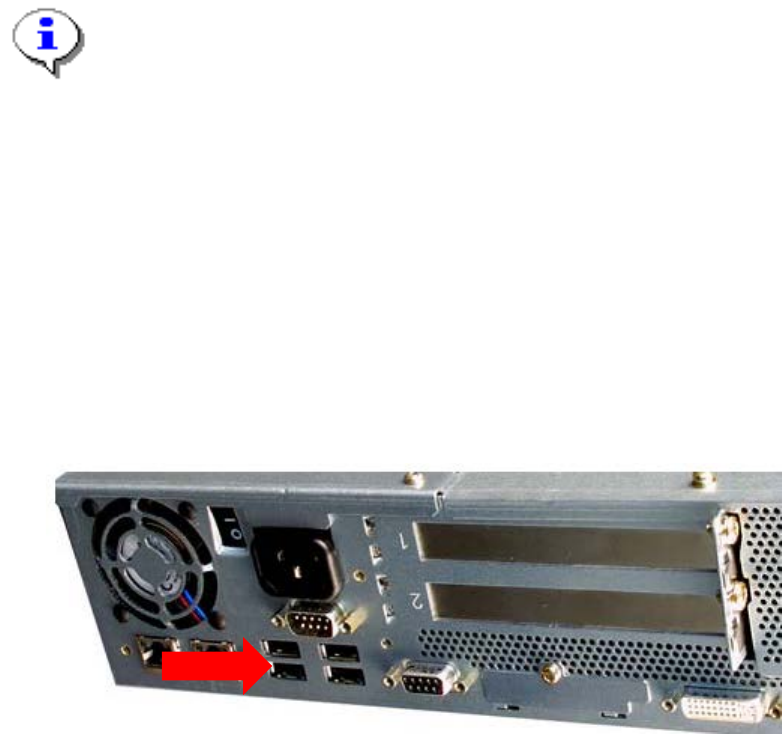
→ To avoid crashes, ensure your USB Hub is connected to Port 0, as shown in the following picture.
4.1.2 SIMATIC BoxPC 827B
You have to ensure you connect the USB devices on the correct ports. Otherwise the install routine will be
held on the point “Installing Windows”.
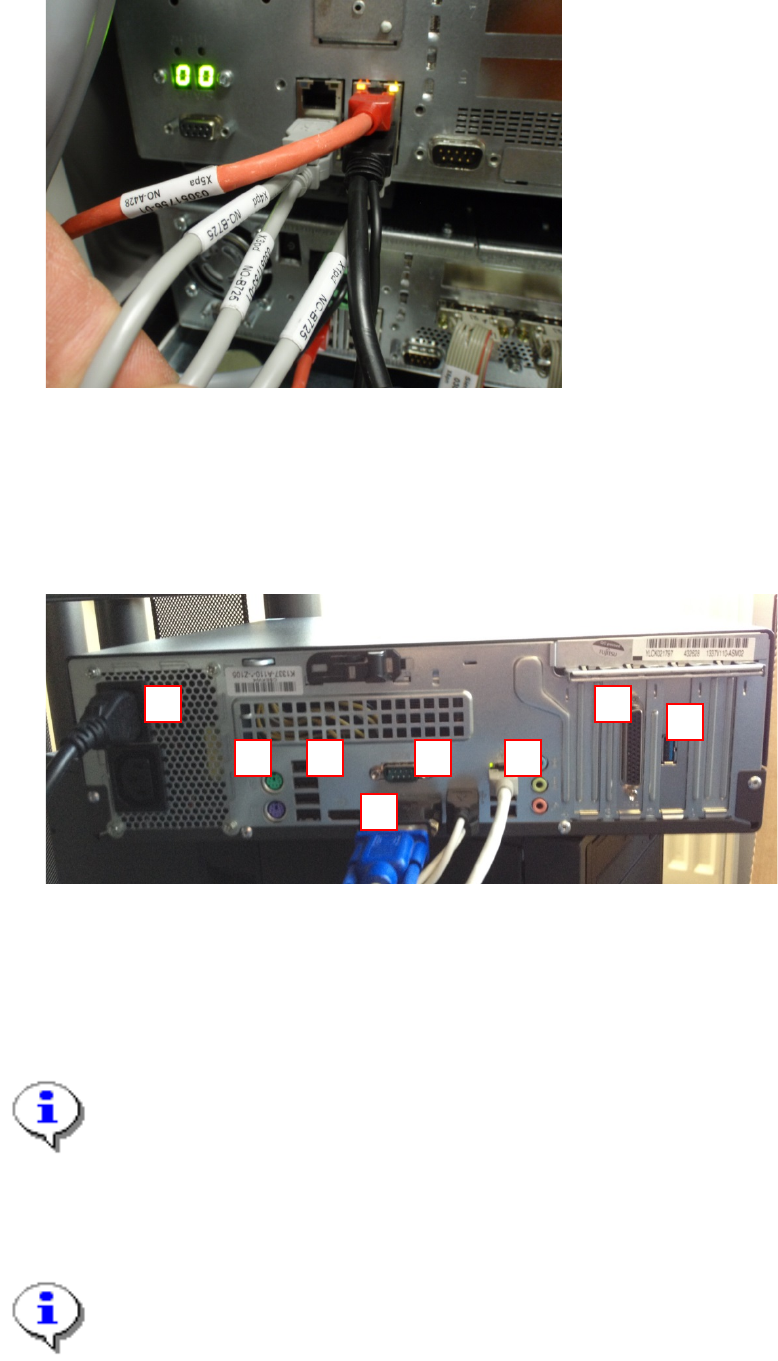
The USB devices must be plugged into the BoxPC 827B in the right position. The touch screens on the left
USB ports, the keyboards on the right ports.
See the following picture.
Port 0
Windows XP Unattended Setup DVD V4.2 11/2015 Edition
11
4.1.3 Esprimo E 900
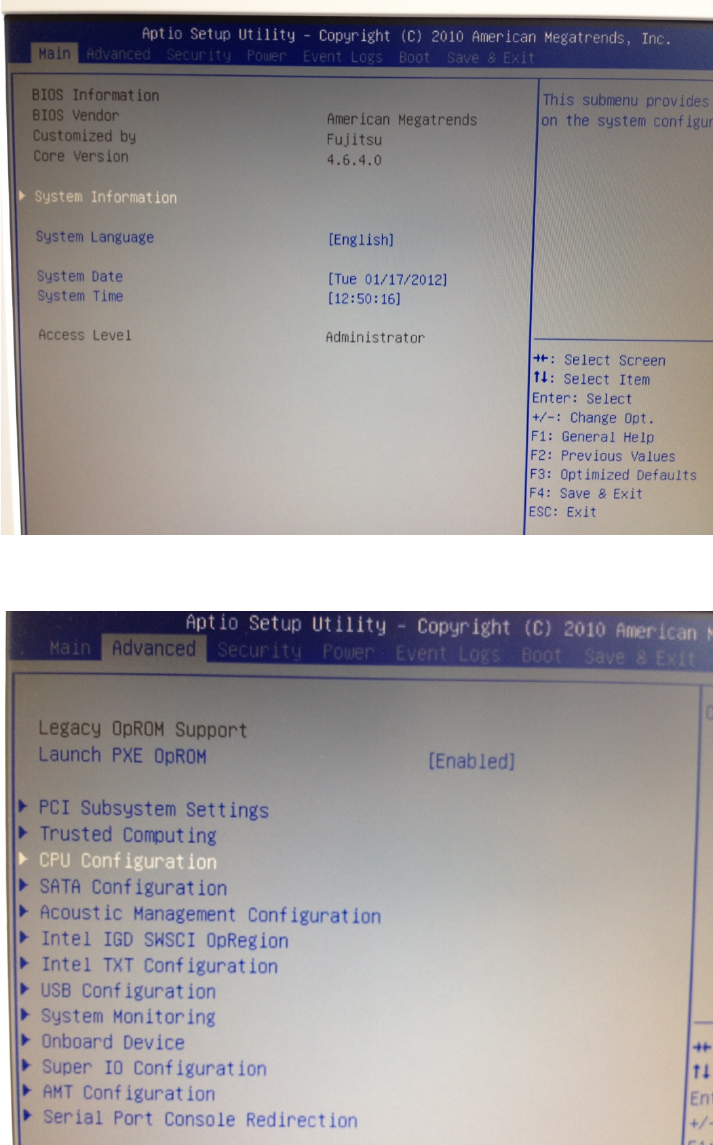
The Esprimo E 900 has ports as shown in the following picture.
Legend:
1: Power connectors (PC + Display)
2: USB 2.0 ports
3: PS/2 connectors for keyboard (purple) and mouse (green)
4: Display connector (DVI).
Note:
If you need to connect VGA displays, you have to use the delivered adapter as shown in the
picture above.
5: Onboard Serial port
6: Onboard LAN for SIPLACE LAN.
Note:
By default, this computer has only one LAN port. If you require an additional LAN port, you have
to insert an additional extension card.
7: USB 3.0 port
8: Port for delivered Serial Y- cable allowing connecting two additional serial devices
1
2
3
4
5
6
7
8
Windows XP Unattended Setup DVD V4.2 11/2015 Edition
12
Before beginning with installation, you have to set/verify the BIOS settings of the computer.
→ Power on the computer and hit F2 during the boot process
→ Hit the cursor right key until “Advanced” is highlighted.
→ Hit the cursor down key until “CPU Configuration” is highlighted.
→ Hit the ENTER key.