00196284_Install_WinXP_unattended_DVD.pdf - 第54页
Windows XP Unattended Setup DVD V4 .2 11/2015 Edition 54 → If y o u want t o delete t he selec ted entr y, click the D elete en try butt on. → You can c hange the name of the selec ted entr y in the f ield Name . → You c…
Windows XP Unattended Setup DVD V4.2 11/2015 Edition
53
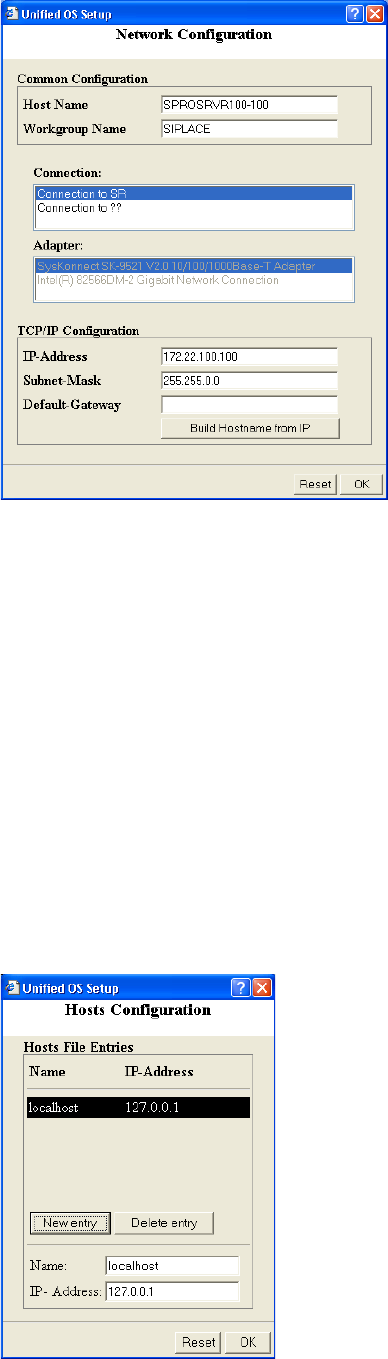
Fig. 11 Network Configuration
→ Enter the host name of your computer.
→ Enter the workgroup name.
→ Select the connection you want to configure.
→ Enter the IP address for the selected connection.
→ Enter the subnet mask for the selected connection.
→ Enter the default gateway for the selected connection.
→ If you want to extend the current hostname with the last two values of the IP address of the selected
connection, click on the button Build Hostname from IP
→ Click the OK button to apply your changes.
→ If you want to reset the default settings, click the Reset button.
3. Hosts Configuration
To change the entries of the hosts file, click on the button Configure of the option Hosts Configuration
(see Chapter 4.2.9 Hardware Configuration).
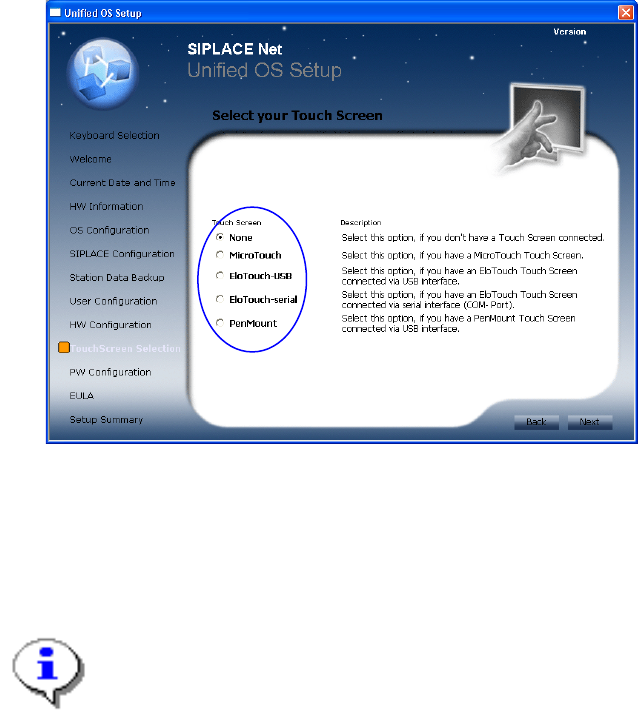
Fig. 12 Hosts Configuration
→ Select the entry you want to change.
→ If you want to add a new entry, click the New entry button.
Windows XP Unattended Setup DVD V4.2 11/2015 Edition
54
→ If you want to delete the selected entry, click the Delete entry button.
→ You can change the name of the selected entry in the field Name.
→ You can change the IP address of the selected entry in the field IP- Address.
→ Click the OK button to apply your changes.
→ If you want to reset the default settings, click the Reset button.
4.2.10 Touchscreen
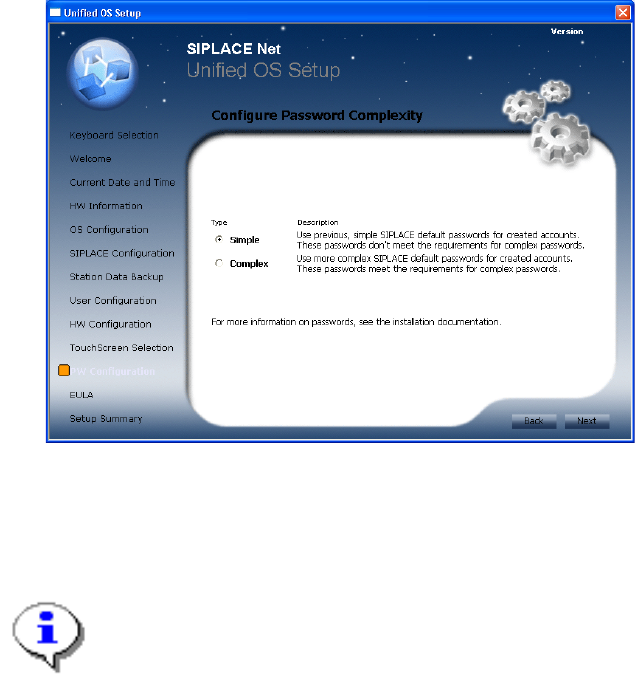
Fig. 13 Touch Screen selection
This screen appears only if you have selected “Station computer” usage (see chapter 4.2.6 SIPLACE
Configuration).
→ Choose the appropriate touch screen, for example “Elo Touch-serial”.
Note:
Please ensure you’ve connected the touch screen before starting installation! You will have
installation problems if you select a touch screen without having it connected. Select “None”
if you can’t connect the touchscreen this time. You may install it later anytime using the
appropriate driver package from the directory C:\Tools\Touch.
→ Click the Next button to continue.
Windows XP Unattended Setup DVD V4.2 11/2015 Edition
55
4.2.11 Password Configuration
Fig. 14 Password Configuration
This screen appears only if you selected a Line Computer usage (see chapter 4.2.6 SIPLACE
Configuration).
→ Choose the password complexity to be used for created accounts.
Note:
Please choose an uniform setting on all involved computers to avoid problems!
→ Click the Next button to continue.