00196284_Install_WinXP_unattended_DVD.pdf - 第48页
Windows XP Unattended Setup DVD V4 .2 11/2015 Edition 48 Fig. 3 D ate and T ime Inf ormation → Check correct date and tim e of the s y st em → Set date an d time if necessar y → Re - check date and tim e → Click the Ne x…
Windows XP Unattended Setup DVD V4.2 11/2015 Edition
47
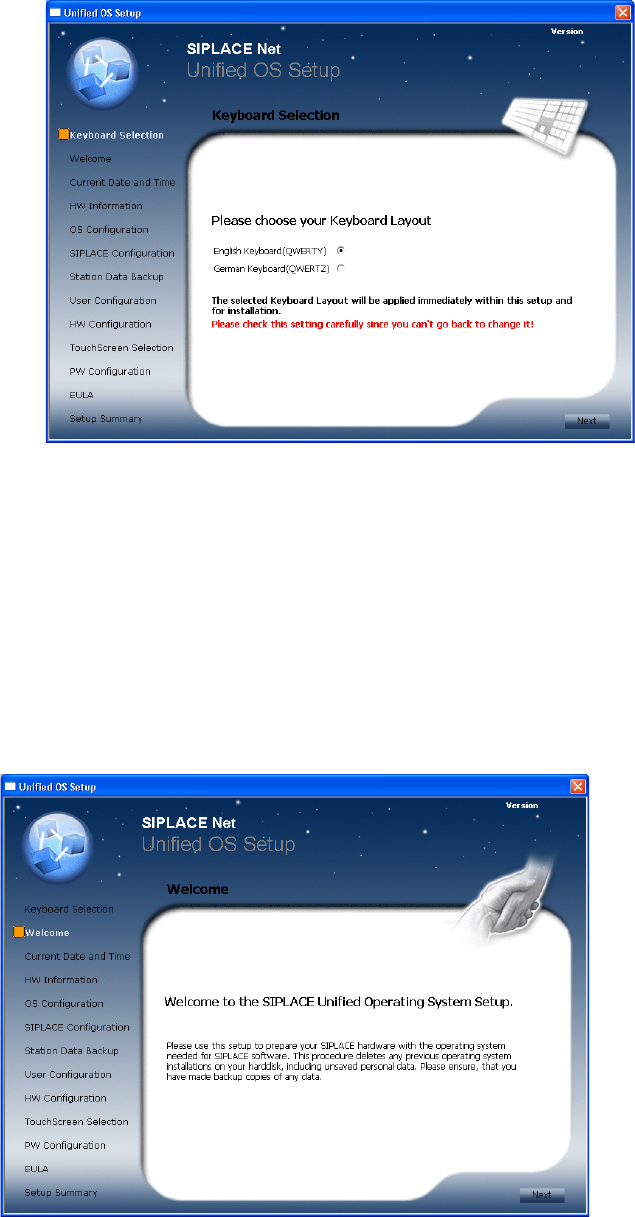
Fig. 1 Keyboard Layout
→ Select the keyboard layout.
The selected layout will be applied immediately for the following dialogs.
→ Verify your setting (you can’t go back) and click the Next button to continue.
4.2.2 Welcome Screen
The following dialog is displayed:
Fig. 2 Welcome Screen
→ Click the Next button to continue.
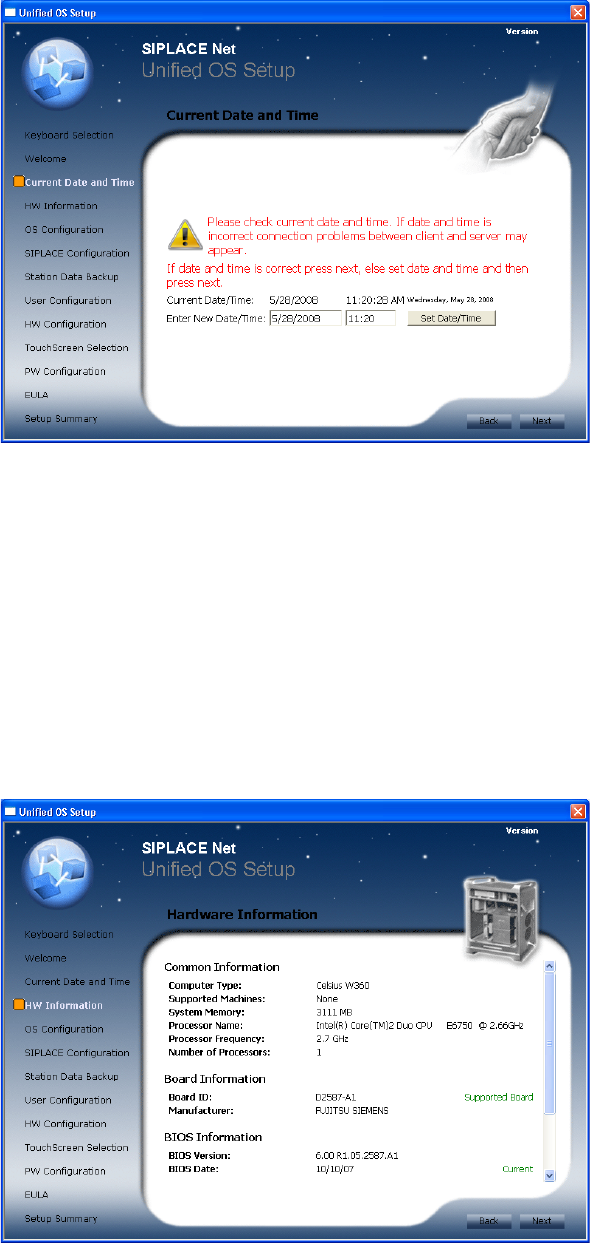
4.2.3 Date and Time Setting
Please check the correct date and time of the system and correct if necessary.
The following dialog is displayed:
Windows XP Unattended Setup DVD V4.2 11/2015 Edition
48
Fig. 3 Date and Time Information
→ Check correct date and time of the system
→ Set date and time if necessary
→ Re-check date and time
→ Click the Next button to continue.
4.2.4 Hardware Information
The hardware configuration is determined. It is also checked for possible configuration problems. This may
take a while.
The following dialog is displayed:
Fig. 4 Hardware Information
→ Click the Next button to continue.
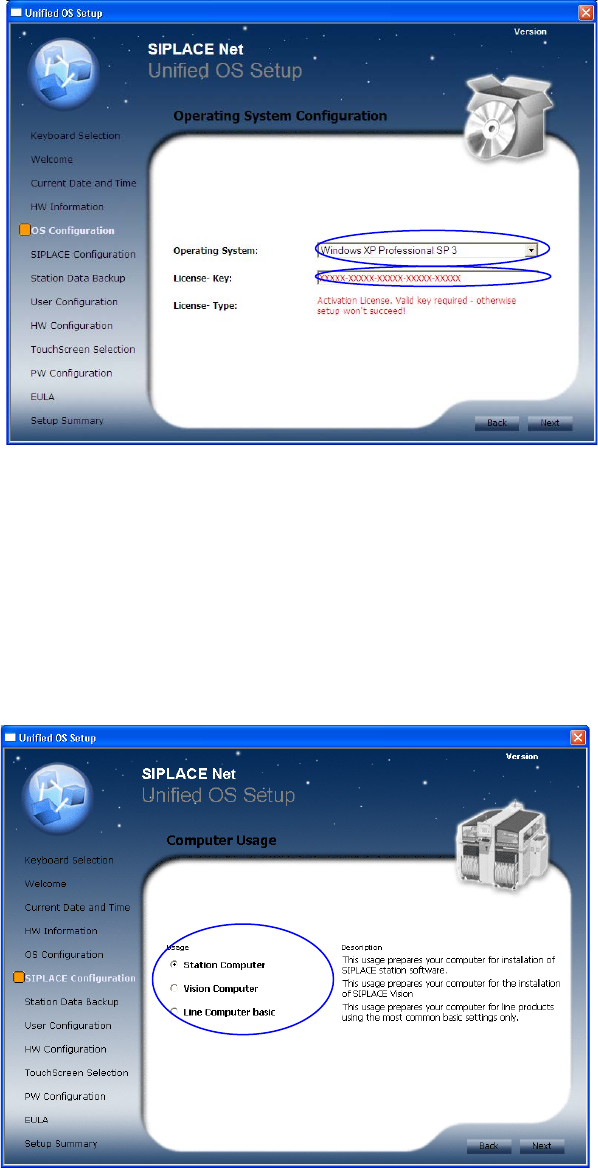
4.2.5 Operating System Configuration
The following dialog is displayed:
Windows XP Unattended Setup DVD V4.2 11/2015 Edition
49
Fig. 5 Operating System Configuration
→ Select the operating system (Windows XP Professional SP 2 or SP 3 – depending on the requirements of
your Software) to be installed from list.
→ Enter the license key for the operating system.
→ Click the Next button to continue.
4.2.6 SIPLACE Configuration
The following dialog is displayed:
Fig. 6 SIPLACE Configuration
→ Select the appropriate usage.
→ Info: Full selection is shown only with unknown type of hardware.
→ Click the Next button to continue.
4.2.7 Backup and Restore for existing station configuration data
The station data backup screen is only available if you selected the usage “Station Computer” and an
existing installation was found.