00196284_Install_WinXP_unattended_DVD.pdf - 第47页
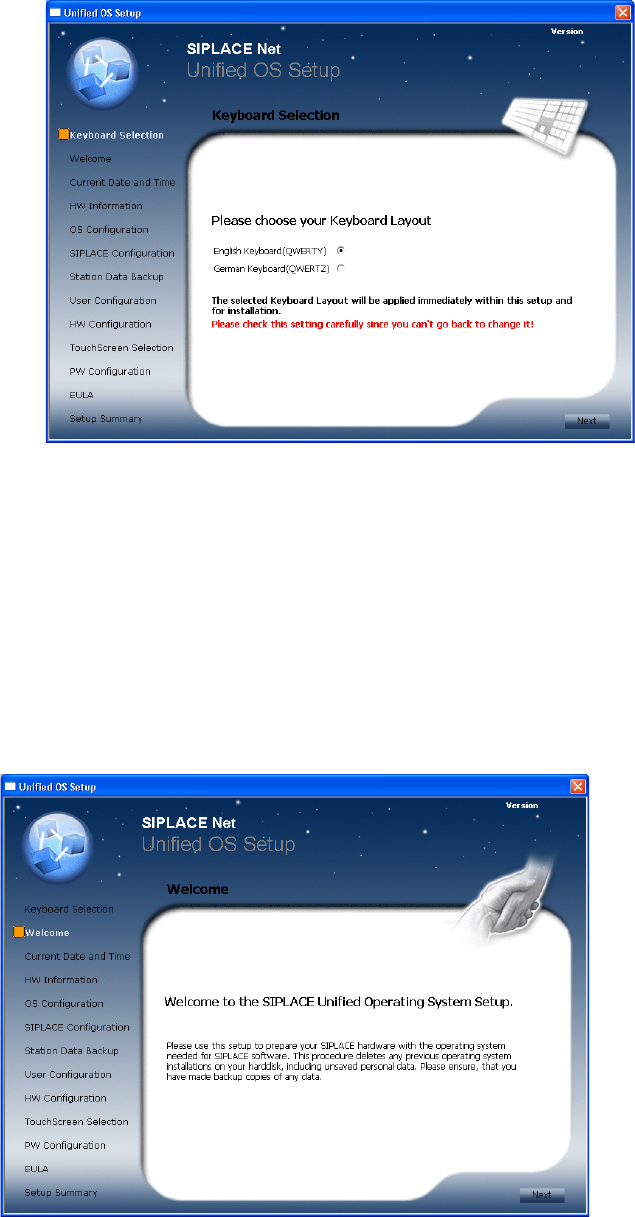
Windows XP Unattended Setup DVD V4 .2 11/2015 Edition 47 Fig. 1 Keyboard Layout → Select th e ke yboard layout. The s elected la yout will be applied im mediate ly for the following dialogs. → Verif y your setting ( you …
Windows XP Unattended Setup DVD V4.2 11/2015 Edition
46
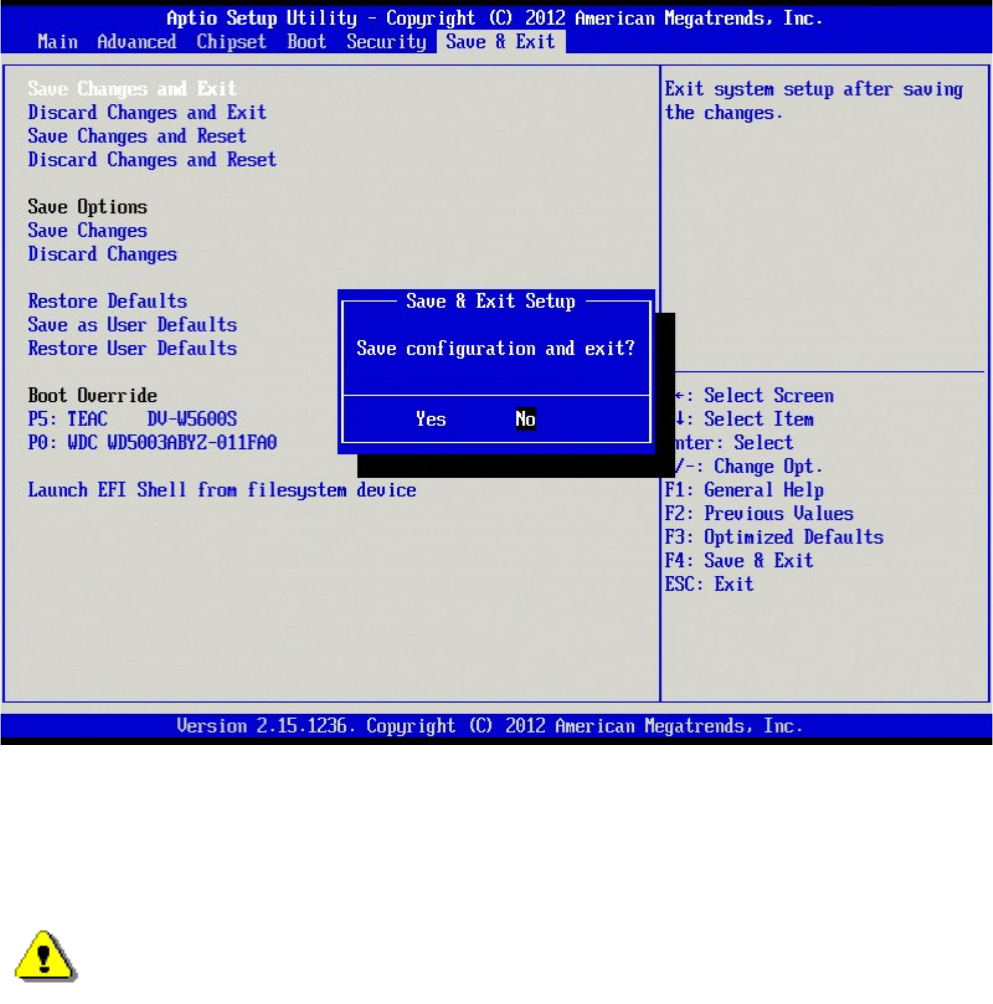
→ Ensure the option “Yes” is highlighted.
→ Hit the ENTER key to exit BIOS.
4.2 Installation procedure
Note:
All data on the first hard disk is overwritten during the unattended setup. Therefore, save
the n
ecessary data before starting the setup.
→ Insert the “BOOT DVD-ROM for Windows XP Unattended Setup” into the drive to start the unattended
setup.
→ Remove all external drives (e.g. USB sticks or USB hard disks).
→ Reboot the computer.
→ If the system does not accept the DVD ROM as the boot medium, change the boot devices in your BIOS.
→ Follow the instruction of the message “Press any key to boot from CD or DVD”, if displayed
→ Wait until the boot process has finished
4.2.1 Keyboard Layout Selection
The following dialog is displayed:
Windows XP Unattended Setup DVD V4.2 11/2015 Edition
47
Fig. 1 Keyboard Layout
→ Select the keyboard layout.
The selected layout will be applied immediately for the following dialogs.
→ Verify your setting (you can’t go back) and click the Next button to continue.
4.2.2 Welcome Screen
The following dialog is displayed:
Fig. 2 Welcome Screen
→ Click the Next button to continue.
4.2.3 Date and Time Setting
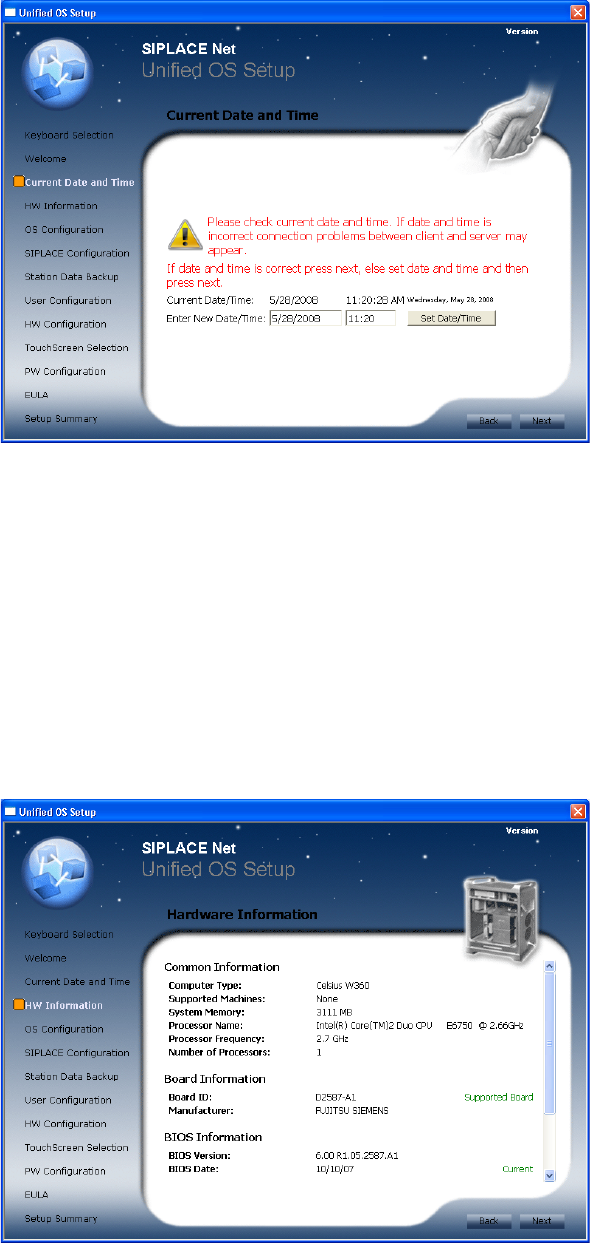
Please check the correct date and time of the system and correct if necessary.
The following dialog is displayed:
Windows XP Unattended Setup DVD V4.2 11/2015 Edition
48
Fig. 3 Date and Time Information
→ Check correct date and time of the system
→ Set date and time if necessary
→ Re-check date and time
→ Click the Next button to continue.
4.2.4 Hardware Information
The hardware configuration is determined. It is also checked for possible configuration problems. This may
take a while.
The following dialog is displayed:
Fig. 4 Hardware Information
→ Click the Next button to continue.
4.2.5 Operating System Configuration
The following dialog is displayed: