00196284_Install_WinXP_unattended_DVD.pdf - 第51页
Windows XP Unattended Setup DVD V4 .2 11/2015 Edition 51 Fig. 8 U ser Conf iguration → Enter the user nam e. → Enter the c ompan y name. → Click the Ne xt button to continue. 4.2.9 Hardware Configuration The f ollowing d…
Windows XP Unattended Setup DVD V4.2 11/2015 Edition
50
Prerequisites:
- previous installation exists
- extended partition exists
- enough free disk space is available on extended partition
The prerequisites will be analyzed and problems will be marked in red.
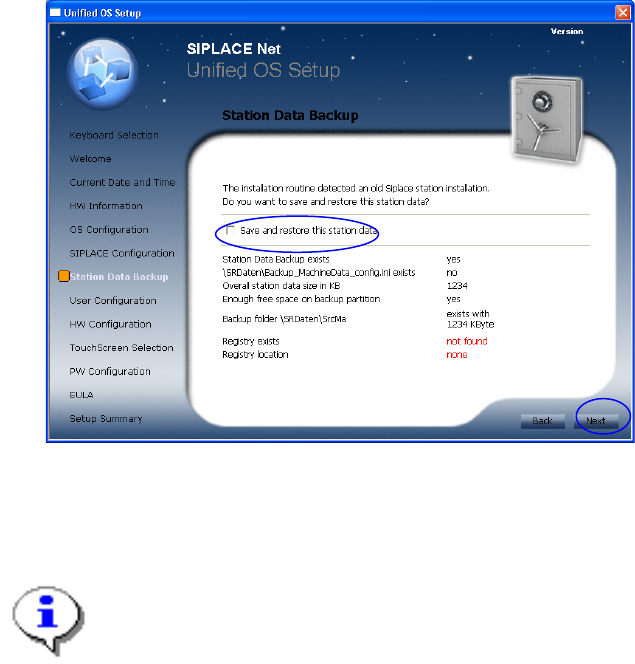
Fig. 7 Station Data Backup screen
→ Click the checkbox besides “Save and restore the station data” if you want to maintain your station data for
the new installation.
→ Click the Next button to continue.
Note:
If you selected to backup your machine data, the harddisk will not be repartitioned and only your
first partition will be formatted.
4.2.8 User Configuration
The following dialog is displayed:
Windows XP Unattended Setup DVD V4.2 11/2015 Edition
51
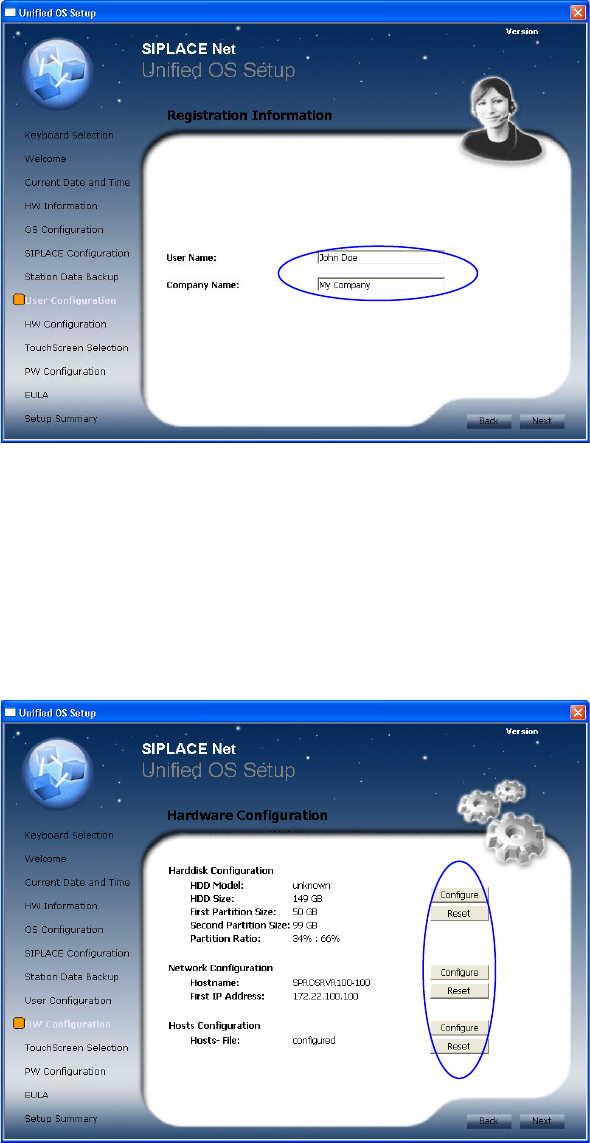
Fig. 8 User Configuration
→ Enter the user name.
→ Enter the company name.
→ Click the Next button to continue.
4.2.9 Hardware Configuration
The following dialog is displayed:
Fig. 9 Hardware Configuration
If you want to change the configuration of an option, click on the Configure button.
If you selected Station Computer to configure a touch screen please see chapter 4.2.10 for details.
If you want to reset the configuration, click on the Reset button.
The Harddisk Configuration is not available if you selected the station data backup option, please see
chapter 4.2.7 “Backup and Restore for existing station configuration data”).
→ Click the Next button, if you have finished the configuration.
Windows XP Unattended Setup DVD V4.2 11/2015 Edition
52
1. Hard Disk Configuration
To change the default partition configuration of the first harddisk, click on the button Configure of the
option Harddisk Configuration (see Chapter 4.2.9 Hardware Configuration).
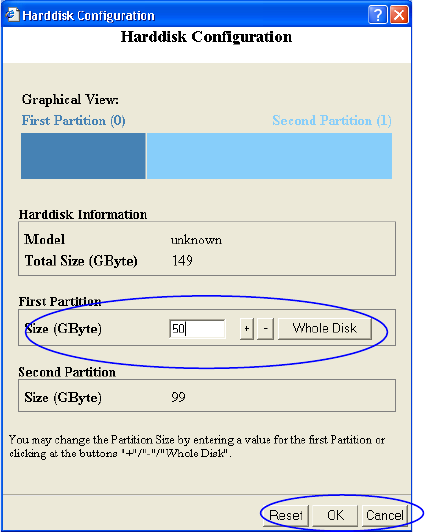
Fig. 10 Hard Disk Configuration
Your settings are displayed in the graphical view.
→ Enter the size of the first partition in the field Size. You can change the value by using the “+/-” button or
enter the value directly.
→ If you want to use the whole disk with only one partition, click on the Whole Disk button.
→ Click the OK button to apply your changes.
→ If you want to reset the default settings, click the Reset button.
→ If you want to cancel configuration and return to the main page, click the Cancel button.
2. Network Configuration
To change the default network configuration, click on the button Configure of the option Network
Configuration (see Chapter 4.2.9Hardware Configuration).