Horizon UserManualV6.pdf - 第105页
STAGE 9 Running a Product in Run Mode 1. Select Setup (F6) Run Open Cover Paste Load Clean Screen Adjust Setup Monitor Maint. 2. Select Mode (F1) until Auto is indicated in the mode option on the screen. Mode Load Data E…
STAGE 8
2Di Setup For a complete explanation of 2Di and its setup refer to the 2D Inspection
Chapter.
1.88 User Manual Software Version 6
MACHINE PROGRAMMING
STAGE 8
STAGE 9
Running a Product
in Run Mode
1. Select Setup (F6)
Run Open
Cover
Paste
Load
Clean
Screen
Adjust
Setup
Monitor Maint.
2. Select Mode (F1) until Auto is indicated in the mode option on the screen.
Mode
Load
Data
Edit
Data
Setup
Squeegee
Change
Screen
Change
Tooling
Change
Language
Exit
3. Select Exit (F8).
Mode Load
Data
Edit
Data
Setup
Squeegee
Change
Screen
Change
Tooling
Change
Language
Exit
4. Select Run (F1). If squeegees are being used continue with Step 5, if
ProFlow is being used go to Step 19.
Run
Open
Cover
Paste
Load
Clean
Screen
Adjust Setup Monitor Maint.
5. During the first print stroke, when the squeegee is down printing on the
board, select Stop Cycle (F2). The print cycle stops and the printer lid bolt
releases allowing access to the print carriage.
End
Run
Stop
Cycle
Paste
Load
Clean
Screen
Adjust Knead
Paste
Adjust
Inspect
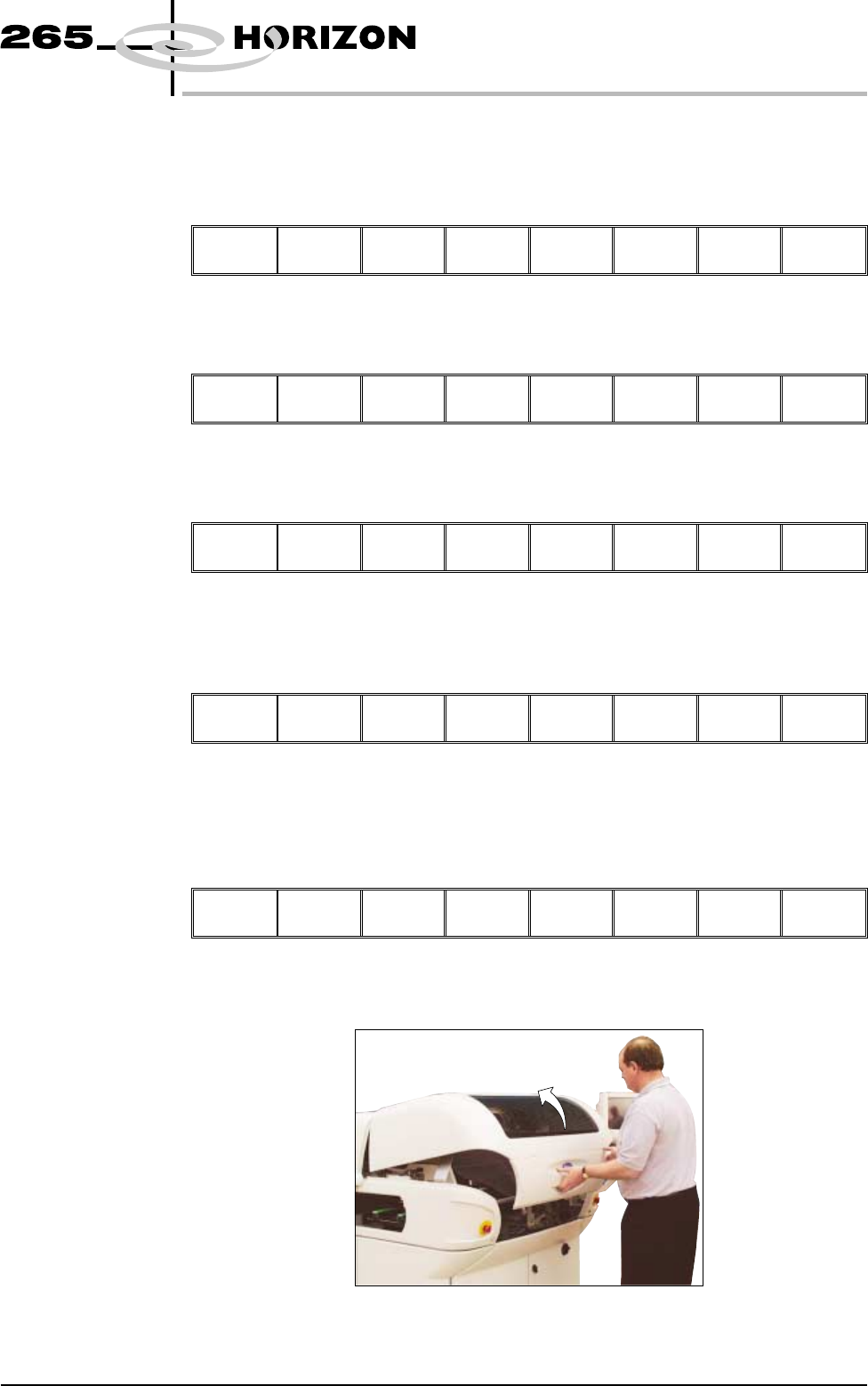
6. Lift the front printhead cover.
Software Version 6 User Manual 1.89
MACHINE PROGRAMMING
STAGE 9
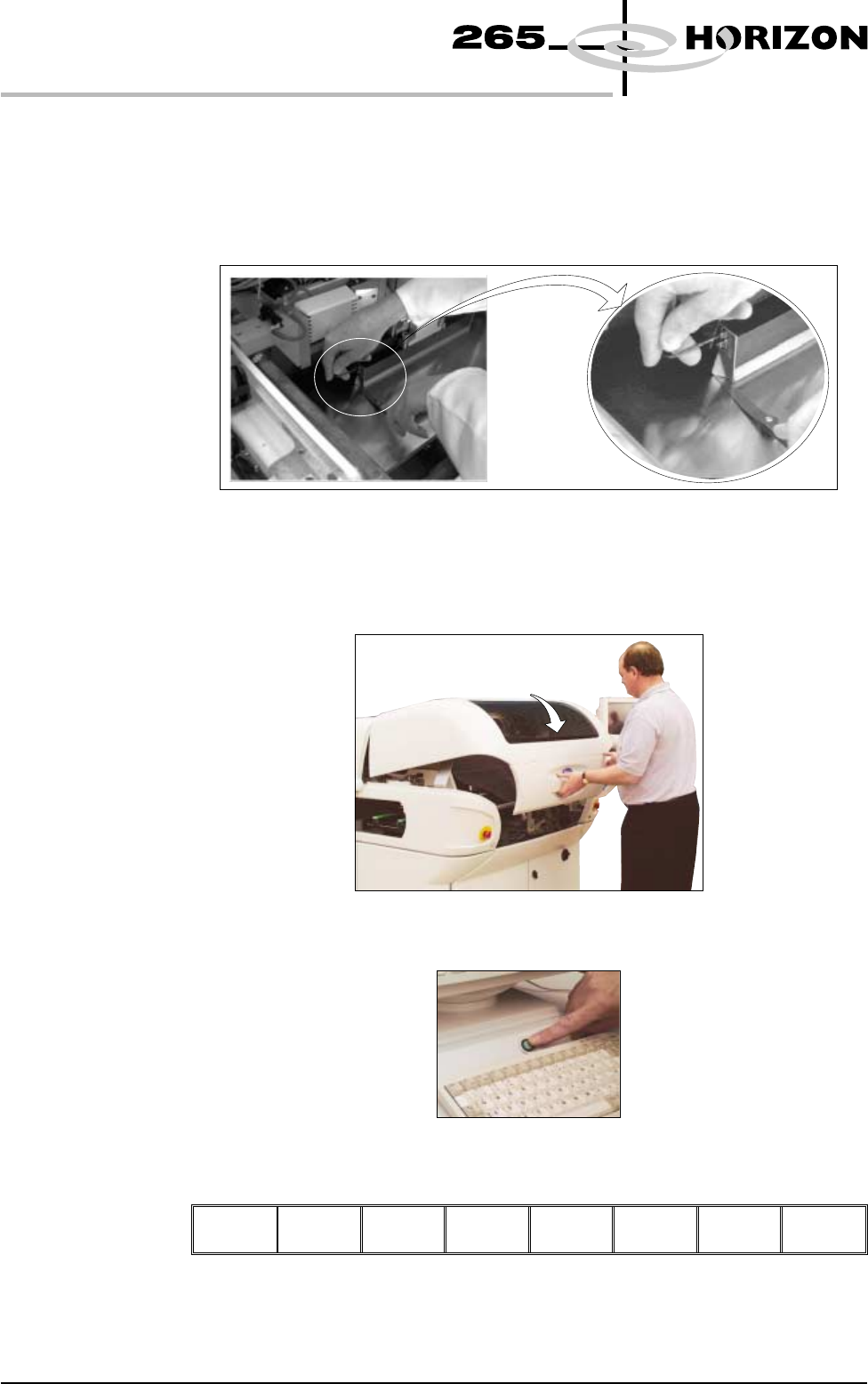
7. Release the screws holding one paste deflector allowing it to drop into
contact with the screen.
8. Insert a 0.25mm feeler between the deflector and the screen. Tighten the
screws checking that the 0.25mm gap remains.
9. Repeat Steps 7 and 8 for the other deflector.
10. Lower the front printhead cover.
11. Press the System button.
12. Select Continue (F1).
Continue
1.90 User Manual Software Version 6
MACHINE PROGRAMMING
STAGE 9