Horizon UserManualV6.pdf - 第245页
5. Select Yes, the following window is displayed: 6. Select Proceed , a request is written to the file indicated in the window. If successful, the following window is displayed: NOTE If a different destination file is re…
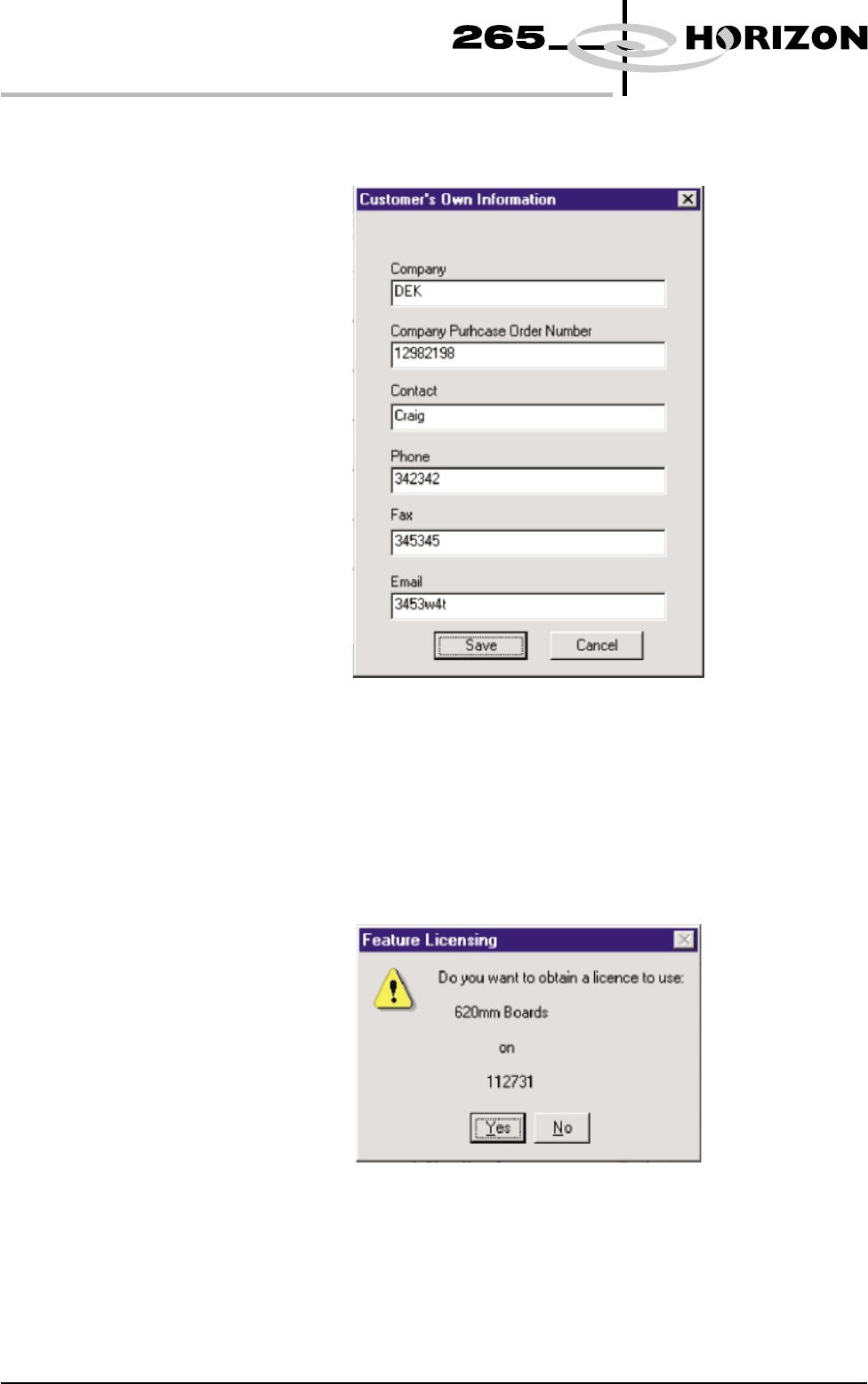
2. Select Customer Info. The following window is displayed:
3. Enter the information required and select Save. The information is written
to a ‘customer.txt’ file and attached to all licence request files, the window is
closed.
4. Scroll down the menu for the feature required. Select the feature, the
following window is displayed:
7.16 User Manual Software Version 6
HOUSE KEEPING
FEATURE LICENSING
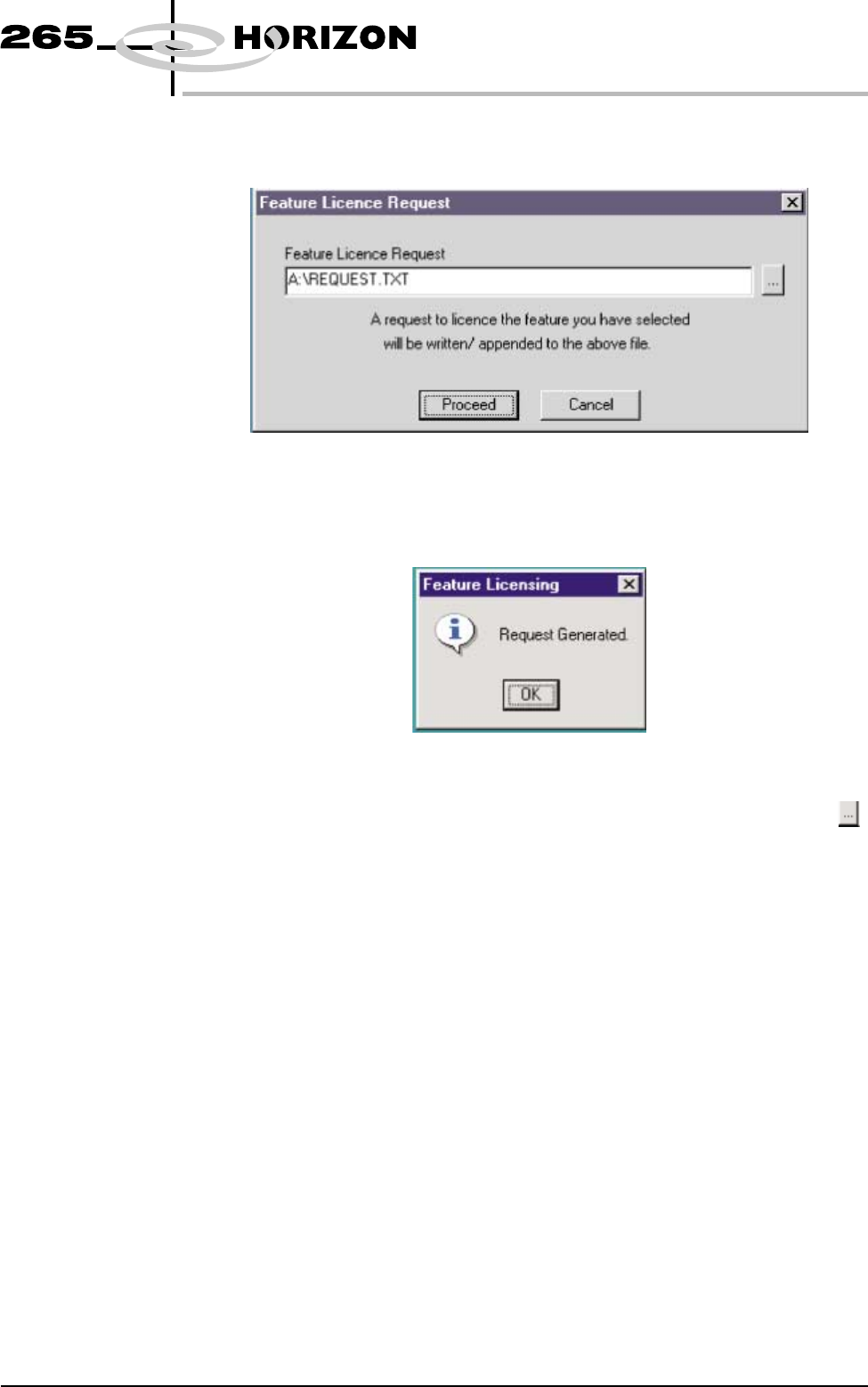
5. Select Yes, the following window is displayed:
6. Select Proceed, a request is written to the file indicated in the window. If
successful, the following window is displayed:
NOTE
If a different destination file is required for the licence request, press ,
highlight the required file, select Open and Proceed.
7. The licence request.txt file can now be forwarded to your local DEK agent
for processing.
Software Version 6 User Manual 7.17
HOUSE KEEPING
FEATURE LICENSING
Licence Installation 1.
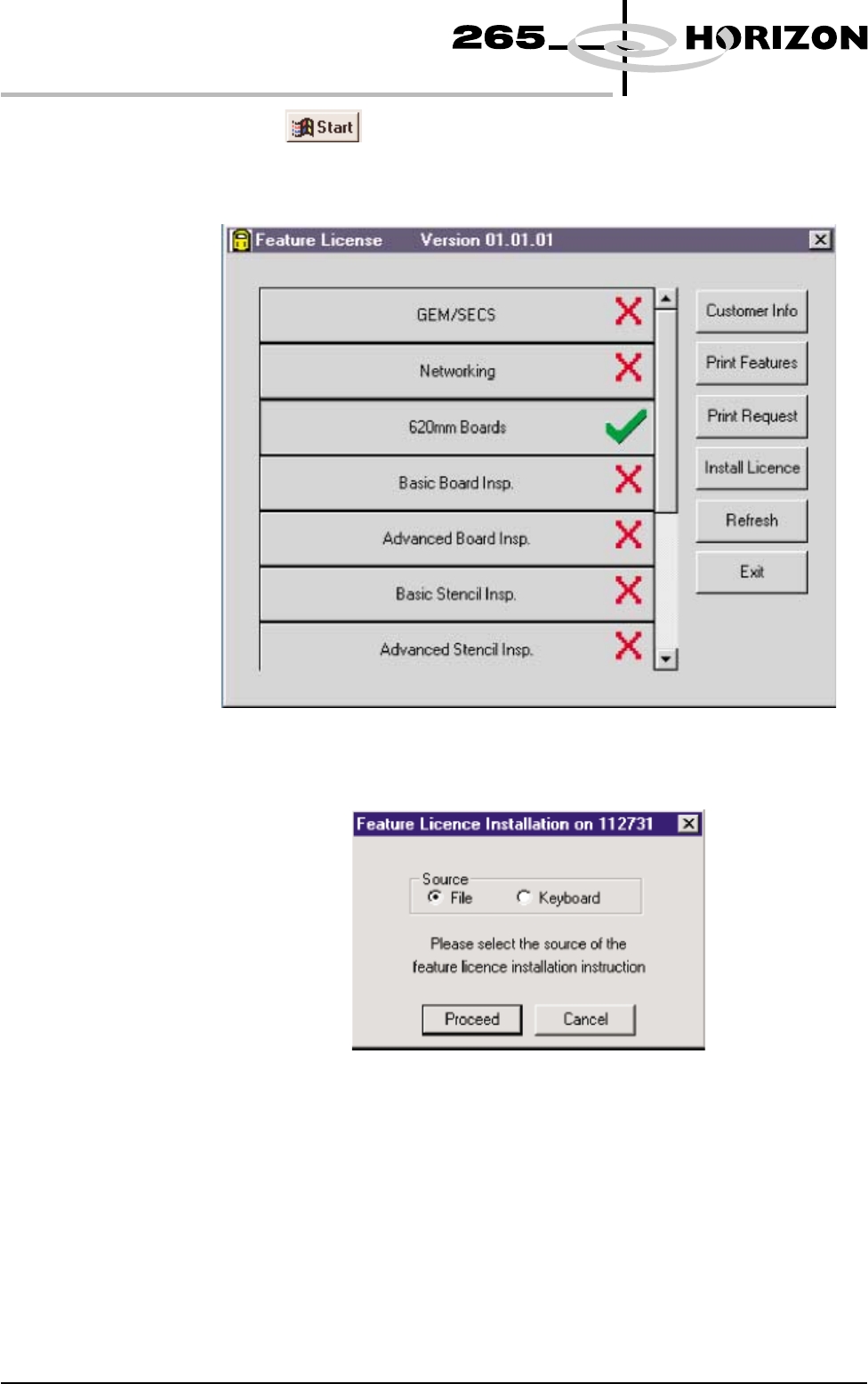
Select on the taskbar, Programs and Feature License. The
following window is displayed:
2. Select Install Licence. The following window is displayed:
3. Using the radio buttons, select the source of the feature licence and select
Proceed.
NOTE
Carry out Steps4-6 ifthesource of the licence is file.
Carry out Steps7-9 ifthesource of the licence is keyboard.
7.18 User Manual Software Version 6
HOUSE KEEPING
FEATURE LICENSING