Horizon UserManualV6.pdf - 第199页
Move Camera Y Axis Using Jog Buttons Selecting this diagnostic function moves the camera Y axis using the jog buttons. The right jog button drives the camera to the rear at slow speed and the left jog button drives the c…
NOTE
These parameters are used in diagnostics only and have no affect on the product
board file.
Home Camera
X Axis
Selecting this diagnostic function drives the camera X carriage to its home
position, as determined by its home sensor.
Home Camera
Y Axis
Selecting this diagnostic function drives the camera Y carriage to its home
position, as determined by its home sensor.
Camera Axis to
Fiducial 1 Position
Selecting this diagnostic function drives both X and Y carriages to the position
set by the fiducial 1 X and Y coord parameters.
Camera Axis to
Fiducial 2 Position
Selecting this diagnostic function drives both X and Y carriages to the position
set by the fiducial 2 X and Y coord parameters.
Camera Axis to
Fiducial 3 Position
Selecting this diagnostic function drives both X and Y carriages to the position
set by the fiducial 3 X and Y coord parameters.
Drive to Board Stop
Position
Selecting this diagnostic function drives both X and Y carriages to the position
of the board stop for the current product.
Restore Default
Reference Position
Selecting this diagnostic function restores the reference position stored as a
default in software.
Drive to Reference
Position
Selecting this diagnostic function drives both X and Y carriages to the position
set by the camera X and Y reference parameters.
Set Reference
Position
Selecting this diagnostic function alters the printer configuration file after the
camera has been positioned, so that it is viewing the reference mark on the front
rail. On selection the menu bar displays Confirm, pressing this key alters the
printer configuration file. This is used in conjunction with move camera X and
Y axes. Refer to the Technical Reference Manual, Camera and Vision System
Chapter for the camera reference position procedure.
Move Camera X
Axis Using Jog
Buttons
Selecting this diagnostic function moves the camera X axis using the jog
buttons. The right jog button drives the camera to the left at slow speed and the
left jog button drives the camera to the right, stopping immediately the button is
released. This is a physical movement of the camera, not as displayed on the
monitor.
5.16 User Manual Software Version 6
DIAGNOSTICS
CAMERA AXES
Move Camera Y
Axis Using Jog
Buttons
Selecting this diagnostic function moves the camera Y axis using the jog
buttons. The right jog button drives the camera to the rear at slow speed and the
left jog button drives the camera forward, stopping immediately the button is
released. This is a physical movement of the camera, not as displayed on the
monitor.
Initialize Vision
System
Selecting this diagnostic function initializes the frame grabber board and it
displays a live image on the vision monitor and a superimposed box graphic.
Fiducial Lighting Selecting this diagnostic function alternately switches the fiducial lighting on
and off, continuously displaying the current status.
Inspection Lighting Selecting this diagnostic function alternately switches the inspection lighting on
and off, continuously displaying the current status.
Cycle Camera
System
Selecting this diagnostic function starts a continuous cycle of driving the camera
X and Y carriages to each of the following positions in sequence, dwelling for 2
seconds at each point, locating the fiducial at each fiducial position, displaying
the returned location and repeating the cycle. The cycle is as follows:
1. Home
2. Fiducial 1
3. Fiducial 2
If the data logging is enabled the fiducial coordinates are appended to
D:\Program Files\DEK\Machinecontrol\Printer\Camera.Dat file. This
continuous cycle is terminated by selecting the stop key or when the set cycle
count has been reached.
Cycle Count This diagnostic function displays the amount of cycles done and the amount of
cycles to go to complete the cycle count.
Software Version 6 User Manual 5.17
DIAGNOSTICS
CAMERA AXES
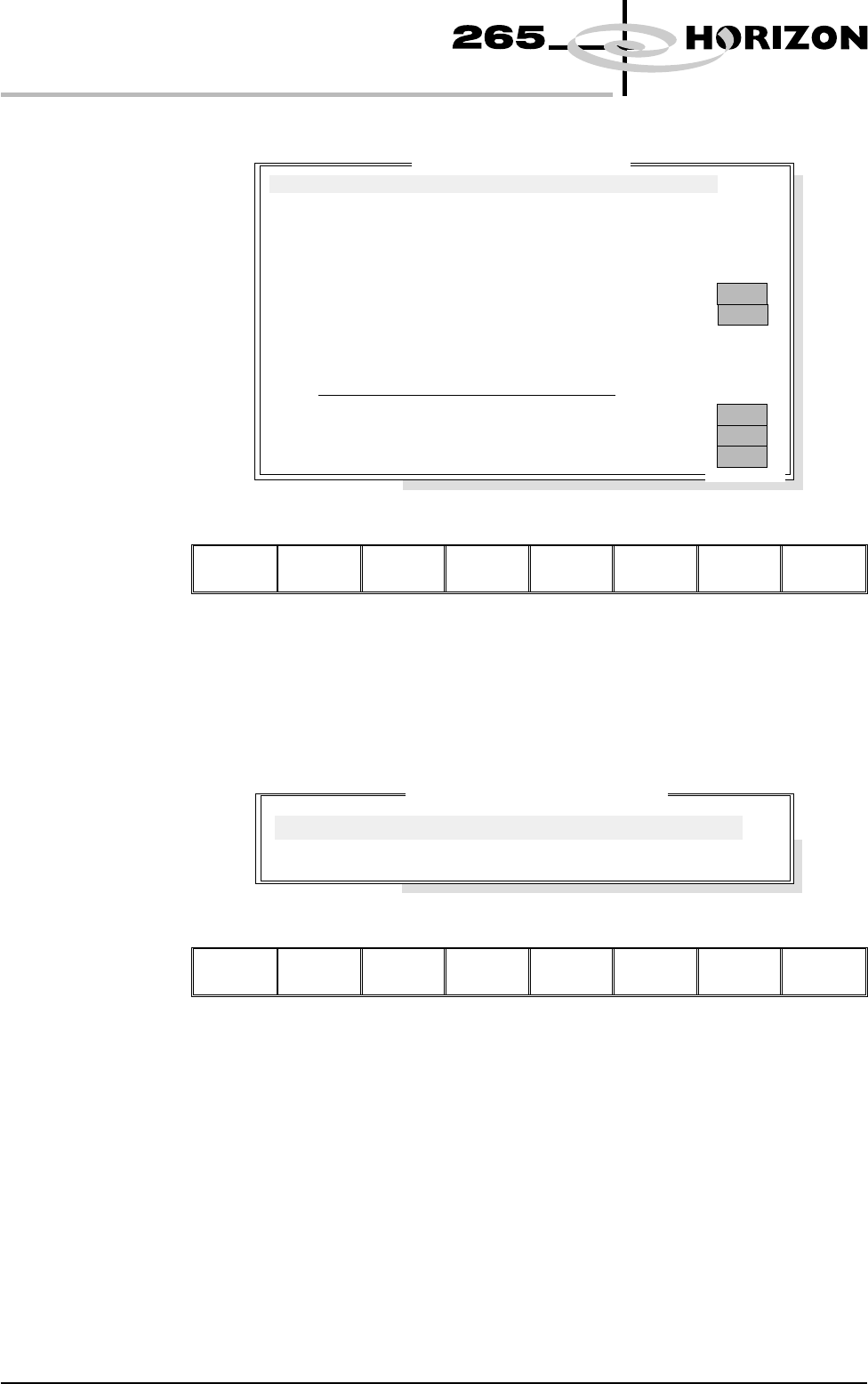
RAIL SYSTEM Selecting this diagnostics module opens the following window:
The menu bar changes to the following:
Run
Diagnost
Adjust Next Previous Exit
Next / Previous keys move the highlight bar up and down the list of selectable
diagnostic functions.
Run Diagnost activates the diagnostic function, as selected by the highlight bar.
Exit returns operation to the module diagnostics page.
Adjust opens the following window:
The menu bar changes to the following:
Next Previous Incr. Decr. Exit
Next / Previous keys move the highlight bar up and down the list of diagnostic
parameters.
Incr. / Decr. keys change the value of the selected diagnostic parameter.
Exit returns operation to the rail system diagnostics page.
NOTE
These parameters are used in diagnostics only and have no affect on the product
board file.
5.18 User Manual Software Version 6
DIAGNOSTICS
RAIL SYSTEM
Board Stop In Position
Board at Stop
Board at Left
OFF
OFF
OFF
OFF
OFF
.. more
Home Rail Width
Drive Rail To Board Width
Drive Rail Width Using Two Button Control
Drive Belts Using Two Button Control
Belt Speed Calibration
Toggle Board Clamp
Toggle Board Stop
Cycle Board On Belts
Cycle Board Clamp
Cycle Rails
Ra
il
System D
i
agnost
i
cs
Rail System Test Parameters
BOARD WIDTH
CYCLE COUNT
250.0
50
mm
Cycles