Horizon UserManualV6.pdf - 第197页
CAMERA AXES Selecting this diagnostics module opens the following window: The menu bar changes to the following: Run Diagnost Adjust Fiducial Setup Next Previous Exit Next / Previous keys move the highlight bar up and do…
Drive Rear
Squeegee Using
Jog Buttons
Selecting this diagnostic function enables the rear squeegee to be driven up and
down using the jog buttons. The right jog button drives the squeegee down and
the left jog button drives it up, stopping immediately the button is released. ‘Use
the Left Jog Button to move the Squeegee upwards, and the Right Jog
Button to move it downwards’ is displayed in the prompt box.
Pressure Reading If the pressure feedback option is fitted, this diagnostic function is a live display
showing the actual pressure being applied to the squeegee. With no squeegees
fitted the figure displayed varies from machine to machine. If the pressure
feedback option is not fitted, the pressure reading is ‘NOT FITTED’.
5.14 User Manual Software Version 6
DIAGNOSTICS
SQUEEGEE
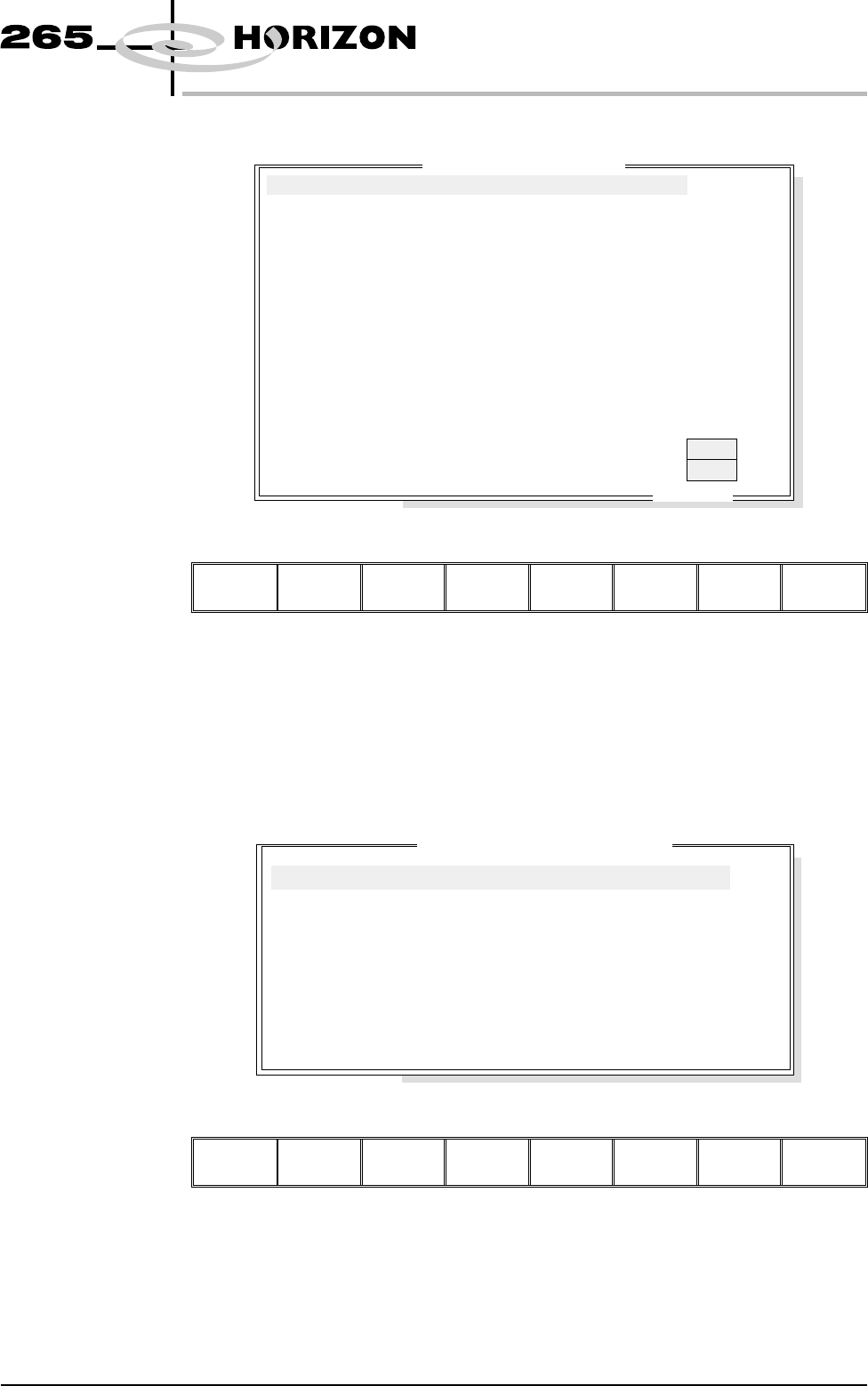
CAMERA AXES Selecting this diagnostics module opens the following window:
The menu bar changes to the following:
Run
Diagnost
Adjust Fiducial
Setup
Next Previous Exit
Next / Previous keys move the highlight bar up and down the list of selectable
diagnostic functions.
Run Diagnost activates the diagnostic function, as selected by the highlight bar.
Exit returns operation to the module diagnostics page.
Fiducial Setup enables screen fiducials to be located.
Adjust opens the following window:
The menu bar changes to the following:
Next Previous Incr. Decr. Exit
Next / Previous keys move the highlight bar up and down the list of diagnostic
parameters.
Incr. / Decr. keys change the value of the selected diagnostic parameter.
Exit returns operation to the camera diagnostics page.
Software Version 6 User Manual 5.15
DIAGNOSTICS
CAMERA AXES
ON
ON
.. more
Home Camera X Axis
Home Camera Y Axis
Camera Axis To Fiducial 1 Position
Camera Axis To Fiducial 2 Position
Camera Axis To Fiducial 3 Position
Drive to Board Stop Position
Restore Default Reference Position
Drive to Reference Position
Set Reference Position
Move Camera X Axis Using Jog Buttons
Move Camera Y Axis Using Jog Buttons
Initialise Vision System
Fiducial Lighting
Inspection Lighting
Camera D
i
agnost
i
cs
FIDUCIAL 1 X
FIDUCIAL 1 Y
FIDUCIAL 2 X
FIDUCIAL 2 Y
FIDUCIAL 3 X
FIDUCIAL 3 Y
BOARD STOP X
BOARD STOP Y
CYCLE COUNT
Camera Cycle Test Parameters
243.0
241.1
7.3
8.8
0.0
0.0
125.0
165.0
50.0
mm
mm
mm
mm
mm
mm
mm
mm
Cycles
NOTE
These parameters are used in diagnostics only and have no affect on the product
board file.
Home Camera
X Axis
Selecting this diagnostic function drives the camera X carriage to its home
position, as determined by its home sensor.
Home Camera
Y Axis
Selecting this diagnostic function drives the camera Y carriage to its home
position, as determined by its home sensor.
Camera Axis to
Fiducial 1 Position
Selecting this diagnostic function drives both X and Y carriages to the position
set by the fiducial 1 X and Y coord parameters.
Camera Axis to
Fiducial 2 Position
Selecting this diagnostic function drives both X and Y carriages to the position
set by the fiducial 2 X and Y coord parameters.
Camera Axis to
Fiducial 3 Position
Selecting this diagnostic function drives both X and Y carriages to the position
set by the fiducial 3 X and Y coord parameters.
Drive to Board Stop
Position
Selecting this diagnostic function drives both X and Y carriages to the position
of the board stop for the current product.
Restore Default
Reference Position
Selecting this diagnostic function restores the reference position stored as a
default in software.
Drive to Reference
Position
Selecting this diagnostic function drives both X and Y carriages to the position
set by the camera X and Y reference parameters.
Set Reference
Position
Selecting this diagnostic function alters the printer configuration file after the
camera has been positioned, so that it is viewing the reference mark on the front
rail. On selection the menu bar displays Confirm, pressing this key alters the
printer configuration file. This is used in conjunction with move camera X and
Y axes. Refer to the Technical Reference Manual, Camera and Vision System
Chapter for the camera reference position procedure.
Move Camera X
Axis Using Jog
Buttons
Selecting this diagnostic function moves the camera X axis using the jog
buttons. The right jog button drives the camera to the left at slow speed and the
left jog button drives the camera to the right, stopping immediately the button is
released. This is a physical movement of the camera, not as displayed on the
monitor.
5.16 User Manual Software Version 6
DIAGNOSTICS
CAMERA AXES