YSM10安装调整(eng).pdf - 第84页
For Ser v ice E n gineer Service Information SI1610004E -000= YSM10_Proced ures for the adjustmen ts required after installing a machine 84/107 10.3 How to bring back the adj usted dat a By using the “ Get Information ” …
For Service Engineer
Service Information
SI1610004E-000= YSM10_Procedures for the adjustments required after installing a machine
83/107
8. Check the machine setting
After completing the adjustment, perform the settings according to the customer’s demand.
:
See Service Information “SI1203007E=Setting for operating the machine after installation of the
machine” for the details.
When the settings were changed for the adjustment, change them back to the customer’s
original setting.
Before performing the settings, make sure to check the contents with the customer.
9. Move the board data for the adjustment
In order to reduce maintenance time, move the board data required for the adjustment of the
machine to “CalibPCBdata” folder.
Use the No.1 folder as the folder for the customer.
:
The “d:¥Machine¥CalibPCBdata” folder is newly created automatically when the application software is
installed.
10. Back up the system data and bring back the data
10.1 System data backup
After checking all the settings, back up the adjusted system data and save it in the USB drive that
comes with the machine and give it to the customer.
Save the data in a USB drive for bringing back.
Caution:
Some customers put restrictions on taking out the data. Confirm with the customer in advance if the
data can be brought back or not.
10.2 System full backup
Introduce the “System full backup” function to the customer and obtain the data in the USB drive
that comes with the machine.
If the machine is connected to the network, and the network is specified as the destination to save
the system backup data, save the data in the destination.
:
See “YS series Programming Manual - Chapter 6 Managing the data – Making a backup of system
data” for details.
该文档是极速PDF编辑器生成,
如果想去掉该提示,请访问并下载:
http://www.jisupdfeditor.com/
For Service Engineer
Service Information
SI1610004E-000= YSM10_Procedures for the adjustments required after installing a machine
84/107
10.3 How to bring back the adjusted data
By using the “Get Information” utility, the adjusted machine data in the “D: Machine¥Result folder”
is automatically saved in the USB drive.
:
Make sure to set a USB drive to the machine beforehand.
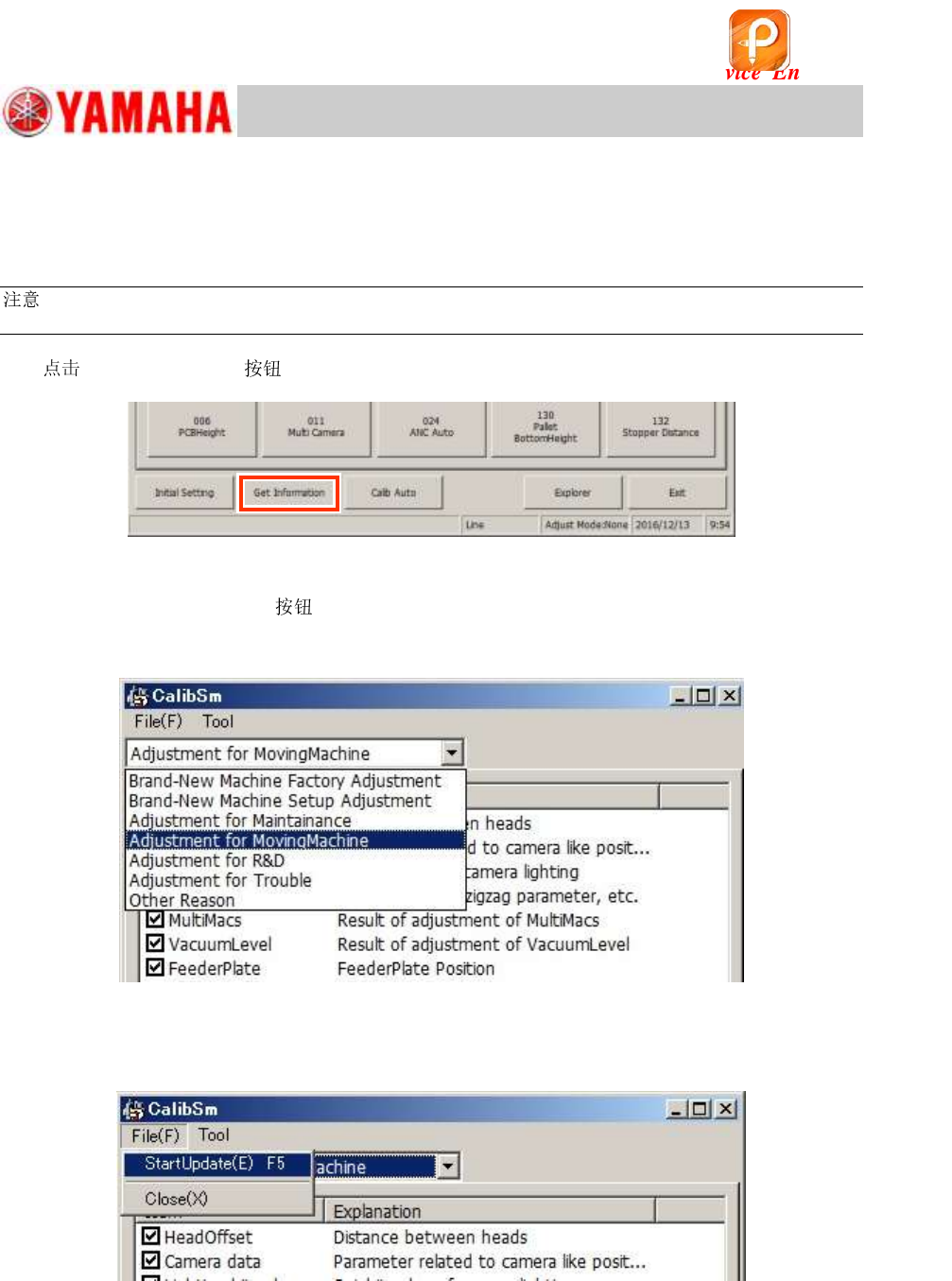
1.
[Get Information] on the CalibSm main menu.
Figure 123
2. Select the adjustment item.
When the [Get Information]
is tapped, the data to be saved are displayed.
Select the adjustment item from the pull-down menu at the upper left of the window to identify the
contents and the condition of the data to be saved.
Figure 124
3. “Start Update (E) F5”
Select “Start Update (E) F5” from the “File (F)” pull-down menu.
Figure 125
该文档是极速PDF编辑器生成,
如果想去掉该提示,请访问并下载:
http://www.jisupdfeditor.com/
For Service Engineer
Service Information
SI1610004E-000= YSM10_Procedures for the adjustments required after installing a machine
85/107
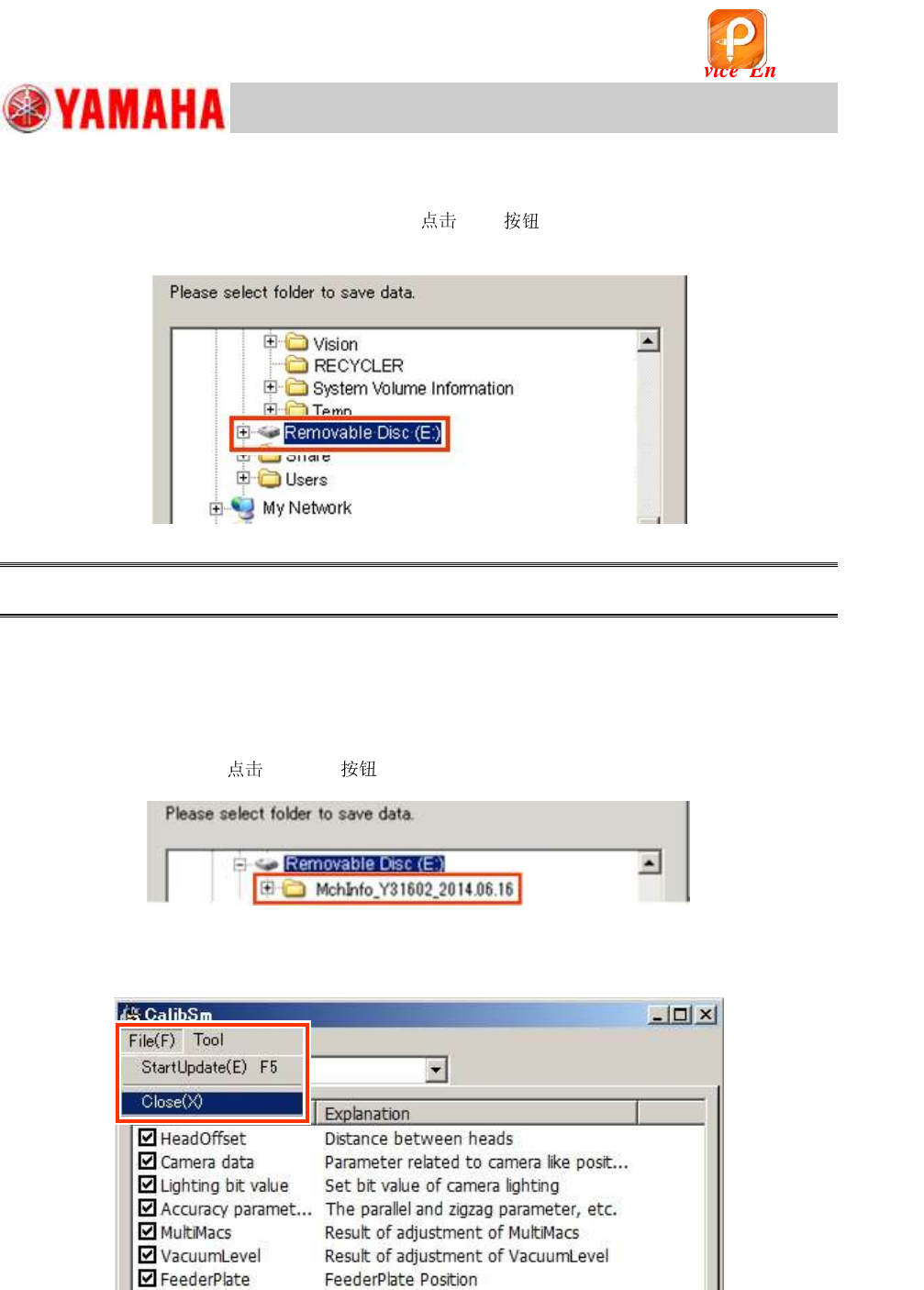
4. Check the folder where the data is saved.
When “Start Update(E) F5” is selected, the following window is displayed.
As “Removable Disk (E) is selected as default,
[OK] . The folder with the name of the
date that the data is saved is automatically created and the data saving process starts.
Figure 126
Caution:
Make sure to select “Removable Disk”.
5. Check if the data has been loaded properly.
After the data saving process has been completed, tap “StartUpdate(E) F5” again and check if the
created file exists in the “Removable Disk”.
File name: MchInfo_Y****_2014.06.16 (MchInfo_Serial Number_date)
After checking the file,
[Cancel] to exit the window.
Figure 127
6. Select “Close” to exit the window.
Figure 128
该文档是极速PDF编辑器生成,
如果想去掉该提示,请访问并下载:
http://www.jisupdfeditor.com/