00197042-04_SM_X-Serie-S_Customer_EN.pdf - 第123页
4 Electrics and control system 4.8 Replacing the CAN switch Service Manual SIPLACE X-Serie S 06/2019 123 Overview The CAN switch is located at location 1 in the machine frame. Fig.148: CAN switch, front 1. Reset button …
4 Electrics and control system
4.7 Replacing the button
122 Service Manual SIPLACE X-Serie S 06/2019
4.7 Replacing the button
Parts, equipment and tools
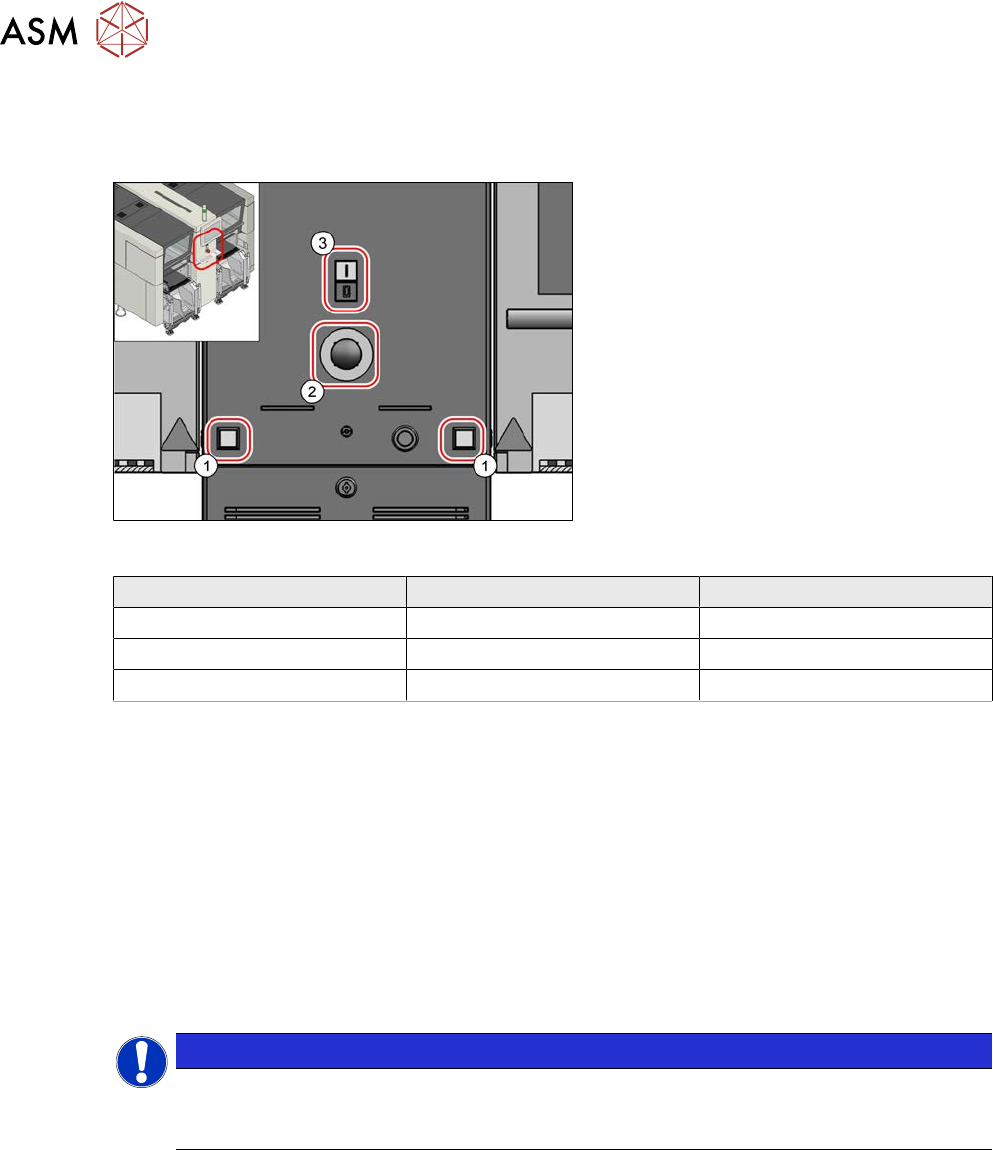
Fig.147: Overview of button
1. Pushbutton
2. EMERGENCY STOP button
3. Twin pushbutton
Square shape Round shape
Pushbutton 00334095‑xx 03164001Sxx
EMERGENCY STOP button 00334073‑xx 03165966Sxx
Twin pushbutton 03084513‑xx 03170336Sxx
Removal
► Switch off the machine, disconnect it from the power supply and secure it to prevent
unauthorized reactivation.
1.2 "Preparatory work..." [}16]
► Remove the relevant button. To do this, unplug all electrical connections. You might like to
mark their positions to make clear assignment easier later on.
Installation
► Follow the removal instructions in reverse order for installation.
4.8 Replacing the CAN switch
NOTICE
Only X-Series S up to No. Gxxxx
The CAN switch and the upgrade kit are only used in SIPLACE X-Series S machines up to
serial no. Gxxxx.
Parts, equipment and tools
●
CAN switch [03083844-xx] or
Upgrade kit PCB conveyor CAN switch X-Series S [03106370-xx]
4 Electrics and control system
4.8 Replacing the CAN switch
Service Manual SIPLACE X-Serie S 06/2019 123
Overview
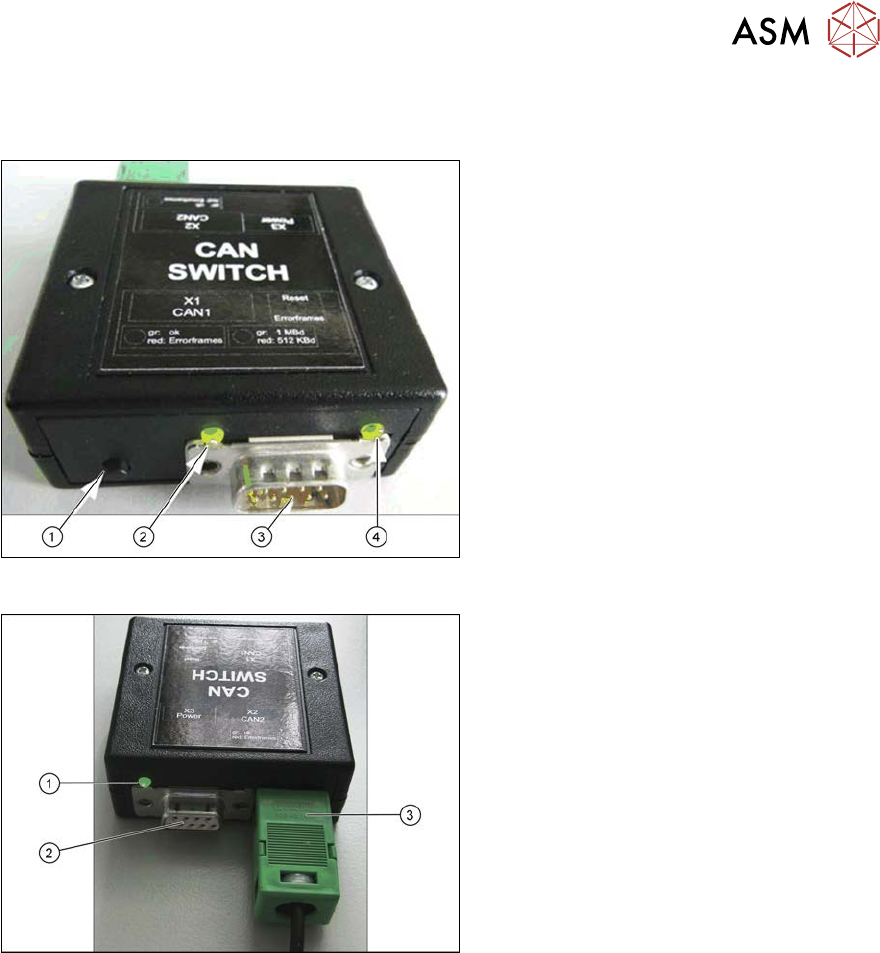
The CAN switch is located at location 1 in the machine frame.
Fig.148: CAN switch, front
1. Reset button
The button is used to reset the red LED
on both sides, CAN 1 and CAN2.
2. LED green: setting 1Mbit
LED red: setting 500kBit
3. CAN bus cable connection CAN 1
4. LED green/red for CAN 1
Data transfer OK: green
Error frames received: red
Fig.149: CAN switch, back
1. LED green/red for CAN 2
Data transfer OK: green
Error frames received: red
2. CAN bus cable connection CAN 2
3. Voltage supply connection 24 V DC
Removal
► Switch off the machine, disconnect it from the power supply and secure it to prevent
unauthorized reactivation.
1.2 "Preparatory work..." [}16]
► Unplug the electrical connections for the CAN switch. You may want to mark the positions of
these connections to make clear assignment easier later on.
Installation
► Follow the removal instructions in reverse order for installation. Also observe the following
instructions:
– Check/correct the DIP switch setting on the CAN switch (see 4.8.1 "Setting the DIP Switch
on the CAN Switch" [}124]).
The DIP switch is preset for the SIPLACE X‑SeriesS as a default.
4 Electrics and control system
4.8 Replacing the CAN switch
124 Service Manual SIPLACE X-Serie S 06/2019
4.8.1 Setting the DIP Switch on the CAN Switch
► Disconnect the CAN switch from the voltage supply.
► Loosen the two screws fastening the upper section (side with label) and remove this upper section.
► Set the DIP switches:
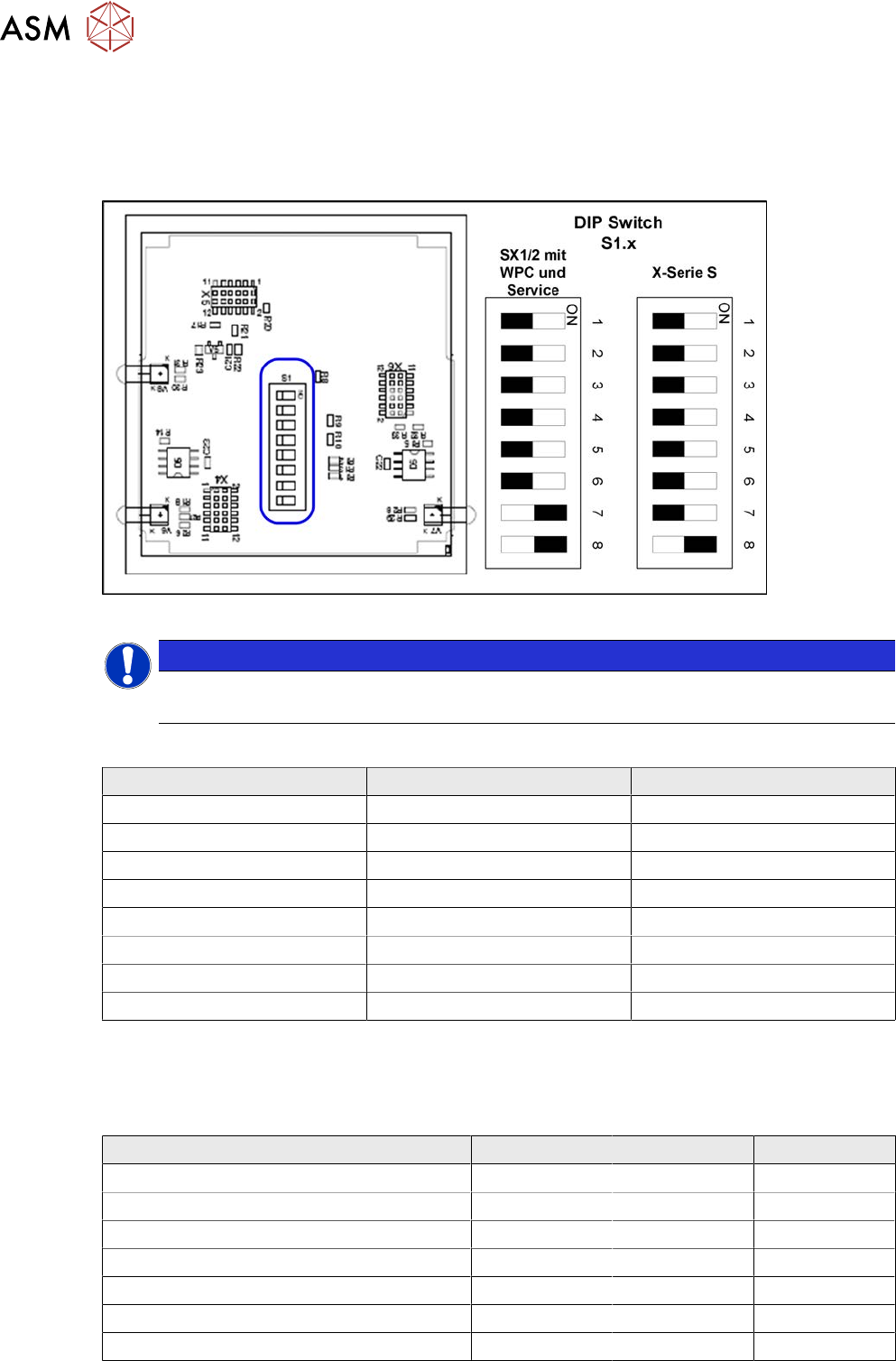
Fig.150: Board in CAN switch [03083844-xx]
NOTICE
Default setting
The CAN switch is preset as a default for the SIPLACE X-Series S.
DIP switch S1 in CAN switch [03083844-xx]
DIP switch S1 ON OFF
S1.1 Test mode Normal mode
S1.2 500 kBaud 1 MBaud
S1.3 See table below See table below
S1.4 See table below See table below
S1.5 See table below See table below
S1.6 ASC Test ON ASC Test OFF
S1.7 120 Ohm CAN 1 No terminal resistor
S1.8 120 Ohm CAN 2 No terminal resistor
The DIP switch setting S1.3 to S1.5 is used to configure the display (LED) i.e the number of error
frames needed for the LED to change its status from green to red. The default setting is that the
LED turns red for each error frame received.
LED status error frames
LED status S1.3 S1.4 S1.5
1 error frame OFF OFF OFF
5 error frames/minute ON OFF OFF
10 error frames/minute OFF ON OFF
10 error frames/hour ON ON OFF
50 error frames/hour OFF OFF ON
100 error frames/hour ON OFF ON
500 error frames/hour OFF ON ON