APPENDIX.pdf - 第25页
Appendix B 3D T r ouble Shooting Guide B-3 < Prev > Use it to go back to the previous step of the solution. <Next> Use it to move to the next step of the solution. When the <Next> button is pressed in t…
Samsung Component Placer CP-45F(V)/FS Operations Manual
B-2
even when MMI is running, Mark3TSG is not running. After running MMI, Mark3TSG
can be started separately.
TSGShowWarning: If it is set to 0, when an error occurred is only a warning level and not
serious enough to affect the operation of the equipment, 3D Trouble Shooting Guide is
executed regardless of the error level.
TSGShowAnime: If it is set to 0, Trouble Shooting Guide using 3D animation is not
executed but HTML help appears directly.
B.2. Running Mark3TSG
When Mark3TSG is installed and ‘TSG = 1’ is set for [Option] in the Mark3.ini file, it is
ready to run Mark3TSG.
For convenience, Mark3TSG is made to run and end with Mark3.
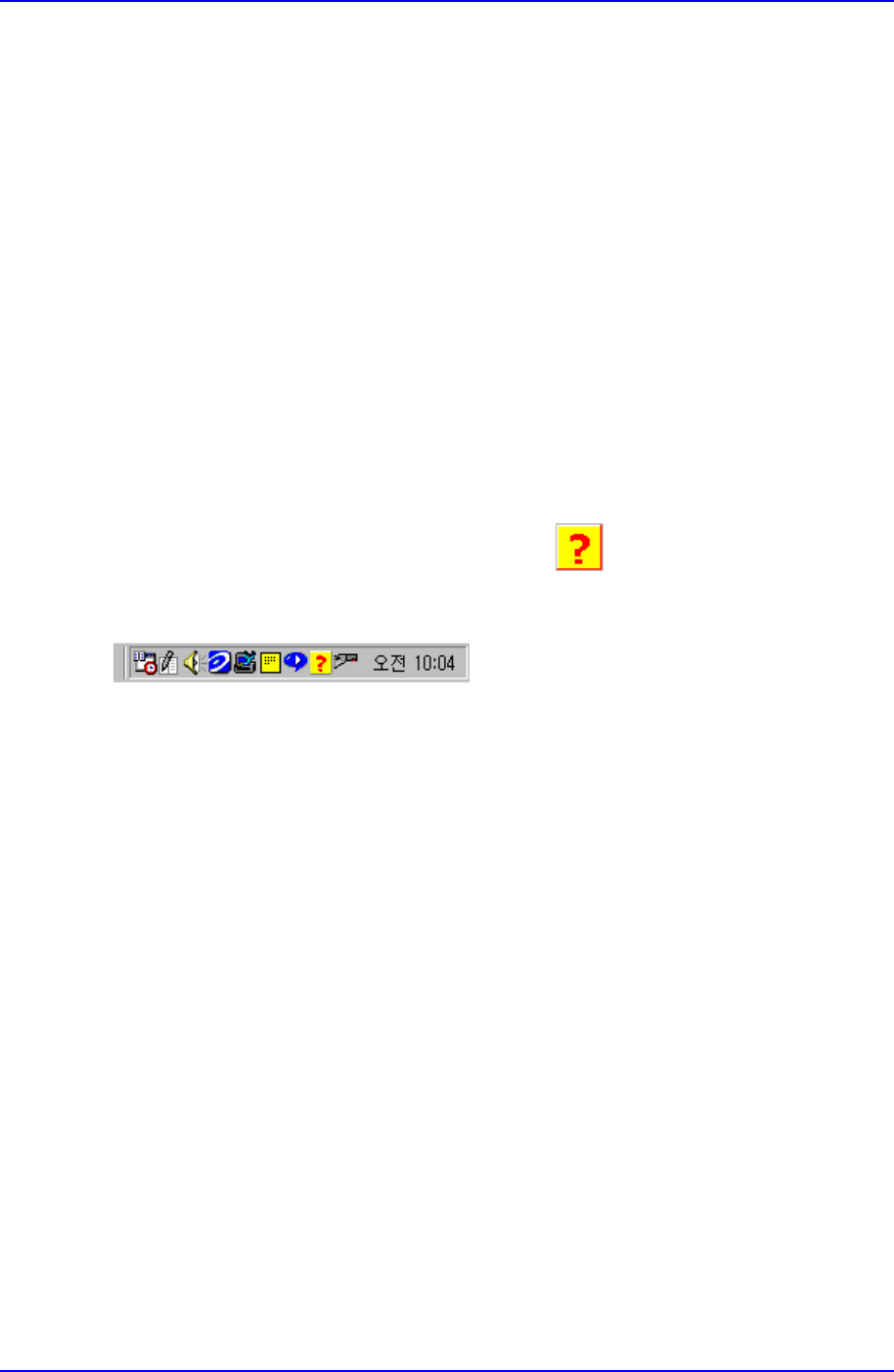
When Mark3 is executed, the Mark3TSG icon
appears in the task bar at the
bottom right of the screen.
Figure B-2. "Task bar"
B.3. Using Mark3TSG
When an error applied in Mark3TSG occurs during the operation of equipment, Trouble
Shooting Guide is operated automatically and a screen as in Fig. B-3 appears. For the
errors handled by Mark3TSG, please refer to B.5 Error codes and descriptions applied in
Mark3TSG (B-9 page). The user can run Trouble Shooting Guide directly on Mark3 even
when no error is occurred in the equipment. (Refer to [example 1])
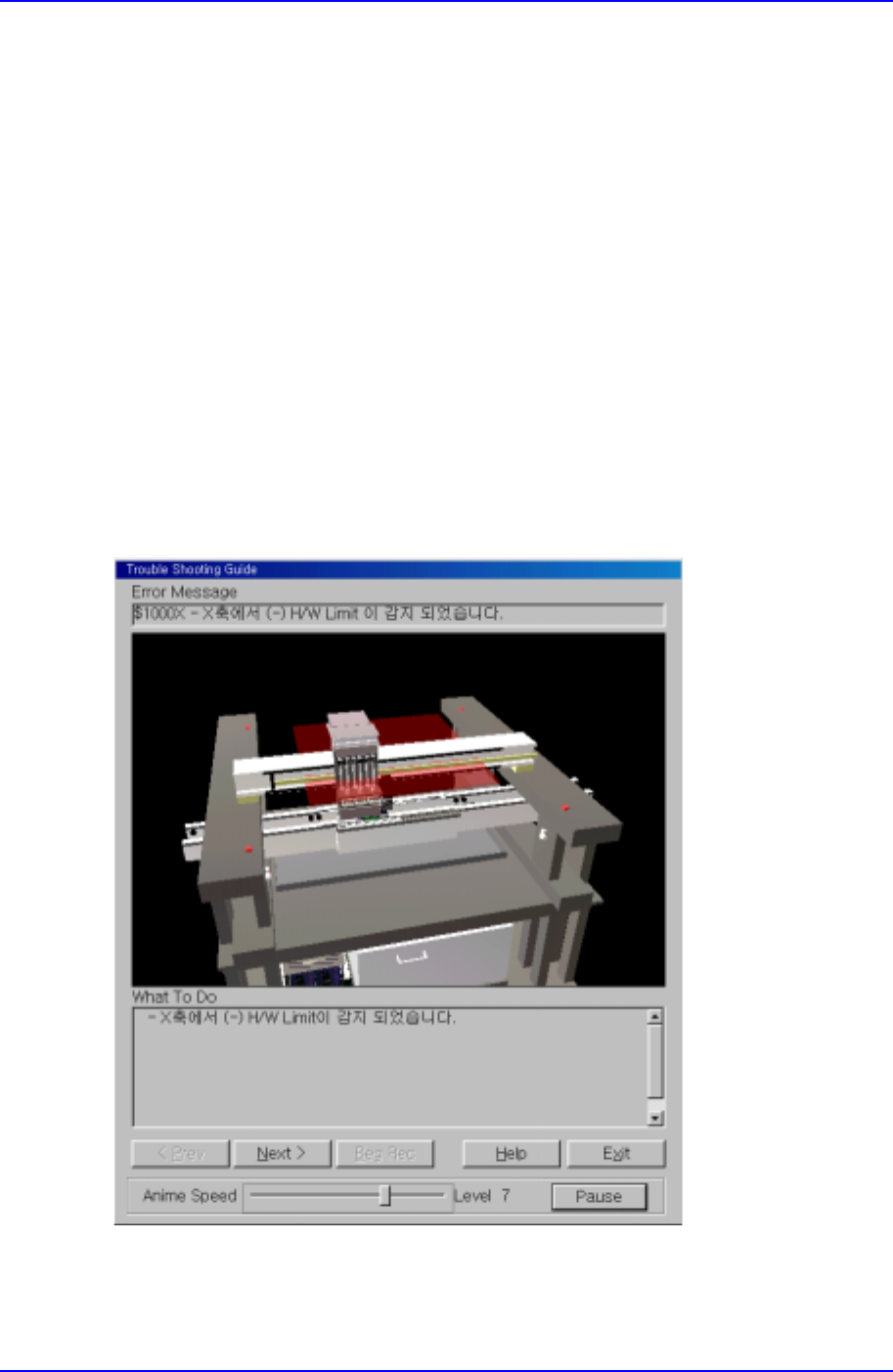
As can be seen in Figure B-5, Mark3TSG consists of ‘Error Message’, ‘Graphics Window’,
‘What to Do’, and ‘Other buttons’.
1. Error Message : Shows the error code and description of the present error.
2. Graphics Window : Shows the present error with 3D animantion or 2D image.
3. What to Do: Shows the solution for the present error by step. But, if the present step is
the step showing the error situation as in the figure, the error message is displayed.
4. Other buttons
Appendix B 3D Trouble Shooting Guide
B-3
< Prev >
Use it to go back to the previous step of the solution.
<Next>
Use it to move to the next step of the solution.
When the <Next> button is pressed in the example shown in Figure B-5, the next item of
the solution appears as in Figure B-6.
<Help>
Use to check Online Help for the error.
<Exit>
Use it to end ‘Trouble Shooting guide’.
<Anime Speed>
Use it to adjust the replay speed of animation.
<Pause>
Use it to see the still picture of the animation being played.
Figure B-3. "Mark3TSG" screen
Samsung Component Placer CP-45F(V)/FS Operations Manual
B-4
Next, the method of using ‘Trouble Shooting Guide’ is explained with examples.
[Example 1] Solution for the error code $1000X
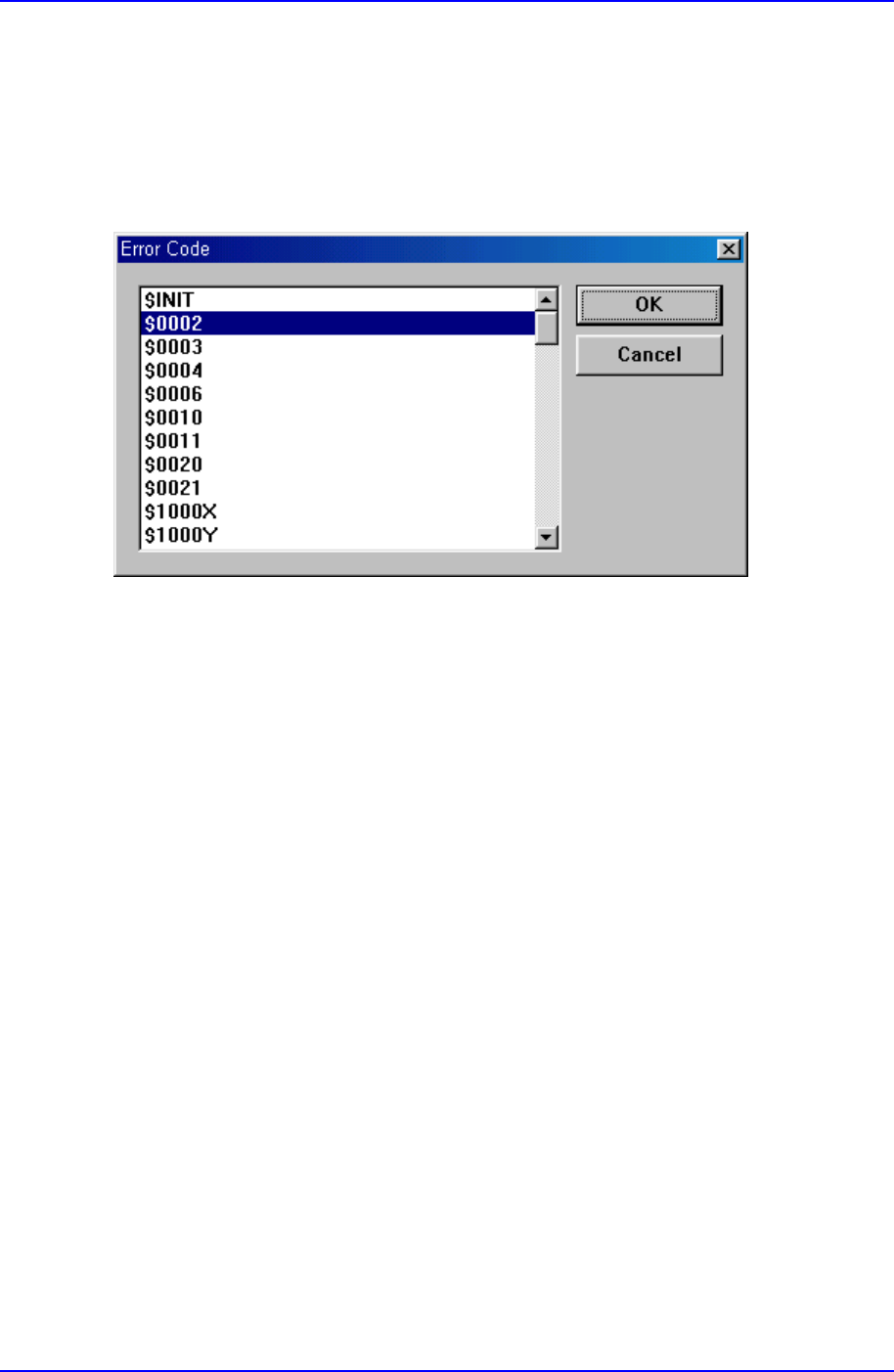
1. Select ‘Send Error Message to TSG’ from the View menu items on ‘Mark3’.
2. When the dialog box as in Fig. B-4 is displayed, select ‘$1000X’ and click on the ‘OK’
button.
Figure B-4. "Mark3TSG" screen
3. A ‘Trouble Shooting Guide’ screen as in Fig.B-5 is displayed. At this time, the user can
check the code, message, and situation of the present error with 3D animation.