晶圆测试说明书Cascade-11861-6-Manual.pdf - 第84页
60 • Summit 11K/12K Probe Station User’ s Guide Point and click the mouse in the same way you use the mouse with other Windows applications. T o execute the tests • Click a test button to run a single test only. --OR-- •…
Chapter 4: Verifying and Operating •
59
• If you suspect a hardware problem
• Before you call Cascade Customer Service
Test your probe station as explained in this section and in online Help. If your
probe station fails any verification test, see the Troubleshooting chapter, and if
you cannot correct the problem, contact Cascade customer service for assistance.
LAUNCHING VERIFY
Close (exit) all probe station software, including the Cascade program group
items and other applications that link to the probe station through DDE. Verify
runs low-level tests and resets values that the other software needs.
CAUTION
An application left open does not properly control the hardware after these tests
are run.
During installation, a Cascade Microtech program group was created on the
Program Manager desktop. “Verify” is in that program group
From the desktop, double-click the Verify icon in the Cascade window. You
should see the Verify window.
RUNNING THE VERIFY SOFTWARE
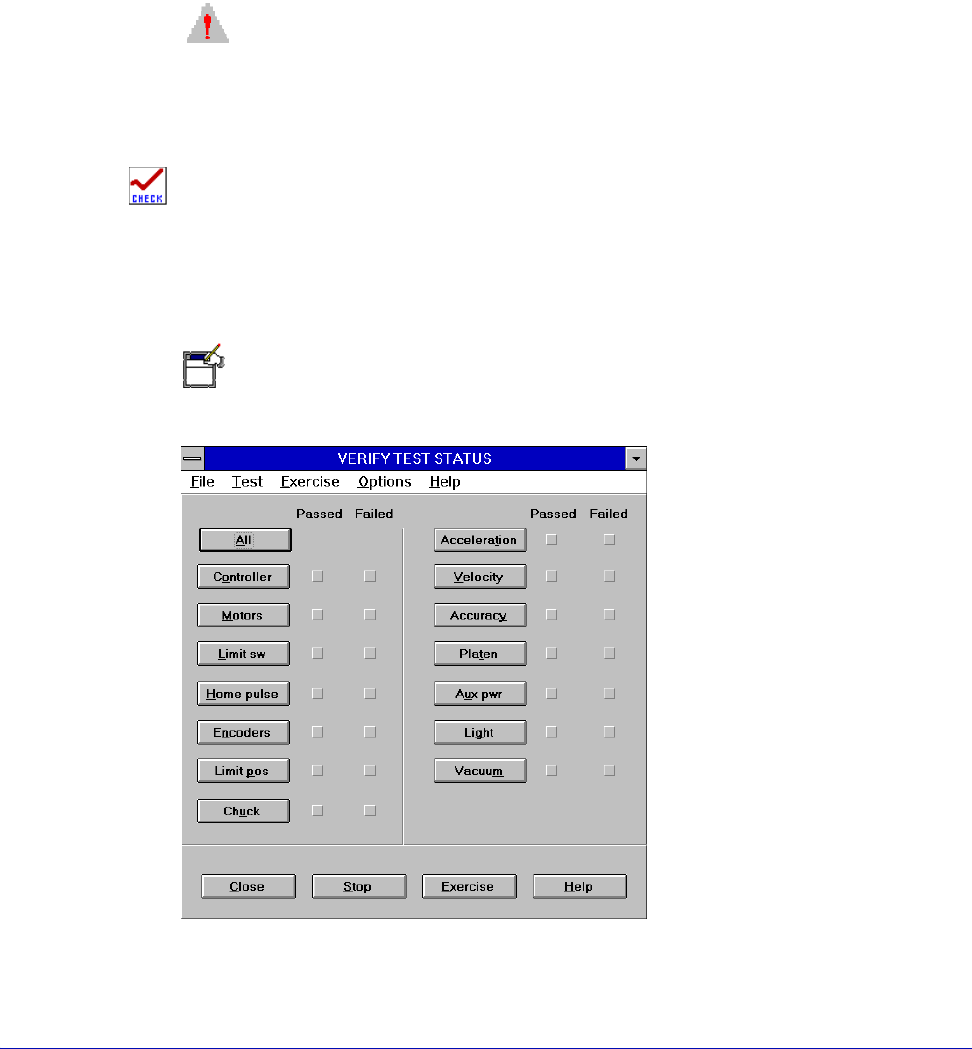
Normally, you run all tests sequentially. However, you may want to run a single
test such as Light after you replace a microscope light bulb.
NOTE
If you run tests out of sequence, the probe station will not respond as it would if
you ran the tests in sequence. Therefore, you may receive a false failure message.
Fig. 46. Verify test status dialog.
60
• Summit 11K/12K Probe Station User’s Guide
Point and click the mouse in the same way you use the mouse with other
Windows applications.
To execute the tests
• Click a test button to run a single test only.
--OR--
• Click the All button to run all tests sequentially.
--OR--
• Choose a test from the Test menu.
--OR--
• Choose All from the test menu to run all tests sequentially.
Some tests, such as Motors and Light, require your observation and input for a
pass or fail decision.
To view a test’s dialog box without running the test
Choose Virtual mode from the Option menu, then choose the test.
NOTE
You must turn Virtual mode off before running a test on the hardware.
To clear the results of tests
Choose Clear status from the File menu.
To run tests repeatedly
Cascade recommends that you occasionally run all the tests ten times in a row.
Click the Exercise button to run the tests repeatedly. Each exercise cycle takes
about one minute to complete.
• Choose Exercise during installation.
• Choose Exercise if you suspect the probe station has an intermittent problem.
To exit verify
• Choose Exit from the File menu to exit Verify.
--OR--
• Click the Close button.
To get more information on verify software
Click the Help button or open the Help menu.

Chapter 4: Verifying and Operating •
61
Verifying the Joystick
See the PCS or
Nucleus user’s
guide for details on
using the joystick.
You can move the stage with the joystick. Try manipulating the joystick while you
watch the stage movement through the microscope.
Two slide switches on the joystick base regulate its tendency to return to center
when released. You can adjust the switches so that:
• The joystick centers and all stage movement stops when you release the
joystick.
--OR--
• The joystick remains where you release it and the stage continues to move in
the same direction until either you stop it or it reaches the limit switches.
Testing procedure
1. Click START | Settings | Control Panel.
2. In the Control Panel group, double-click the Joystick icon.
3. Click the “Test” button.
4. Move the joystick and watch the on-screen crosshairs move the same relative
direction and distance.
5. Press the Turbo buttons (located on top of the joystick and the left of the
joystick base) and watch Button 1 depress on-screen.
6. Press the Accept button on the right of the joystick base and watch Button 2
depress on-screen.
The Joystick test passes when the joystick and crosshairs move together and when
the joystick and on-screen buttons work together.
Testing the Thermal Chuck
(Thermal Stations Only)
FIRST STEP
Purge the MicroChamber with dry air
1. Close and lock the access door to the MicroChamber.
2. Lower the microscope to the down position, so the microscope objective seal
is flush to the TopHat (for Mitutoyo and A-Zoom microscopes only).
3. Make sure that the TopHat is sealed against the MicroChamber.
4. Make sure compressed-air is connected and flowing to the air dryer.
5. Power up the air dryer.
6. Adjust the air-flow control (counterclockwise increases air flow) to purge the
MicroChamber to at least seven standard cubic feet per minute (SCFM).
7. Allow the dry air to purge for at least 30 minutes.