Installationsanleitung_SuSE9.3_en.pdf - 第11页
Customized LRL SuSE 9.3 Installation Description 4.3.2 New installation Switch the computer on and inse rt the installation CD, if you haven't already done so. This is n ecessary in order to install from CD RO M. No…
Installation Description Customized LRL SuSE 9.3
10 of 69
4.3 Installing the Customized LRL SuSE 9.3 distribution
4.3.1 Overview
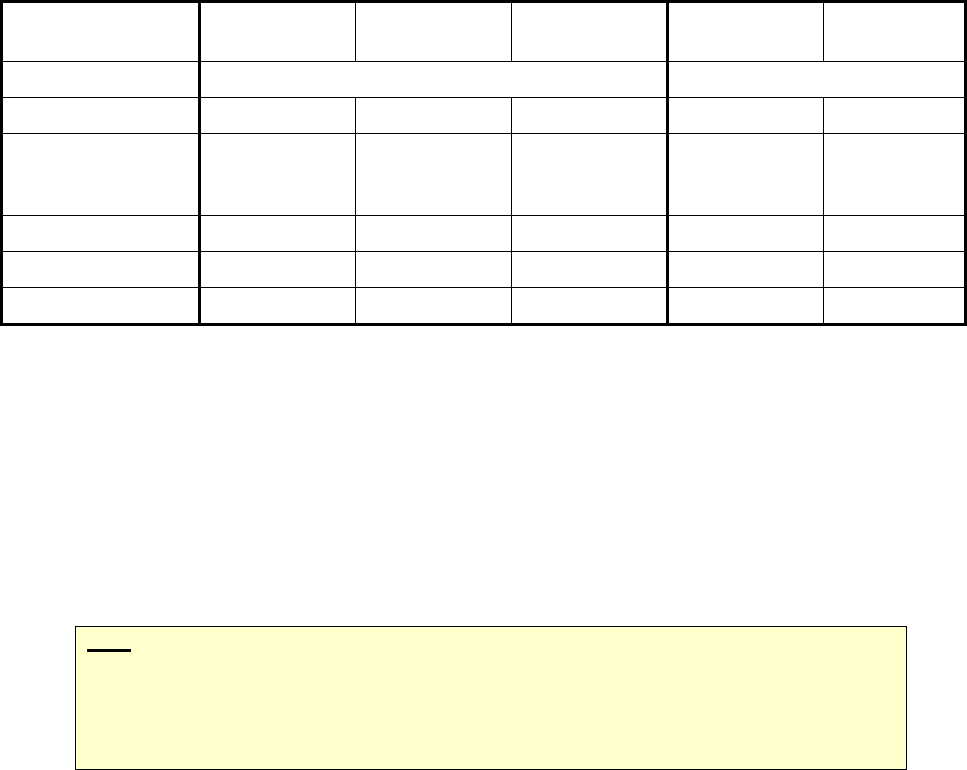
Installation can be carried out from a number of different initial scenarios. Different activities with respect to
data backup and data conversion are necessary depending on the initial scenario. The table below provides
an overview:
New hardware SCO 3.0/
5.0
SuSE 7.3/
9.x
SuSE 7.3 SuSE 9.x
Action New installation Update
Data backup - X X (X) -
Increase the size of
the hard disk
partition
- - - X (X)
Load options - - - X X
Boot from CD X X X X X
Data conversion X X X X X
Before the installation is carried out, a data backup run must be performed.
When migrating from SCO 3.0, data must first be converted at least to 403 format. Then the data can
be backed up over the network, for example.
When migrating from SCO 5.0, it is recommended that data is backed up over the network. The
backup tool SDH_Backup cannot be used for backing up data for Linux.
When updating from SuSE 7.3, it is recommended that data is backed up.
When updating from SuSE 9.0, it is recommended that the size of the partition is increased if this is
not been done already.
Note:
Installation is always started by rebooting from CD. The choice whether a new installation
and update installation is to be carried out is taken at the appropriate place at the start of
the installation.
The CD-ROM drive must be entered as the first boot device in the BIOS.
After the software has been installed, the data must be reloaded into the master data maintenance system. If
this cannot be done before the Line Computer Linux software is installed, any data conversion which needs
to be carried out must be done by reinstalling the Line Computer Linux software and choosing "Load options"
from the "Options" menu.
Once the data backup has been carried out, proceed as described in the following sections:
- in the event of a new installation, proceed with section
4.3.2
- in the event of an update, proceed with section
4.3.3
- in the event of a pure LRL installation, proceed with section
4.4.2.
Customized LRL SuSE 9.3 Installation Description
4.3.2 New installation
Switch the computer on and insert the installation CD, if you haven't already done so. This is necessary in
order to install from CD ROM.
Note
When using an "Econel 30" system (these have both a DVD and a CD writer) the
installation CD must be inserted into the CD writer drive.
Note
When using an "Econel 50" system please change with the F6 Key to 32bit – system !
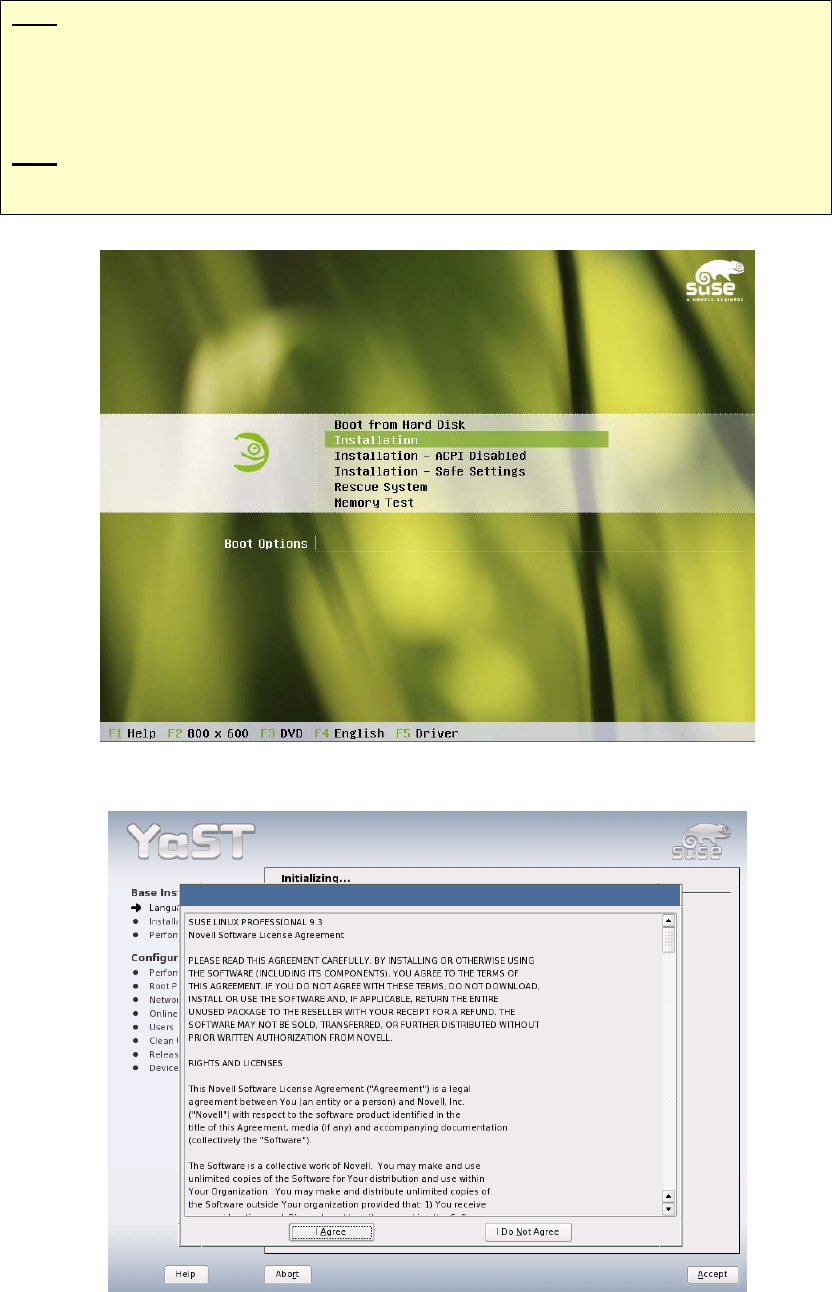
1. At the prompt, select the "Installation" menu item.
11 of 69
Installation Description Customized LRL SuSE 9.3
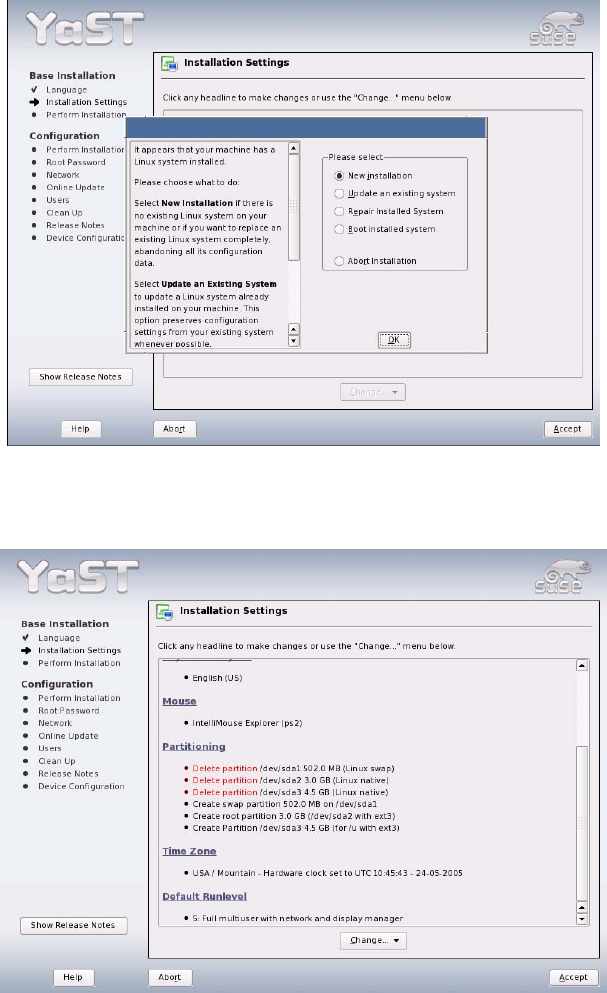
2. You must agree to the license terms for SuSE 9.3 by clicking the "I Agree" button in this dialog box.
3. The following dialog box shows the installation settings.
First select "New Installation" and then confirm your choice with "OK".
4. Select the "Time zone" item to change the time zone.
12 of 69