Installationsanleitung_SuSE9.3_en.pdf - 第12页
Installation Description Customized LRL SuSE 9.3 2. You must agree to the license te rms for SuSE 9.3 by clicking the " I Agree " button in this dialog box. 3. The following dialog box shows the installation se…
Customized LRL SuSE 9.3 Installation Description
4.3.2 New installation
Switch the computer on and insert the installation CD, if you haven't already done so. This is necessary in
order to install from CD ROM.
Note
When using an "Econel 30" system (these have both a DVD and a CD writer) the
installation CD must be inserted into the CD writer drive.
Note
When using an "Econel 50" system please change with the F6 Key to 32bit – system !
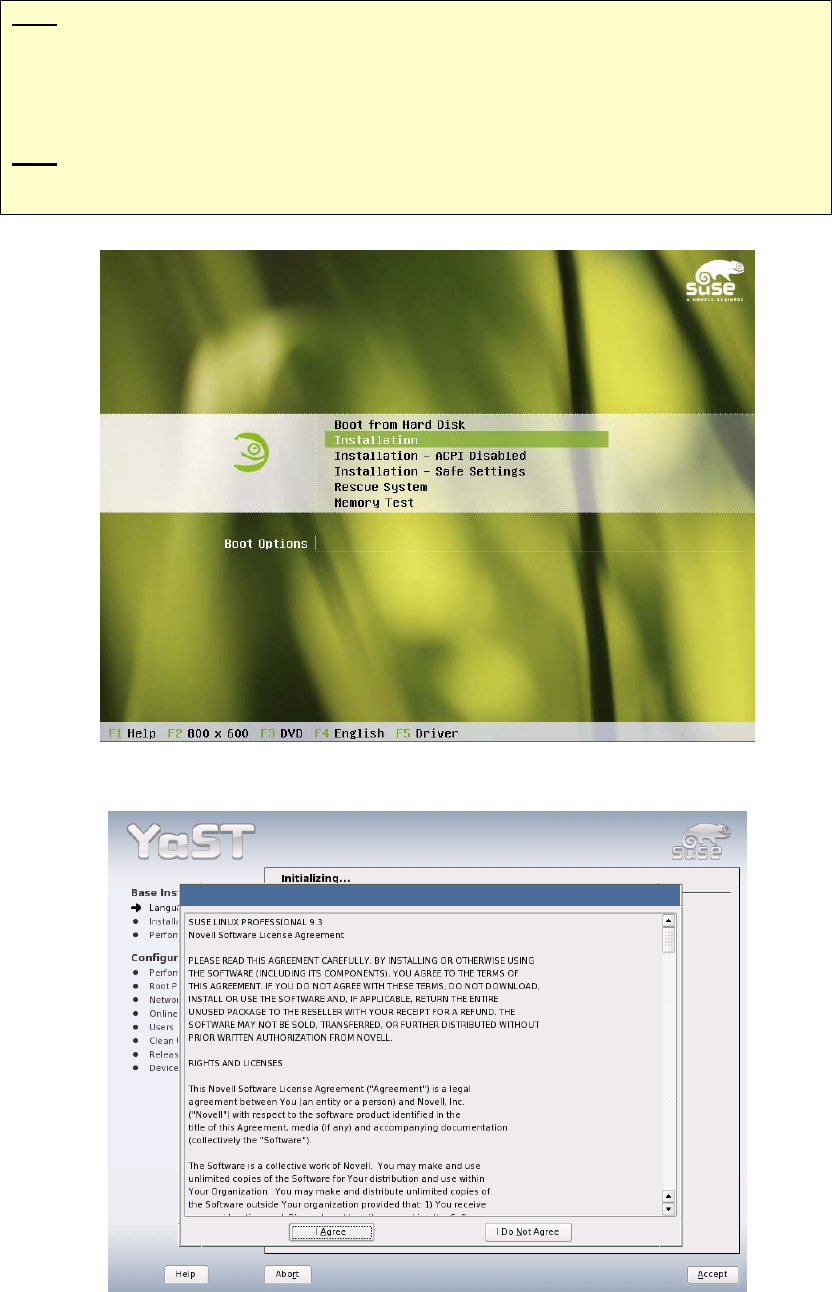
1. At the prompt, select the "Installation" menu item.
11 of 69
Installation Description Customized LRL SuSE 9.3
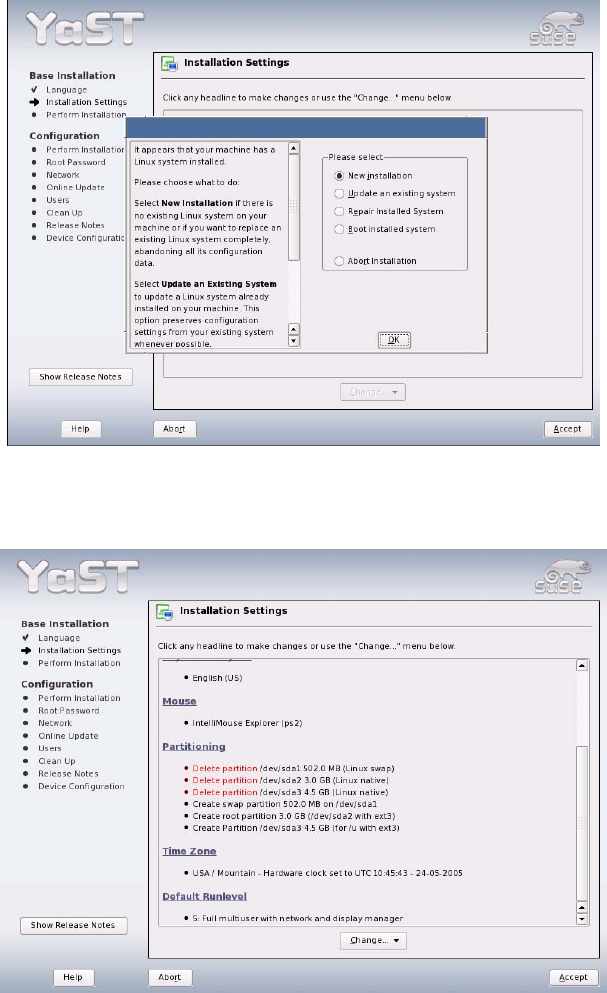
2. You must agree to the license terms for SuSE 9.3 by clicking the "I Agree" button in this dialog box.
3. The following dialog box shows the installation settings.
First select "New Installation" and then confirm your choice with "OK".
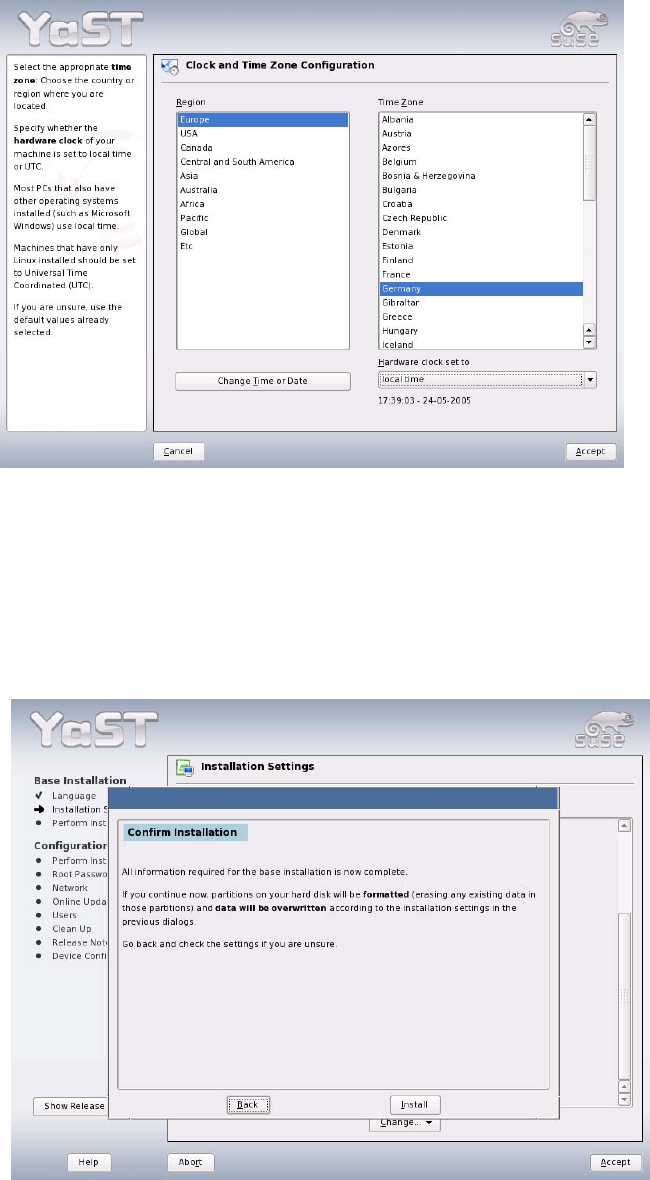
4. Select the "Time zone" item to change the time zone.
12 of 69
Customized LRL SuSE 9.3 Installation Description
5. Select the required time zone from the "Region" and "Time Zone" lists.
In the drop-down box "Hardware clock set to", choose the value "local time".
Where necessary, click the "Change Time or Date" button to correct the current time or date.
6. Confirm the settings in the "Clock and Time Zone Configuration" dialog box by clicking "Accept".
7. Confirm the settings in the "Installation Settings" dialog box by clicking "Accept".
8. The confirmation prompt "Confirm Installation" then appears. Confirm this with "Install". This starts
the installation.
9. The progress of the installation of the individual packages of the operating system is displayed along
with the approximate time required.
10. A reboot is carried out once base installation of the operating system has been carried out.
13 of 69