Installationsanleitung_SuSE9.3_en.pdf - 第40页
Installation Description Customized LRL SuSE 9.3 4.4.4 NFS configuration ("Allow access") There are two aspects of config uring an NFS connection: • sharing a directory on the NFS se rver (e.g. the "centra…
Customized LRL SuSE 9.3 Installation Description
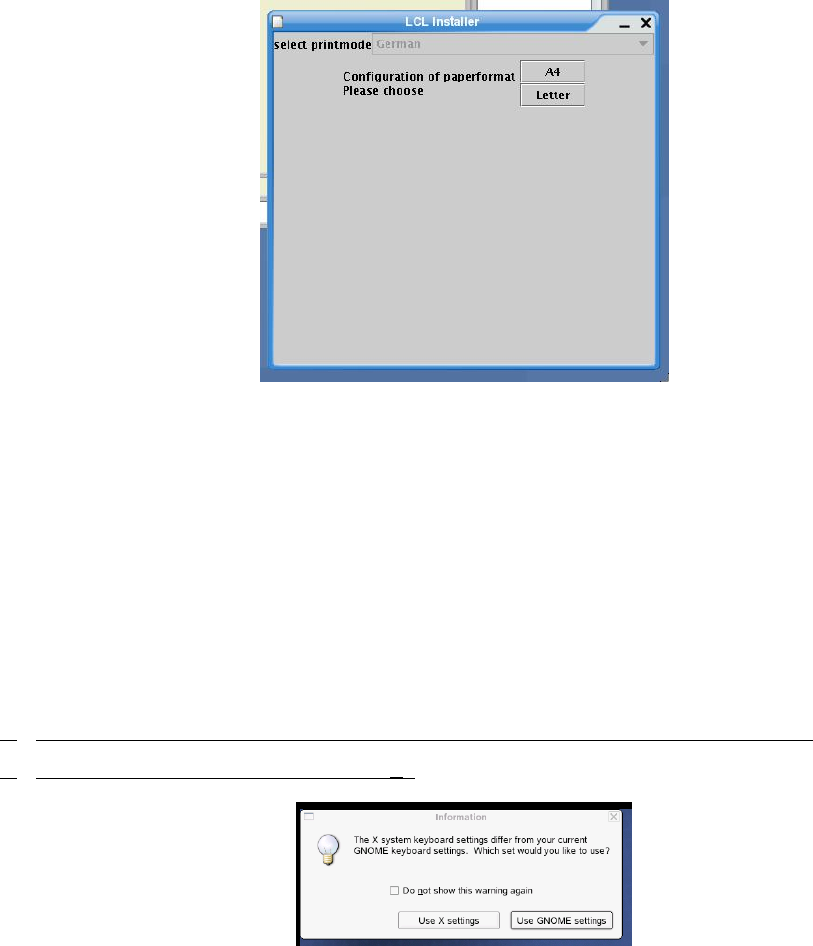
14. The "select printmode Configuration of paperformat. Please choose." dialog box appears.
15. Select A4 or Letter.
16. The message "Please take out the CD. Installation completed. Now we restart the system" is
displayed. Confirm the message with "OK".
17. The installation is now completed. Take out the CD.
18. Confirm the message "Please take out the cdrom ... and press any key" by pressing any key to
reboot the computer.
4.4.3 Logging in for the first time after installation
1. At the login prompt, log in as the user "plr".
2.
If you are using a keyboard other than an English one, the following dialog box appears.
3.
(If not, the procedure continues at point 5.)
4. The query asking you which keyboard is to be used appears. Select "Use X settings".
5. The line computer software is started.
39 of 69
Installation Description Customized LRL SuSE 9.3
4.4.4 NFS configuration ("Allow access")
There are two aspects of configuring an NFS connection:
• sharing a directory on the NFS server (e.g. the "central line computer")
• connecting to this directory from the NFS client (e.g. the "local line computer")
4.4.4.1 Configuring the NFS server
1. You configure the NFS client using the menu path
Options
Network
Permit access
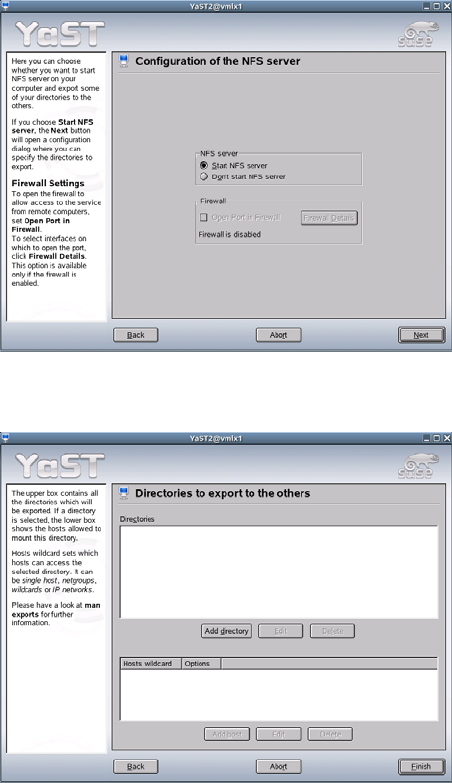
2. The YaST configuration dialog starts.
3. Activate the option "Start NFS server"
4. Click the "Next" button.
40 of 69
Customized LRL SuSE 9.3 Installation Description
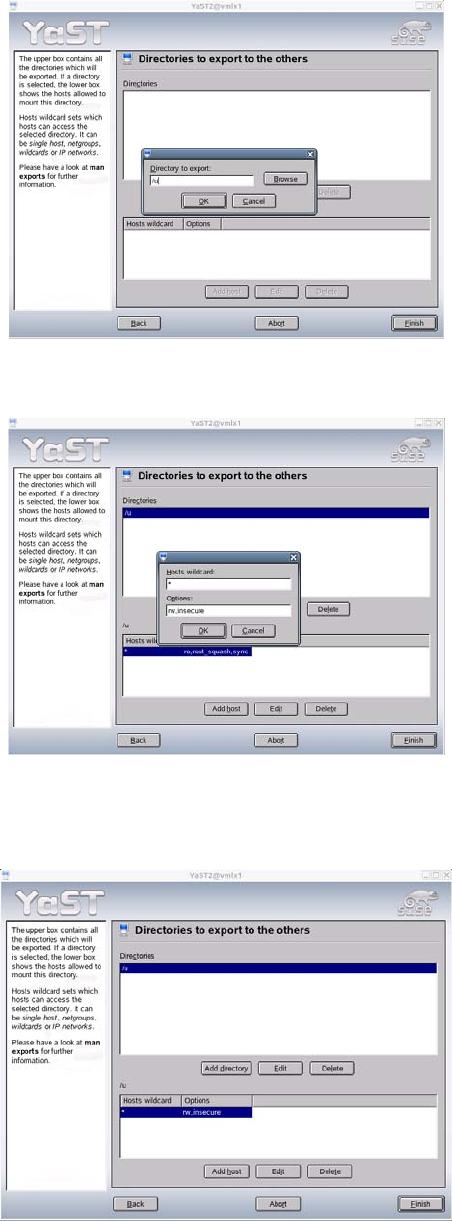
5. If no directories have been shared, you can select the "Add directory" button.
6. Specify the path to the directory in the dialog box ("/u").
7. Click "OK" to confirm your settings.
8. Now you can specify the options for this directory. You must replace the default options ("Options") with
the value "rw,insecure" to share the directory for writing.
9. Click "OK" to confirm your settings.
10. Complete configuration by clicking "Finish".
11. The settings take effect immediately. There is no need to reboot the line computer.
41 of 69