Installationsanleitung_SuSE9.3_en.pdf - 第49页
Customized LRL SuSE 9.3 Installation Description Figure 4-12 24. Exit the printer configuration by clicking the " Finish " button. 25. A message is displayed indicating th at the settings will be saved. Figure …
Installation Description Customized LRL SuSE 9.3
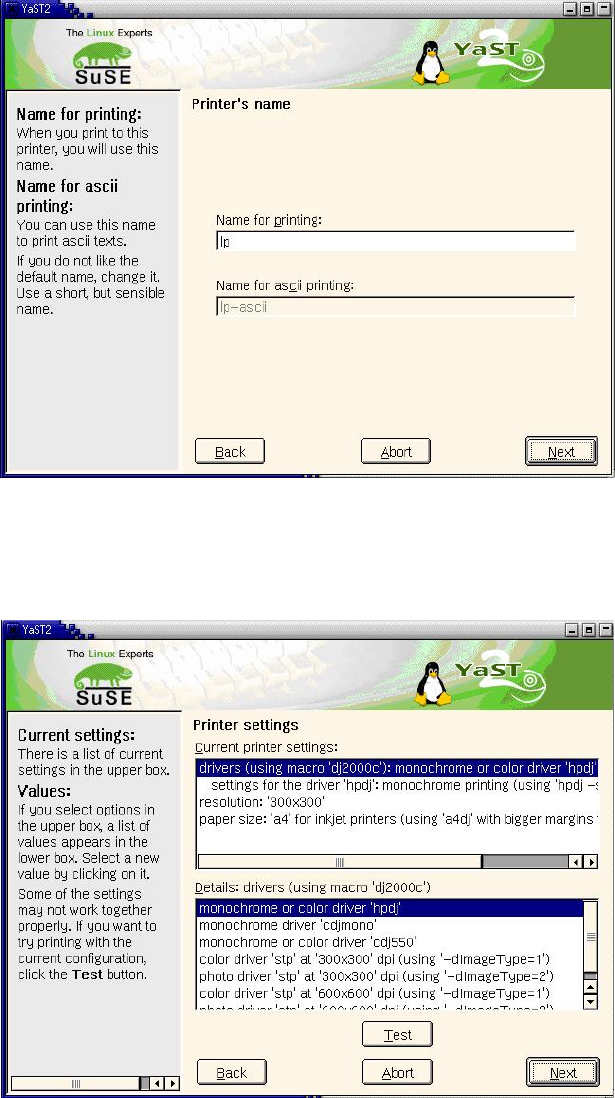
18. You can specify a name for the printer: The suggested name "lp" can be accepted.
Figure 4-10
19. Confirm the dialog box by clicking "Next".
20. The next dialog box allows you to make further driver settings. You can accept the preset values
with "Next".
Figure 4-11
21. The next dialog box allows you to make further "hardware-independent settings". You can accept
the default settings with "Next".
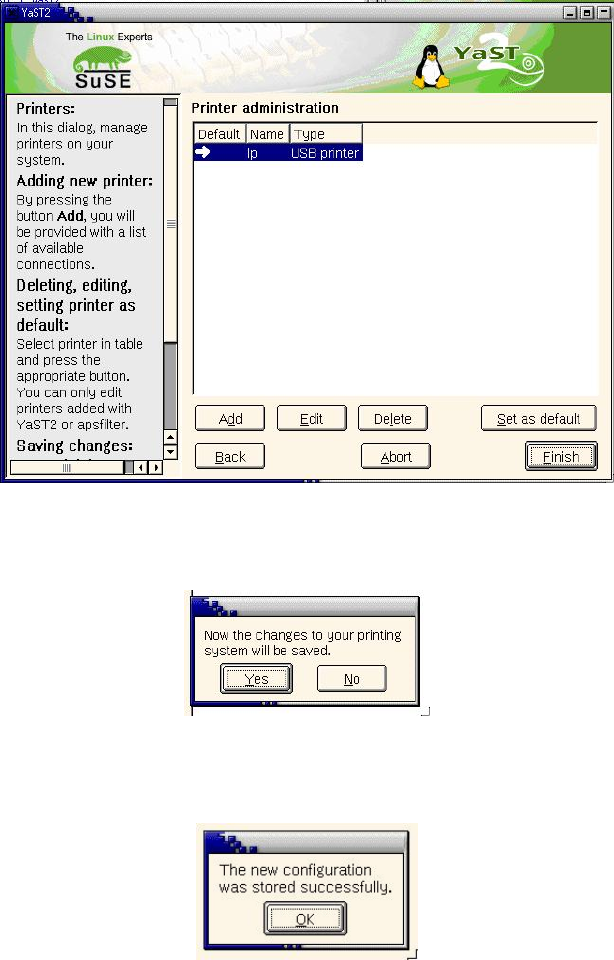
22. The final dialog box shows all the printers now configured.
23. If more than one printer is installed, you must select the default printer (this is indicated by the
arrow in the left-hand column). Select the line containing the required printer and set it as the
default printer by clicking the "Set as default" button.
48 of 69
Customized LRL SuSE 9.3 Installation Description
Figure 4-12
24. Exit the printer configuration by clicking the "Finish" button.
25. A message is displayed indicating that the settings will be saved.
Figure 4-13
26. Confirm the message with "Yes", otherwise the data specified will not be saved.
27. A message appears indicating that the data has been saved successfully.
Figure 4-14
28. Confirm the message by clicking "OK".
29. Finally, exit the "YaST2 Control Center" by clicking "Close".
30. You can now use the configured printer. It is not necessary to restart the line computer.
4.5.2.2 Local installation on the USB port under SuSE 9.0 / SuSE 9.3
4.5.2.2.1 Requirements
• Installed software "SIPLACE auteq-LINUX based on SuSE 9.0" or
• Installed software "SIPLACE auteq-LINUX based on SuSE 9.3".
• PC with USB port.
49 of 69
Installation Description Customized LRL SuSE 9.3
• Activate USB support in the BIOS (computer-dependent
2
)
4.5.2.2.2 Installation procedure
1. Log into the line computer under GNOME as the user "plr".
2. Connect the printer to the USB port of the computer.
3. Switch on the printer.
4. Open a terminal window by selecting "Operating system level" from the "Options" menu.
5. Enter the commands
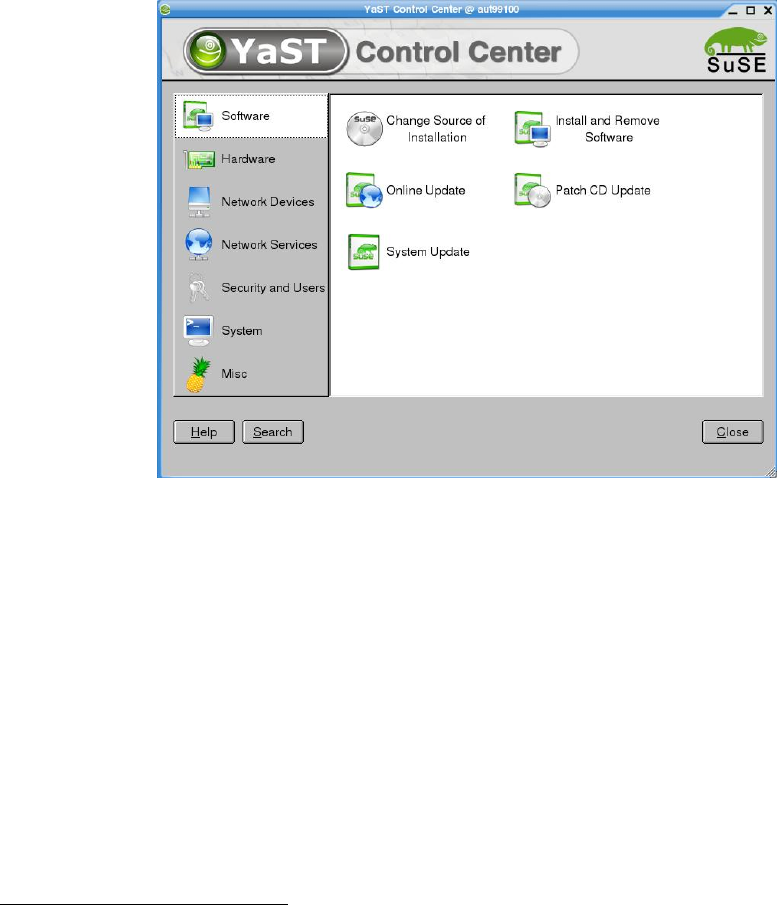
su -c yast2
(and enter the "root" password) to start the "YaST Control Center" configuration tool.
Figure 4-15
50 of 69
2
e.g. System "Primergy Econel 20":
"Advanced" page
Entry "Advanced System Configuration"
Entry "USB Host Controller:" must have the value "Enabled"