Installationsanleitung_SuSE9.3_en.pdf - 第43页
Customized LRL SuSE 9.3 Installation Description 43 of 69 4.5 Inst alling a network printer 4.5.1 General An "HP deskjet 5850" was selected as the printer fo r the line computer application. This printer can be…
Installation Description Customized LRL SuSE 9.3
42 of 69
4.4.4.2 Configuring the NFS client
1. You configure the NFS server using the menu path
Options
Network
Log on external computer
2. The familiar configuration routine is started and the user is asked for the host name, the TCP/IP address
of the NFS server and the path to which a connection is to be established.
3. After the NFS client has been configured, the line computer must be rebooted.

Customized LRL SuSE 9.3 Installation Description
43 of 69
4.5 Installing a network printer
4.5.1 General
An "HP deskjet 5850" was selected as the printer for the line computer application. This printer can be
installed locally as a USB printer or as a network printer. Installation platforms are available on SuSE
7.3 (LCL 503.03), SuSE 9.0 (LCL 503.04) and SuSE 9.3 (LRL 503.05). SuSE 9.0 and SuSE 9.3 support
both forms of printer installation, while only local installation on the USB port is possible under SuSE
7.3.
The various installation options for the "HP deskjet 5850" are described below.
4.5.2 Configuration on the USB port
4.5.2.1 Local installation on the USB port under SuSE 7.3
4.5.2.1.1 Requirements:
• Installed software "SIPLACE auteq-LINUX based on SuSE 7.3".
• PC with USB port.
• Activate USB support in the BIOS (computer-dependent
1
)
4.5.2.1.2 Installation procedure:
1. Log into the line computer under GNOME as the user "plr".
2. Connect the printer to the USB port of the computer.
3. Open a terminal window by selecting "Operating system level" from the "Options" menu.
4. Enter the commands
su -c yast2
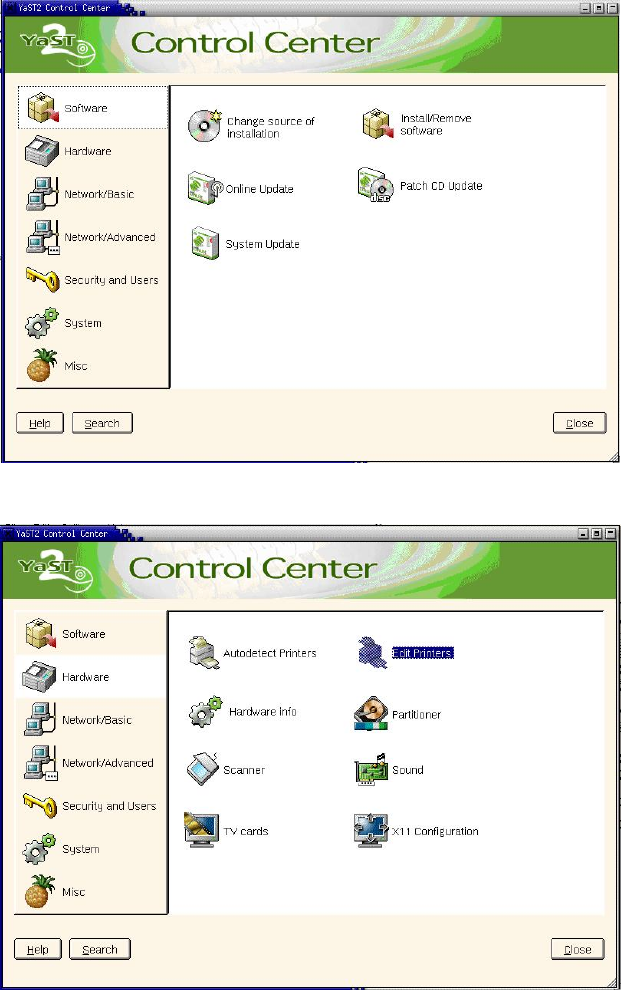
(and enter the "root" password) to start the "YaST2 Control Center" configuration tool.
1
e.g. System "Primergy Econel 20":
"Advanced" page
Entry "Advanced System Configuration"
Entry "USB Host Controller:" must have the value "Enabled" haben
Installation Description Customized LRL SuSE 9.3
Figure 4-1
5. On the left, select the "Hardware" menu and then select the "Edit Printers" function on the right.
Figure 4-2
44 of 69