Installationsanleitung_SuSE9.3_en.pdf - 第59页
Customized LRL SuSE 9.3 Installation Description Figure 4-32 7. Specify the printer type by clicking the " Configure " button. Figure 4-33 59 of 69
Installation Description Customized LRL SuSE 9.3
4.5.3.1 Requirements
• Installed software "SIPLACE auteq-LINUX based on SuSE 9.0".
• PC with a configured network card
• An appropriate network address has to be set on the printer (see "
4.5.4 Configuring the network
address of the printer
").
4.5.3.2 Installation procedure
1. Log into the line computer under GNOME as the user "plr".
2. The printer must be connected to the (in-house) network.
3. Switch on the printer.
4. Open a terminal window by selecting "Operating system level" from the "Options" menu.
5. Enter the commands
su -c yast2
(and enter the "root" password) to start the "YaST Control Center" configuration tool.
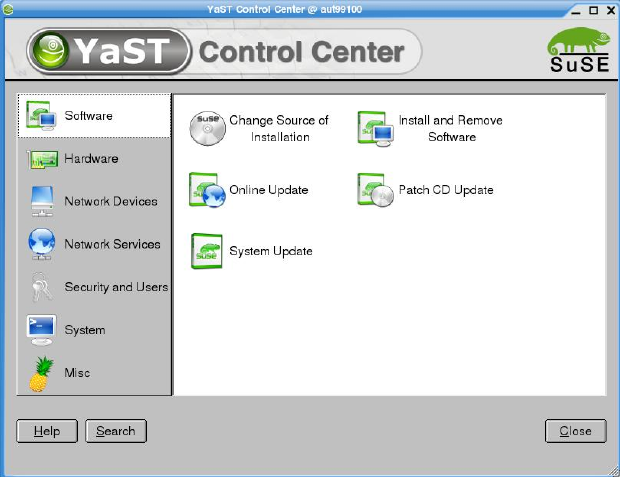
Figure 4-31
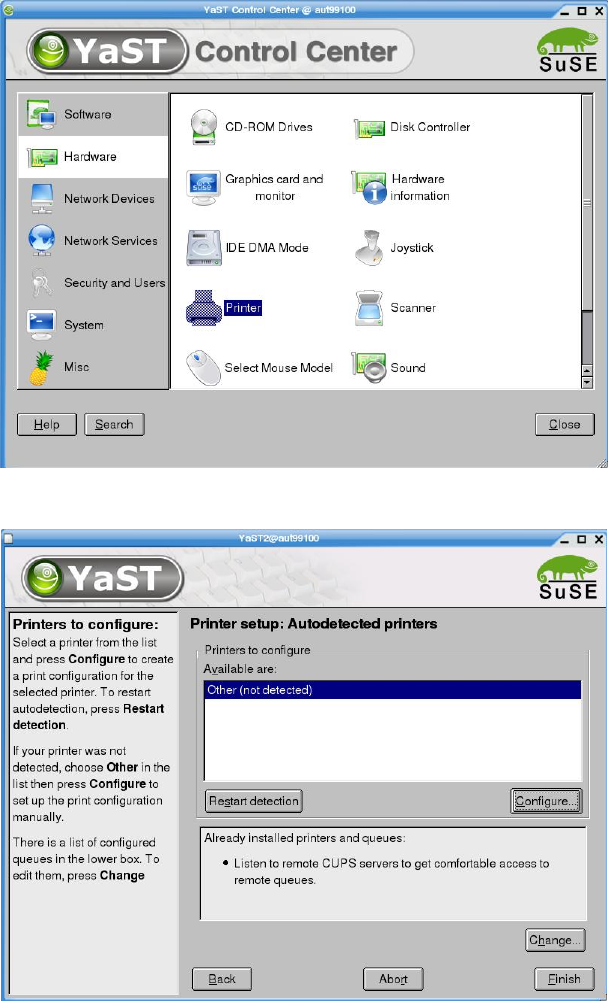
6. On the left, select the "Hardware" menu and then select the "Printer" function on the right.
58 of 69
Customized LRL SuSE 9.3 Installation Description
Figure 4-32
7. Specify the printer type by clicking the "Configure" button.
Figure 4-33
59 of 69
Installation Description Customized LRL SuSE 9.3
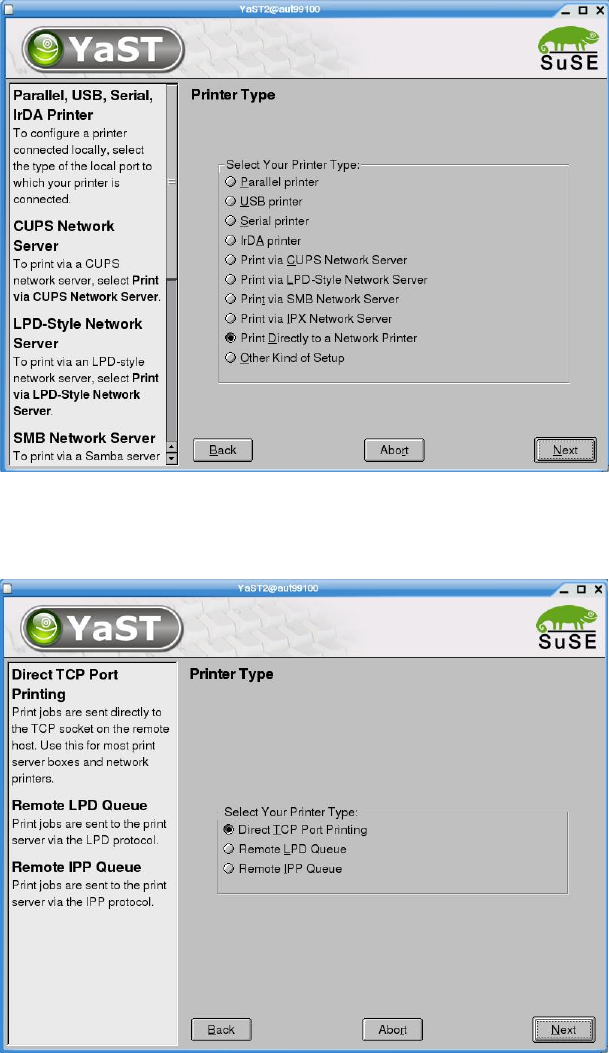
8. Select the entry "Print Directly to a Network Printer".
Figure 4-34
9. Confirm your entry with "Next".
10. Select the default setting "Direct TCP Port Printing" as the subsidiary printer type.
Figure 4-35
11. Confirm your entry with "Next".
60 of 69