Installationsanleitung_SuSE9.3_en.pdf - 第17页
Customized LRL SuSE 9.3 Installation Description 22. To change the setting s for the first adapter (customer netwo rk adapter), select the " Change " button. 23. Click the " Edit " button. 17 of 69
Installation Description Customized LRL SuSE 9.3
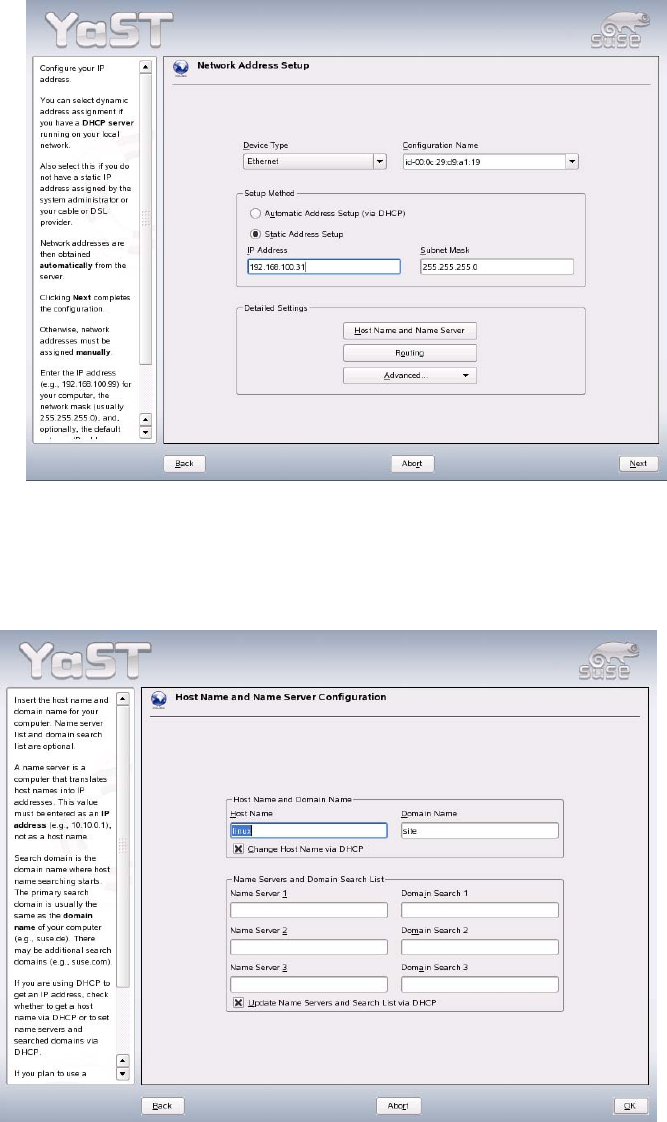
16. Select the option "Static Address Setup".
17. After you have entered the IP address and the subnet mask, the host name must be entered. Do this
by clicking the button "Host Name and Name Server".
18. Change the specifications for "Host Name" and "Domain Name".
19. Deactivate the options
- "Change Host Name via DHCP"
- "Update Name Servers and Search List via DHCP".
20. After you have entered the host name and domain name, click "OK" to confirm your entries.
21. Close the "Network Address Setup" dialog box by clicking the "Next" button.
16 of 69
Customized LRL SuSE 9.3 Installation Description
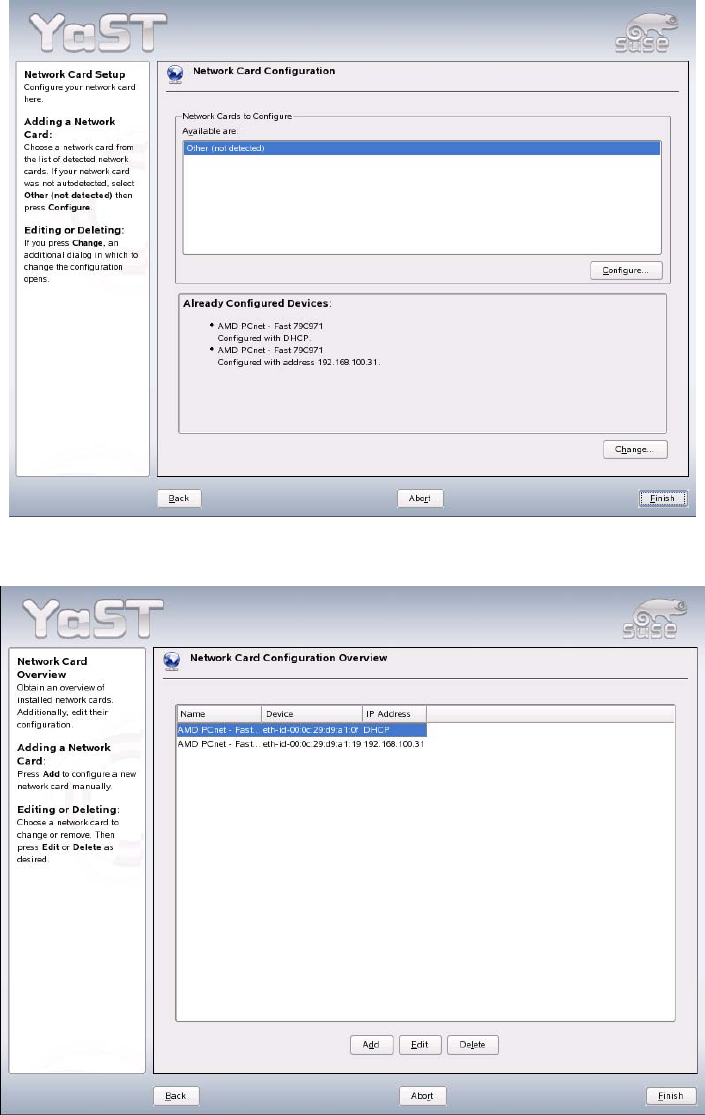
22. To change the settings for the first adapter (customer network adapter), select the "Change" button.
23. Click the "Edit" button.
17 of 69
Installation Description Customized LRL SuSE 9.3
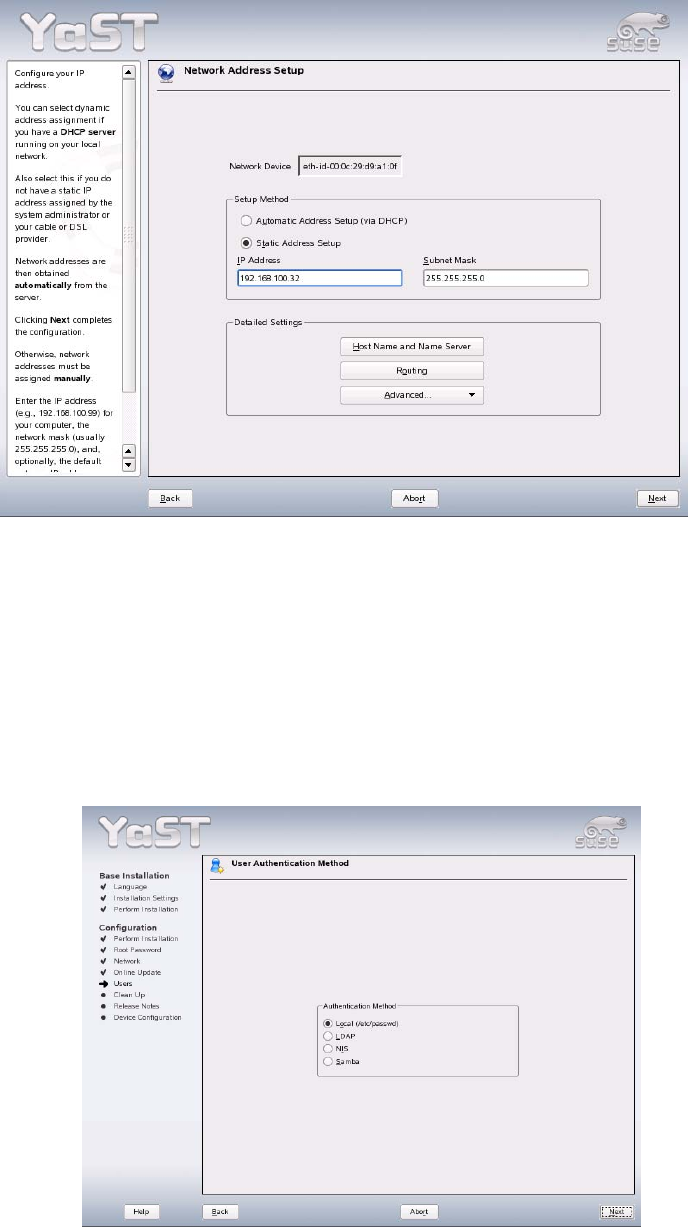
24. Select the option "Static Address Setup".
25. You only need to enter the TCP/IP address and the subnet mask. No other host name is needed.
26. Close the dialog box by clicking the "Next" button.
27. Close the "Network Cards Configuration Overview" dialog box by clicking "Finish".
28. Close the "Network Configuration" dialog box by clicking "Next".
The network configuration is now saved.
29. The "User Authentication Method" dialog box is opened. If "Local" has been selected, close this with
the "Next" button.
18 of 69