Installationsanleitung_SuSE9.3_en.pdf - 第13页
Customized LRL SuSE 9.3 Installation Description 5. Select the required time zone from the "Region" and "Time Zone" l ists. In the drop-down box "Hardware cl ock set to", choose the value &q…
Installation Description Customized LRL SuSE 9.3
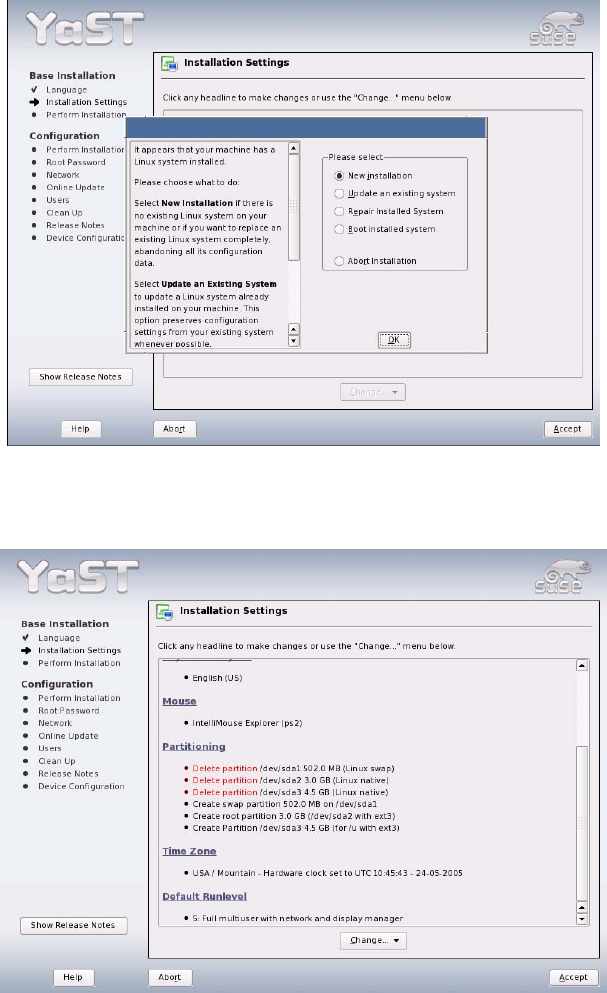
2. You must agree to the license terms for SuSE 9.3 by clicking the "I Agree" button in this dialog box.
3. The following dialog box shows the installation settings.
First select "New Installation" and then confirm your choice with "OK".
4. Select the "Time zone" item to change the time zone.
12 of 69
Customized LRL SuSE 9.3 Installation Description
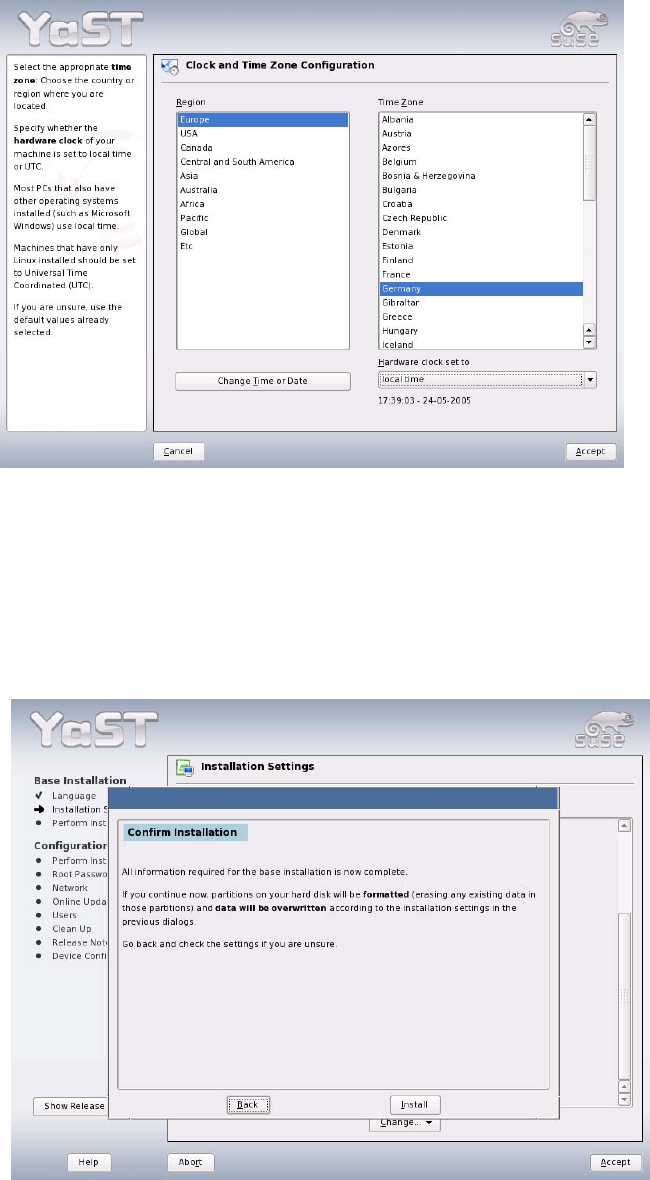
5. Select the required time zone from the "Region" and "Time Zone" lists.
In the drop-down box "Hardware clock set to", choose the value "local time".
Where necessary, click the "Change Time or Date" button to correct the current time or date.
6. Confirm the settings in the "Clock and Time Zone Configuration" dialog box by clicking "Accept".
7. Confirm the settings in the "Installation Settings" dialog box by clicking "Accept".
8. The confirmation prompt "Confirm Installation" then appears. Confirm this with "Install". This starts
the installation.
9. The progress of the installation of the individual packages of the operating system is displayed along
with the approximate time required.
10. A reboot is carried out once base installation of the operating system has been carried out.
13 of 69
Installation Description Customized LRL SuSE 9.3
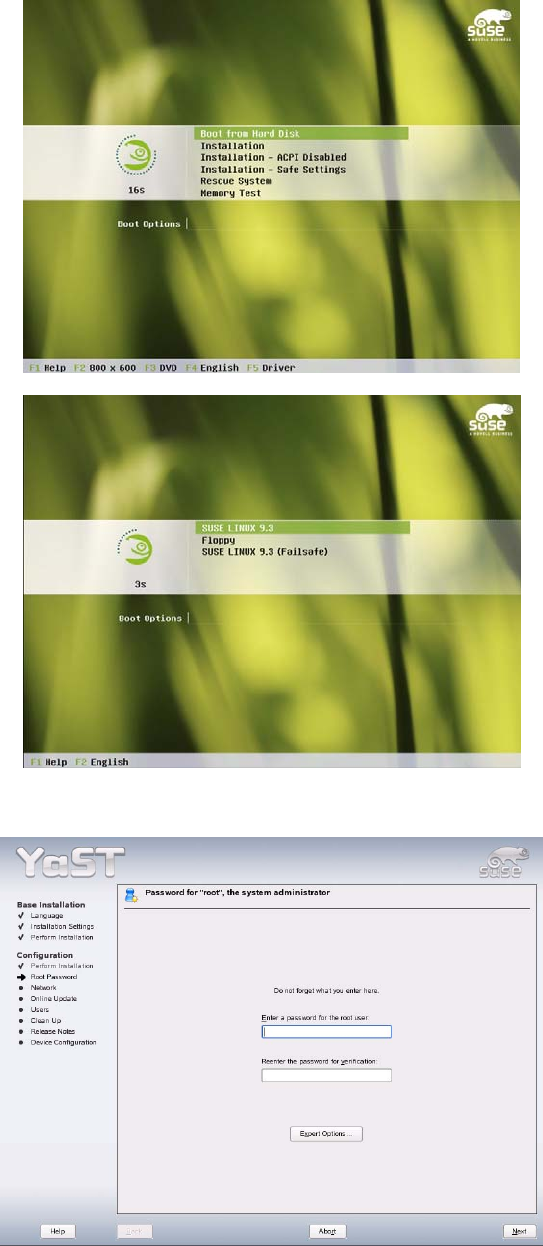
11. Choose "Boot from Harddisk" and "SUSE LINUX 9.3".
12. Enter the password for the user "root" (this must be entered twice to confirm your entry).
A warning is issued if the password you choose is too simple; you can confirm the password you
have selected (by selecting "yes") or you can select a new password (by selecting "no").
14 of 69