Installationsanleitung_SuSE9.3_en.pdf - 第51页
Customized LRL SuSE 9.3 Installation Description 6. On the left, select the " Hardware " menu and then select the " Printer " function on the right. Figure 4-16 7. Under normal circumstanc es, the pri…
Installation Description Customized LRL SuSE 9.3
• Activate USB support in the BIOS (computer-dependent
2
)
4.5.2.2.2 Installation procedure
1. Log into the line computer under GNOME as the user "plr".
2. Connect the printer to the USB port of the computer.
3. Switch on the printer.
4. Open a terminal window by selecting "Operating system level" from the "Options" menu.
5. Enter the commands
su -c yast2
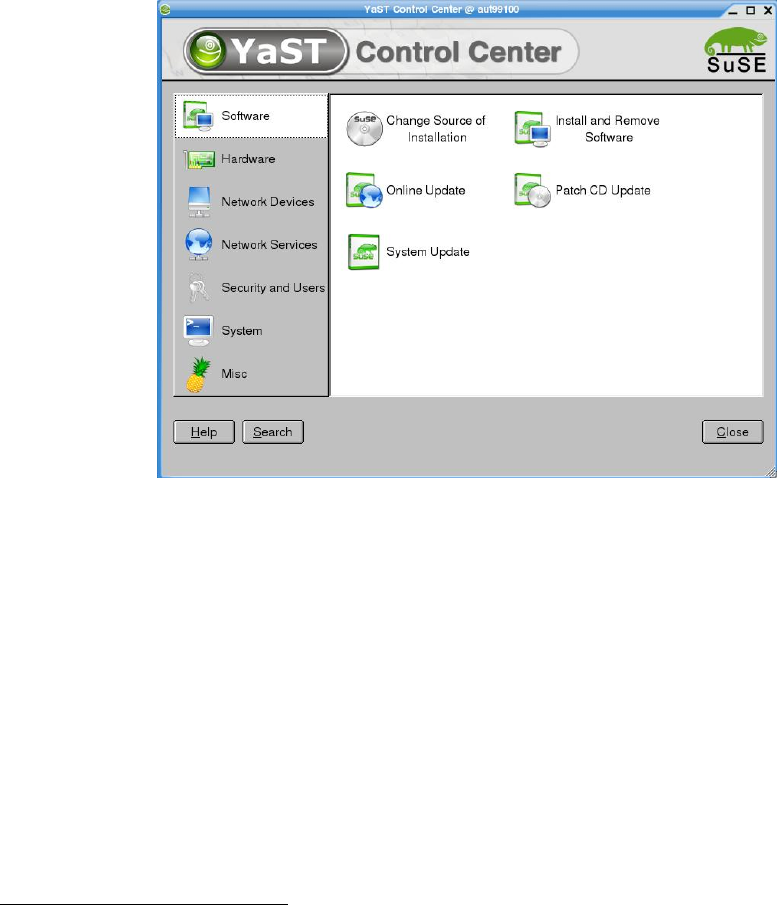
(and enter the "root" password) to start the "YaST Control Center" configuration tool.
Figure 4-15
50 of 69
2
e.g. System "Primergy Econel 20":
"Advanced" page
Entry "Advanced System Configuration"
Entry "USB Host Controller:" must have the value "Enabled"
Customized LRL SuSE 9.3 Installation Description
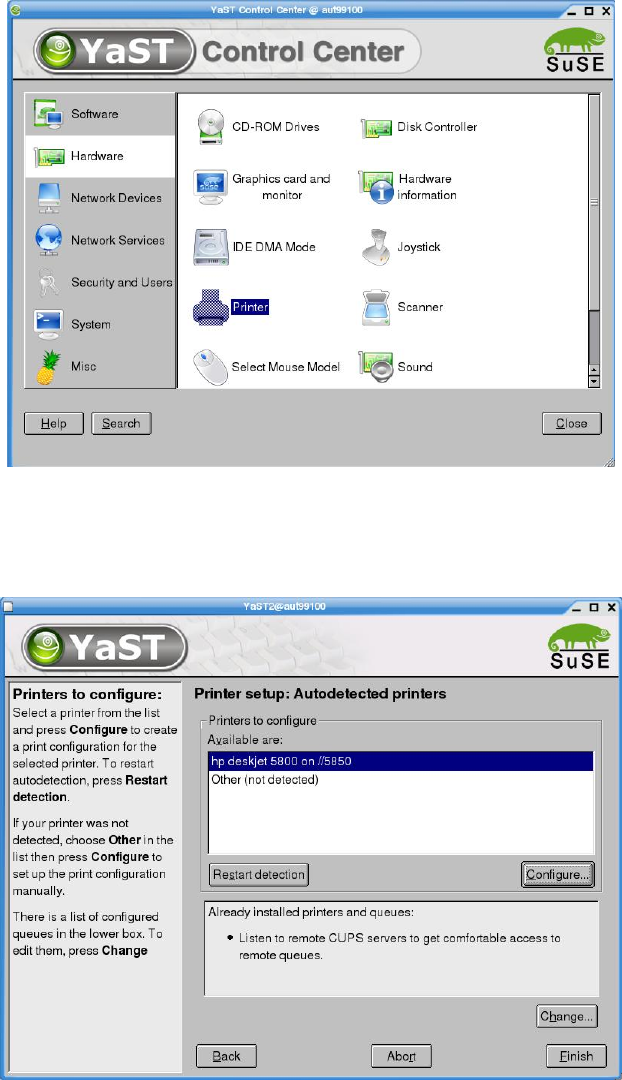
6. On the left, select the "Hardware" menu and then select the "Printer" function on the right.
Figure 4-16
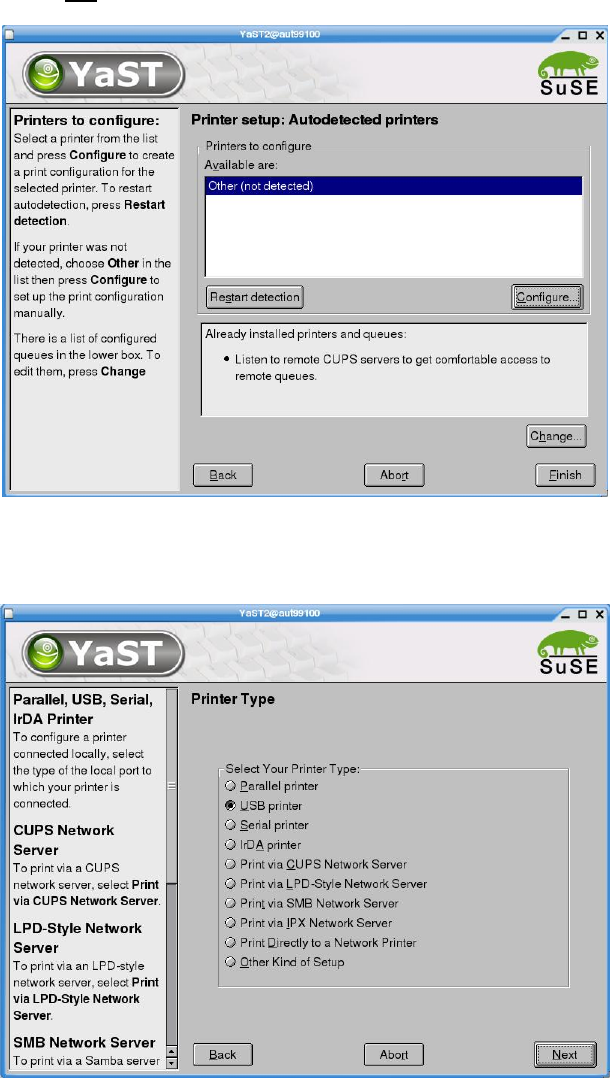
7. Under normal circumstances, the printer type is detected automatically. You can then change the
settings by clicking the "Configure" button and continue at point Fehler! Verweisquelle konnte
nicht gefunden werden..
Figure 4-17
51 of 69
Installation Description Customized LRL SuSE 9.3
8. If the printer type is not detected automatically:
Figure 4-18
you can specify the printer type by clicking the "Configure" button.
9. Select the entry "USB printer".
Figure 4-19
10. Confirm your entry with "Next".
52 of 69