Installationsanleitung_SuSE9.3_en.pdf - 第27页
Customized LRL SuSE 9.3 Installation Description 7. In the next dialog box, the installer program (YaST2) asks for the installation mode. Note "New installation" can also be sel ected at this point. If you do s…
Installation Description Customized LRL SuSE 9.3
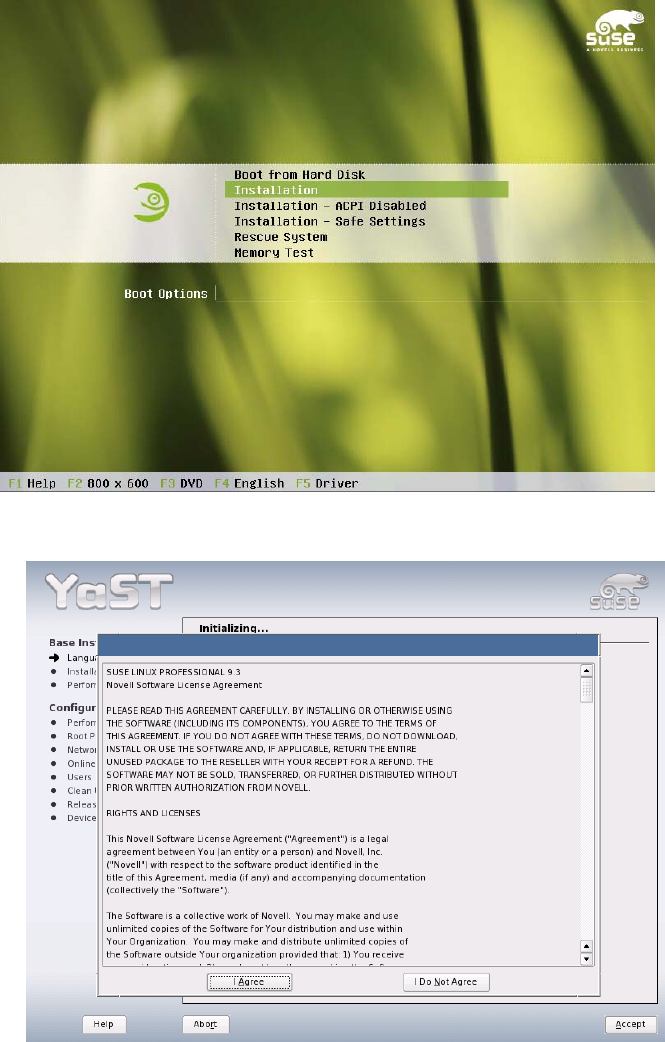
4. The system is restarted and must be booted from CD.
5. At the boot prompt, select the "Installation" menu item.
6. You must agree to the license terms for SuSE 9.3 by clicking the "I Agree" button in the next dialog
box.
26 of 69
Customized LRL SuSE 9.3 Installation Description
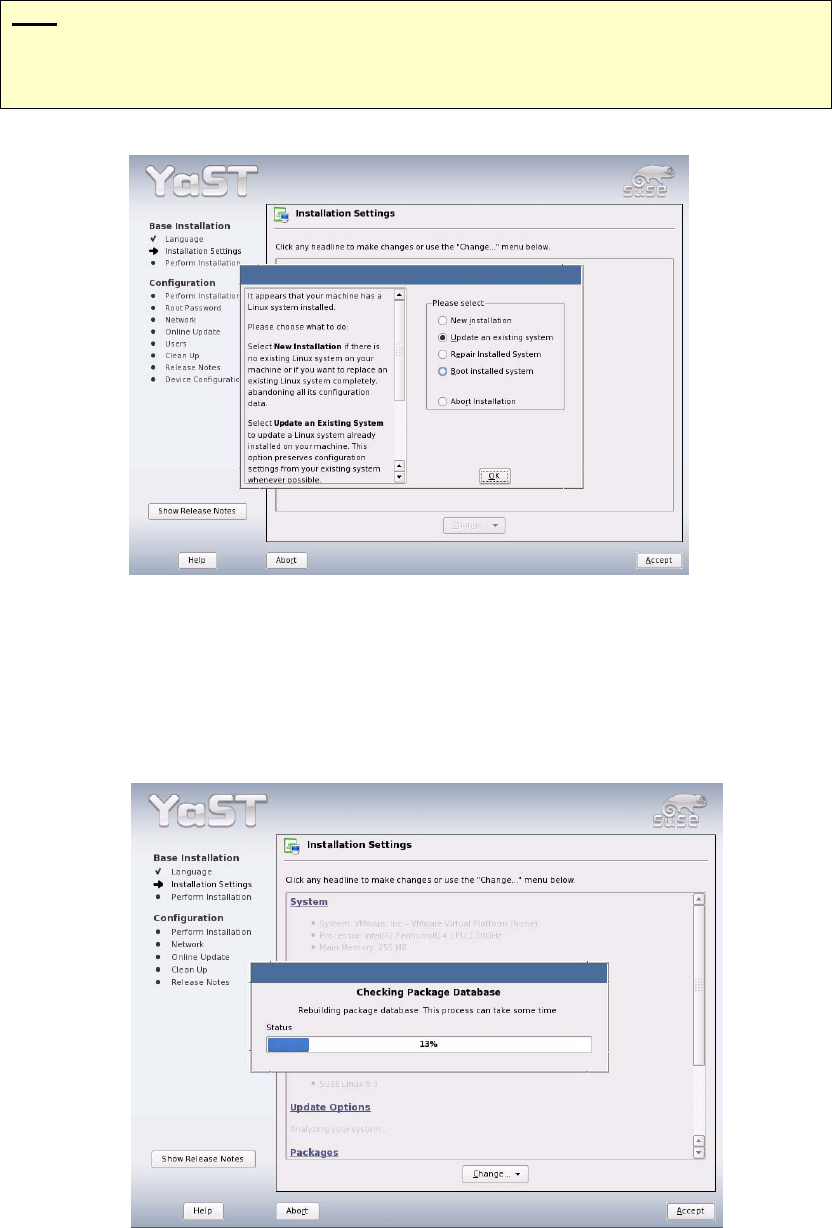
7. In the next dialog box, the installer program (YaST2) asks for the installation mode.
Note
"New installation" can also be selected at this point. If you do so, the computer will be
completely re-installed. Any existing data is lost. Continue with section 4.3.2, point 3.).
8. Select the menu item "Update an existing system" (this ensures that existing customer data and
settings remain unchanged) and confirm your choice with "OK".
9. The installer program then collects all the actions that need to be performed. The "Checking
Package Database" dialog box runs automatically.
10. If there are no problems when the system inspects the packages, proceed with step
16 ("Installation
Settings"). If any problems are displayed, proceed as follows (step
11).
27 of 69
Installation Description Customized LRL SuSE 9.3
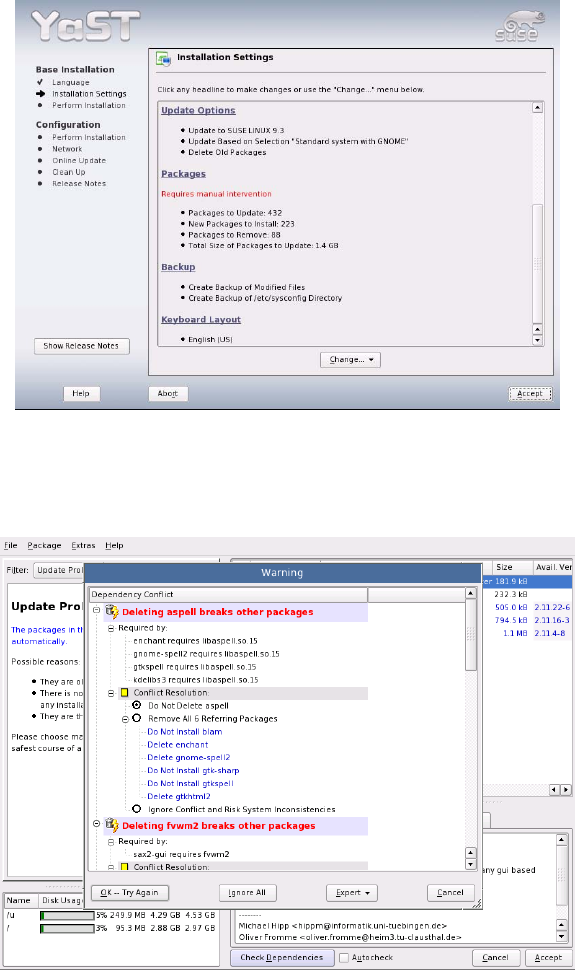
11. Scroll down the "Installation Settings" dialog box until you can see "Packages".
Click "Packages" if "Requires manual intervention" is displayed.
12. Select "Do Not Delete …" for every package listed here.
After this option has been set for all the packages, close the dialog box with "OK--TryAgain".
28 of 69