Installationsanleitung_SuSE9.3_en.pdf - 第46页
Installation Description Customized LRL SuSE 9.3 10. Select the USB port the printer is connected to. Figure 4-5 11. You can (should) click the "Test" bu tton to test the connection to the printer. Figure 4-6 1…
Customized LRL SuSE 9.3 Installation Description
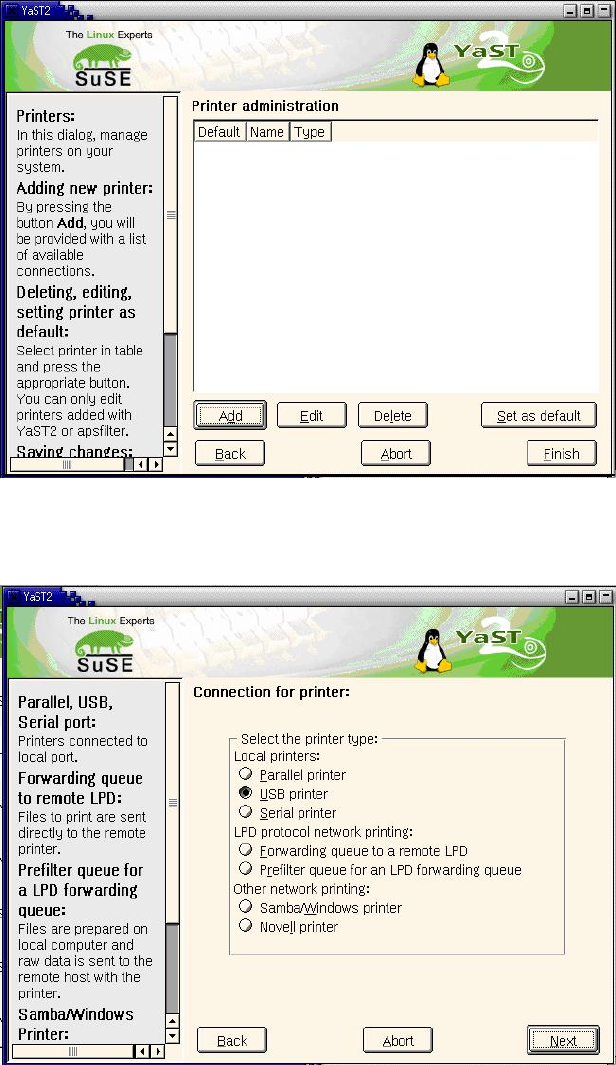
6. Any printers which have already been configured are displayed.
Figure 4-3
7. Click the "Add" button to add a new printer.
8. Select the printer type "USB printer".
Figure 4-4
9. Confirm your entry with "Next".
45 of 69
Installation Description Customized LRL SuSE 9.3
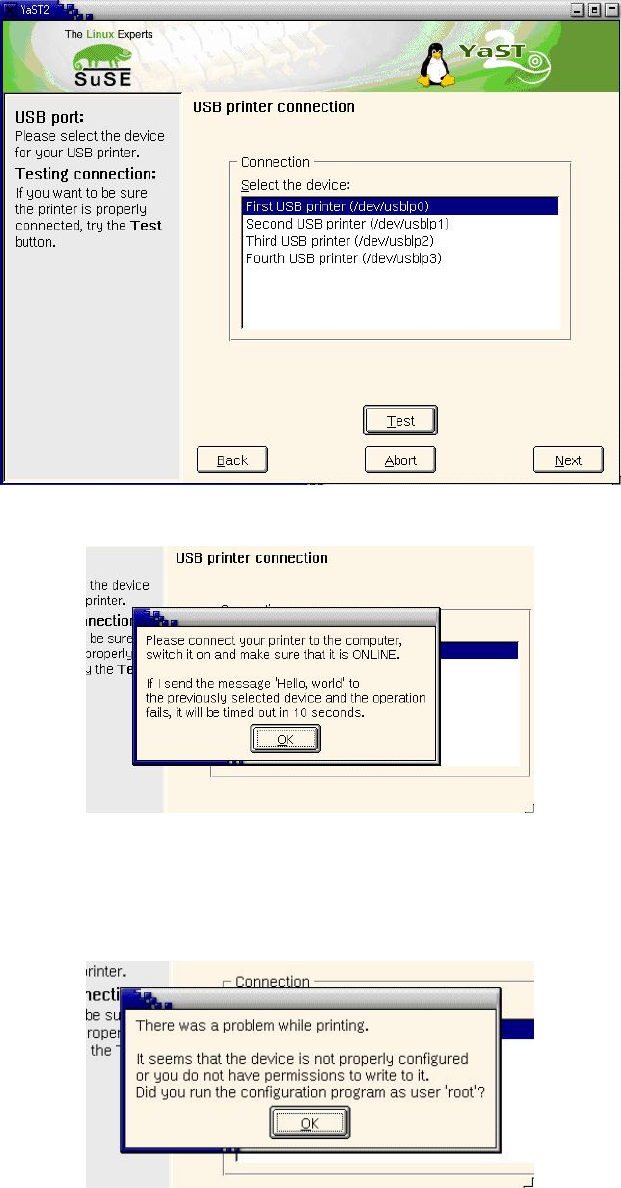
10. Select the USB port the printer is connected to.
Figure 4-5
11. You can (should) click the "Test" button to test the connection to the printer.
Figure 4-6
12. Confirm the message by clicking "OK".
13. If the connection test fails, confirm the message with "OK", return to point
10 above and select a
different port.
Figure 4-7
If the printer is not detected on any port, cancel configuration (using the "Abort" button in the dialog
box shown in point
10 above) and check the BIOS settings again (see "4.5.2.1.1 Requirements:"
above).
46 of 69
Customized LRL SuSE 9.3 Installation Description
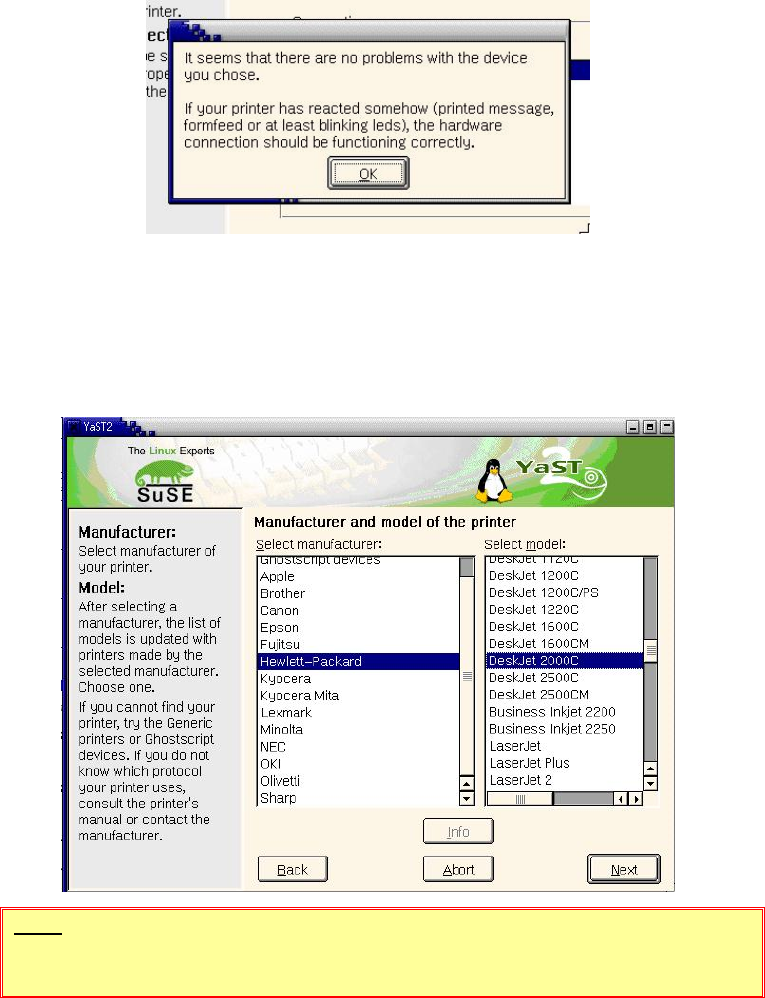
14. If the connection test was successful, confirm the message with "OK".
Figure 4-8
15. Confirm the dialog box shown in point 10 above by clicking the "Next" button.
16. Select the printer manufacturer and model:
Hewlett-Packard
DeskJet 2000C
Figure 4-9
NOTE
The model specified above must be selected!
17. Confirm the dialog box by clicking "Next".
47 of 69