Installationsanleitung_SuSE9.3_en.pdf - 第19页
Customized LRL SuSE 9.3 Installation Description 30. Enter the password for the user "plr". A warni ng is issued if the password you choose is too simple; you can confirm the password you have sele cted (b y se…
Installation Description Customized LRL SuSE 9.3
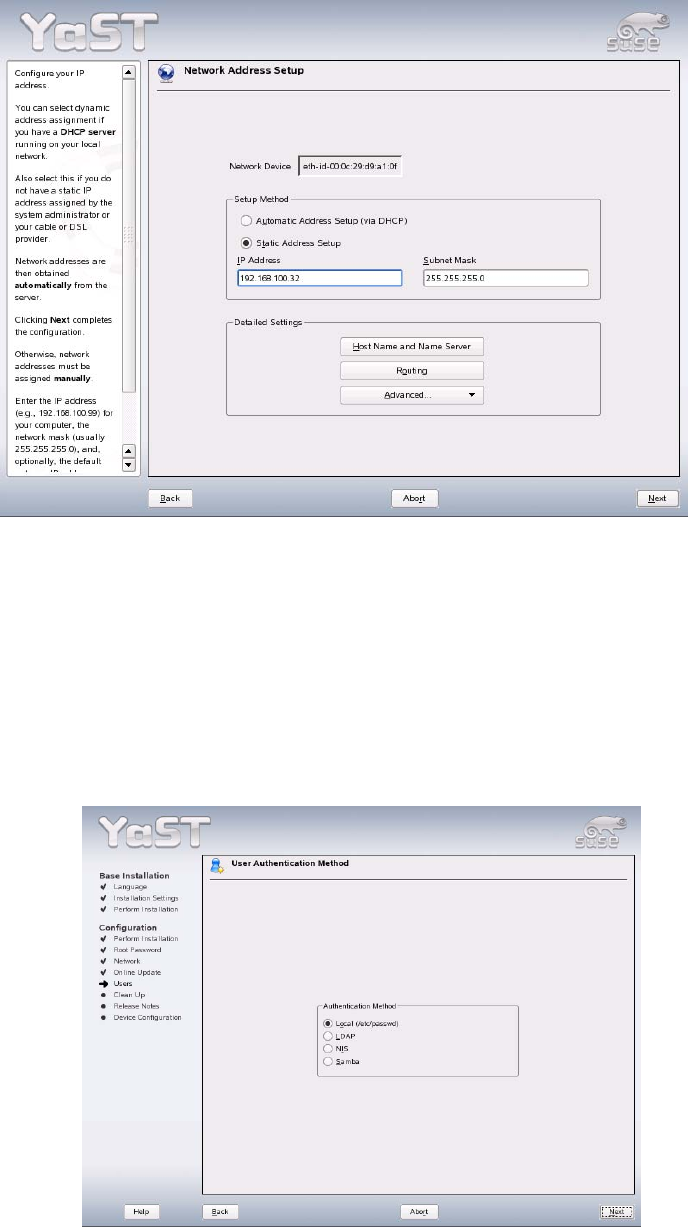
24. Select the option "Static Address Setup".
25. You only need to enter the TCP/IP address and the subnet mask. No other host name is needed.
26. Close the dialog box by clicking the "Next" button.
27. Close the "Network Cards Configuration Overview" dialog box by clicking "Finish".
28. Close the "Network Configuration" dialog box by clicking "Next".
The network configuration is now saved.
29. The "User Authentication Method" dialog box is opened. If "Local" has been selected, close this with
the "Next" button.
18 of 69
Customized LRL SuSE 9.3 Installation Description
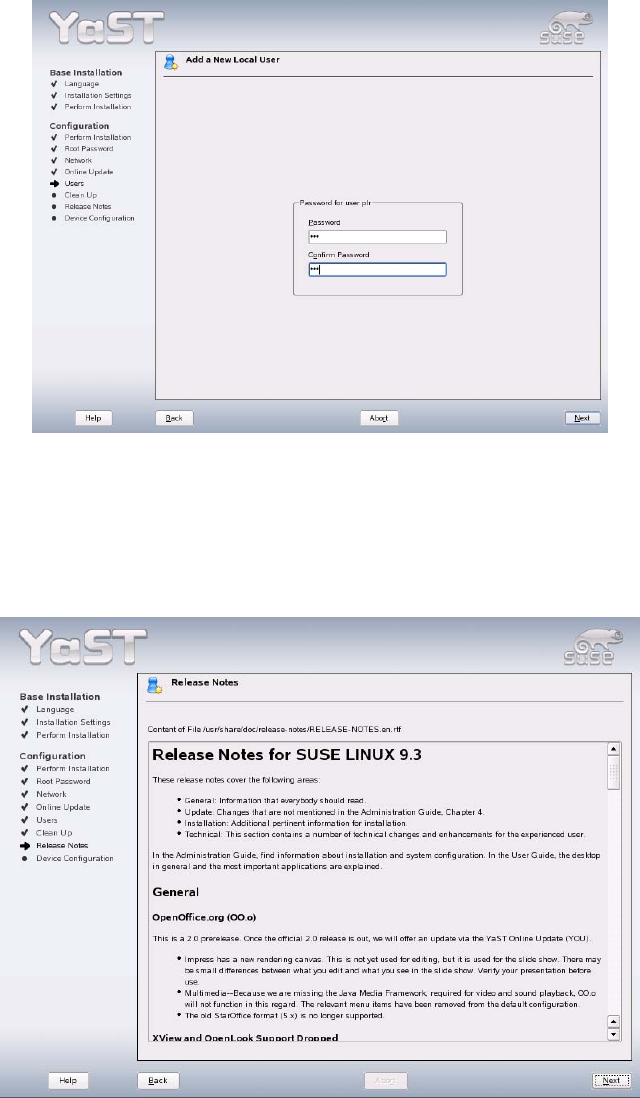
30. Enter the password for the user "plr". A warning is issued if the password you choose is too simple;
you can confirm the password you have selected (by selecting "yes") or you can select a new
password (by selecting "no").
31. Close the "Add a New Local User" by clicking "Next".
32. Close the "Release Notes" dialog box by clicking "Next".
19 of 69
Installation Description Customized LRL SuSE 9.3
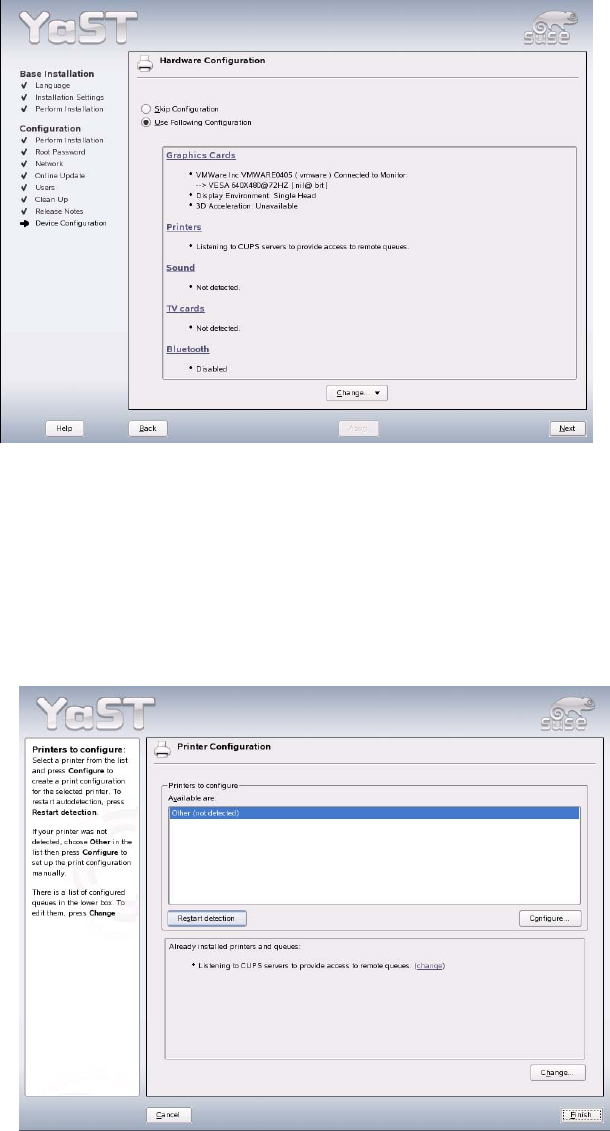
33. It is not necessary to reconfigure the graphics adapter. The recommended resolution can be retained
(you may wish to raise the refresh rate from 60 Hz to 72 or 80 Hz).
34. If there is no need to configure a printer, you can continue with point
44.
35. To configure an HP5850 printer, see section
4.5
36. Printers are installed by selecting the item "Printers".
37. If a printer is connected and the system detects this printer, select it, click the "Configure" button
and proceed with step
42 ("Edit configuration").
If this is not the case, the "Configure" button opens the "Printer Type" dialog box.
20 of 69